FIFA 23 camera settings
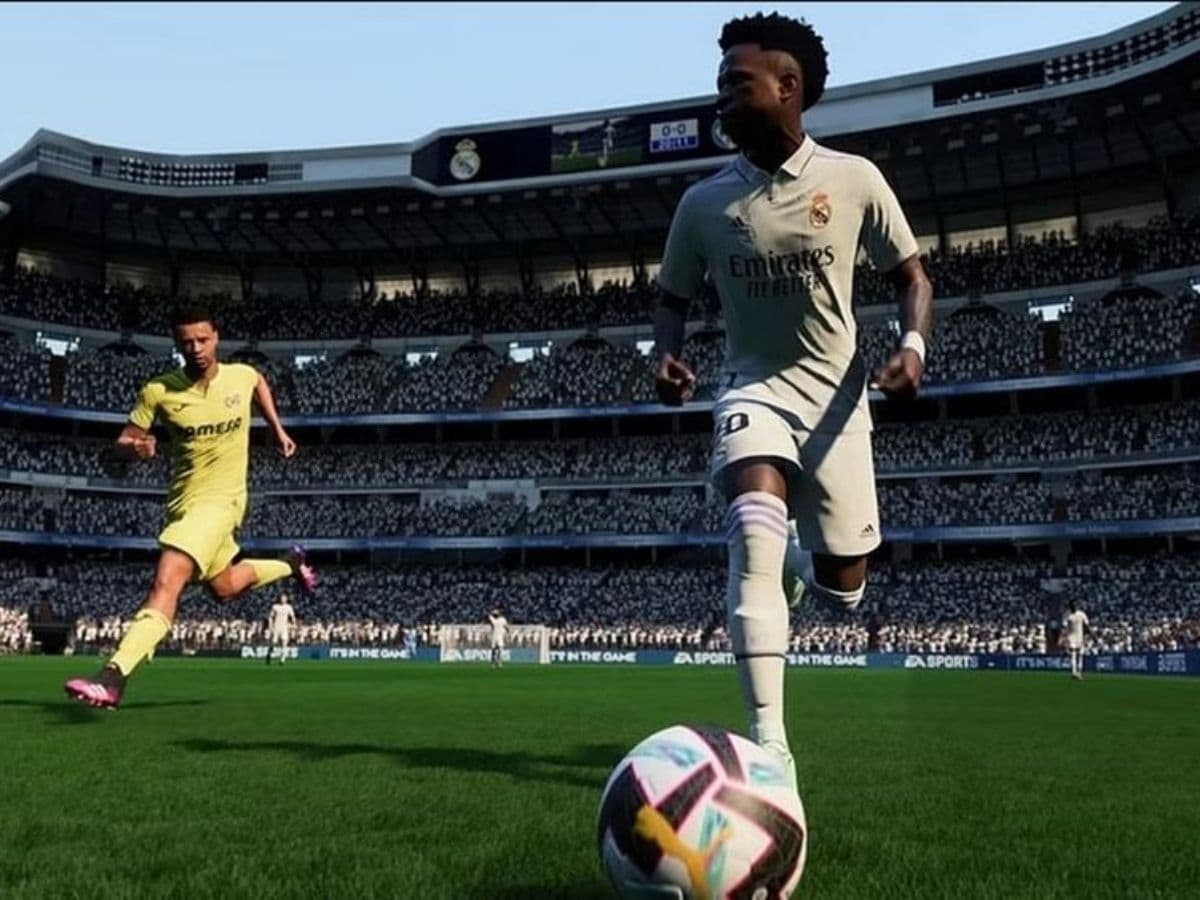
When it comes to dominating the pitch in FIFA 23, every detail counts, and tweaking your camera settings can make a world of difference. Whether you're a casual player looking for a smoother gaming experience or a competitive pro aiming for victory, finding the right camera setup is key. In this guide, we break down the best FIFA 23 camera settings for both casual and competitive play, ensuring you stay ahead of the game.
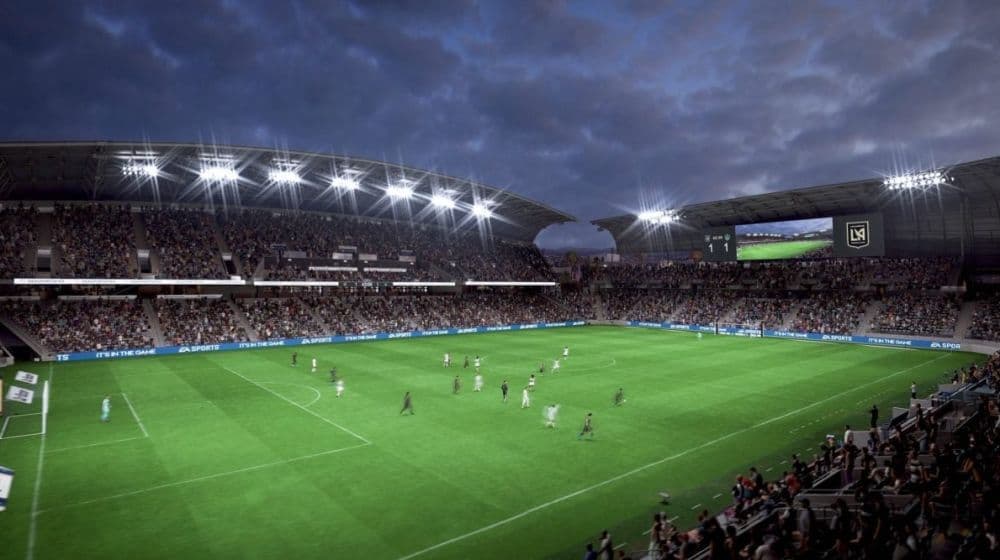
FIFA 23 best camera settings overall
For those seeking a set-it-and-forget-it approach, the FIFA 23 best camera settings for general play can elevate your gaming experience. Here's a quick rundown:
- Camera Type: Tele Broadcast
- Camera Height: 10
- Camera Zoom: 0
- Power Shot Zoom: Off
Opting for Tele Broadcast provides a well-balanced perspective, offering both close control and a broader view of the field. Setting the zoom to zero is crucial to maximize on-screen information, preventing missed opportunities when executing deep passes. While a Camera Height of 10 offers a comprehensive view from sideline to sideline, adjusting it to 20 can enhance your ability to time runs, albeit with a slight trade-off in peripheral vision.
Say goodbye to unnecessary complications by turning off Power Shot Zoom. While it may seem cool initially, this feature introduces inconsistency in both defending against and executing power shots. With some practice, you'll efficiently spot and handle power shots without distraction.
FIFA 23 Best Competitive Camera Settings
For those hungry for victory in competitive play, the recommended camera settings take a slight twist, focusing on Tele Broadcast:
- Camera Type: Tele Broadcast
- Camera Height: 10
- Camera Zoom: 0
Maintaining a Camera Height of 10 and Zoom of 0 ensures optimal differentiation between the ball carrier and the broader field, a critical advantage in competitive scenarios.
If Tele Broadcast doesn't suit your taste, consider the Co-Op camera with Camera Height set to 17 and Camera Zoom at 3. This option provides a wider view of the pitch, keeping more of your players in view simultaneously. Ideal for those who prefer frequent camera switches, this setting ensures you stay in control of the game.
Turn off Power Shot Zoom
The Power Shot Zoom might seem like a nifty trick, but in the cutthroat world of competitive play, it's more of a headache. The sudden camera switch can throw you off, especially after a blocked shot. Keep it smooth by setting the zoom to 0 – find the option at the bottom of the camera menu, and enjoy uninterrupted gameplay.
In a nutshell, mastering your FIFA 23 camera settings is the secret sauce for taking your gaming prowess to the next level. Whether you're in it for a casual kickaround or battling it out at the top, these settings might just be your ticket to victory.
FAQs
How to change camera view in FIFA 23
Open the main menu and go to Customize → Settings → Game Settings → Camera. From there, choose the camera type you prefer, such as Tele Broadcast, Co-Op, or Dynamic. You can also pause during a match, go into Settings, and change the camera view.
What is the best FIFA 23 camera angle
The “best” camera angle depends on your play style. Many players prefer Tele Broadcast with a high camera height and low zoom because it balances close control with a wider view of the pitch. Others like Co-Op for seeing more of the field, which is useful for passing and positioning. Adjust the height and zoom until you find what feels most comfortable.
How to change FIFA 23 settings
From the main menu, go to Customize → Settings → Game Settings. Here, you can adjust difficulty, camera, match sliders, controller preferences, audio, and display options. During a match, press pause and select Settings → Game Settings to change them on the fly.