zen camera settings for Rocket League
The young star, zen, has become a Rocket League esports sensation. Here are his in-game settings so you can see for yourself what pros are rocking.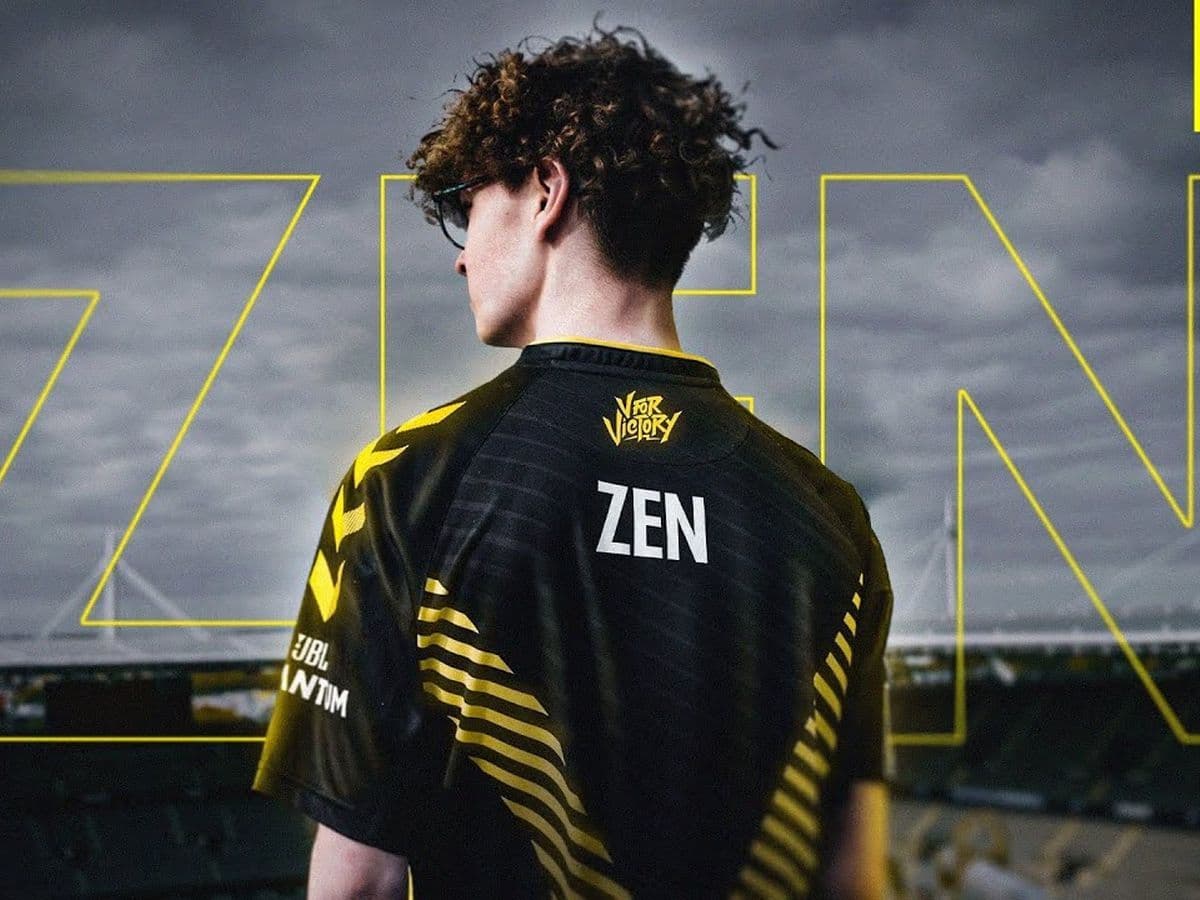
The zen camera settings are pivotal to understanding how Rocket League pros like Alexis "zen" Bernier achieve their competitive edge.
Alexis "zen" Bernier, a 17-year-old Rocket League sensation, has left a lasting mark—from dominating 1v1 showmatches to clinching the RLCS 2022-23 World Championship. His prowess has earned him honors, including a spot on Forbes' '30 Under 30' list in Sports & Games.
zen camera settings for Rocket League explained
zen camera settings in Rocket League are fine-tuned to give him the best view and control during matches.
Fine-tuning your camera settings in Rocket League can significantly improve your performance. Inspired by Alexis "zen" Bernier's setup, these adjustments are designed to boost your control and awareness on the field.
Experiment with settings like Field of View (FOV), Height, Angle, and more to find what suits your playstyle best. Whether you're focusing on precision or aerial maneuvers, these tweaks can give you a competitive edge like top players. Don’t you know what they mean? Keep reading and find out!
What do Rocket League camera settings mean?
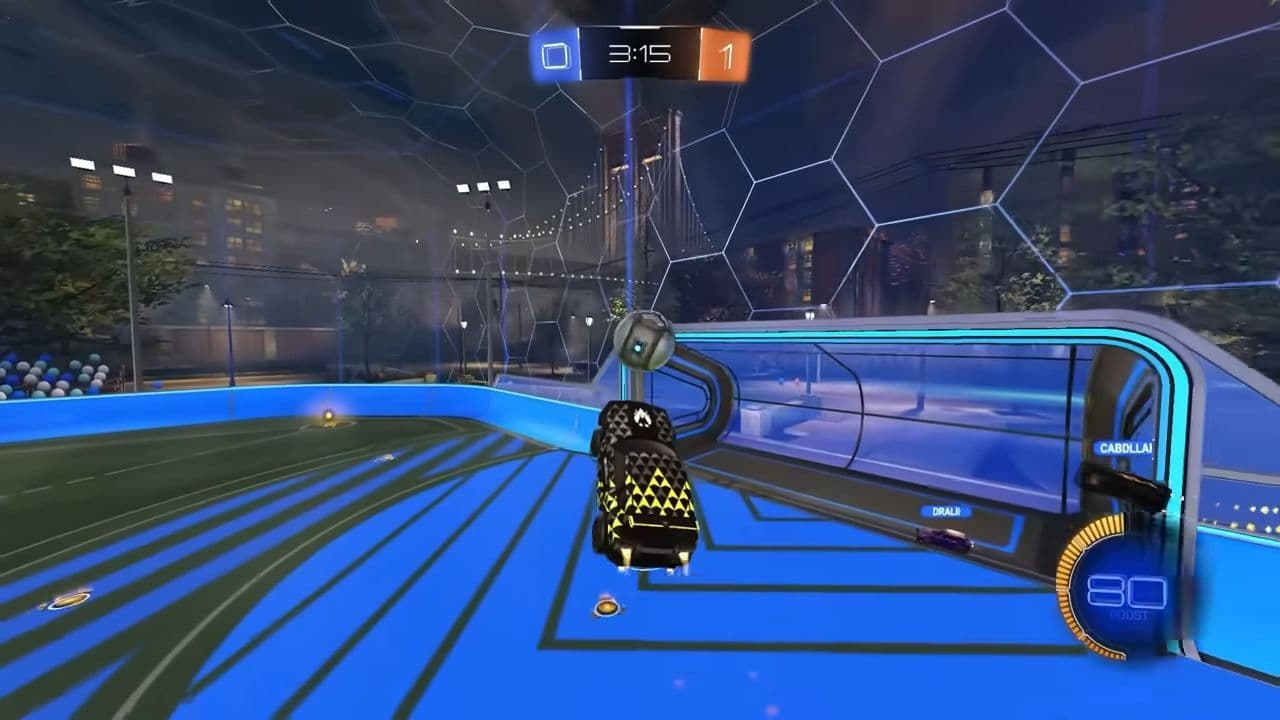
In Rocket League, tweaking your camera settings is crucial for seeing and controlling your car effectively on the field. Each option in the Camera Settings tab changes how you view the game and react to what's happening.
- Camera FOV (Field of View) adjusts how much of the field you see at once. Higher FOV settings give you a wider view, helping you spot opponents and the ball faster. This is great for staying aware of everything around you during fast-paced matches.
- Camera Height sets how high or low your view is above your car. Raising it helps with aerial moves and seeing the whole field, while lowering it can give you a closer look at ground-level action.
- Camera Angle tilts the view up or down. Adjusting this helps you focus on the ground for precise driving or tilt up for better aerial awareness.
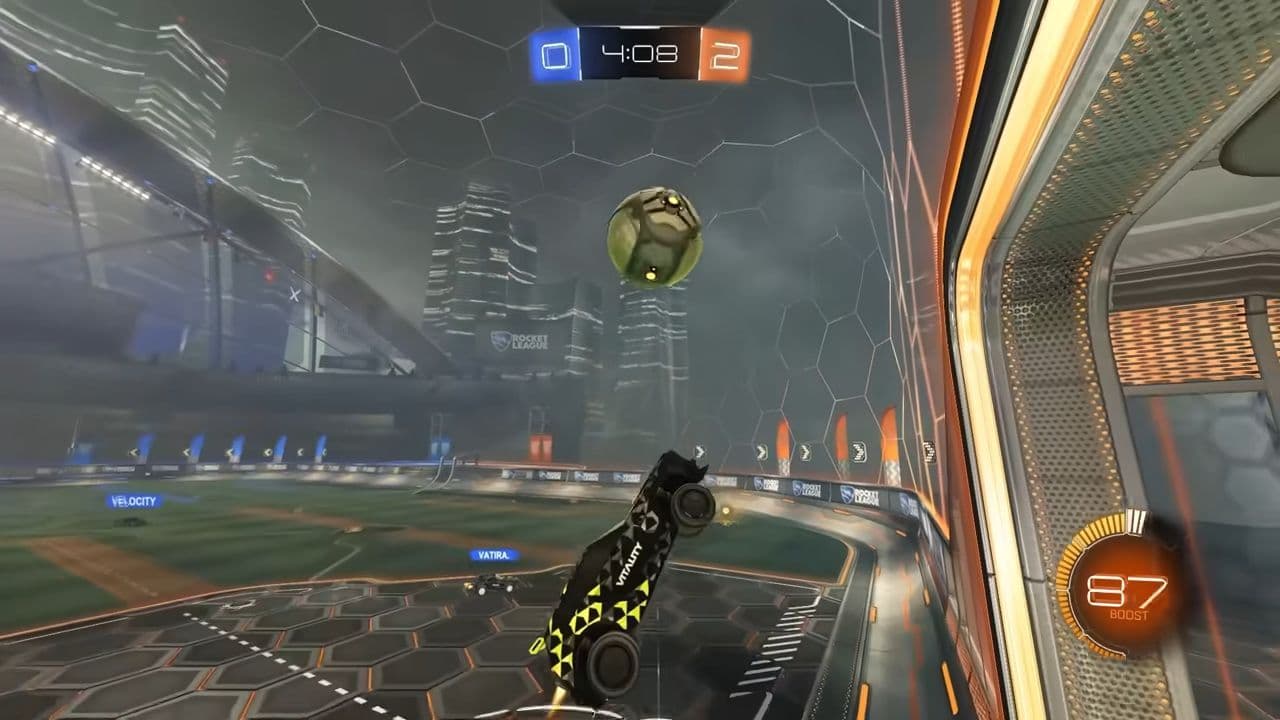
- Camera Distance decides how far back the camera is from your car. A longer distance shows more of the field, while a shorter one zooms in on nearby action.
- Camera Stiffness controls how tightly the camera follows your car. Higher stiffness feels more locked-in, while lower gives smoother movement.
- Camera Swivel Speed sets how fast the camera moves with your car. Faster speeds help you keep up with quick turns and action.
- Camera Shake adds realism by shaking the camera during fast moves. Turning it off reduces distractions for clearer gameplay.
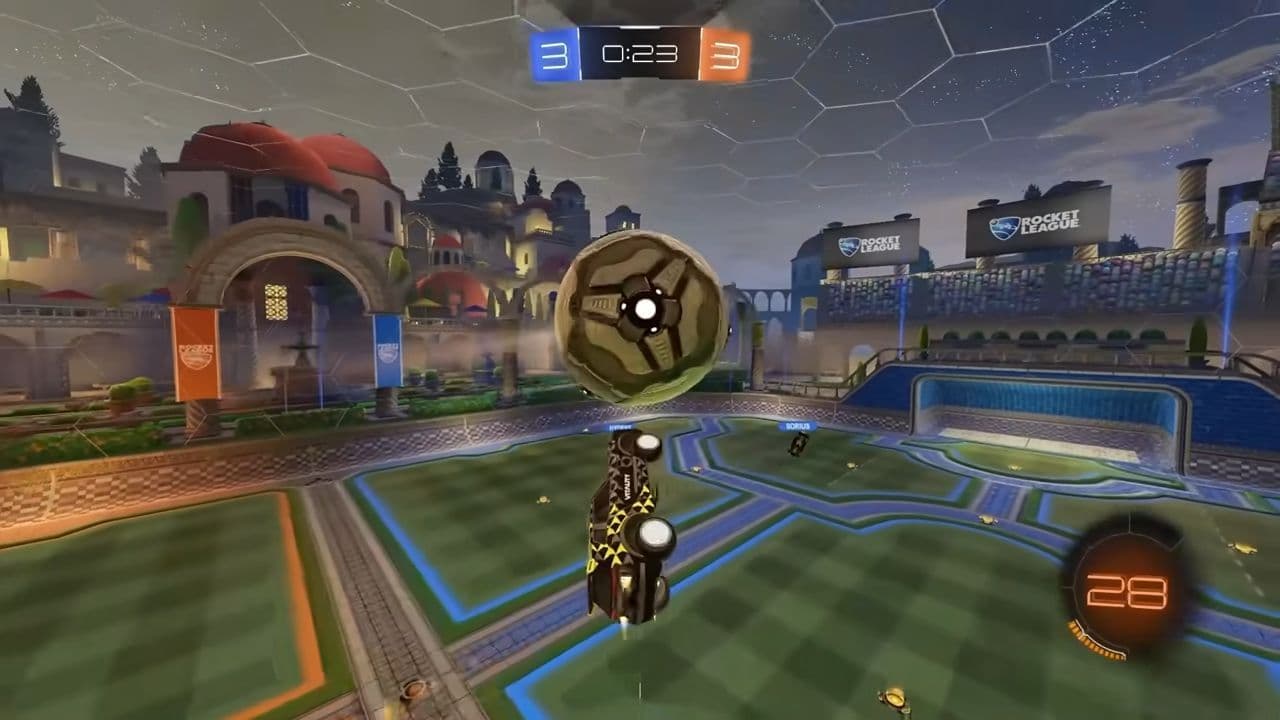
Ball Cam Indicator shows if Ball Cam is on or off. It helps you know if you're focusing on the ball or your car.
By adjusting these settings to fit your style, you'll have better visibility and control in every Rocket League match, improving your gameplay overall.
How to change Rocket League camera settings
Changing your Rocket League camera settings is straightforward and can be done from within the game's options menu:
- Launch Rocket League and navigate to the main menu.
- Select "Settings" from the menu options.
- On the Settings menu, choose "Camera."
- Under Camera, you can find all the adjustable camera settings.

By following these steps, you can easily customize your Rocket League camera settings to suit your playstyle and improve your overall gameplay experience.
Bonus: zen controller settings
While you are changing the Rocket League camera settings, you may want to look at zen controller settings too:
That’s all! Now you all zen’s preferences. Take some time to adjust your settings, practice, and elevate your Rocket League skills to the next level with them.
FAQs
What is camera stiffness in Rocket League?
Camera stiffness controls how tightly the camera follows your car’s movement.
- High stiffness means the camera moves quickly and stays close to your car.
- Low stiffness means the camera moves more smoothly and gently, giving a more relaxed view.
Most players like a stiffness around 0.4 to 0.5 because it’s a good mix of smoothness and control.
What is the best camera setting in Rocket League?
The best RL camera settings depend on what feels comfortable for you, but many players like these settings to start with:
- Camera Shake: Off (to avoid distractions)
- Field of View (FOV): 110 (to see more around you)
- Distance: 270 (a good balance of view)
- Height: 100 (helps with seeing the ball and field)
- Angle: -3.0 (tilts camera slightly down for better ball tracking)
- Stiffness: 0.45 (keeps the camera smooth but responsive)
- Swivel Speed: 5.5 (controls how fast the camera moves around)
- Transition Speed: 1.2 (how fast the camera switches between ball cam and car cam)
- Invert Swivel: Off (unless you like inverted controls)
How to get 120 fps on Rocket League?
To get 120 FPS in Rocket League, make sure your monitor or TV supports 120Hz and is connected with the right cable (like HDMI 2.1 for consoles). On your PC or console, set the game’s video settings to performance mode, lower graphics if needed, and turn on 120 FPS or 120Hz output in the settings. This helps the game run smoother and feel more responsive.