Why is Warzone 2 so laggy?
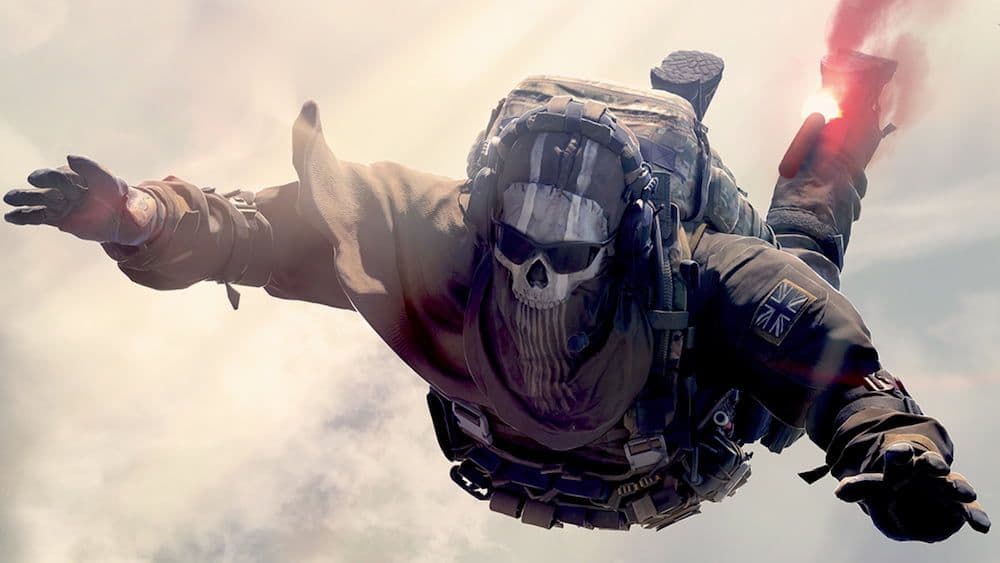
The only thing worse than losing at Warzone 2 is losing because of a lag issue. Missed headshots and undeserving deaths are a controller-breaking, rage-fueling drag, to say the least!
Since Call of Duty’s latest battle royale hit the gaming scene in September 2022, players have had their grumbles about lag. But don’t let that put you off! You’d be surprised to find out just how easy it is to stop Warzone 2 from being so laggy.
So if you’re ready to say sayonara to a stuttering game and hello to one of the most popular battle royales in town, you’re in the right place.
What causes Warzone 2 to lag on PC?
Nine times out of ten, a laggy Warzone 2 on PC comes down to the computer you’re using.
Common culprits include computers that don’t meet the game’s minimum requirements, and computers with limited resources. A stressed-out computer trying to run a billion tabs and other apps isn’t going to have the oomph it needs to play the game smoothly.
That said, sometimes a lag problem is more down to a new patch. If that’s the case, you can still try the fixes we’ll go into in a second, but you might have to just be patient while Infinity Ward solves this unintended snafu.
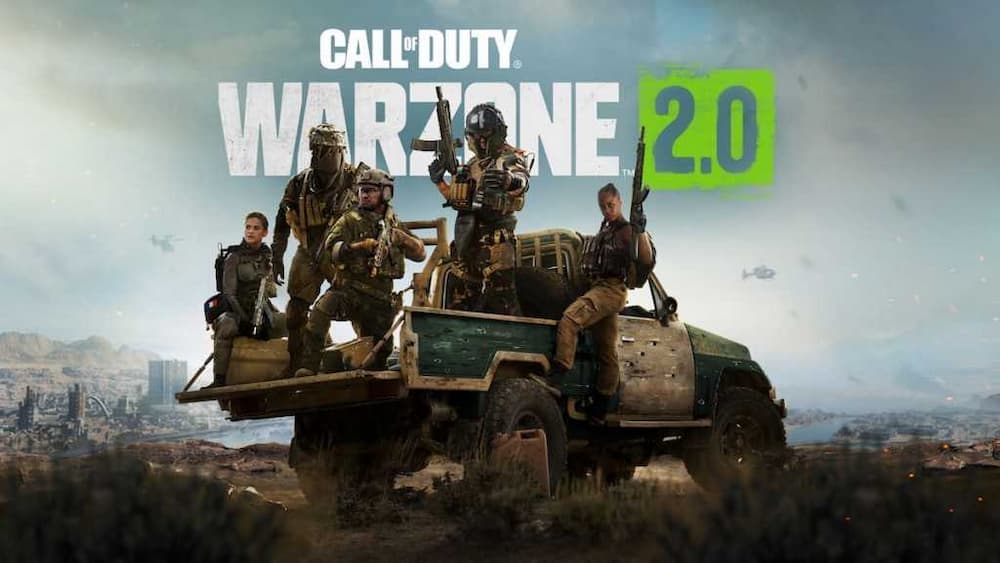
How to stop Warzone 2 from lagging on PC
Thankfully, you can make some tweaks to the graphics settings to make a low-end PC run the game smoother than silk, and do away with any pesky game stutter.
If that doesn’t work, here are some other tricks you can try to fix that lag (starting with the easiest/quickest)…
Play in Fullscreen Exclusive mode
Weirdly enough, playing in the default Fullscreen Borderless mode can cause laggy issues and low FPS.
This simple change could make all the difference in the world (plus it’s what all the cool kids use… by which we mean pro players, obviously!).
Close it all down
Restart your computer, then open the Task Manager and check that you don’t have any apps that loaded on startup and are taking up any valuable processing power.
Plenty of apps like Discord default to do this automatically. Right-click any that you don’t need right now and select to end the task.
When you’re sure nothing else is running, try loading Warzone 2 again and see if that fixed the lag problem.
Check your network connection
A throttled internet connection can absolutely cause plenty of lag issues. Unless you forgot to pay your ISP, it should be pretty easy to fix this. Here’s what we suggest…
- Perform a speed test to see if this might be the problem (there are loads of free ways to do this, just Google it).
- While your router is still turned on, unplug the power cable.
- Wait for a minute, then plug the power back in.
- Reconnect to the internet when the router has fully rebooted.
Update your GPU drivers
Don’t worry, it’s easier than it sounds!
- Open the computer’s Control Panel and load the Device Manager.
- Expand the Display adapters.
- Right-click your graphics card and click Update driver.
- Select the option to Search automatically for drivers.

Scan and repair game files
Warzone 2’s game files might just need a little TLC.
Here’s how to do that on Steam…
- Right-click Warzone 2 in your game library.
- Click Settings, then Properties.
- Click Local Files, then Verify integrity of game files.
And here’s how you do it on Battle.net…
- Click on Warzone 2, then the cog icon beside the Play button.
- Select Scan and Repair.

Reinstall
When all else fails, you’d be amazed how often uninstalling and reinstalling fixes technical issues. It’s no different with Warzone 2.
Think of this as the ultimate “turn it off and on again” method.
What if Warzone’s lagging on console?
It’s not uncommon for console gamers to report laggy issues. Whether you’re rocking the latest PS5 version, or you’re one of Warzone’s Xbox gamers, your best bets to stop the stuttery gameplay are…
- Plug your console directly into your router.
- Move your console closer to your router.
- Make sure your console is well-ventilated.
- Check your console has enough storage space left.
- Update your console software to the latest version.
- Check all your cables are securely connected.
You might also have some success if you tweak your in-game settings, as we’ve already covered.
FAQs
How to make Warzone 2 run better?
To make Warzone 2 run smoother, optimize both your system and in-game settings. Lower demanding graphics options such as ambient occlusion, reflections, and shadows, which consume the most GPU power. Disable motion blur, depth of field, and film grain for clearer visuals and faster performance. Ensure your drivers are updated, the game is installed on an SSD, and background apps are closed. Setting your render resolution between 90–100% also helps maintain visual quality while boosting FPS. Enabling NVIDIA Reflex or AMD Anti-Lag can reduce latency and make the game feel more responsive overall.
How to get 144 FPS in Warzone?
To achieve 144 FPS, you’ll need strong hardware and optimized settings. A modern high-end CPU and GPU combination, at least 16 GB of RAM, and a monitor with a 144 Hz refresh rate are essential. Run the game at 1080p or 1440p resolution to ease GPU load. Lower settings like shadows, lighting, and post-processing to maintain stability. Turn off unnecessary overlays and background programs. If performance is still inconsistent, enable DLSS or FSR upscaling to gain extra frames without major image loss. With tuned settings and capable hardware, consistent 144 FPS is achievable.
Can you run Warzone in 4K?
Yes, Warzone can run in 4K, but it requires powerful hardware to do so effectively. A high-end GPU like an RTX 3080 or newer and a strong CPU are recommended for smooth 4K gameplay. You may need to reduce some graphic settings such as shadows, particle effects, and motion blur to maintain stable FPS. Expect around 60–90 FPS in 4K on top-tier systems; reaching 120+ FPS typically demands the latest hardware. For a balance of quality and performance, use DLSS or FSR in performance mode — it keeps visuals sharp while easing GPU strain.
Guide Categories
All Related Guides
 How to check MW4 Beta stats: K/D, wins, kills & Combat RecordLearn how to check your MW4 Beta stats, including K/D, wins, kills, playtime, weapon stats, Combat Record, and...
 How to change your name in WarzoneChanging your Warzone name is simple once you know where to look. Follow the steps and learn how Activision ID...
 How to inspect your gun in WarzoneLearn how to inspect your gun in Warzone on PC, PS5, PS4, and Xbox, plus how to view a weapon’s equipped attac...
 What are Loot Caches in Warzone? Caches vs. Crates explainedWhat are Loot Caches in Warzone? Learn what counts, the difference between caches and crates, and the fastest ...
 What is an infil weapon in Warzone?What is an Infil Weapon in Warzone? Learn what counts and how to get Infil Weapon eliminations....
 Warzone Lockdown Casual guide (New mode)Learn how Warzone Lockdown Casual works, including objectives, respawns, loadouts, rewards, and the best strat...
 How to get Juggernaut in Warzone fastLearn how to get the Juggernaut in Warzone fast, where Juggernaut Drops spawn, and the best tips to survive us...
 How to get a nuke in WarzoneSee how to get a nuke in Warzone, from earning a Champion’s Quest Contract to defending the missile and claimi...
- 1
- 2
- 3
- 4
- 5
- 6