Best Settings for Warzone
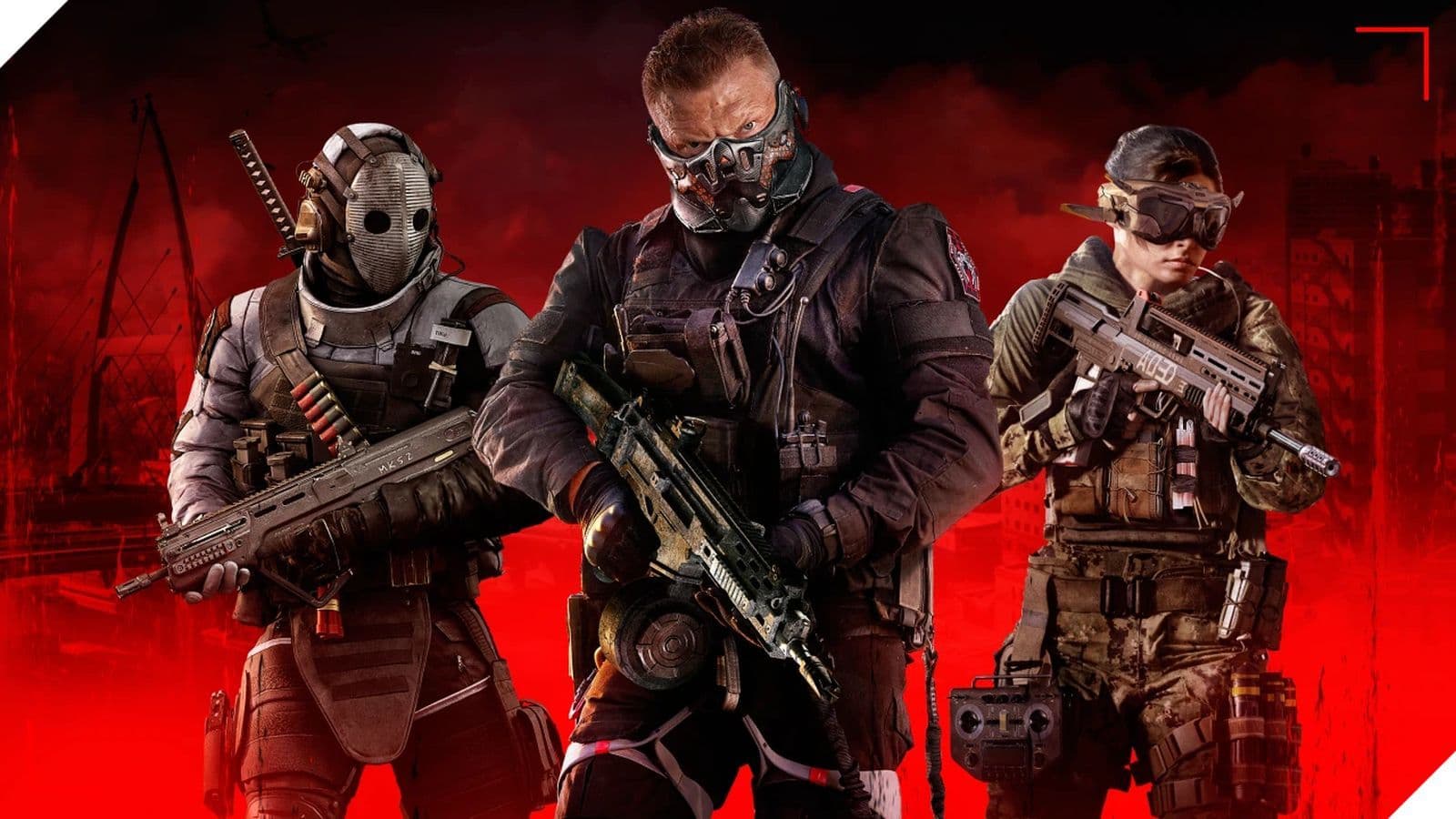
What Warzone settings do you need to use? The battleground of Warzone demands more than just skill—it requires precision in settings to gain the edge over adversaries.
Whether you're maneuvering through the ruins of Verdansk or taking on the challenges of Caldera, understanding and refining your controller, graphics, and audio settings can significantly impact your gameplay.
What will change with these best Warzone settings?
Imagine a scenario where your controller responds seamlessly to your commands, visual clarity reveals hidden adversaries and every footstep and distant gunshot resonates vividly in your ears, guiding your decisions on the battlefield. This is the power of optimizing Warzone settings—a power that's often underestimated yet holds the key to dominating the game.
Optimizing settings in Warzone can significantly impact gameplay. Here's a detailed breakdown of some of the best settings across controller, graphics, and audio:
Best Warzone 2 controller settings
Embark on a journey to victory in Warzone 2 by unlocking the full potential of your gameplay with meticulously crafted and optimized controller settings.
Input settings
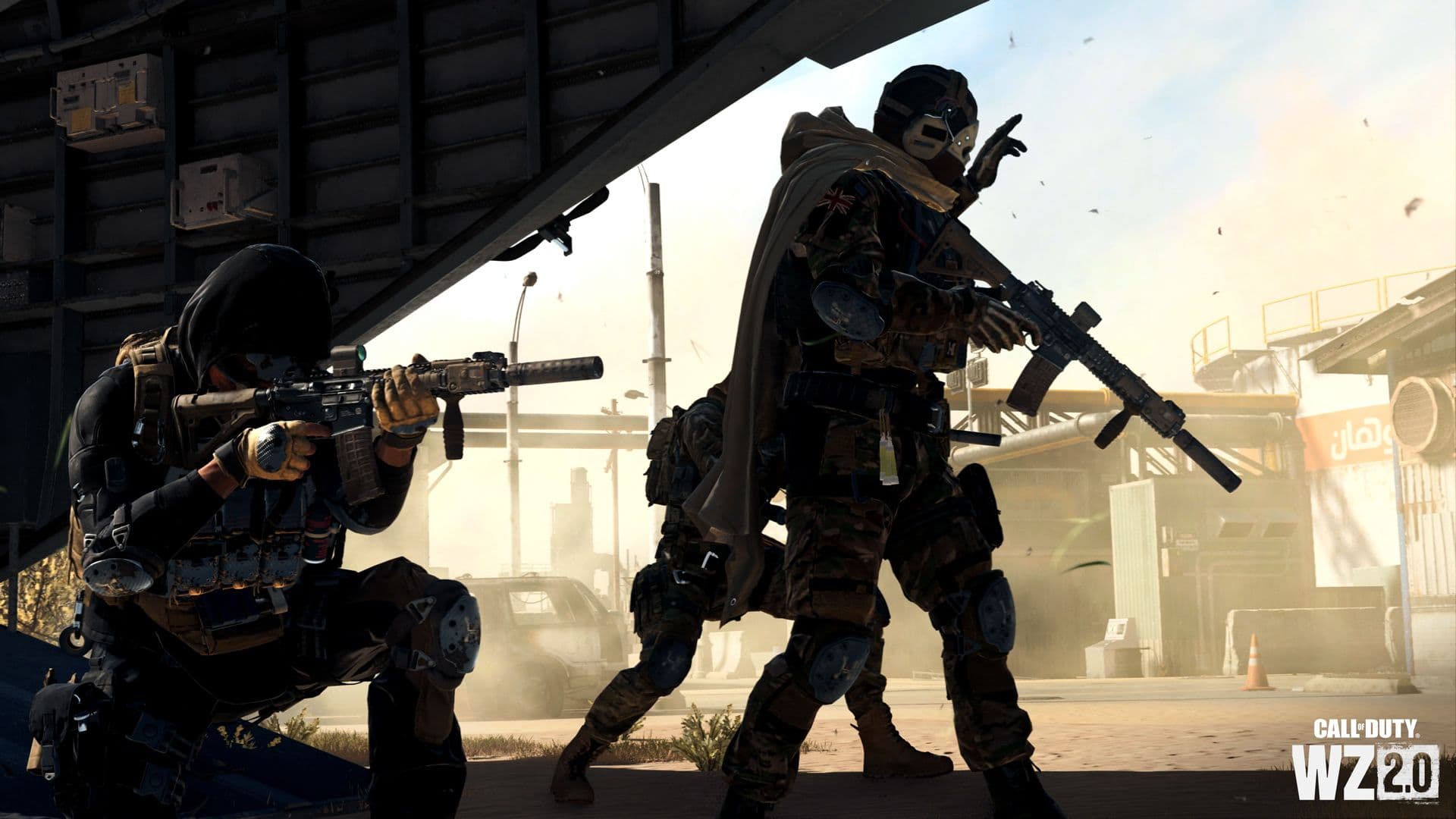
Fine-tuning your controller's input settings is crucial in Warzone. The button layout, stick configurations, and deadzone settings can significantly impact maneuverability and aiming precision.
- Button layout preset (Tactical): This configuration places critical actions like crouching and going prone on more accessible buttons, enhancing maneuverability during combat.
- Bumper Ping (Off): Disabling bumper ping prevents accidental pinging during intense moments.
- Stick layout preset: Default
- Controller vibration (Off): Removing controller vibration reduces distractions and can improve aiming precision.
- Deadzone settings: Adjusting deadzone values eliminates controller stick drift, ensuring precise control over movement.
- Test Stick Deadzone: Off
- Left Stick Min: 0
- Left Stick Max: 99
- Right Stick Min: 4
- Right Stick Max: 99
- Left Trigger: 0
- Right Trigger: 0
Aiming settings
Achieving pinpoint accuracy is a game-changer in Warzone. Adjusting sensitivity, aim assist, and motion sensor behavior can make all the difference between landing the perfect shot or missing the mark.
- Sensitivity (Horizontal/Vertical Stick): Determines how quickly your view moves when using the controller sticks.
- Horizontal Stick Sensitivity: 6
- Vertical Stick Sensitivity: 6
- ADS Sensitivity Multiplier (1.00): Adjusts how sensitive your aim becomes when aiming down sights.
- Target aim assist: On
- Aim Response Curve Type: Dynamic
- Aim Assist Settings:
- Target Aim Assist: On
- Aim Assist Type: Black Ops
- Third-Person ADS Correction Type: Assist
Movement & combat behaviors
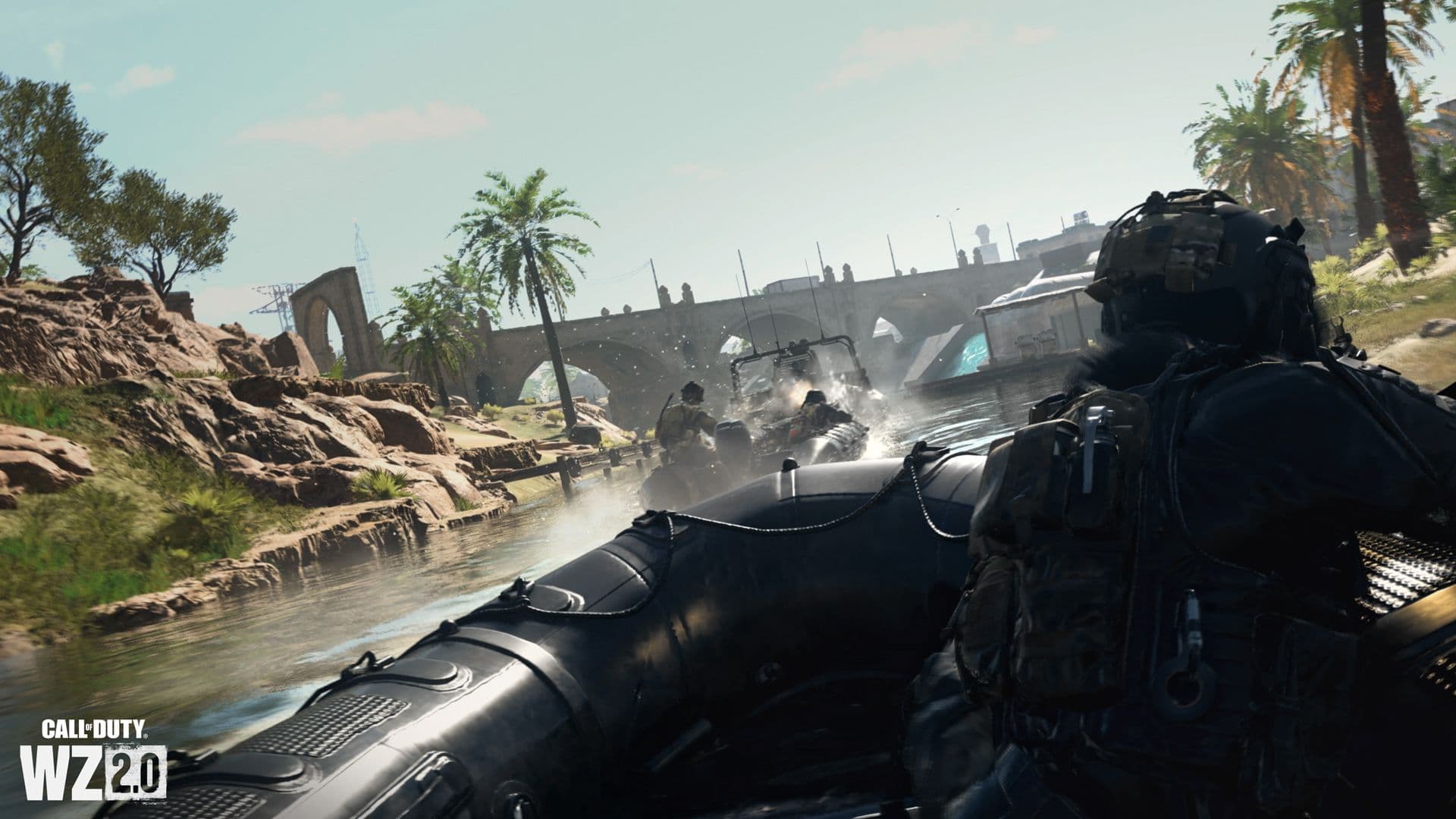
Mastering movement and combat behaviors can give you an edge in intense battles. From automatic sprinting to precise combat actions, these settings streamline your actions for swift and effective gameplay.
- Automatic sprint (Automatic Tactical Sprint): Automatically engages tactical sprint, facilitating faster movements.
- Slide/Dive behavior (Slide Only): Limits movement options to sliding, aiding quick evasive actions.
- Combat behaviors: Configurable settings for aiming, reloading, and weapon interactions, enhancing combat efficiency and fluidity.
- Aim Down Sight Behavior: Hold
- Change Zoom Activation: Sprint/Tactical Sprint/Focus
- Interact/Reload Behavior: Prioritize Reload
Best Warzone 2 graphics settings
Prepare to dive into the heart of Warzone 2's battlegrounds with our guide to the ultimate graphics settings. We're unleashing the visual power, mixing stunning detail with flawless performance, for an immersive gaming experience like no other.
Quality presets
Balancing visual fidelity and performance is key. Customizing settings like render resolution, texture quality, and shadow details can elevate your gaming experience without compromising performance.
- Render Resolution (100): Adjusts the game's resolution; higher values offer clearer visuals but can affect performance.
- Texture Resolution (Very Low): Lowers texture quality for smoother performance.
- Shadow Quality (Normal): Balances visual fidelity with performance impact.
- Ambient Occlusion (Both): Enhances depth and realism in shadows and lighting.
View settings
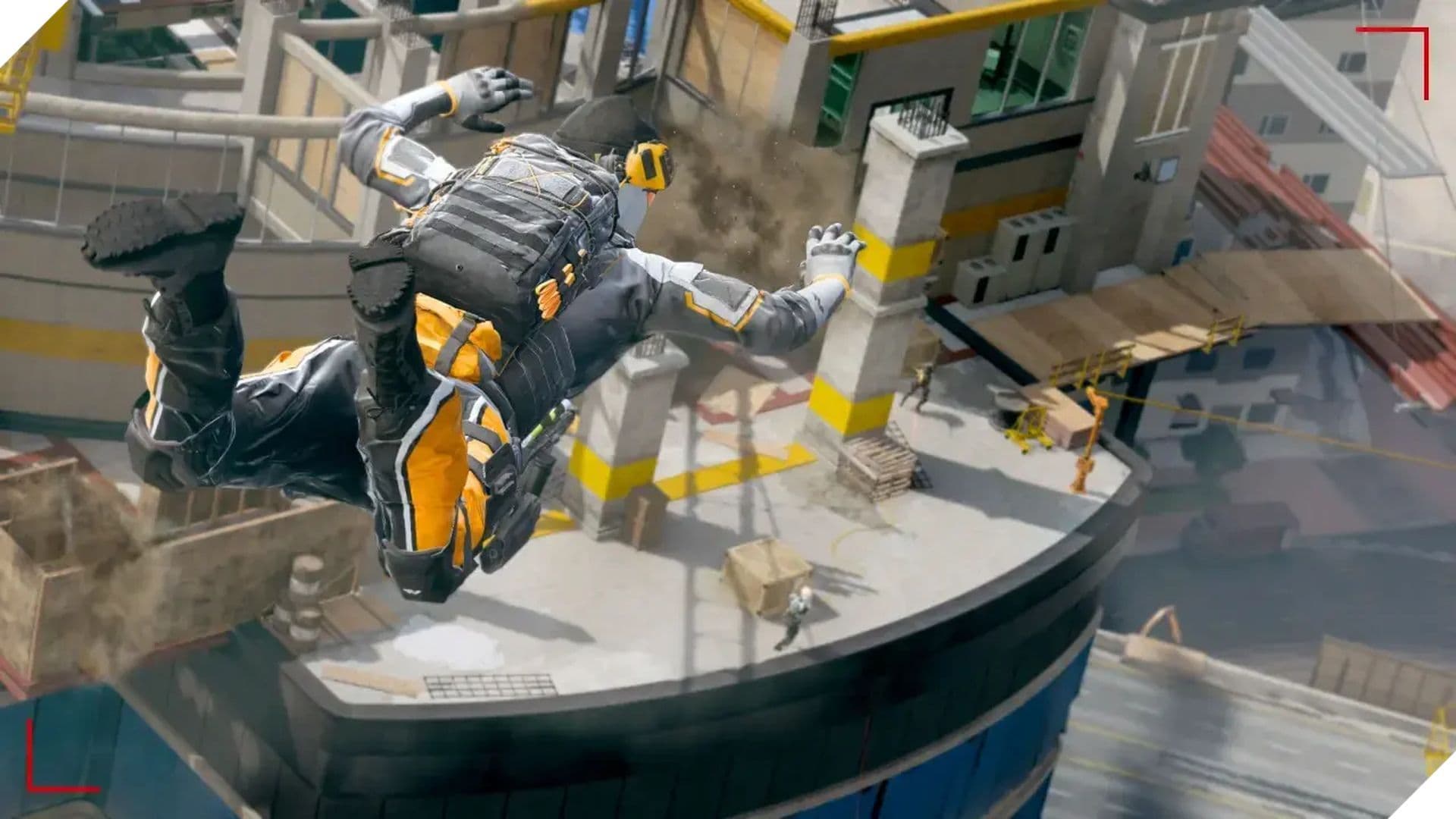
Enhancing your field of view and tweaking visual effects can significantly impact your awareness and immersion in the game. Adjustments in motion blur, brightness, and FOV can transform your perspective on the battlefield.
- Field of View (120): Increases peripheral vision, enabling better awareness of surroundings.
- Motion Blur (Off): Turning off motion blur reduces visual distractions during fast movements.
- Brightness: Adjusts the overall brightness of the game based on personal preference.
Best Warzone 2 audio settings
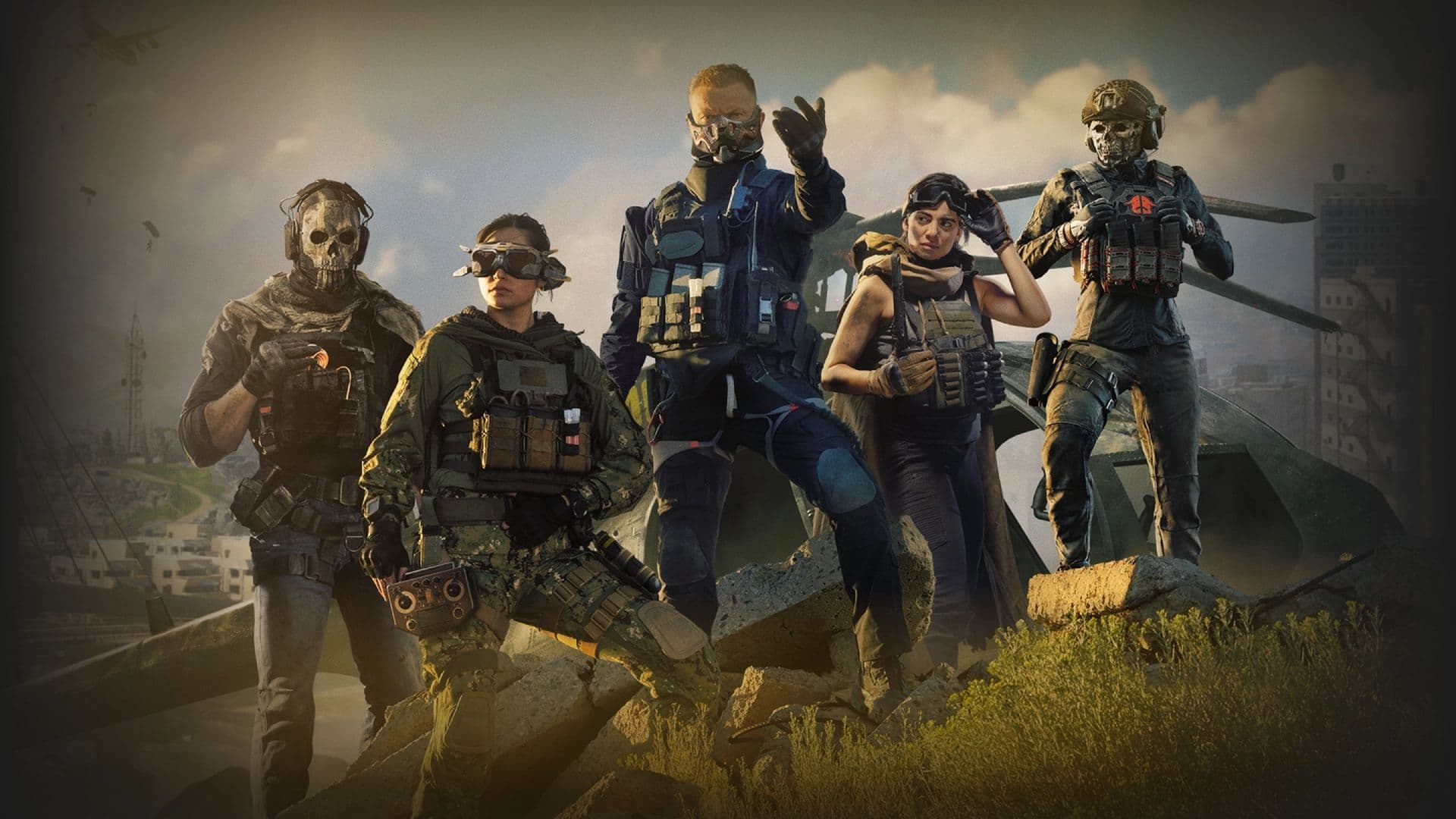
In the chaotic battleground of Warzone, audio cues can be your most valuable asset. Selecting the right audio mix and fine-tuning volume settings can elevate your situational awareness, giving you a tactical advantage.
- Audio Mix: Home Theater
- Master Volume: 50
- Dialogue Volume: 70
- Effects Volume: 100
- Voice Chat Volume: 50 (preference)
Optimizing your Warzone 2 settings isn't just about controls and visuals—it's about tailoring your battlefield experience for peak performance.
From precise controller adjustments to enhancing visuals and immersing yourself in strategic audio cues, every setting influences your gameplay. Customization is key; fine-tune these settings to match your unique playstyle.
Experiment, adapt, and discover the optimal setup that sharpens your skills and immerses you in the heart of Warzone 2. Armed with these insights, venture forth and dominate the battlefield on your terms.
FAQs
How to optimize PC for Warzone?
To get the best performance, do these steps:
- Run the game in Fullscreen Exclusive mode (not windowed).
- Turn V-Sync off so frames aren’t capped or delayed.
- Use low or medium settings for heavy effects—set shadows, ambient occlusion, volumetric effects, reflections to “off” or “low.”
- Use upscaling (DLSS, FSR, or FidelityFX) if available to lower rendering load while keeping image quality.
- Keep GPU drivers up to date.
- Set your PC’s power plan to High Performance.
- Make sure Warzone is installed on an SSD (not an HDD) to reduce texture streaming stutters.
- Close unnecessary background apps and disable overlays (Discord, etc.).
- Optionally tweak config files (like reducing shader quality) and limit VRAM scale or detail levels to avoid overloading memory.
These optimizations free up CPU/GPU resources so your game runs smoother with higher frame rates.
Is 60 FPS good for Warzone?
Yes, 60 FPS is playable and sufficient for many players, especially if your monitor is 60 Hz. You’ll have smooth movement and decent responsiveness. However, in competitive settings or on higher refresh monitors (144 Hz, 240 Hz), 60 FPS can feel limiting. If your hardware allows it, pushing past 60 FPS gives you an advantage in aiming, reaction time, and fluidity.
How to fix Warzone lag?
To reduce lag and frame drops:
- Use a wired Ethernet connection instead of WiFi (less latency).
- Close streaming or download programs in the background.
- Enable GPU/driver features like “Low Latency” or similar in your GPU control panel.
- Make sure your CPU/GPU are not overheating—use good cooling.
- Lower graphics settings to reduce load.
- Repair game files or reinstall if corruption exists.
- If stuck at 60 FPS, try doing a clean driver install (uninstall drivers fully with tools like DDU, then reinstall).
- Turn off voice chat or in-game communication features (some players report voice chat adds lag).
Guide Categories
All Related Guides
 Warzone 2 controller settingsBest Warzone 2 controller settings here! For Controller players looking to make the best out of Warzone 2, her...
 Best audio settings for Warzone 2Without the best audio settings for Warzone 2, you’ll miss crucial sounds like footsteps or gunfire—and that’s...
 Best settings for Warzone 2.0 XboxKit yourself out with the best Xbox settings for Warzone 2.0. Whether you want to master your movement or take...
 Best graphics settings for Warzone 2Don’t waste another second trying to figure out Warzone 2's best graphics settings from scratch, we’ve done th...
 Best settings for Warzone on PlaystationThere are a lot of minor tweaks you can introduce in Warzone's settings to adjust your gameplay experience. TH...
 Is Warzone 2 split screen?Do you wonder if you can play Warzone 2 split screen? Here is your answer!...
 How to Slide Cancel in Warzone Slide cancelling is back in Call of Duty so read our guide on how to effectively slide cancel in Warzone to ou...
 How to turn on proximity chat in Warzone 2In this guide, we will show you How to turn on proximity chat in Warzone 2 and use the feature in your games!...
- 1
- 2