Best CS2 settings
If you're on the lookout for the best CS2 settings then make sure to copy some of the best settings we've prepared just for you.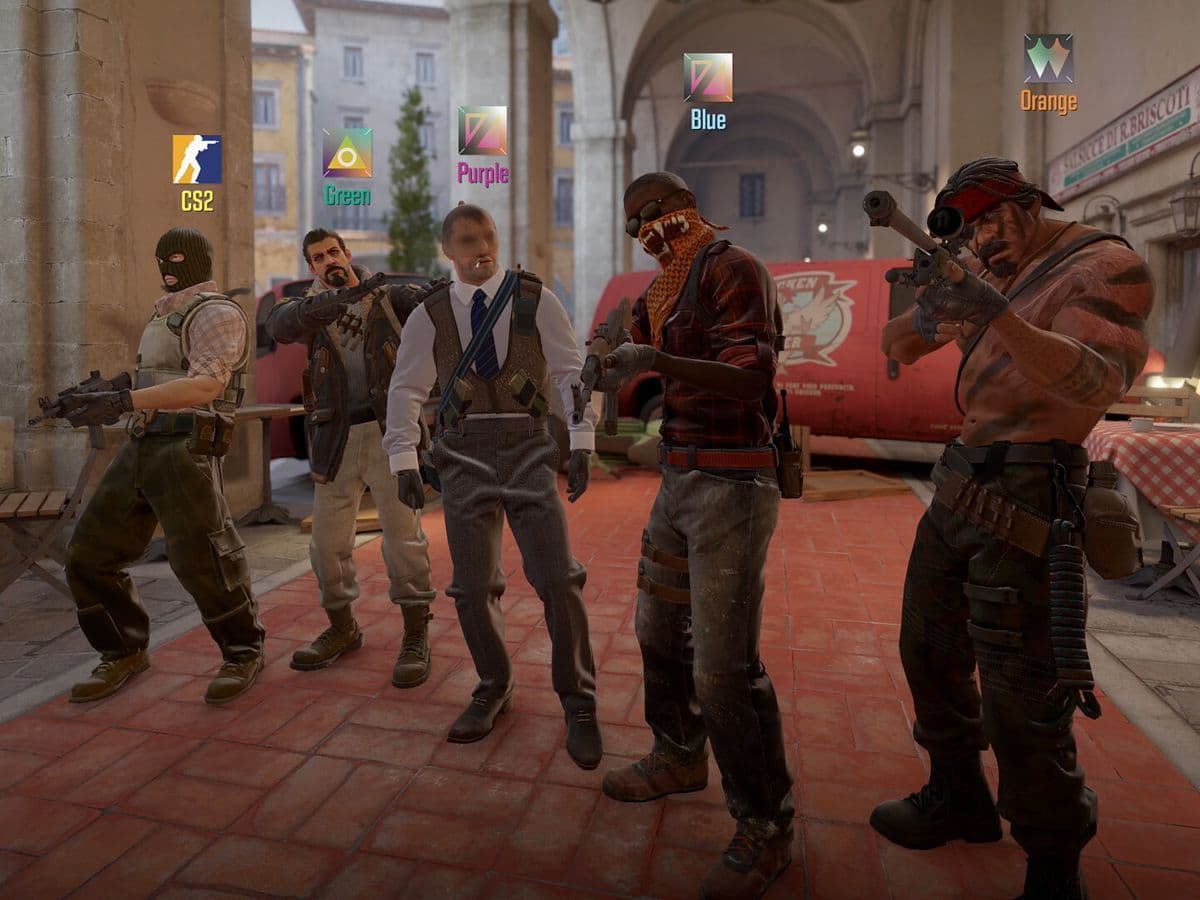
Whether you're a casual player or aiming for the top ranks, getting the best CS2 settings right can make all the difference. Let’s boost your FPS, visuals, and more!
Best CS2 settings you need to know
Here is a quick look at the best Counter-Strike 2 settings:
What does the best CS2 video/graphics settings mean?
Best CS2 video settings offer smooth gameplay and clear visuals, aiding accuracy and immersion for competitive advantage. Here are their tricks:
- Boost Player Contrast (Enabled): Makes it easier to see other players by increasing the contrast between them and the background.
- V-Sync (Disabled): Improves smoothness and responsiveness by turning off a feature that can cause screen tearing and input lag.
- Anti-Aliasing (4xMSAA): Smoothens edges and lines in the game, making them look cleaner and less jagged.
- Global Shadow Quality (High): Enhances the realism of shadows cast by objects and characters in the game.
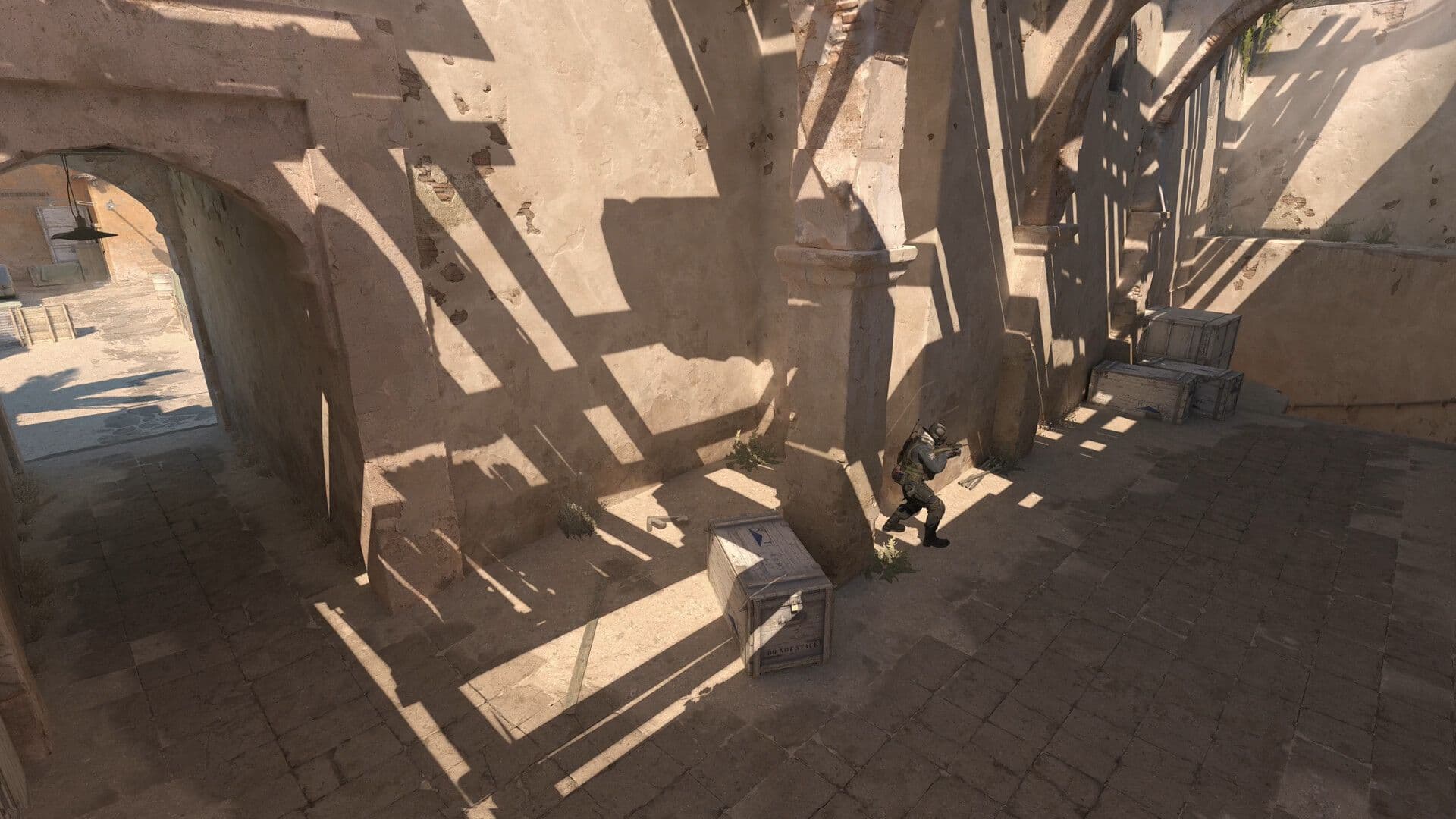
- Model / Texture Detail (High): Provides crisp and detailed textures for in-game objects and characters.
- Texture Filtering (Anisotropic 4x): Improves the clarity and sharpness of textures, especially when viewed at angles.
- Shader Detail (Low): Reduces the complexity of lighting and shading effects in the game to improve performance.
- Particle Detail (Low): Reduces the number and complexity of particle effects like smoke and explosions to boost performance.
- Ambient Occlusion (Disabled): Turns off a lighting effect to improve performance, though it may slightly reduce realism.
- High Dynamic Range (HDR) (Performance): Balances dynamic lighting effects and performance for optimal gameplay.
- FidelityFX Super Resolution (Disabled): Keeps the game at its native resolution for maximum clarity and detail.
- NVIDIA Reflex Low Latency (On, if available): Reduces input lag for smoother and more responsive controls, if supported by your hardware.
These settings help balance performance and visual quality in CS2, ensuring a smooth and enjoyable gaming experience.
Why you need to switch to the best Counter-Strike 2 settings
Switching to the best Counter-Strike 2 settings is important for simple reasons. First, it makes the game run smoother on your computer so that you won't experience annoying lags or delays.
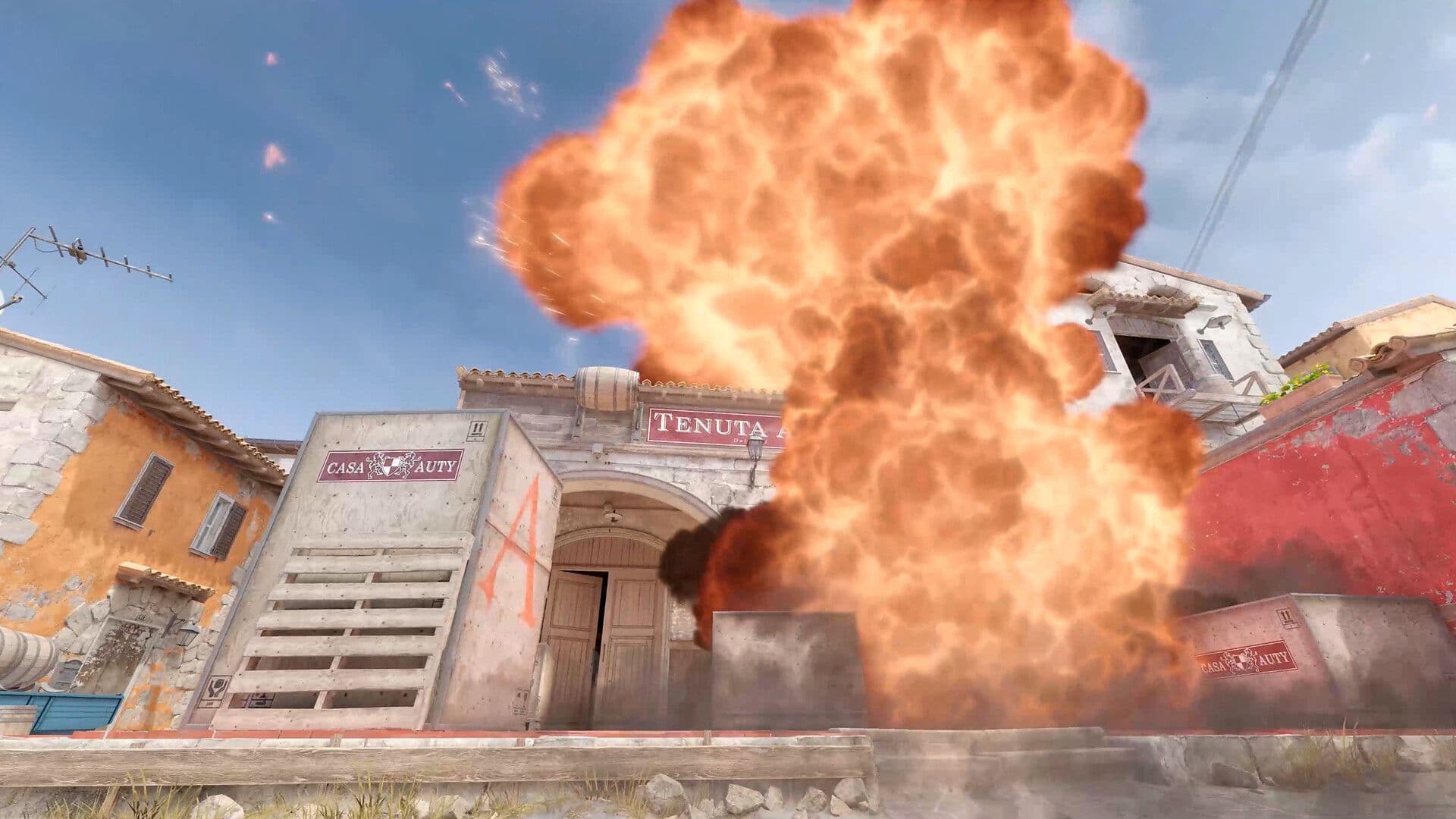
Plus, it makes everything in the game easier to see and understand, like spotting enemies or navigating the map. It can give you an advantage over other players by making it easier to react quickly and make smart decisions. Also, it makes the game feel more real and exciting, pulling you into the action.
And finally, it lets you customize the game to fit your style and preferences, so you can enjoy playing exactly how you like.
CS2 FPS settings that might boost FPS
Fortunately, you can make several tweaks and adjustments to maximize your FPS (Frames Per Second) without sacrificing too much visual quality. Let's delve into some tried-and-tested methods to optimize your CS2 performance:
At launch
Add "-high" for smoother gameplay right from the start.
Video settings
- Lower resolution for better performance.
- Turn off anti-aliasing for smoother graphics.
- Set shadows, model/detail, shader/detail, and particle detail to "Low" for improved FPS.
- Disable vertical sync to reduce input lag.
Additional tips
- Minimize background scenery.
- Enable multicore rendering if supported.
- Adjust rate command for optimal online performance.
- By tweaking these settings, you'll experience CS2 at its best, giving you the edge you need to dominate the game.
The quick way: First CS2 settings to change
If you're looking for the quickest and easiest way to improve your FPS in CS2, here are the three first settings you should change:
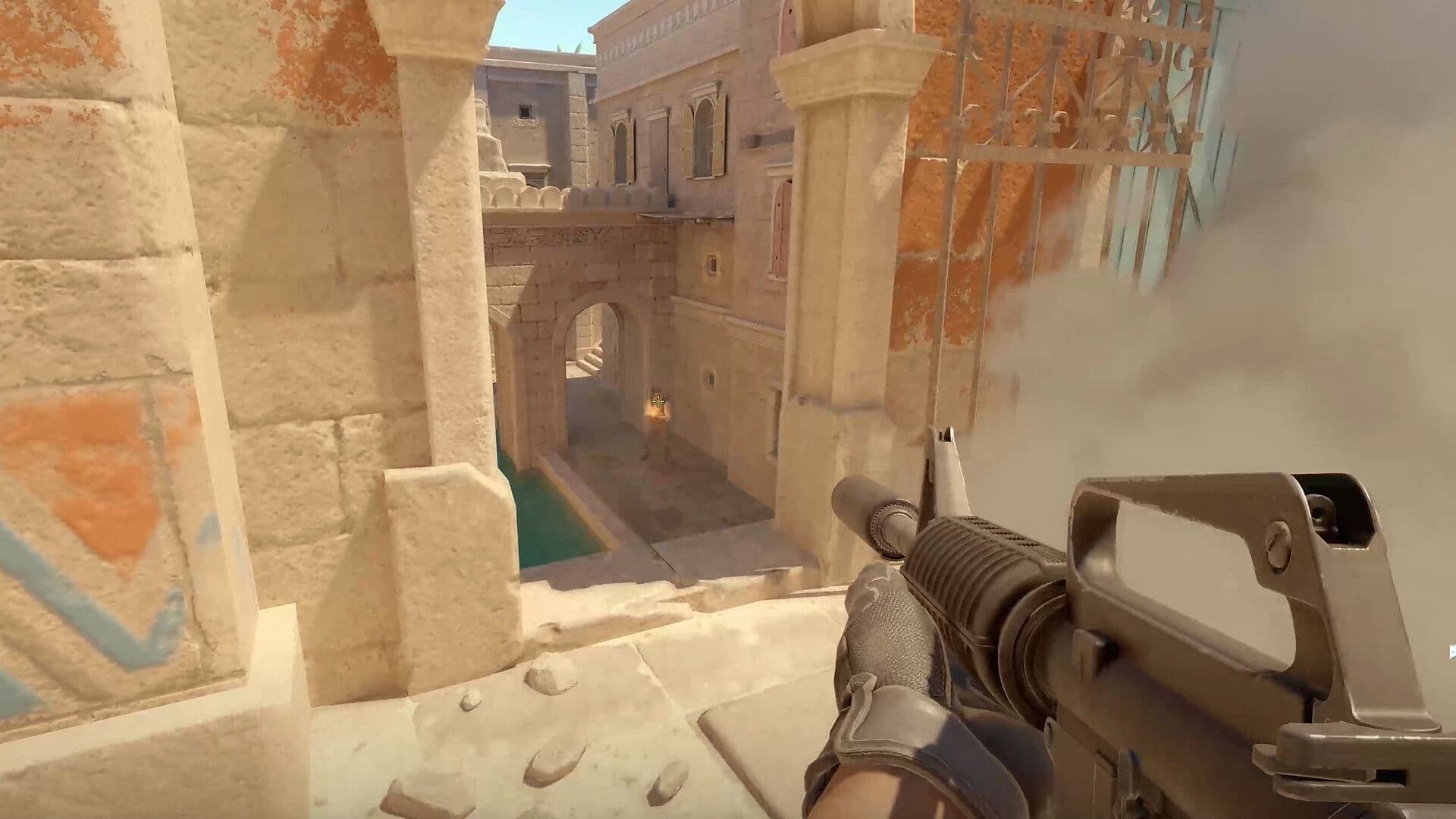
- Add "-high" to your CS2 launch options in Steam. This instructs your system to prioritize CS2, potentially giving it more processing power and leading to smoother gameplay.
- Lower your resolution. This significantly impacts how much your graphics card needs to render, freeing up resources and boosting FPS.
- Start by trying common options like 1024x768 or 800x600. You can go even lower if needed, but keep in mind the trade-off in visual quality.
Remember, these are just the first steps. You can further fine-tune your settings for even more FPS gains, but these two changes offer a simple and effective starting point.
CS2 max acceptable game traffic bandwidth
CS2 acceptable game traffic bandwidth is a setting in Counter-Strike 2 that allows you to limit the amount of data the game can send and receive per second. There is no maximum limit, and there is no one-size-fits-all answer to the question of what the "max acceptable game traffic bandwidth" should be set to. The ideal setting will depend on your individual internet connection speed and your personal preferences.
Here's how to find the "Max Acceptable Game Traffic Bandwidth" setting in Counter-Strike 2:
- Launch Counter-Strike 2.
- Go to the "Options" menu.
- Click on the "Multiplayer" tab.
- Scroll down to the "Network" section.
- Look for the setting labeled "Max Acceptable Game Traffic Bandwidth."
This can be helpful if you have a limited internet connection, as it can help to prevent lag and other performance issues.
How do I optimize my CS2 performance?
You can improve CS2 performance by making a few simple changes.
- Close programs running in the background so the game has more system resources.
- Update your graphics drivers because new updates often increase FPS.
- Lower video settings to reduce load, but keep shadows and texture filtering on medium for clear visuals.
- Use launch options like -novid, -vulkan, and +fps_max 0 to skip the intro and remove frame limits.
- Turn on NVIDIA Reflex or AMD Anti-Lag in the settings menu to cut input delay and make the game feel sharper.
Following these steps makes the game smoother and helps keep your performance consistent.
How to set perfect sens in CS2
The right sensitivity in CS2 depends on both accuracy and comfort. A good place to start is 800 DPI with 1.5 in-game sens, which gives 1200 eDPI. You can then adjust in small steps until it feels natural. Tools like the Perfect Sensitivity Approximation test can also help you narrow down the best setting. Watching professional players is useful too. For example, s1mple plays on 400 DPI with 3.09 sens, while ZywOo uses 400 DPI with 1.95 sens. Test your settings on aim maps or in Deathmatch until you find one that balances speed and precision for your style.
All Related Guides
 CS2 jumpthrow bindIf you can't play Counter-Strike without the jumpthrow bind, don't worry. Here is how to set the jumpthrow bin...