What is the “EA unable to connect to FC 26” and how to fix it

If you see the EA unable to connect FC 26 error, the good news is that the problem is often easy to narrow down. In most cases, FC 26 fails to connect because the game cannot reach EA’s online services, your platform network has an issue, or your own internet connection is unstable. That is why the same error can appear before a match, while loading Ultimate Team, or after a sudden disconnect. Here is how to fix it!
What is the EA unable to connect FC 26 error?
The EA unable to connect FC 26 error means the game cannot establish or keep a working connection to EA’s online services. When that happens, FC 26 may block access to online modes, fail to load Ultimate Team, or kick you back to the menu with a server-related message.
This error does not always mean EA’s servers are down. It can also happen when your connection quality drops, your platform network has trouble, or your account session does not sync correctly.
If you are playing the game on mobile, check out the latest FC Mobile redeem code list!
Here are the most common causes:
- EA server outage or temporary maintenance
- PlayStation Network or Xbox service problems
- Weak or unstable home internet
- High ping, packet loss, or jitter during matches
- Wi Fi interference or router issues
- Too many devices using the same network
- VPN or DNS problems
- Account or login session issues after an update or reconnect
Check out our piece on all EA FC 26 TOTY nominees & how to vote!
How to fix EA unable to connect FC 26 error
If FC 26 keeps dropping connection or fails to connect at all, start with the simplest checks. This helps you avoid wasting time on settings that do not need to change. Here are some fixes you can try:
Check EA server status first
Before you change anything on your side, make sure EA’s services are actually working.
- Open EA’s server status page
- Check whether FC services show an outage or maintenance
- Wait if there is a live incident
- Try again later if many users are affected
This matters because no local fix will help if the servers are down.
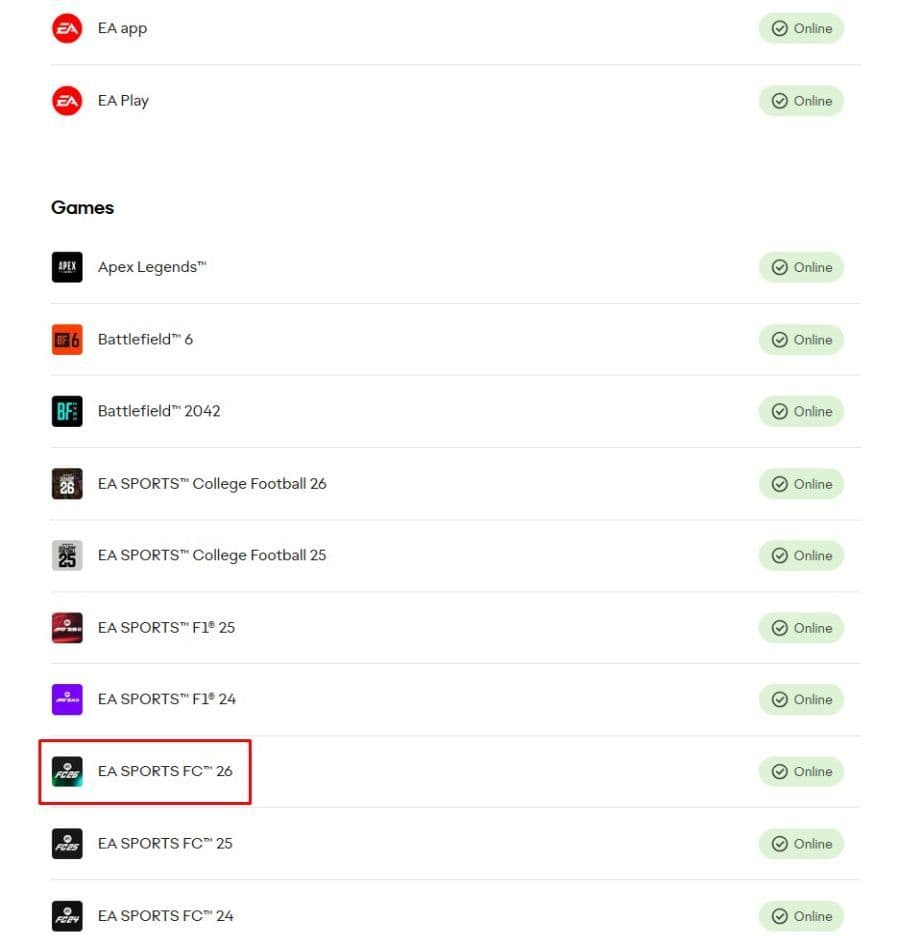
Check PlayStation Network or Xbox status
Sometimes FC 26 cannot connect because the platform network has issues.
- Check the PlayStation service status if you play on PS4 or PS5
- Check Xbox status if you play on Xbox
- Confirm that online gaming services are active
- Sign out and sign back in after services recover
A platform outage can look exactly like an EA server error.
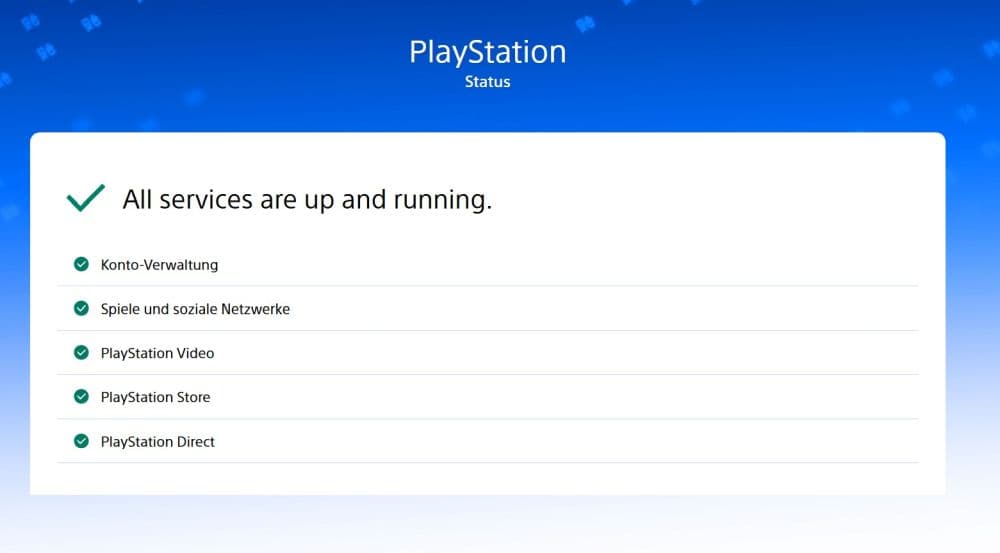
Restart the game, console or PC, and router
A full restart often clears short-term connection faults.
- Close FC 26 completely
- Restart your console or PC
- Turn off your router and modem
- Wait at least 30 seconds
- Turn them back on and relaunch the game
This can help if you connected to the wrong data center, kept a broken session alive, or hit a temporary network issue.
Stop downloads, streams, and other heavy network use
FC does not need huge bandwidth, but it does need a stable path.
- Pause large downloads
- Stop HD or 4K streaming on the same network
- Limit cloud backups during play
- Avoid playing while many people use the connection heavily
This is one of the biggest reasons EA FC keeps losing connection during online matches. The game becomes less stable when your network is already busy.
Switch to a wired connection if possible
Ethernet is usually the best fix for unstable online gameplay.
- Connect your console or PC directly to the router
- Test a few matches with the wired setup
- Compare the result with Wi Fi performance
A wired connection is often more stable because it avoids interference that affects wireless play. This is especially useful if you get random drops, delay spikes, or poor match quality.
Improve your Wi-Fi setup
If you must stay on Wi-Fi, try to make it more stable.
- Use the 5 GHz band if your router supports it and your device is close enough
- Use 2.4 GHz only if range matters more than speed
- Move your system closer to the router
- Change the Wi-Fi channel if nearby networks cause overlap
- On 2.4 GHz, test channels 1, 6, and 11
This can reduce packet loss, jitter, and sudden disconnects.
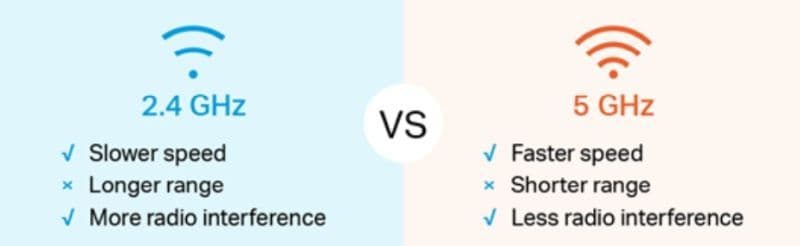
Update router firmware and enable QoS
These steps are more advanced, but they can help if the problem happens often.
- Check your router’s admin page for firmware updates
- Install the latest stable update
- Enable QoS if your router supports it
- Prioritize gaming traffic or your console or PC on the network
QoS can help if multiple people share the same internet connection and FC keeps losing stability under load.
Turn off VPN and test a different DNS
Extra routing can sometimes break or slow game connections.
- Disconnect any VPN before launching FC 26
- Restart the game after turning the VPN off
- If the issue stays, test a different DNS provider in your network settings
- Save the changes and retry the connection
This can help when your current DNS is slow or unreliable.
Check your connection quality report
If the error keeps returning, look at your connection data instead of guessing.
- Open EA’s Connection Quality Report
- Review your match history and connection score
- Look for signs of poor ping, jitter, or packet loss
- Use that information to confirm whether the issue is local and ongoing
This is one of the best ways to understand why FC 26 connects one day and fails the next.
How to improve FC 26 connection stability for online matches
Once you get back online, a few habits can reduce future disconnects:
- Use Ethernet whenever possible
- Keep your router firmware updated
- Play on a less crowded network
- Avoid VPNs while gaming
- Use the Connection Quality Report when issues repeat
- Check server and platform status before changing local settings
A stable connection usually comes from consistency, not from one magic fix. If you work through the basics in order, you can solve most FC 26 connection errors faster and get back into matches with fewer interruptions.
All Related Guides
 FC Mobile redeem code list (September 2026): Latest EA FC Mobile codesLatest EA FC Mobile redeem codes for September 2026 — claim free packs, coins, and rewards before EA FC Mobile...
 How to get EA SPORTS FC 27 Closed Beta: EA Playtesting, dates & moreLearn how to get EA SPORTS FC 27 Closed Beta access, sign up for EA Playtesting, register your interest, and i...
 EA SPORTS FC 27 Ultimate Plus Edition: Price, pre-order bonuses & moreLearn everything about the EA SPORTS FC 27 Ultimate Plus Edition, including price, pre-order bonuses, 10,000 F...
 Is EA SPORTS FC the same as FIFA?Is EA SPORTS FC the same as FIFA? Learn why EA changed the name, what stayed the same, the biggest differences...
 All EA SPORTS FC 26 objectives & fastest ways to complete themComplete every EA SPORTS FC 26 Objective faster with our guide covering Journey of Nations, Glory Hunters, Sea...
 EA FC 26 Low Driven Shot guide: Controls, PlayStyle+, best players & moreLearn how to perform the EA FC 26 Low Driven Shot, use Low Driven Shot+, score more goals, and choose the best...
 FC 26 FoF & Champions Tokens guide: How to get, rewards & moreFC 26 FoF Tokens guide: How to earn Tokens, best rewards, Pelé upgrades, Journey of Nations, and spending tips...
 Failed to join lobby error in EA FC 26: What is it and how to fix itFix the failed to join lobby error in EA FC 26 Pro Clubs with simple steps for server issues, cross-play probl...
- 1
- 2
- 3
- 4