Failed to join lobby error in EA FC 26: What is it and how to fix it
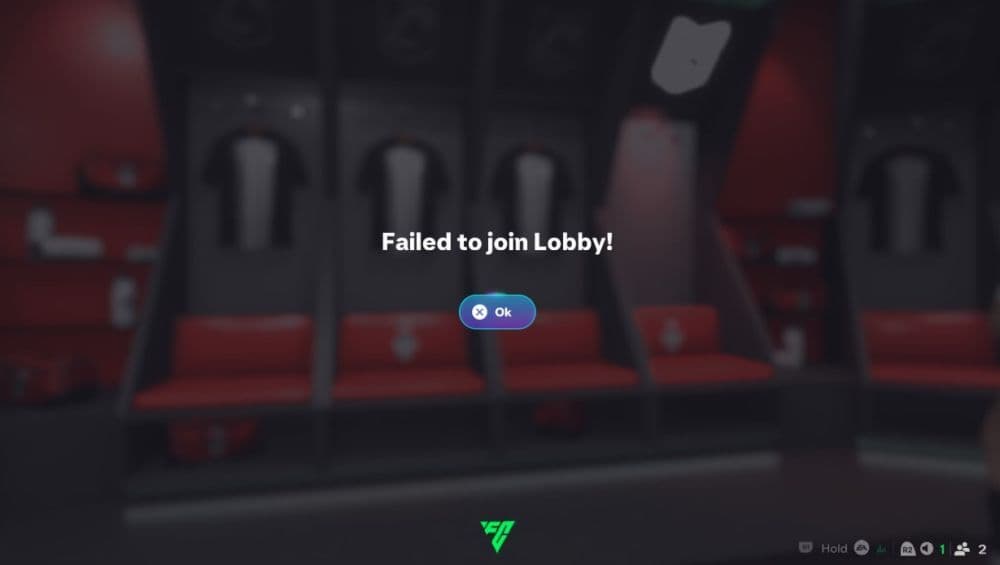
The failed to join lobby error in EA FC 26 Pro Clubs usually appears when the game cannot complete the join process between players. In simple terms, the lobby exists, but one or more players cannot fully connect to it. That can happen because of a server problem, a version mismatch, a cross-play setting conflict, an account connection issue, or a local network problem.
What is the “failed to join lobby” error in EA FC 26 Pro Clubs and why do you encounter it?
In EA FC 26 Pro Clubs, this error means the game fails to move you from the invite or join stage into the active club lobby. Since Clubs depends on online matchmaking, platform communication, and EA account services, you may not be able to join the game if any part of that chain breaks. That is why the message often shows up before a match starts, while accepting an invite, or when a second or third player tries to enter an existing lobby.
The most common reasons are simple:
- EA servers or platform services are down
- one or more players missed a game update
- cross-play settings do not match
- players are on different platform generations
- the network is unstable or overloaded
- an EA account or linked platform account is not syncing correctly
Those are the main things to check first because they affect the core connection between players and the Clubs session.
If you are having connectivity issues, don’t forget to check our guide on the “EA unable to connect to FC 26” error!
How to fix the “failed to join lobby” error in EA FC 26 Pro Clubs
If you also see messages about not being able to connect to EA servers, treat this as a broader connection problem first. Start with the fastest checks, then move to the deeper fixes only if the error stays. That saves time and matches the way most players solve the problem in practice.
Check EA server status and platform services first
Before you change anything on your console or PC, make sure the issue is not on EA’s side.
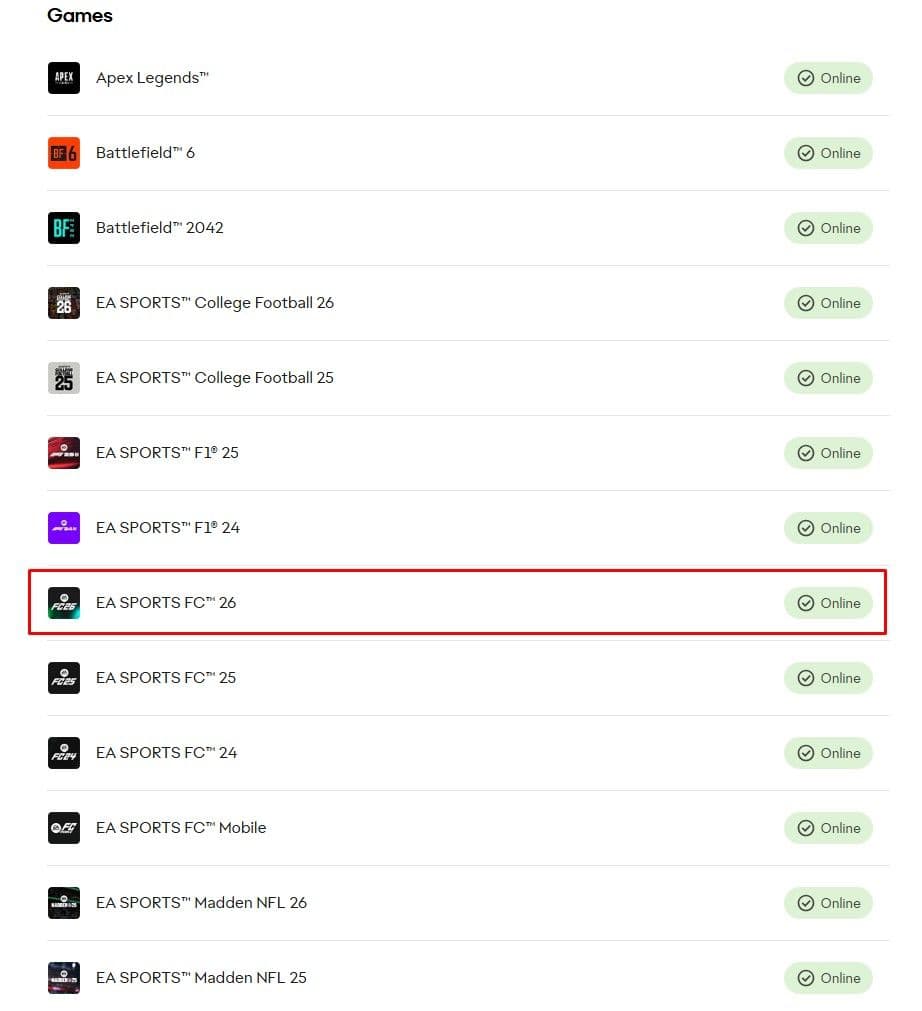
- Open the EA server status page.
- Check EA SPORTS FC 26 and your platform service.
- Look for outages, maintenance, or login issues.
- If servers are down, wait and try again later.
If EA servers are having trouble, local fixes will not solve the error. This is also the first thing to do if several friends get the same issue at the same time.
Restart FC 26 and create a fresh Clubs lobby
A broken lobby state can stop players from joining even when everything else looks normal.
- Have every player close EA FC 26 fully.
- Wait a few seconds.
- Launch the game again.
- Let one player create a brand-new Clubs lobby.
- Send fresh invites instead of using old pending invites.
This is one of the quickest fixes and often works when the lobby itself gets stuck after a failed attempt.
Make sure every player uses the same FC 26 version
A version mismatch is one of the most common causes of failed lobby joins after a patch.
- On each platform, check for EA FC 26 updates.
- Download and install every pending update.
- Restart the game after the update finishes.
- Ask every teammate to confirm they are fully updated.
- Try the lobby again only after everyone matches.
If even one player stays on an older build, the lobby can fail before the session fully loads.
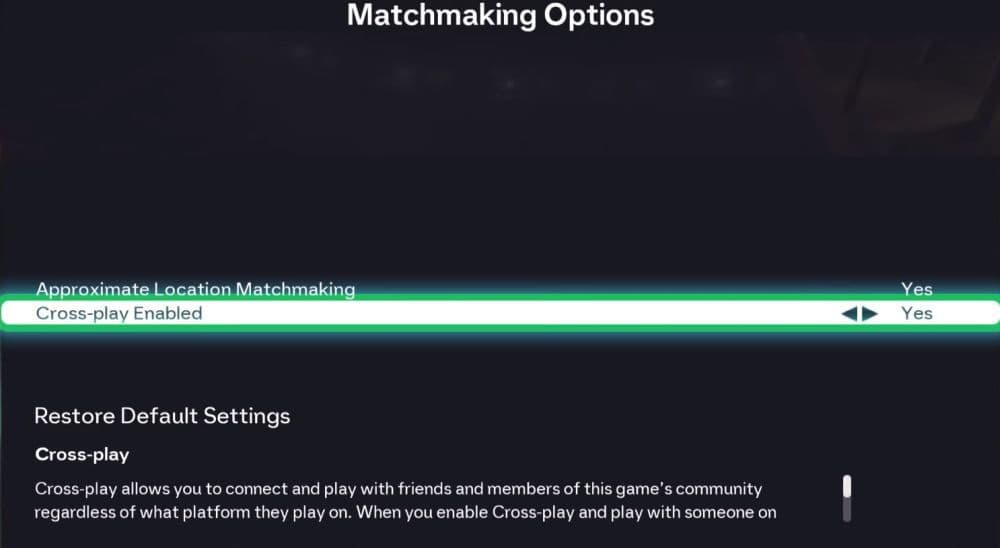
Check cross-play settings and platform generation
Cross-play in FC 26 works across PC, PlayStation, and Xbox, but players are still grouped by platform generation. Current-generation players can only join others in the same generation group, while PS4 and Xbox One stay in the old-generation group. Nintendo Switch systems do not support FC cross-play with PC, PlayStation, or Xbox.
Use these steps:
- Open EA Connect in FC 26.
- Go to social or cross-play settings.
- Make sure cross-play is either on for everyone or off for everyone.
- Confirm that all players are on compatible platform generations.
- Reinvite the squad after you adjust the settings.
If the setup does not match, the lobby may never form correctly.
Refresh your network and reduce background traffic
A weak or busy network can interrupt the handshake between your game and EA’s servers.
- Restart your router.
- Stop large downloads and streaming on the same network.
- Use a wired connection if possible.
- Close background apps on PC.
- Turn off any VPN if you use one.
EA also points players to DNS changes in some cases, so that can help if standard steps fail and the issue looks network-related.
Check your EA account link and clear cache or repair files
If the problem keeps coming back, look at the account side and then clean up local files.
- Sign in to your EA account and check that your platform account is linked correctly.
- On PC, open the EA app, go to Help, then App Recovery, then Clear cache.
- If FC 26 still fails on PC, open the game tile menu in the EA app and choose Repair.
- On PS5, use Safe Mode and choose Clear System Software Cache.
- Launch FC 26 again and test a new Clubs invite.
These steps help when account sync, cached data, or damaged local files keep blocking online access.
If none of these fixes work, the best next move is to wait and test again later, especially if the issue started right after an update or if many players report the same problem at once. In that case, the error is more likely tied to EA services than to your setup.
Find more guides below:
- Top 5 EA FC 26 players with the highest potential in career mode
- All EA FC 26 TOTY nominees & how to vote
- What is the best FIFA game?
Featured Image Credit: EA SPORTS
All Related Guides
 FC Mobile redeem code list (September 2026): Latest EA FC Mobile codesLatest EA FC Mobile redeem codes for September 2026 — claim free packs, coins, and rewards before EA FC Mobile...
 How to get EA SPORTS FC 27 Closed Beta: EA Playtesting, dates & moreLearn how to get EA SPORTS FC 27 Closed Beta access, sign up for EA Playtesting, register your interest, and i...
 EA SPORTS FC 27 Ultimate Plus Edition: Price, pre-order bonuses & moreLearn everything about the EA SPORTS FC 27 Ultimate Plus Edition, including price, pre-order bonuses, 10,000 F...
 Is EA SPORTS FC the same as FIFA?Is EA SPORTS FC the same as FIFA? Learn why EA changed the name, what stayed the same, the biggest differences...
 All EA SPORTS FC 26 objectives & fastest ways to complete themComplete every EA SPORTS FC 26 Objective faster with our guide covering Journey of Nations, Glory Hunters, Sea...
 EA FC 26 Low Driven Shot guide: Controls, PlayStyle+, best players & moreLearn how to perform the EA FC 26 Low Driven Shot, use Low Driven Shot+, score more goals, and choose the best...
 FC 26 FoF & Champions Tokens guide: How to get, rewards & moreFC 26 FoF Tokens guide: How to earn Tokens, best rewards, Pelé upgrades, Journey of Nations, and spending tips...
 EA SPORTS FC Mobile Beta: 18 Playstyles & moreEA SPORTS FC Mobile Beta guide: PlayStyles, features, release dates, regions, and how to join the beta....
- 1
- 2
- 3
- 4