Apex Legends anti-cheat authentication timeout: Troubleshooting and solutions
If you're struggling with this Apex Legends issue, you're not alone.ON THIS PAGE:

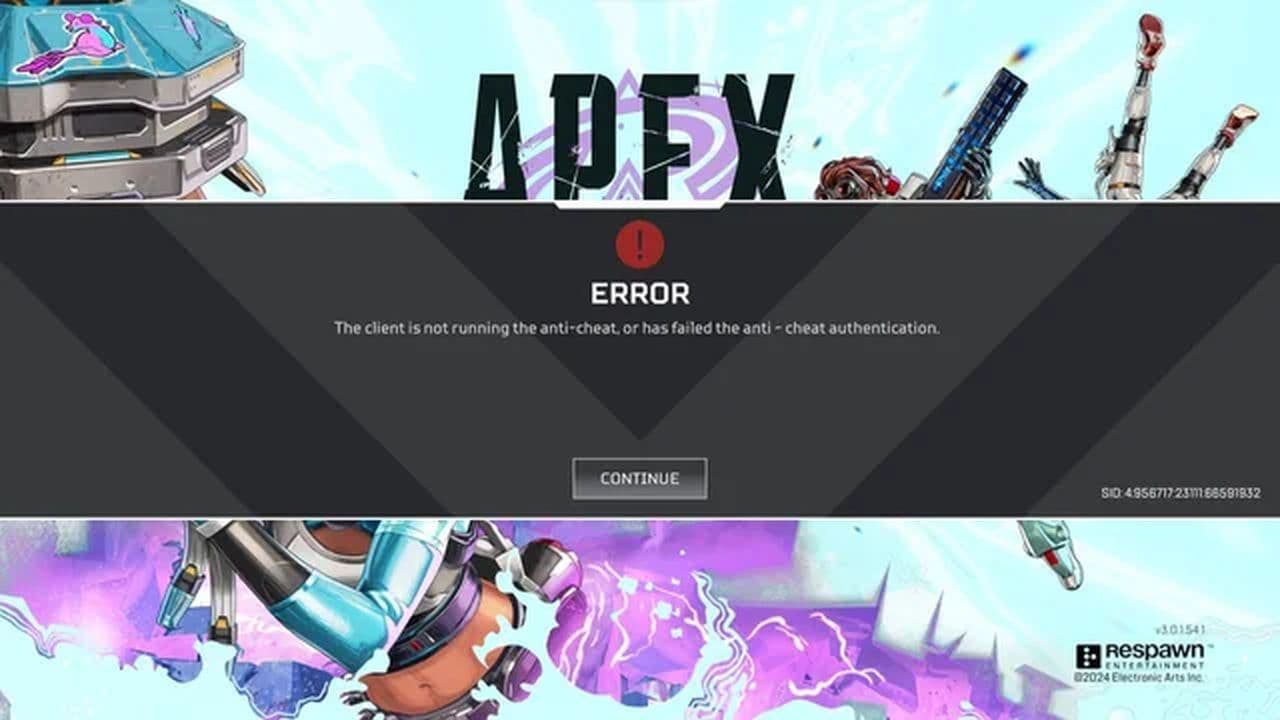
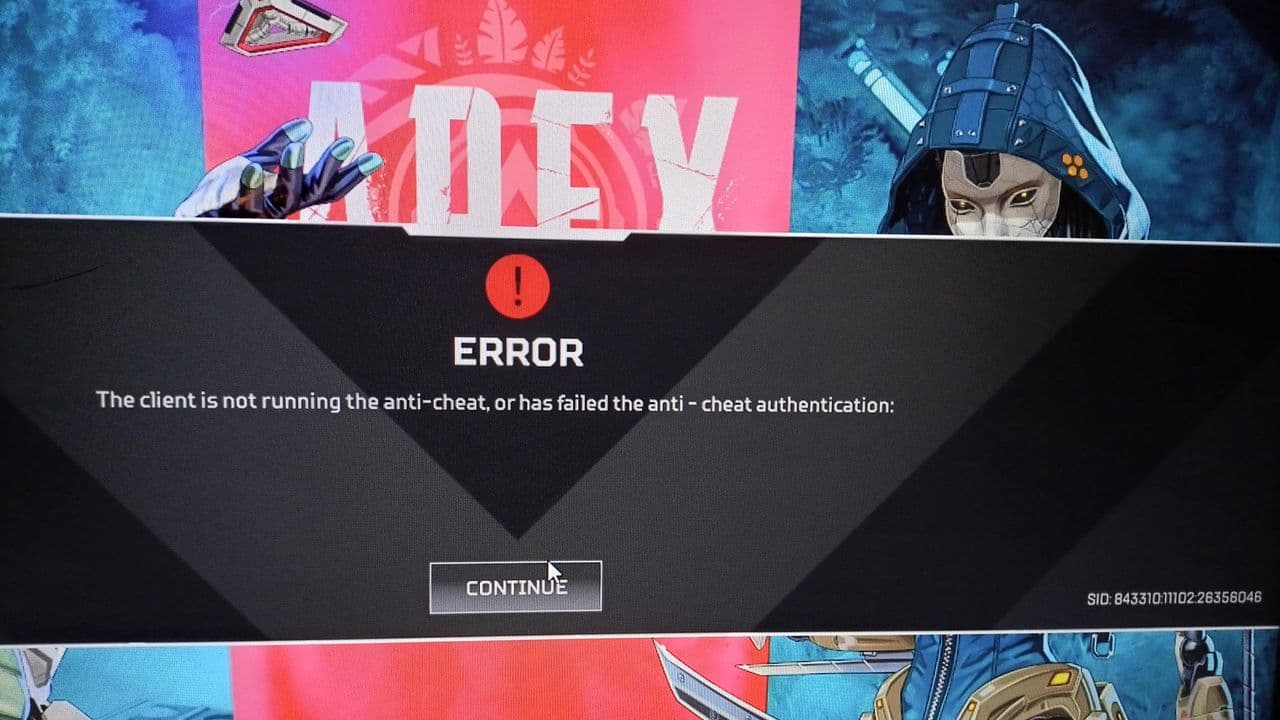
If you’ve been hit with the Apex Legends code anti cheat authentication timeout error, you’re not alone. Many players encounter this frustrating issue when Easy Anti-Cheat (EAC), the game’s security tool, fails to verify the connection. The good news? This error can usually be fixed with a few straightforward steps.
In this Apex Legends guide, we’ll explain why this error happens and walk you through the most effective troubleshooting methods to get you back into the action.
What causes the Apex Legends anti-cheat authentication timeout error?
The Apex Legends anti-cheat authentication timeout error typically appears when the game and Easy Anti-Cheat can’t communicate properly. As seen on EA forums, there's quite a hefty list of players struggling with this problem.
This can be triggered by:
- Corrupted or missing EAC files
- Interference from other apps running in the background
- Outdated drivers or system updates
- Incorrect permissions for the game or launcher
- Antivirus or firewall blocking the connection
- Network instability
How to fix Apex Legends code anti-cheat authentication timeout error
Here are the best solutions to resolve the Apex Legends code anti-cheat authentication timeout error:
1. Repair or reset easy anti-cheat
Go to your Apex Legends installation folder and run the Easy Anti-Cheat setup file as an administrator. Select “Repair Service.” If the issue persists, perform a full reset of Easy Anti-Cheat and reinstall it.
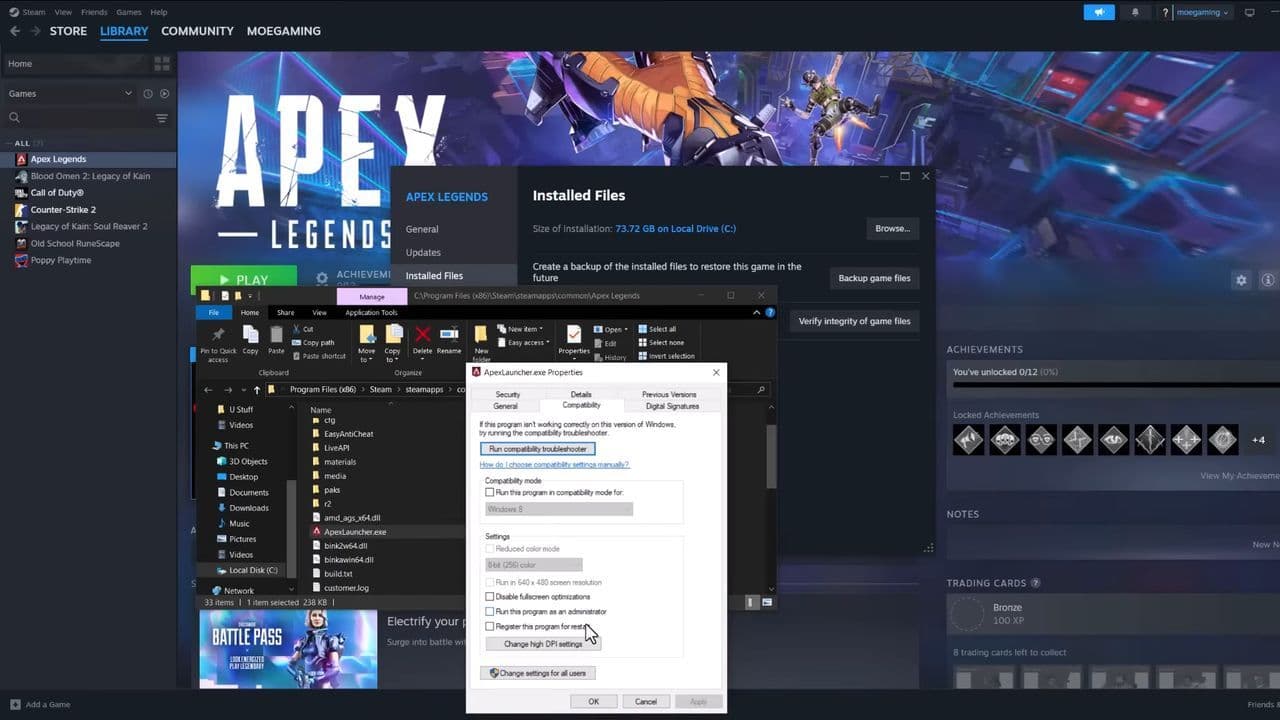
2. Run Apex Legends as administrator
Right-click on the game executable, the launcher, and Easy Anti-Cheat. Under Properties → Compatibility, check “Run this program as administrator.” This grants the game the permissions it needs to bypass the timeout error.
3. Update Windows and Drivers
Outdated software can lead to authentication failures. Make sure Windows updates, GPU drivers, and network drivers are fully up to date before launching the game.
4. Adjust firewall and antivirus settings
Sometimes security software mistakenly blocks EAC. Temporarily disable your antivirus or firewall and test Apex Legends. If it works, add exceptions for both Apex Legends and Easy Anti-Cheat before turning protection back on.
5. Verify game files
Use your game launcher (EA App, Steam, or Origin) to scan Apex Legends. The Verify/Repair function will replace any missing or corrupted files that could be causing the timeout error.
6. Disable background programs
Third-party software such as monitoring tools, overclocking apps, or macros may interfere with Easy Anti-Cheat. Perform a clean boot or manually close unnecessary background apps, then try launching the game again.
7. Reinstall Apex Legends and easy anti-cheat
If nothing else works, uninstall Apex Legends and delete any remaining Easy Anti-Cheat folders. Reinstall both to ensure a fresh, corruption-free setup
Advanced methods like using msconfig to disable conflicting services or performing a factory reset of Easy Anti-Cheat can also be game-changers when the usual fixes don’t work.
If you’ve tried everything and still face the error, the issue could be server-related or account-specific. In that case, reaching out to official support is the best next step.
That’s all! Want to explore more Apex Legends guides? Check out these:
All Related Guides
 Apex Legends Season 27 Amped explainedApex Legends Season 27: Amped revamps Olympus, adds Mantle Boost movement, legend buffs, and fresh ranked rewa...
 Apex Legends November update enhances audio clarity and brings new features to the gameApex Legends November update brings major audio upgrades in Season 27 with clearer footsteps, smarter sound mi...
 Apex Legends Raise Hell Event: Everything you need to knowDiscover Apex Legends Raise Hell event: new Reaper vs Demon mode, spooky Kings Canyon map, and exclusive Hallo...
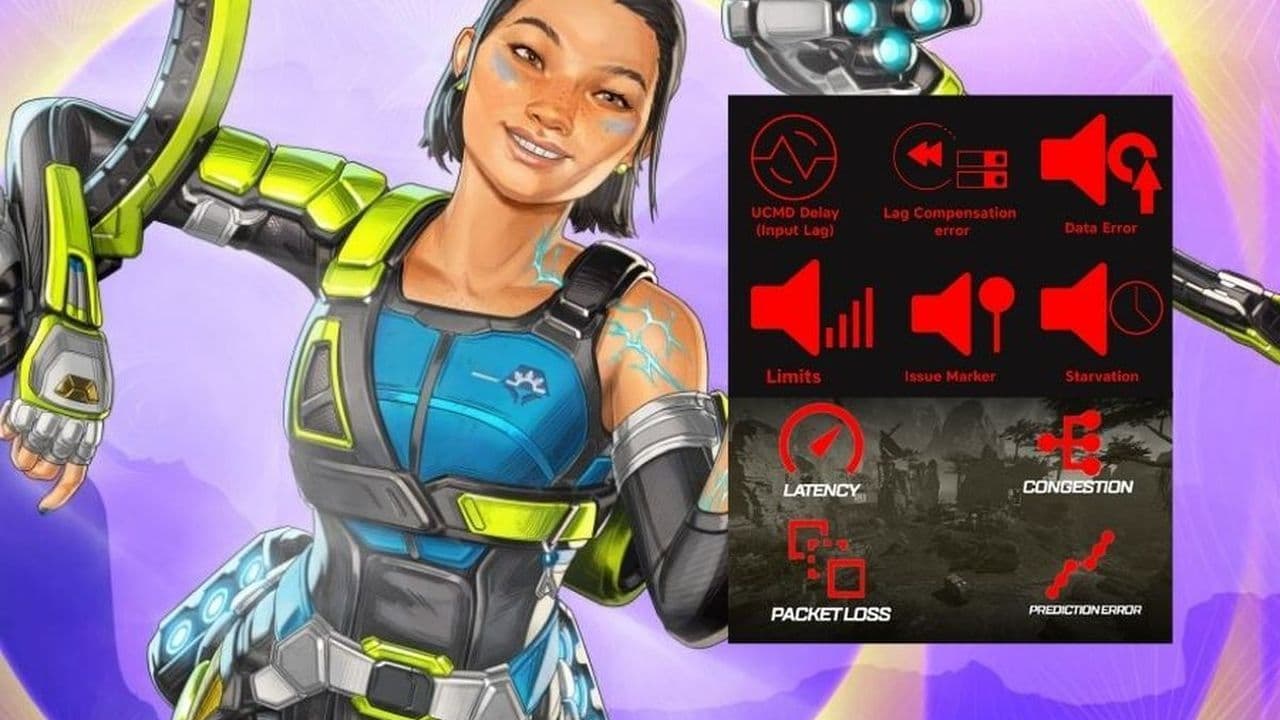 All Apex Legends connection symbols and their meaningsDiscover all Apex Legends connection symbols and their meanings, plus solutions to keep you in the game withou...
 Is Apex Legends Crossplay or Cross-Progression ?Yes, Apex Legends is on different platforms but does it support cross platform and cross progression gameplay?...
 How to Uncap FPS in Apex Legends on Origin and SteamUnlock higher FPS in Apex Legends on Origin and Steam with our comprehensive guide. Optimize your gameplay for...
 Apex Legends Cross-Progression and Merging Explained Unlock seamless gaming! Discover how to enable Apex Legends cross-progression, troubleshoot issues, and enjoy ...
 How to tap strafe in Apex LegendsLearn how to master tap strafing in Apex Legends to dodge bullets and enhance your gameplay with advanced move...
- 1
- 2
- 3