Roblox error code 2: Meaning, causes & how to fix it
Fix Roblox Error 2 fast.
If you play Roblox often, you may have run into Roblox Error Code 2, an error that suddenly stops you from joining games or even opening Roblox. What makes it confusing is that this issue used to appear as Error Code 256, but for some reason, it now shows up as Error Code 2 instead.
This guide explains what Roblox Error Code 2 means, why it happens, and how to fix it step-by-step. The solutions are simple, clear, and based on what players and developers have reported across the Roblox community.
What is Roblox error code 2?
Roblox Error Code 2 is a connection or initialization error that prevents the game from launching or joining a server. In most cases, it means the Roblox client had trouble connecting to a game instance, either because the server was closed or the client could not properly initialize after an update or disconnection. It often appears as:
“We’re sorry, Roblox is temporarily unavailable. Please try again later. (Error Code: 2)”
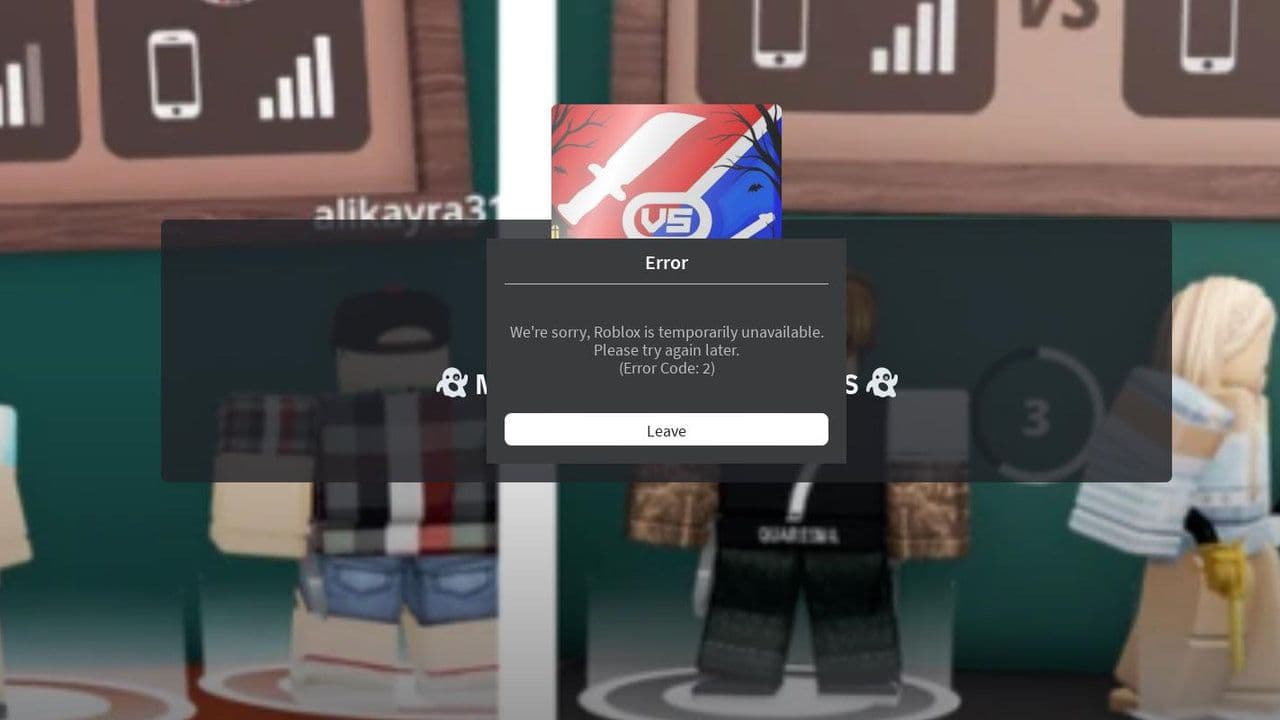
In the past, players saw Error Code 256 under these same conditions. However, Roblox now seems to display Error Code 2 instead. Functionally, it’s the same problem under a new label.
“Developer has shut down all game servers or game server has shut down for other reasons, please reconnect (Error Code: 256)”
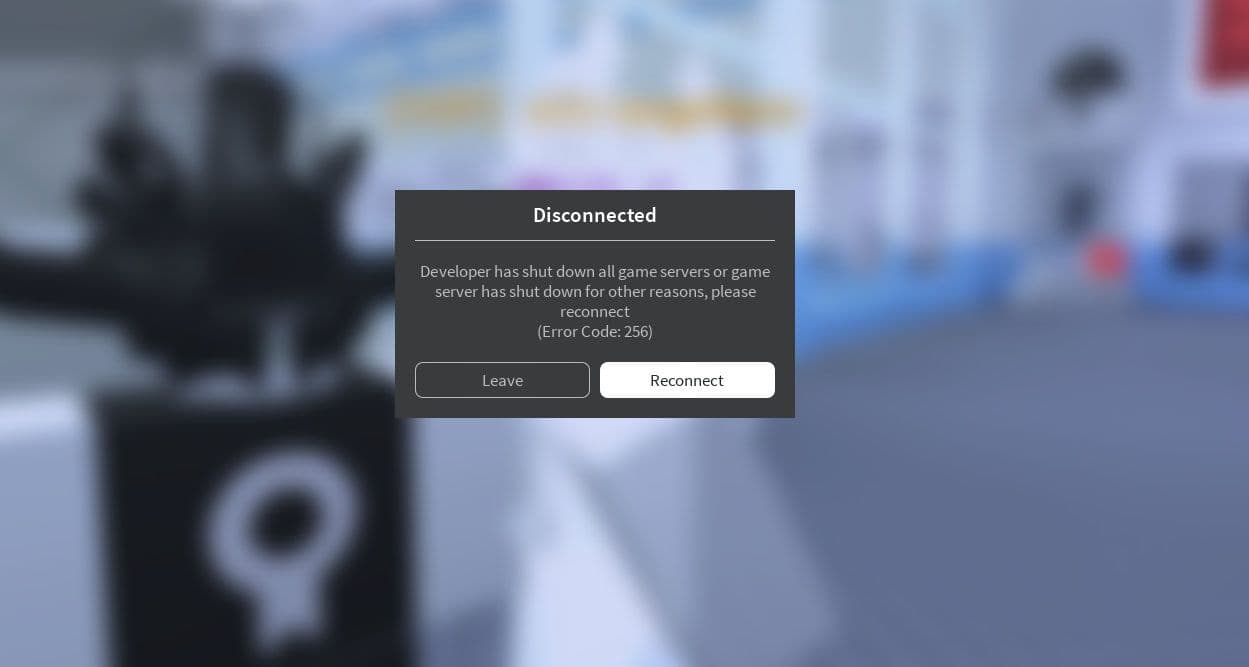
This Roblox error typically meant that the server had closed, or that the developer had shut it down.
However, there was a special case that caused this error to appear, and this is where many players get confused.
If a player was banned while playing alone in a server (for example, in a private or empty instance), Error 256 would appear instead of Error 273, which is normally the “You have been kicked or banned” message.
That’s because when the player is the only one in the game, banning them effectively shuts down the entire server. Roblox interprets it as a “server shutdown” instead of a “player kick.”
Now, that same situation, being banned in a solo server, often produces Roblox Error Code 2 instead of 256.
While Roblox hasn’t officially confirmed this change, community reports on Reddit and Roblox DevForum show the pattern clearly:
- Players who used to see Error 256 after being banned now see Error 2 instead.
- The message text and behavior are the same — sudden disconnection, “please reconnect,” and inability to rejoin that same game.
In short, Roblox Error Code 2 is the modern equivalent of Error 256, triggered when the player is banned in a server they’re alone in, or when the game shuts down for other reasons.
How to fix Roblox error code 2 in 6 easy steps
Even though this error can be caused by bans, in many cases it’s just a temporary connection issue. Here’s how to troubleshoot it step-by-step.
1. Restart Roblox and your device
The simplest fix is often the most effective. Close Roblox completely, restart your computer or mobile device, and try joining the game again. This refreshes your session and resets temporary files that might have caused the initialization error.
2. Check if you were banned
If you suspect you were banned, try joining a different game or logging into another account. If you can play elsewhere but not in the same experience, your ban is local to that game.
In that case, contact the game’s developer or check their group page to see if bans can be appealed.
3. Verify Roblox server status
Before troubleshooting your setup, make sure Roblox itself isn’t having issues. Visit status.roblox.com to see if the platform is undergoing maintenance or outages.
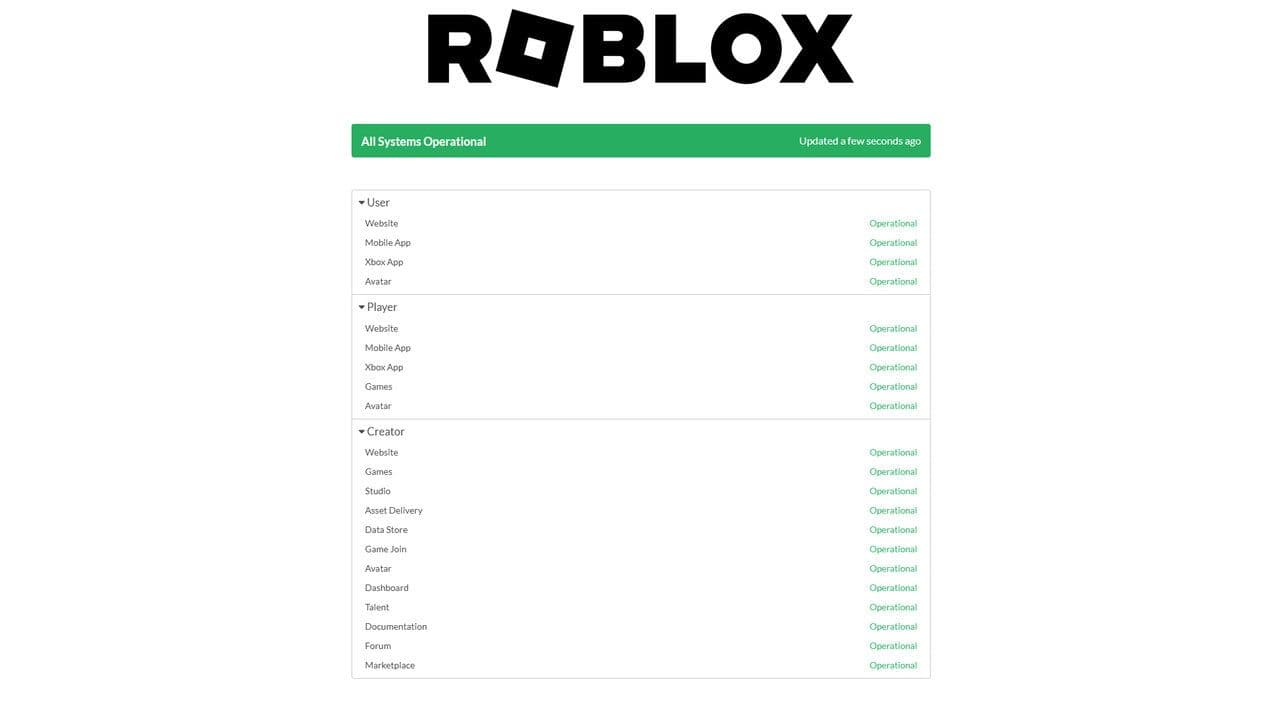
If servers are down, all players may experience similar connection errors.
4. Clear Roblox cache and temporary files
Corrupted cache data can cause Roblox to display incorrect or repeated errors.
Windows users:
- Press Win + R, type %Temp%\Roblox, and press Enter.
- Delete all files inside that folder.
- Restart Roblox.
Mobile users:
Uninstall and reinstall the Roblox app to clear stored cache automatically.
5. Allow Roblox through firewall and antivirus
Blocked connections often cause Roblox to fail at initialization. Add these files to your firewall or antivirus exceptions:
- RobloxPlayerLauncher.exe
- RobloxPlayerBeta.exe
Then restart your computer and try again.
6. Reinstall Roblox
If the issue persists, uninstall Roblox completely, delete leftover folders, and reinstall the latest version from roblox.com/download.
This ensures that all corrupted or outdated files are replaced with fresh ones.
Roblox Error Code 2 is essentially the modern version of Error 256. Both mean that the server has closed, often because the player was banned while alone in a game instance.
Although it looks alarming, it usually doesn’t mean your account is broken. In most cases, restarting Roblox, clearing cache, or reinstalling fixes the issue quickly.
With these fixes, you can get back to exploring and creating in Roblox without interruption.
That’s all for today! Looking for more free Roblox items? Check out these:
All Related Guides
 How to start a hunt in Demonology (Roblox)Learn how to start a hunt in Demonology using cursed objects, Energy management, and hunt triggers to identify...
 Roblox playtime check: How to see how many hours you have on RobloxLearn how to check Roblox playtime, view weekly hours, track game activity, and estimate total time spent on R...
 How to make gamepasses in RobloxA simple guide to Roblox gamepasses, covering what they do, how to make one, and how to sell it the right way....
 Universal Tower Defense X tier list (2026): Best units & moreUniversal Tower Defense X tier list for 2026: best units, Infinite Mode picks, beginner recommendations, and c...
 How to get Dark Ring in Roblox Sailor Piece fastLearn how to get Dark Rings fast in Sailor Piece, including Jinwoo boss location, drop rate, respawn timer, an...
 Opera GX Forsaken rewards guide (2026)Opera GX Forsaken rewards guide: unlock exclusive skins, XP Boosters, Killer Chance Tokens, and daily event re...
 All Roblox color codes list & how to use themComplete Roblox color codes guide: BrickColors, RGB values, Color3, HEX conversion, and how to use colors in R...
 Guide to the Roblox Bite By Night x Medal Quest: Get your free Fighter Class skinRoblox Bite By Night x Medal Quest guide: how to unlock the free Fighter Class Skin fast and redeem the reward...
- 1
- 2
- 3
- 4
- 5
- 6
- 7
- 8
- 9
- 10
- 11