How to reduce lag in Roblox: Comprehensive guide
Roblox lag can turn an otherwise normal game into a mess of stutters, delayed movements, and players jumping across the screen. The good news is that you can often reduce lag in Roblox with a few settings changes or a better connection. The first step is figuring out what kind of lag you actually have.
Roblox can lag because of your internet connection, your device, or the experience you joined. These problems can look similar at first, but they need different fixes. Lowering your graphics will not fix a bad connection, for example, so it makes sense to find the cause before changing everything at once.
Why is your Roblox laggy?
When Roblox feels laggy, the problem usually falls into a few different categories.
The first is network lag. You will normally notice this when other players start jumping around the map or your actions take longer than expected to register. You press something, but the game reacts a moment later.
Then there is graphics lag. This one feels more like the game itself is struggling to keep up. Camera movement looks rough, animations start stuttering, or the frame rate drops when you enter a busy area.
Your device can also run into system lag. Roblox still needs CPU power and memory just like any other game. If you have a browser with a pile of tabs open, recording software running, or another demanding program in the background, Roblox has fewer resources left to work with.
There is one other possibility that is easy to miss. Sometimes the problem comes from the Roblox experience itself. A large map, lots of objects, heavy effects, or poorly performing scripts can make one game run badly even when everything else works normally.
How to reduce lag
You do not need to start with complicated PC changes. In most cases, the best place to begin is inside Roblox itself.
1. Lower your Roblox graphics quality
If the game looks choppy, graphics quality should be one of the first settings you check.
To change it:
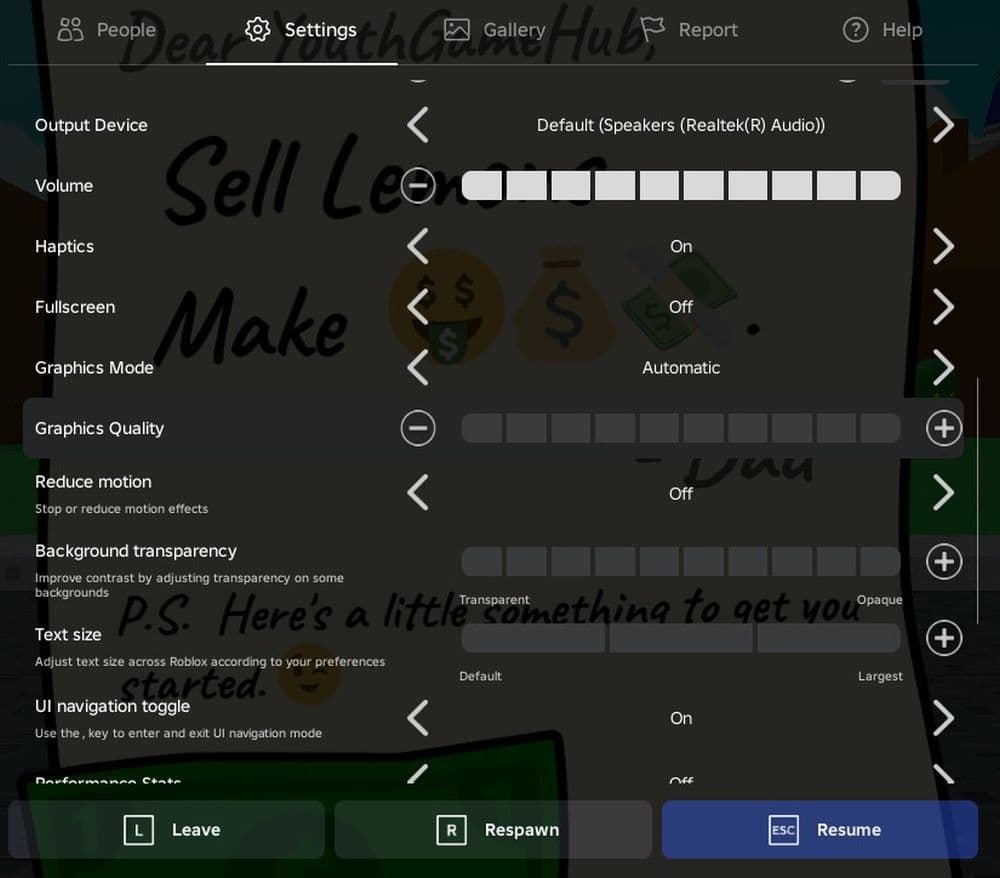
- Join a Roblox experience.
- Press Esc or open the Roblox menu.
- Go to Settings.
- Change Graphics Mode to Manual.
- Lower the Graphics Quality slider.
- Return to the game and see how it feels.
Lower settings mean your device has less visual work to process. You may lose some detail, but the trade-off can make a big difference on older PCs, laptops, phones, and tablets.
There is also no need to drag the slider straight to the bottom. Lower it a few steps, test the game, then go further if the frame rate still feels rough.
2. Close apps you do not need
Sometimes Roblox is not the only program asking your device to work hard.
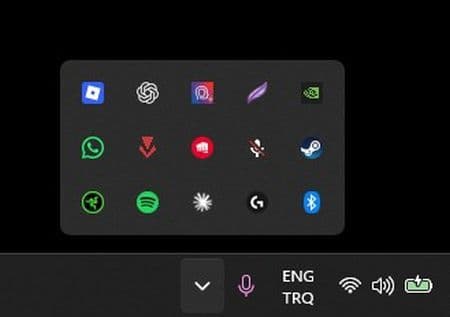
A browser full of tabs can use a surprising amount of memory. Screen recording programs and other games can take even more. If Roblox starts slowing down while several apps are open, close anything you are not actively using.
This matters even more on lower-end devices. Freeing some memory may be enough to stop the constant stuttering without changing anything else.
3. Check your internet connection
Graphics settings will not do much if the real problem is your connection.
Pay attention to what happens in the game. If other players keep teleporting around or your actions take too long to register, start looking at your network instead.
A wired Ethernet connection is usually worth testing on PC if you have the option. On Wi-Fi, try moving closer to your router. It is also worth checking whether someone else on the network is downloading a large game or using a lot of bandwidth.
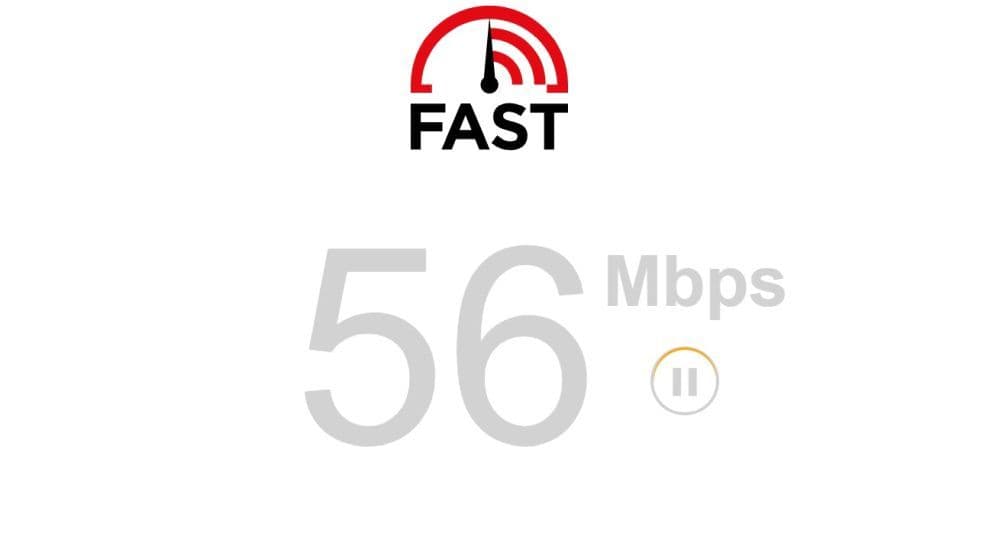
Roblox currently recommends at least a 4–8 Mb/s internet connection for a household with one active user. Still, speed alone does not tell you everything. A connection can look fast in a speed test and still feel bad in a game if it keeps dropping or changing.
If Roblox keeps disconnecting completely, checking common Roblox error codes can also point you toward a more specific connection problem.
4. Restart Roblox and your device
It sounds simple because it is simple, but a full restart can clear temporary problems surprisingly often.
Close Roblox completely and open it again. If nothing changes, restart the device as well.
On PC, it is also worth checking whether you have the latest Roblox client installed. If something seems wrong with the installation, you can update Roblox on PC before moving on to more serious troubleshooting.
How to tell if Roblox lag comes from your internet or device
This is where many players waste time. The game feels bad, so they lower every graphics setting they can find. But if the connection is the problem, that will not fix much.
A quick way to narrow it down is to watch what the lag actually looks like.
If your own movement looks smooth but everyone else seems to teleport, your internet connection is the better place to start.
If the whole screen stutters when you turn the camera, your device is more likely struggling with performance.
How to reduce Roblox lag on mobile
Roblox lag on a phone can feel a little different because mobile devices have tighter limits on memory and heat.
Your connection is an important starting point. If Roblox runs badly over mobile data, try the same experience on a stable Wi-Fi connection and compare the result.
Heat can become part of the problem during longer sessions. You may notice Roblox runs fine when you first start playing, then slowly gets worse as the phone becomes hot. If that happens, stop for a while and let the device cool down before testing again.
On iPhone or iPad, repeated low-memory warnings are another sign that the device may be struggling with heavier Roblox experiences. In that case, lighter games may run much better.
If you enjoyed this piece, make sure to check out these as well:
- How to get rid of the Ghost in Roblox Animal Hospital
- Anime Expeditions Puppet unit: Evolution, traits & more
- How to get Anime Expeditions Shiny Units
- How to create a player whitelist in Roblox
- How to check Roblox play time: How many hours have I played
Featured Image Credit: Roblox
All Related Guides
 Roblox Robux codes (October 2026): Gift cards, free items & moreFind Roblox Robux codes & redeem gift cards, claim free avatar items, convert Roblox Credit, and fix codes tha...
 How to see Roblox purchase historyLearn how to see your Roblox purchase history, check Robux transactions and find real-money receipts on deskto...
 How to find the Monochrome Roblox code and escapeFind the Monochrome Roblox code, collect all four keys, survive the basement maze and open the elevator to com...
 How to connect Claude to Roblox StudioConnect Claude to Roblox Studio with the current MCP method and see how Claude can work with your scripts and ...
 How to fight in Gakuran RobloxLearn how to fight in Gakuran Roblox, from basic attacks to blocking, parrying, posture, and fighting styles....
 How to get a free avatar in RobloxFind out how to get a free Roblox avatar without spending Robux, from free character bundles to Marketplace it...
 How to check Roblox player countHow many people play Roblox in 2026? Check the latest Roblox player count and learn what the numbers actually ...
 App Themes: How to change a Roblox Background (2026)Here’s how to change your Roblox background and theme, including Roblox Plus themes, Dark Mode, Light Mode, an...
- 1
- 2
- 3
- 4
- 5
- 6
- 7
- 8
- 9
- 10
- 11
- 12
- 13