How to connect Claude to Roblox Studio
You may already use Claude to write Roblox code, fix a broken script, or figure out why something in your game does not work. The annoying part usually comes next. You copy the code into Roblox Studio, test it, copy the error back into Claude, then repeat the whole process again.
There is now a much better way to handle that workflow. If you want to know how to connect Claude to Roblox Studio, you can use the MCP server built directly into Studio. Claude Desktop and Claude Code can connect to your open project, which means Claude can actually work with what you have inside Studio instead of relying only on whatever code you paste into the chat.
How does Claude help in Roblox Studio?
Claude becomes much more useful for Roblox development once it can see the project you are working on.
Say you have a door script that suddenly stops working. Normally, you would need to find the script, copy it into Claude, explain where it sits in the game, then bring any suggested changes back into Studio. With MCP connected, Claude can inspect that project directly and work from the same context you see.
Depending on the task, Claude can:
- Find and read scripts inside your game.
- Create or change Luau code.
- Check objects and their properties.
- Run Luau inside Studio.
- Start and stop playtests.
- Read errors and other messages from Studio Output.
- Look at the current Studio viewport.
- Send keyboard, mouse, or character input during testing.
That makes the connection useful for both new projects and existing games. You could ask Claude to check a broken piece of code, for example, or have it look through your Roblox scripts before you start changing anything.
You should still review its work yourself. Claude can misunderstand how you want a mechanic to behave, and AI-generated code can contain mistakes.
- Related: How to make a Roblox game
How to connect Claude to Roblox Studio
The current setup is fairly simple because Roblox now includes an MCP server inside Studio itself. You do not need to start with the third-party MCP plugins that appear in some older tutorials.
You will need an up-to-date version of Roblox Studio and either Claude Desktop or Claude Code installed on your computer.
1. Turn on the Roblox Studio MCP server
First, open the Roblox experience you want Claude to work with.
Then:
- Open Assistant inside Roblox Studio.
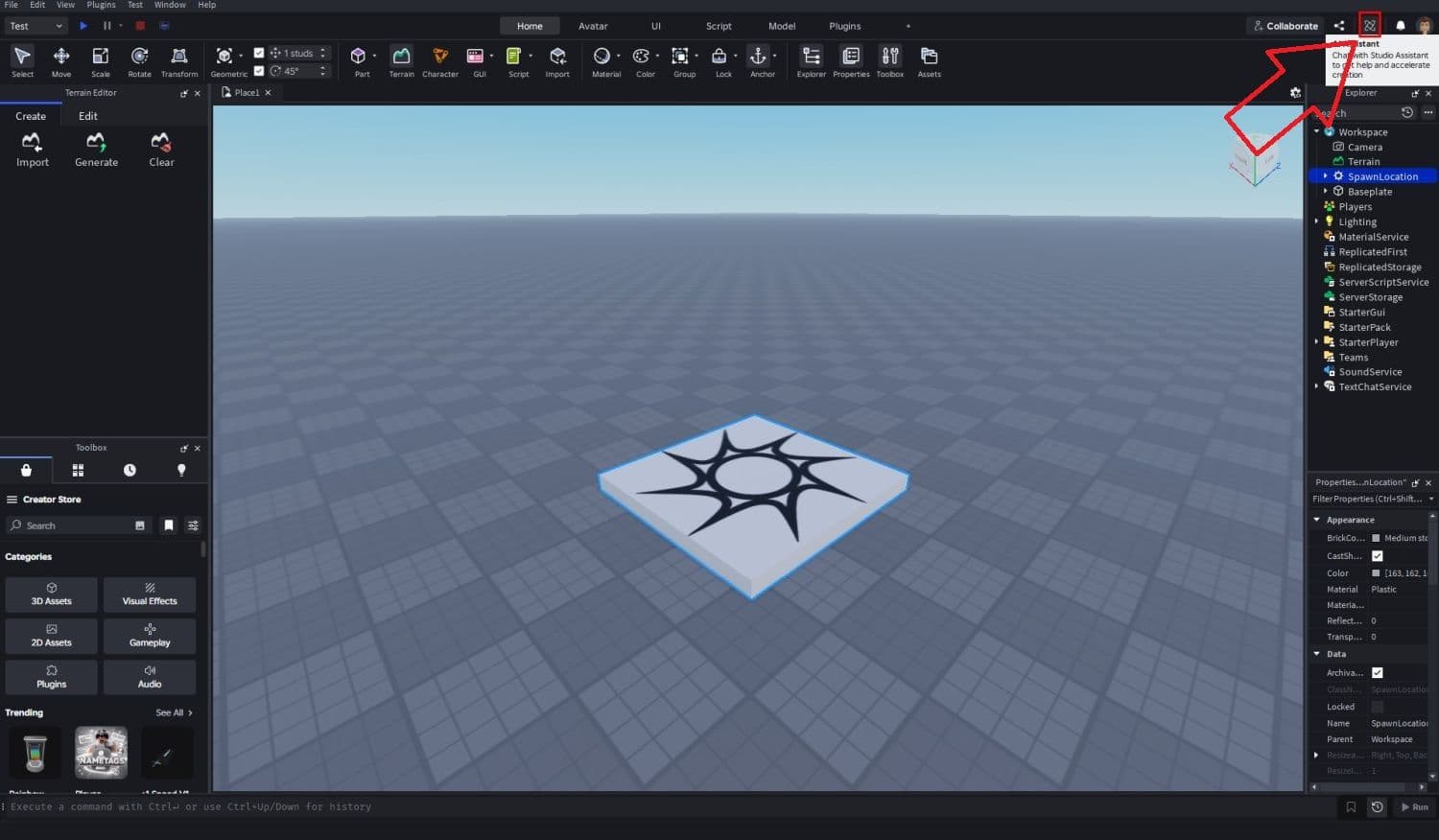
- Click the three-dot menu.
- Choose Manage MCP Servers.
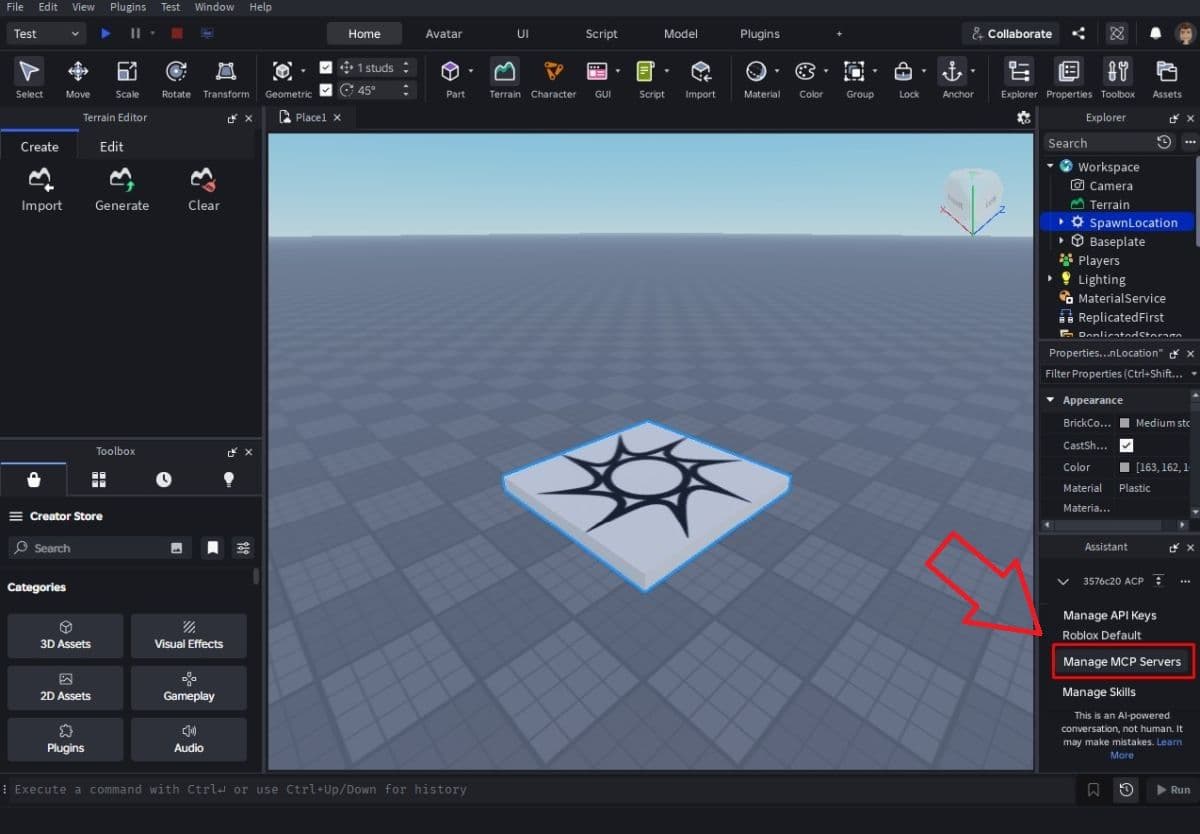
- Switch on Enable Studio as MCP server.
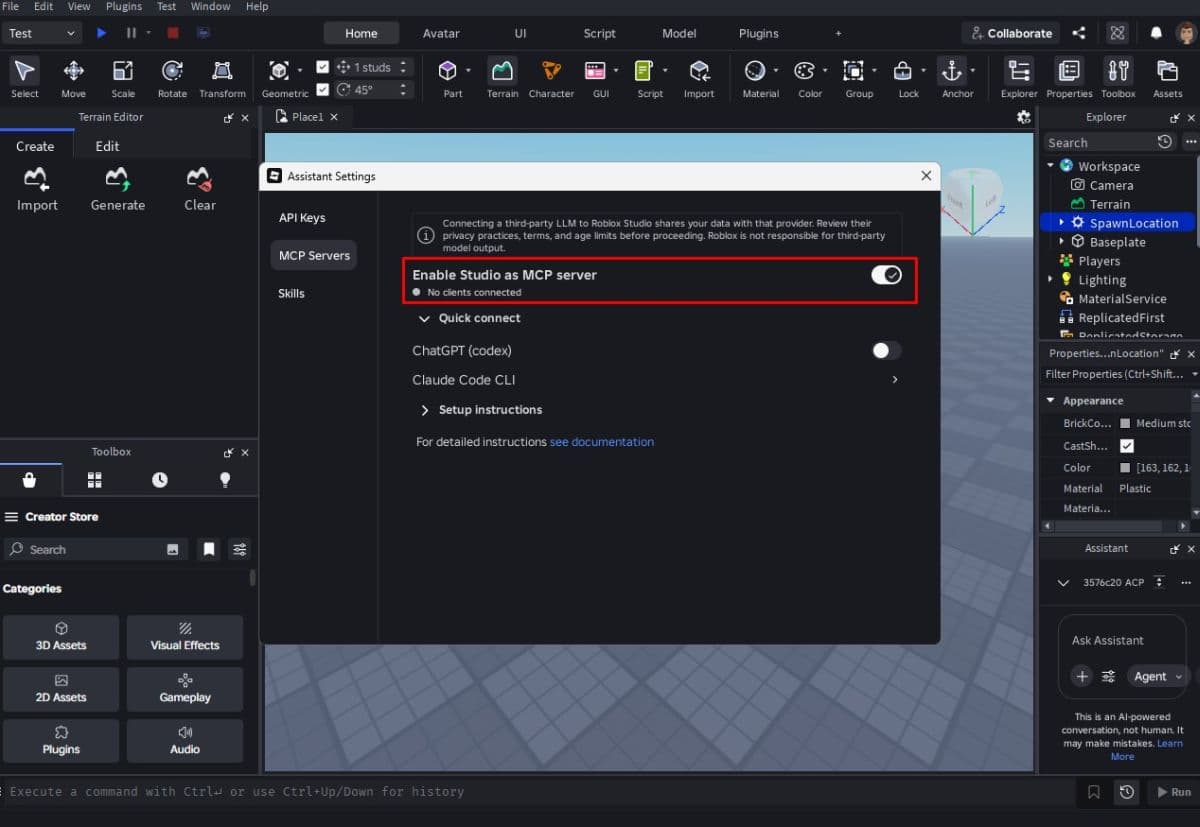
Once you turn this setting on, Studio allows supported MCP clients on your computer to connect to the project.
There is a permission point worth knowing here. Claude may gain access to content inside the Roblox place you currently have open. It can also make changes when you approve the relevant tools. Check what Claude wants to do before you allow a tool call, especially when you work on an important project.
2. Connect Claude Desktop or Claude Code
Now stay in the MCP Server menu and look for Quick Connect.
Roblox Studio checks your computer for compatible clients. If you already installed Claude Desktop or Claude Code, you should see it there.
Turn on the Claude client you want to use. Studio will show a green status indicator once a client connects.
Claude does not show up? That can happen if you installed it while Studio was already running. Close Roblox Studio completely, open it again, then return to the MCP menu and check Quick Connect once more.
You may also need to restart Claude after you change the connection.
3. Use manual MCP setup if Quick Connect does not work
Quick Connect is the easiest route, but it is not your only option.
Inside the same MCP settings, Roblox also gives you the information you need for a manual connection. You can use an MCP JSON configuration or a command-line setup, depending on the Claude client you use.
Windows and macOS use different local paths, so copy the configuration shown by your own Studio installation. Avoid grabbing an old configuration from a tutorial and assuming it still works.
After you add the manual configuration, restart Claude before you test it.
How to test the Claude Roblox Studio connection
You do not need to start by asking Claude to build half your game. Try something simple first.
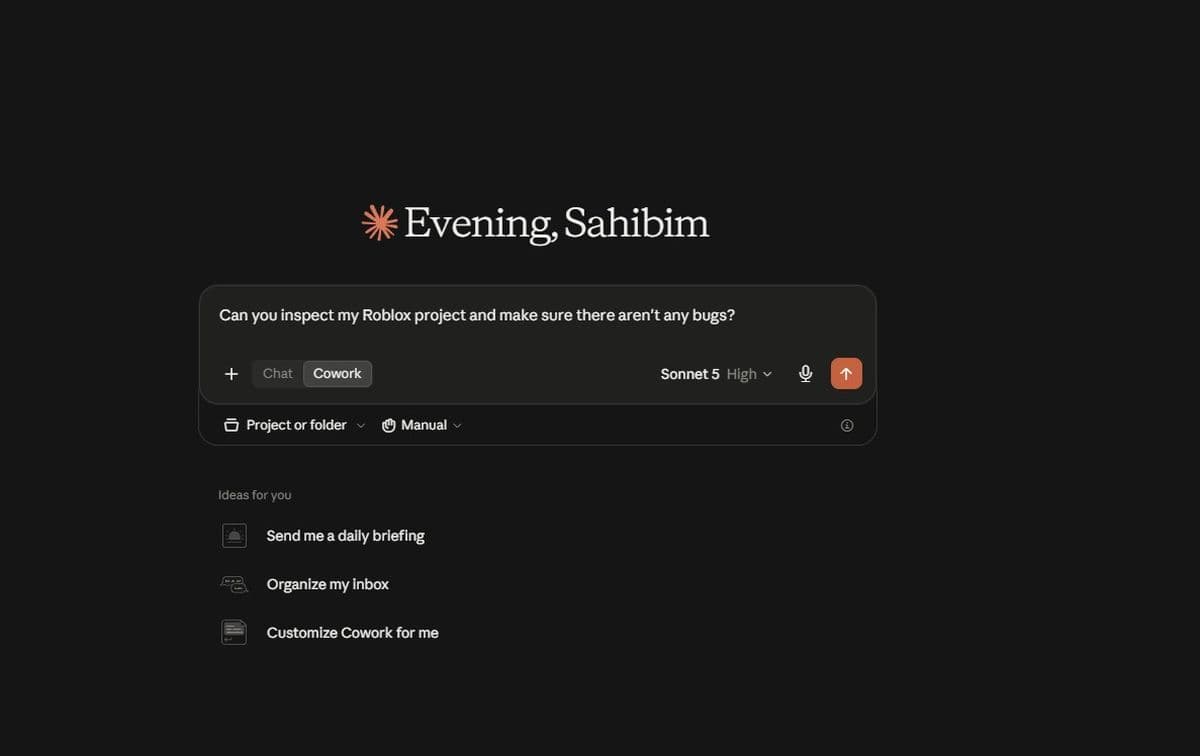
Open Claude and ask it to inspect your current Roblox project. You can tell it to list the objects inside Workspace, for example.
If you have a basic Baseplate experience open, Claude should be able to read what sits inside that Workspace through MCP. Claude may ask for permission before it runs the required tool. Check the request, then approve it if everything looks right.
You can also check the connection from Roblox Studio itself. Go back to Assistant > Manage MCP Servers and look at the connection status. A green indicator means Studio has an MCP client connected.
Once that works, move on to a small code task. Ask Claude to find one script and explain what it does. That gives you an easy way to confirm that it can read the correct project before you let it make bigger changes.
Do you need an Anthropic API key for Roblox Studio?
You do not need an Anthropic API key just to connect Claude Desktop or Claude Code through MCP.
This part can get confusing because Roblox Studio also supports Anthropic models inside its own Assistant. That setup uses an Anthropic API key, but it is separate from the Claude MCP connection covered above.
Think of the two options like this:
- MCP connection: You use Claude Desktop or Claude Code, and Claude connects to the Roblox Studio project.
- Anthropic API key: You add your key to Roblox Studio and use an Anthropic model through Roblox Assistant.
If you use an API key, keep it private. Do not place it inside a public Roblox script or upload it to a public repository.
Why Claude is not connecting to Roblox Studio
Sometimes everything looks right, but Claude still refuses to connect. In most cases, the problem comes from the client not detecting Studio or from an incorrect manual setup.
Start with these checks:
- Make sure Roblox Studio and Claude are up to date.
- Check that Enable Studio as MCP server is still turned on.
- Restart Roblox Studio if Claude does not appear under Quick Connect.
- Restart Claude after you edit its MCP configuration.
- Check the file path if you set the connection up manually.
- Look through the JSON configuration for formatting mistakes.
- Keep the Roblox project you want Claude to access open in Studio.
Also watch out for older guides. You may still find tutorials that tell you to install a separate Roblox MCP plugin or use a different community server. Roblox now has its own MCP server inside Studio, so start with the native method unless you have a specific reason to use something else.
Find more Roblox guides below:
- How to get rid of the Ghost in Roblox Animal Hospital
- Anime Expeditions Puppet unit: Evolution, traits & more
- How to get Anime Expeditions Shiny Units
- How to create a player whitelist in Roblox
- How to check Roblox play time: How many hours have I played
Featured Image Credit: Roblox
All Related Guides
 Roblox Robux codes (October 2026): Gift cards, free items & moreFind Roblox Robux codes & redeem gift cards, claim free avatar items, convert Roblox Credit, and fix codes tha...
 How to see Roblox purchase historyLearn how to see your Roblox purchase history, check Robux transactions and find real-money receipts on deskto...
 How to find the Monochrome Roblox code and escapeFind the Monochrome Roblox code, collect all four keys, survive the basement maze and open the elevator to com...
 How to fight in Gakuran RobloxLearn how to fight in Gakuran Roblox, from basic attacks to blocking, parrying, posture, and fighting styles....
 How to get a free avatar in RobloxFind out how to get a free Roblox avatar without spending Robux, from free character bundles to Marketplace it...
 How to reduce lag in Roblox: Comprehensive guideRoblox feeling slow or choppy? Find out how to reduce lag in Roblox and improve your game with a few simple ch...
 How to check Roblox player countHow many people play Roblox in 2026? Check the latest Roblox player count and learn what the numbers actually ...
 App Themes: How to change a Roblox Background (2026)Here’s how to change your Roblox background and theme, including Roblox Plus themes, Dark Mode, Light Mode, an...
- 1
- 2
- 3
- 4
- 5
- 6
- 7
- 8
- 9
- 10
- 11
- 12
- 13