How to get voice chat on Roblox with and without an ID on mobile & PC
This relatively new feature in Roblox is not as easy to access as you may think.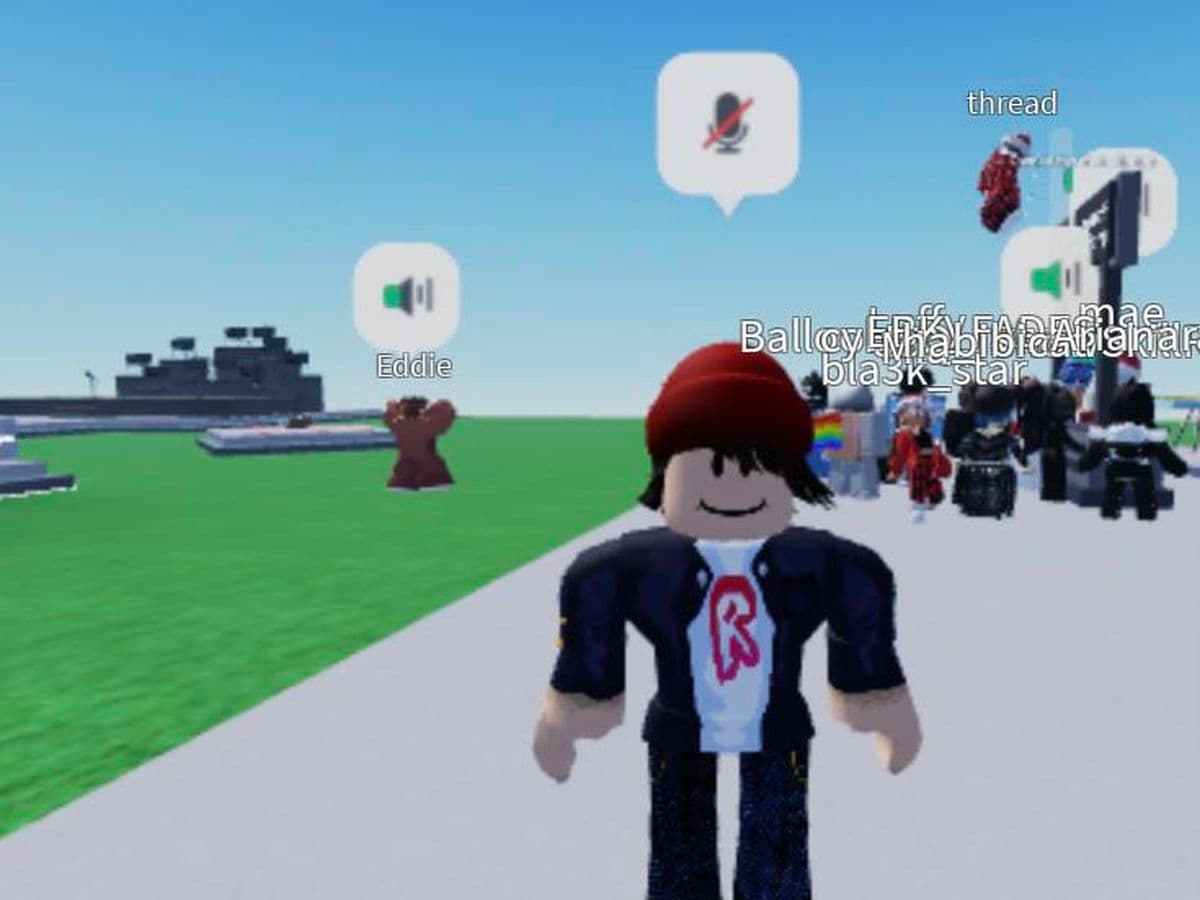
How to get voice chat on Roblox? In this guide, we’ll cover everything you need to know, including age and verification requirements, how to turn on voice chat, and what to do if you face any issues, like voice chat bans. Keep reading to learn how to get started and stay safe while using Roblox voice chat!
What to know before turning on voice chat in Roblox
Before learning how to get voice chat on Roblox, there are some important things you need to know first.
Players who are 13+ and verified can access voice chat in Roblox, and this feature is available in a growing list of countries, including US, CA, GB, IE, AU, NZ, ES, MX, CL, CR, PR, FR, IT, AT, CHE, DE, JP, KR, CH, AR, COL, PE, DO, GT, UY, SV, HN, PY, NI, EC, BO, VE, and PA.
Users outside of these regions can enable voice chat by completing ID verification. While voice chat enhances communication, it's unavailable on PlayStation and Xbox consoles at the time of writing.
How to get voice chat on Roblox
Now that you know who is eligible, it's time to go over the steps you need to follow.
Verify your account
First, you need to verify your account:
Verifying with an ID (Optional, but faster)
- Log into your Roblox account on a web browser.
- Click on the Settings icon (gear/cog icon) in the top-right corner of the page.
- Select Settings from the dropdown menu.
- Click on Verify My ID and follow the on-screen instructions to submit an official identification document (like a passport, driver’s license, or government ID).
- After your ID is verified, your account will be marked as ID verified.
Once your ID is approved, voice chat will be available in your privacy settings.
How to get voice chat on Roblox without ID: Verifying without an ID (Using a phone number)
If you don’t want to or can’t use an ID, here’s how you can verify with your phone number:
- Log in to your Roblox account on the website.
- Click the Settings icon (the cog symbol) in the top-right corner of the page.
- From the dropdown menu, select Settings to open the Account Settings page.
- On the Account Info tab, look for Phone Number.
- Click on Add Phone next to the Phone Number field.
- Enter a valid phone number capable of receiving text messages.
- You’ll receive a verification code via text. Enter the code and click Verify Phone.
- After verification, your phone number will be linked to your account, and you can proceed to enable voice chat.
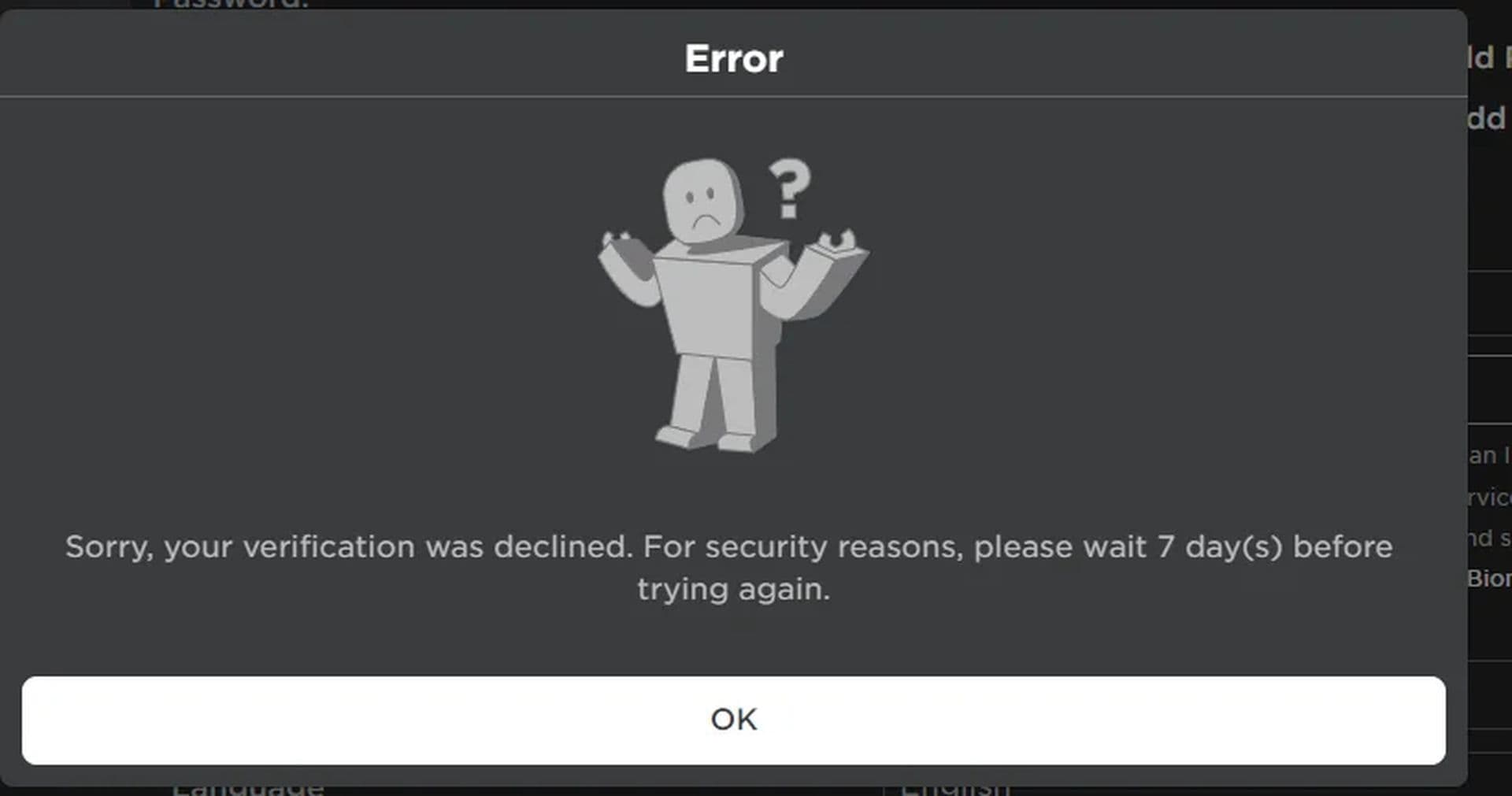
Warning: Be cautious with the verification steps, although a few mistakes do not cause big bans, if you fail to complete them correctly in a lot of attempts could result in your account being suspended like you see in the following example.
How to turn on voice chat in Roblox
Now that your account is verified, here’s how you can enable the Chat with Voice feature:
Enabling Roblox voice chat on a PC
- Open Roblox on your PC and log into your account.
- Click the Settings icon (the cog) in the top-right corner of the page.
- Select Settings from the dropdown menu, then go to the Privacy Settings tab.
- Under Microphone and Camera Input, you will see the option to Enable Voice Chat (under the Beta Features section).
- Toggle the button to ON (the button will turn green, confirming that voice chat is now enabled).
If you don’t see this option, it may mean your account doesn’t meet the verification requirements or is not included in the feature rollout yet.
Enabling Roblox voice chat on Mobile Devices
- Launch the Roblox app on your mobile device.
- Log into your account.
- Tap the three dots in the bottom-right corner to access more options.
- Scroll down and tap on Settings.
- Under Privacy, locate Enable Voice Chat.
- Toggle the button to ON to activate voice chat.
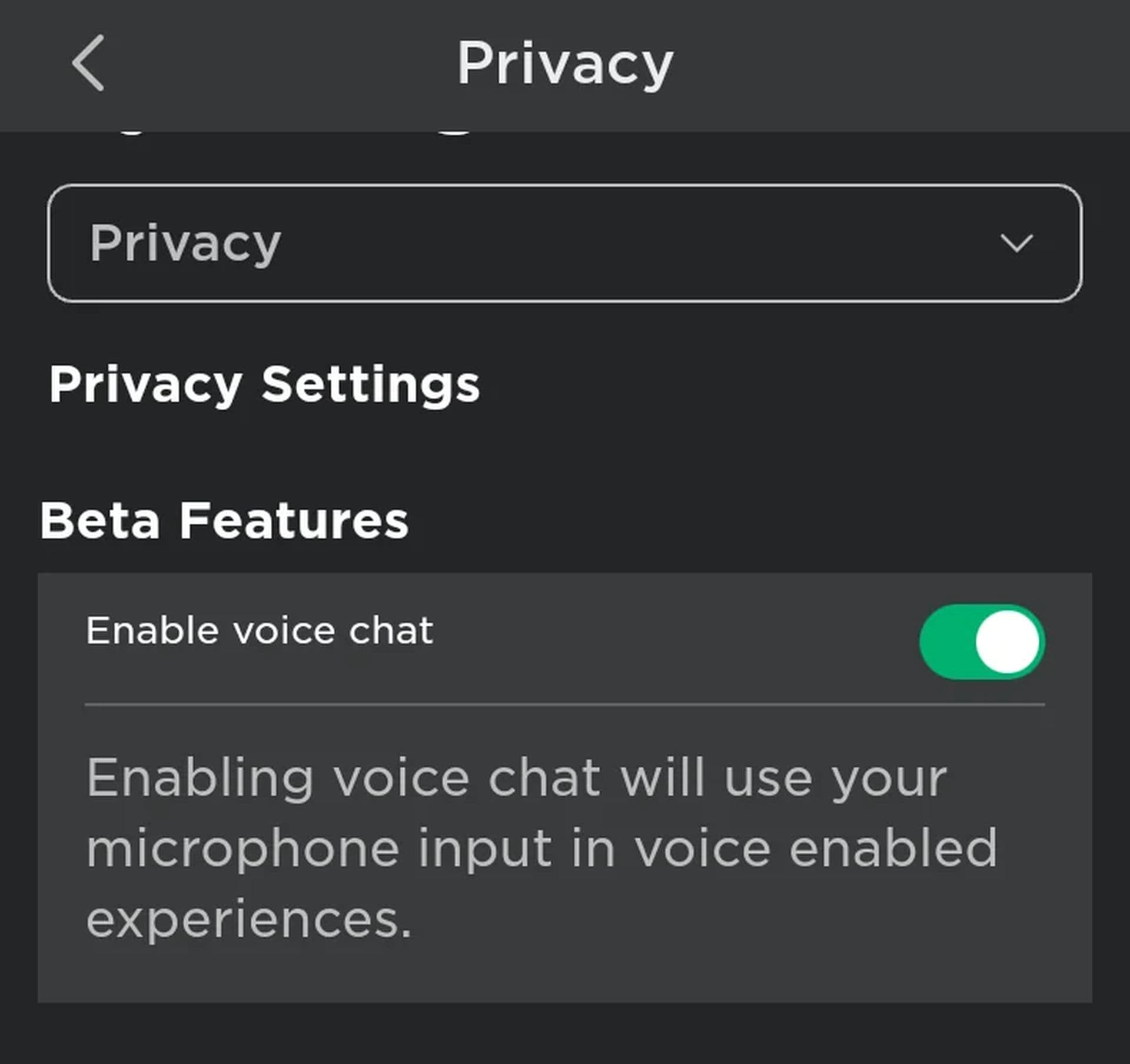
After following these steps, you should be able to communicate using your microphone in games that support voice chat.
How to hide the enable voice chat in Roblox
To hide or disable the "Enable Voice Chat" option in Roblox, go to your account settings. On PC, open Roblox, click the three dots in the top-right corner, and select "Settings." Then, navigate to the "Privacy" tab and ensure the Voice Chat option is turned off. On mobile, open the Roblox app, go to the settings menu, tap "Privacy," and disable Voice Chat. This will prevent the voice chat option from appearing in games.
Remember, voice chat is only available to users over 13 with verified identities.
How to get voice chat on Roblox if you are under 13
Unfortunately, if you are under 13, you won’t be able to access this feature. Roblox enforces this age restriction to ensure that its communication tools are used safely and we don’t recommend bypassing this limit. However, if you want to learn for general curiosity, here is a workaround for you!
You can try verifying your account without an ID and bypass the age limit. You can follow the mentioned steps above. However, as mentioned, we don’t advocate these kinds of activities & respect Roblox’s rules.
How to use voice chat in Roblox
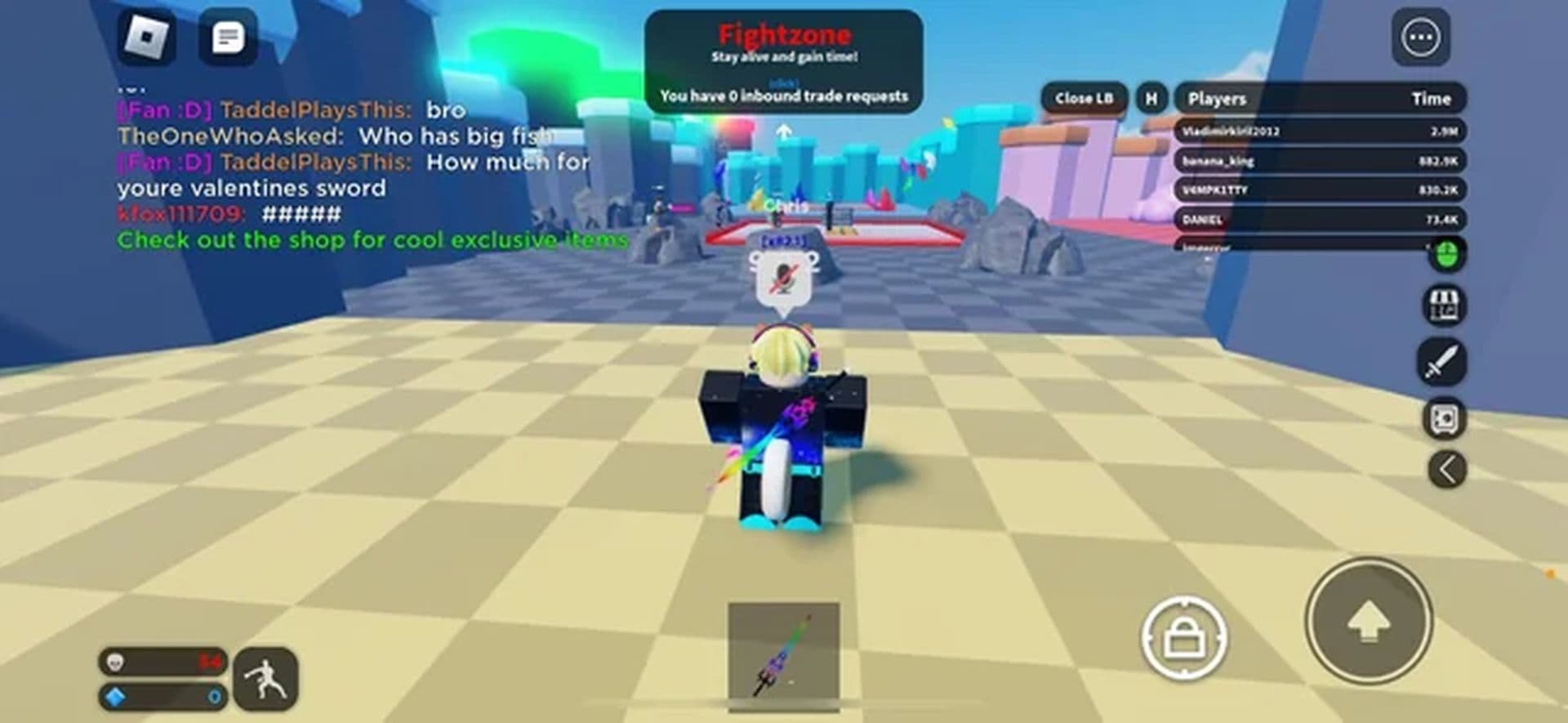
Once voice chat is enabled, you can join any Roblox experience that supports it. You’ll know voice chat is available if you see a microphone icon under the Communication field in the game’s description.
Players with voice chat enabled will have a speaker icon next to their username, both in the in-game menu and above their avatar’s head.
Is Roblox voice chat not working?
If you meet all the criteria but still don’t see the option for voice chat, it could be because Roblox is gradually rolling out the feature.
Be patient, as you’ll be added to the beta test once your account is approved for the feature. Also, you can contact Roblox support.
Roblox voice chat settings
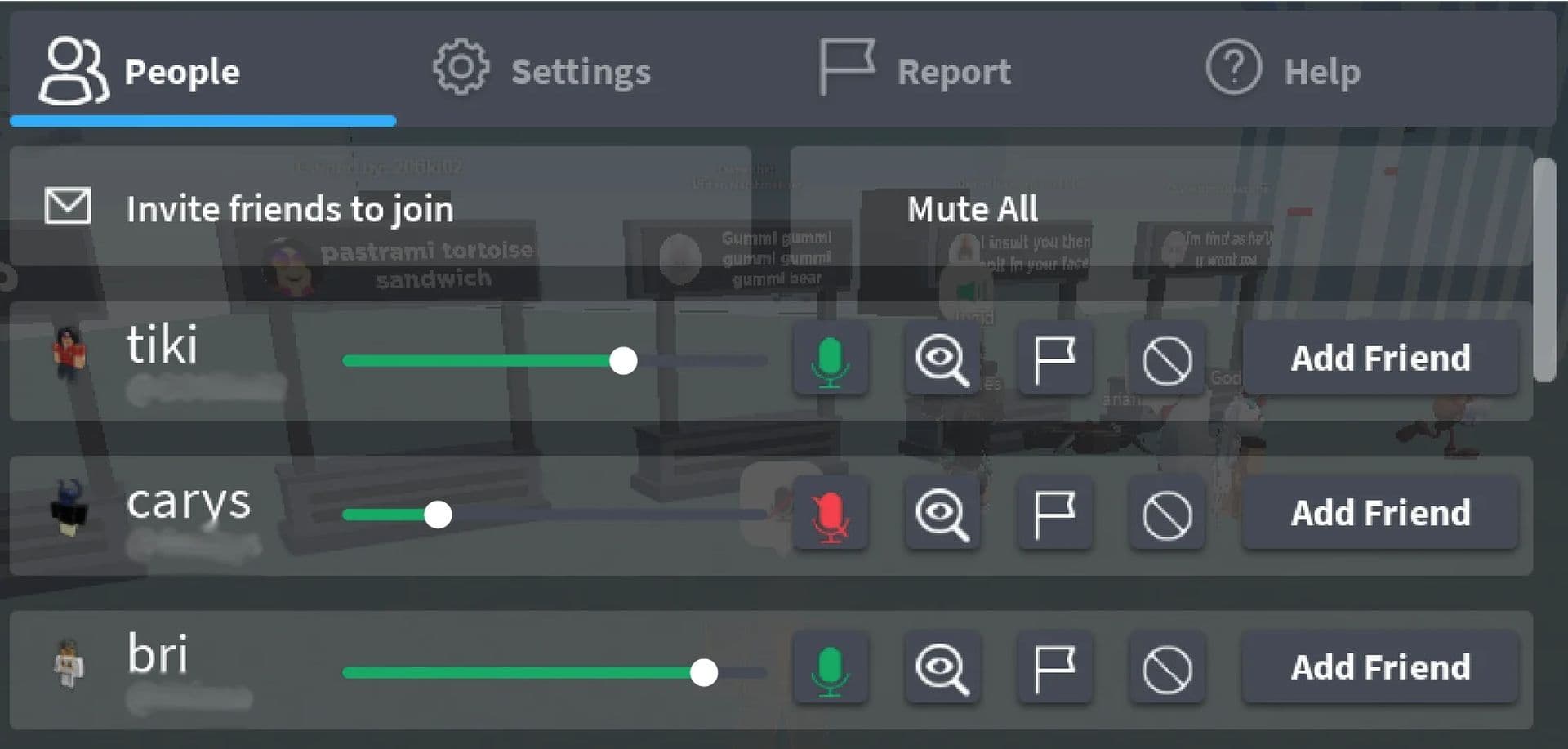
Roblox provides tools to manage your voice chat experience, including options to mute or block users.
- Muting: To mute someone, click on the speaker icon next to their username or over their avatar’s head. Muting only applies to voice chat, and it lasts for the current game session.
- Blocking: To prevent a player from chatting with you via voice or text, block them by accessing their profile or using the in-game settings.
- Reporting abuse: If someone is violating the Terms of Use or Community Standards, report them by using the Report Abuse feature. You can specify that the abuse happened in voice chat.
How to turn off Roblox voice chat
If you ever decide that you no longer want to use voice chat, you can turn it off easily:
- Go to Account Settings.
- Navigate to the Privacy tab.
- Toggle the Use microphone to chat with voice selector to OFF. The toggle will turn gray, indicating the feature has been disabled.
Roblox voice chat bans explained
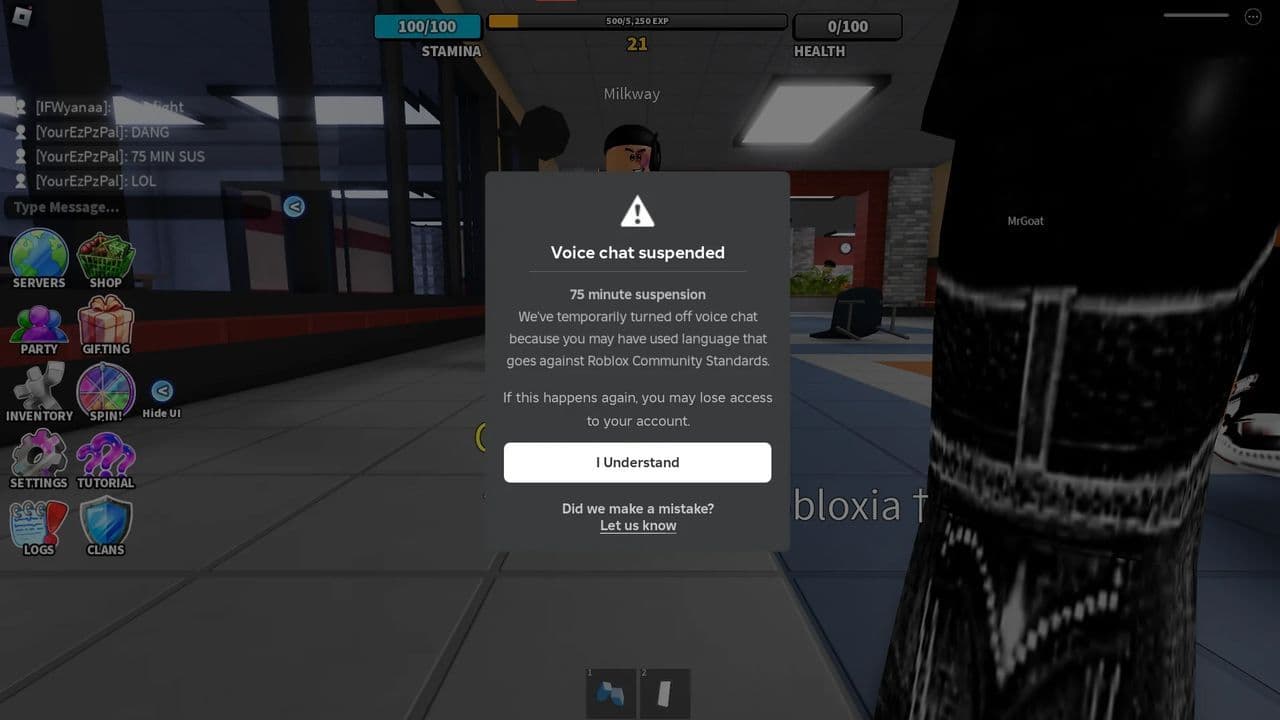
Roblox voice chat bans are penalties imposed on players who violate the rules or community guidelines while using Roblox's voice chat feature. Voice chat allows players to communicate with others in real time by speaking through their microphones during gameplay. However, like all forms of communication on Roblox, voice chat comes with a set of rules designed to maintain a safe, respectful, and enjoyable environment for users, especially considering that many Roblox players are children or young teenagers.
Roblox voice chat ban reasons
Voice chat bans are typically issued for the following behaviors:
- Harassment or Bullying: Using voice chat to insult, threaten, or harass other players.
- Inappropriate Content: Speaking in a way that includes swearing, hate speech, or explicit language.
- Disruptive Behavior: Making loud noises, spamming the microphone, or intentionally disturbing other players with unwanted noise.
- Violating Roblox Community Guidelines: Any conduct that goes against Roblox's broader rules, such as cheating, exploiting, or violating the platform's terms of service.
Am I voice chat banned in Roblox?
To check if you are banned from voice chat in Roblox, start by logging into your account. Then, click the gear icon in the top-right corner to access your account settings. In the settings menu, go to the Privacy tab, where you will find the Voice Chat section. If you are eligible for voice chat, you'll see an option to enable or disable it. If this section is unavailable or indicates that voice chat is disabled, it may mean that you've been banned from using the feature. In such cases, you can contact Roblox support for clarification or to appeal the ban.
Also, you can check by going to voice.roblox.com/v1/settings.
How long does Roblox voice chat ban last?
Bans can be temporary or permanent. Temporary bans usually last from a few hours to a few days, depending on the severity of the violation. Permanent bans can occur in cases of repeated offenses or serious violations, preventing a player from using voice chat indefinitely.
According to Roblox Dev Forum, to check how long you have been banned from voice chat in Roblox, follow these steps:
- Click on the link: https://voice.roblox.com/v1/settings. This will take you to your Roblox voice chat settings page.
- On the settings page, you will see some details related to your account's voice chat status. Look for a specific set of numbers associated with your ban.

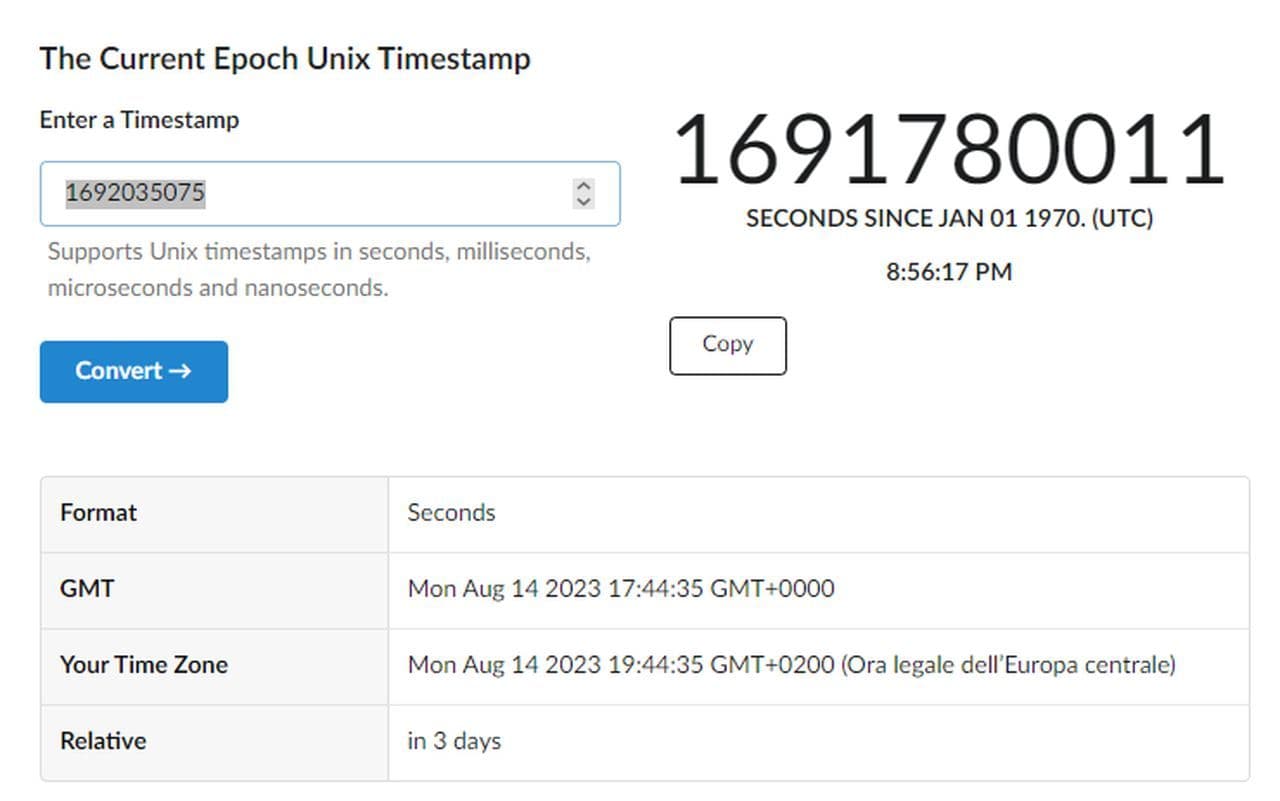
- These numbers represent the timestamp of when your ban was applied. Copy these numbers (they should look like a string of digits).
- Go to unixtimestamp.com, a Unix time stamp converter. Paste the copied numbers into the converter to convert them into a readable date and time format.
- The converted timestamp will show the exact time when your ban was imposed. You can then calculate the duration of the ban based on this information. For example, if the ban started 3 days ago, it would indicate a 3-day ban.
Appealing a Roblox Voice Chat ban
If you believe your voice chat access was mistakenly revoked or if you’d like to appeal the ban, you can contact Roblox Support for further assistance. They can investigate the issue and determine if a mistake was made or if the ban was just.
FAQ
How to get voice chat on Roblox without verification ID
If you can't or prefer not to use an ID for Roblox verification, you can verify your account using a phone number. Log in to Roblox, go to "Settings" by clicking the cogwheel icon, then select "Settings" from the dropdown menu. In the Account Info tab, click "Add Phone" next to the Phone Number field, enter a valid number, and click "Add Phone." After receiving a verification code via text, enter it to complete the process. Once verified, you can enable voice chat. Be mindful, as frequent errors in verification can lead to account suspension.
How to get voice chat on Roblox mobile if you are under 13
If you're under 13, you won’t be able to access voice chat on Roblox, regardless of the platform you're using, including mobile. Roblox has strict age restrictions to ensure the safety and appropriate content for younger users. To use voice chat, you must have an account set to 13+ and complete the necessary verification steps.
All Related Guides
 How to connect Claude to Roblox StudioConnect Claude to Roblox Studio with the current MCP method and see how Claude can work with your scripts and ...
 How to fight in Gakuran RobloxLearn how to fight in Gakuran Roblox, from basic attacks to blocking, parrying, posture, and fighting styles....
 How to get a free avatar in RobloxFind out how to get a free Roblox avatar without spending Robux, from free character bundles to Marketplace it...
 How to reduce lag in Roblox: Comprehensive guideRoblox feeling slow or choppy? Find out how to reduce lag in Roblox and improve your game with a few simple ch...
 How to check Roblox player countHow many people play Roblox in 2026? Check the latest Roblox player count and learn what the numbers actually ...
 App Themes: How to change a Roblox Background (2026)Here’s how to change your Roblox background and theme, including Roblox Plus themes, Dark Mode, Light Mode, an...
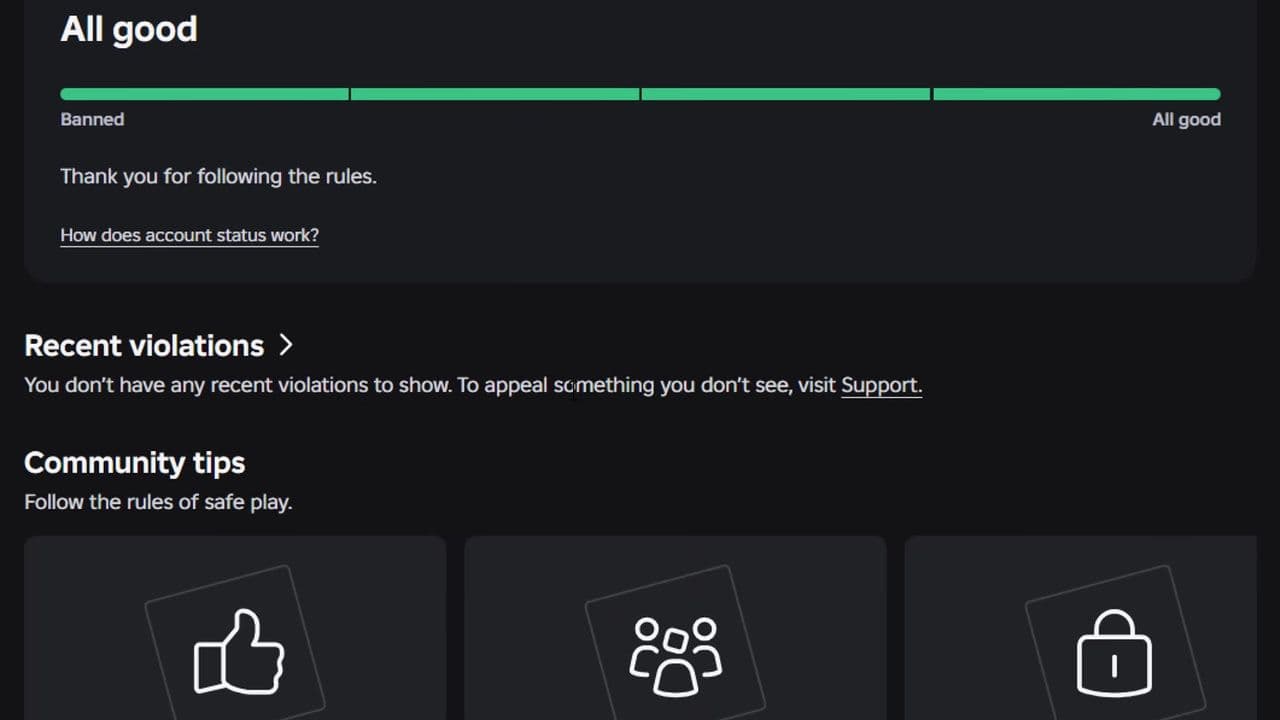 Roblox Safety Dashboard: How to check account status & ban riskLearn how the Roblox Safety Dashboard works, check your Account Status, review recent violations, and see whet...
 How to get the Blossoming Gift of New Beginnings in Roblox (Mystery box)Learn how to get the Blossoming Gift of New Beginnings in Roblox, including Roblox Plus requirements, eligibil...
- 1
- 2
- 3
- 4
- 5
- 6
- 7
- 8
- 9
- 10
- 11
- 12