How to listen to music while playing Roblox
Music on. Roblox uninterrupted.
Many players want to know how to listen to music while playing Roblox without the music stopping, lowering quality, or conflicting with in-game sound. Roblox can sometimes take control of your device’s audio, especially on mobile, which causes background music to pause. The good news is that this problem has reliable solutions.
This guide explains exactly how to listen to music while playing Roblox on PC, iOS, and Android.
Why does music stop when you play Roblox?
Roblox is designed to prioritize in-game audio. When voice chat or microphone access is enabled, Roblox may take exclusive control of your device’s audio system. When that happens, other apps such as Spotify, Apple Music, or YouTube pause automatically.
This is most common on:
- Mobile devices (iPhone and Android)
- Devices with voice chat enabled
- Devices where Roblox has microphone permissions
Understanding this is key to learning how to listen to music while playing Roblox without interruptions.
How to listen to music while playing Roblox without issues
Below is a complete list of all working fixes, starting with the most important ones and moving to advanced solutions.
Turn off voice chat (Most reliable way)
This solves the problem for most users.
- Open Roblox
- Go to Settings
- Select Privacy & content restrictions
- Find Voice Chat
- Turn Use microphone to chat with voice OFF
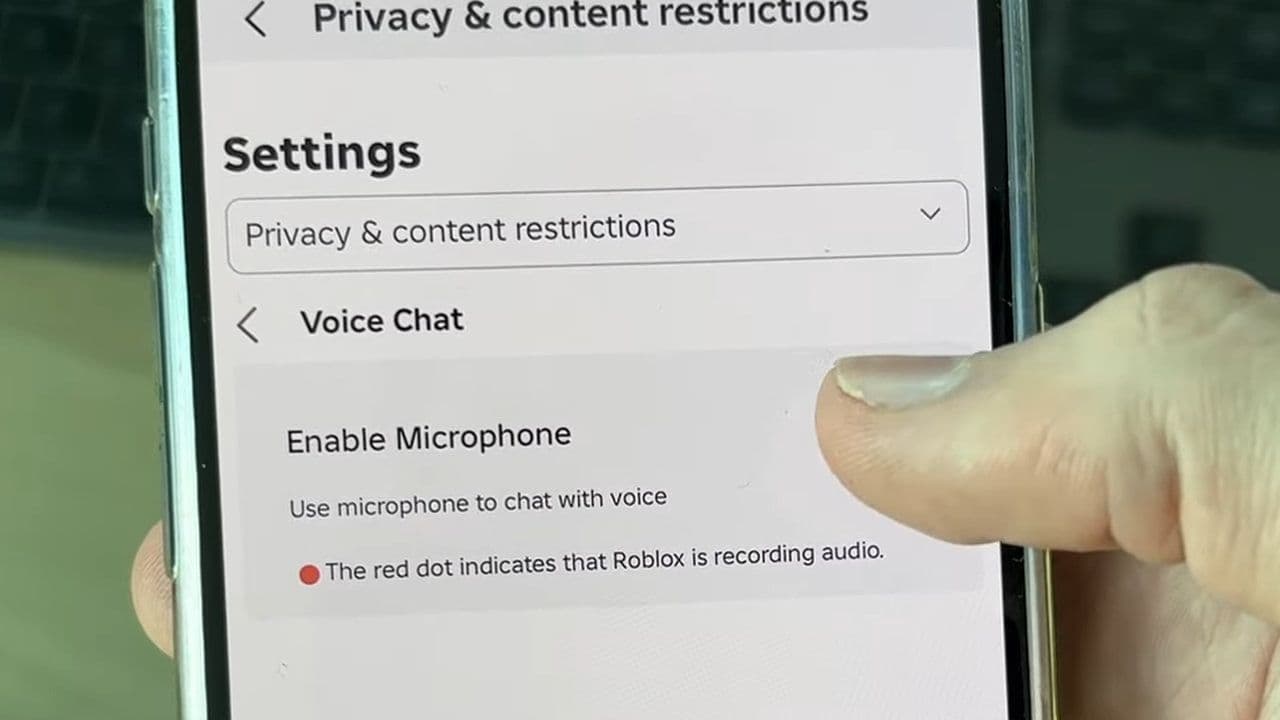
When voice chat is disabled, Roblox stops requesting exclusive control of your audio system.
Disable microphone permissions
Even with voice chat off, microphone permissions can still cause music to stop.
On iPhone (iOS)
- Open Settings
- Scroll to Roblox
- Turn Microphone OFF
On Android
- Open Settings
- Go to Apps
- Select Roblox
- Tap Permissions
- Disable Microphone
This is essential for anyone asking how to listen to music while playing Roblox on mobile.
Start music before opening Roblox
Order matters.
- Open your music app
- Start playing music
- Open Roblox
- Join a game
If music pauses when Roblox opens, resume it using:
- Control Center (iOS)
- Notification panel (Android)
- Headphone play button
Lower Roblox in-game volume
High Roblox volume can force your device to prioritize game audio.
- Open Roblox Settings
- Go to Volume
- Lower it to around 20–40%
- Keep your music app louder
This balances sound and prevents interruptions.
Turn off voice chat input devices (PC)
On PC, Roblox can still interact with your microphone through system settings.
- Open Sound Settings
- Go to Input
- Make sure Roblox is not using your main microphone
- Disable unused input devices
You can also:
- Disable microphone access for Roblox in Windows privacy settings
- Restart Roblox after changes
Disable Bluetooth audio switching (Mobile)
Some Bluetooth devices switch profiles when a microphone is detected, causing music to stop.
- Turn off Roblox microphone permissions
- Reconnect your Bluetooth headphones
- Avoid using voice-enabled Bluetooth modes
This is a common issue when learning how to listen to music while playing Roblox on mobile.
Run Roblox in windowed mode (PC)
Running Roblox in fullscreen can sometimes interfere with background apps.
- Open Roblox
- Press F11 or change display mode
- Use windowed or borderless window mode
This makes background music more stable.
Don’t forget to restart Roblox after changing settings
Roblox does not always apply audio changes instantly. Always:
- Close Roblox completely
- Reopen it after disabling voice chat or mic permissions
That’s all for today! Do you want free Roblox items? Check out these:
All Related Guides
 Roblox Robux codes (October 2026): Gift cards, free items & moreFind Roblox Robux codes & redeem gift cards, claim free avatar items, convert Roblox Credit, and fix codes tha...
 How to see Roblox purchase historyLearn how to see your Roblox purchase history, check Robux transactions and find real-money receipts on deskto...
 How to find the Monochrome Roblox code and escapeFind the Monochrome Roblox code, collect all four keys, survive the basement maze and open the elevator to com...
 How to connect Claude to Roblox StudioConnect Claude to Roblox Studio with the current MCP method and see how Claude can work with your scripts and ...
 How to fight in Gakuran RobloxLearn how to fight in Gakuran Roblox, from basic attacks to blocking, parrying, posture, and fighting styles....
 How to get a free avatar in RobloxFind out how to get a free Roblox avatar without spending Robux, from free character bundles to Marketplace it...
 How to reduce lag in Roblox: Comprehensive guideRoblox feeling slow or choppy? Find out how to reduce lag in Roblox and improve your game with a few simple ch...
 How to check Roblox player countHow many people play Roblox in 2026? Check the latest Roblox player count and learn what the numbers actually ...
- 1
- 2
- 3
- 4
- 5
- 6
- 7
- 8
- 9
- 10
- 11
- 12
- 13