How to see favorites on Roblox
A simple thing that many players are confused about. Here's how to see favorites on Roblox, both PC and mobile.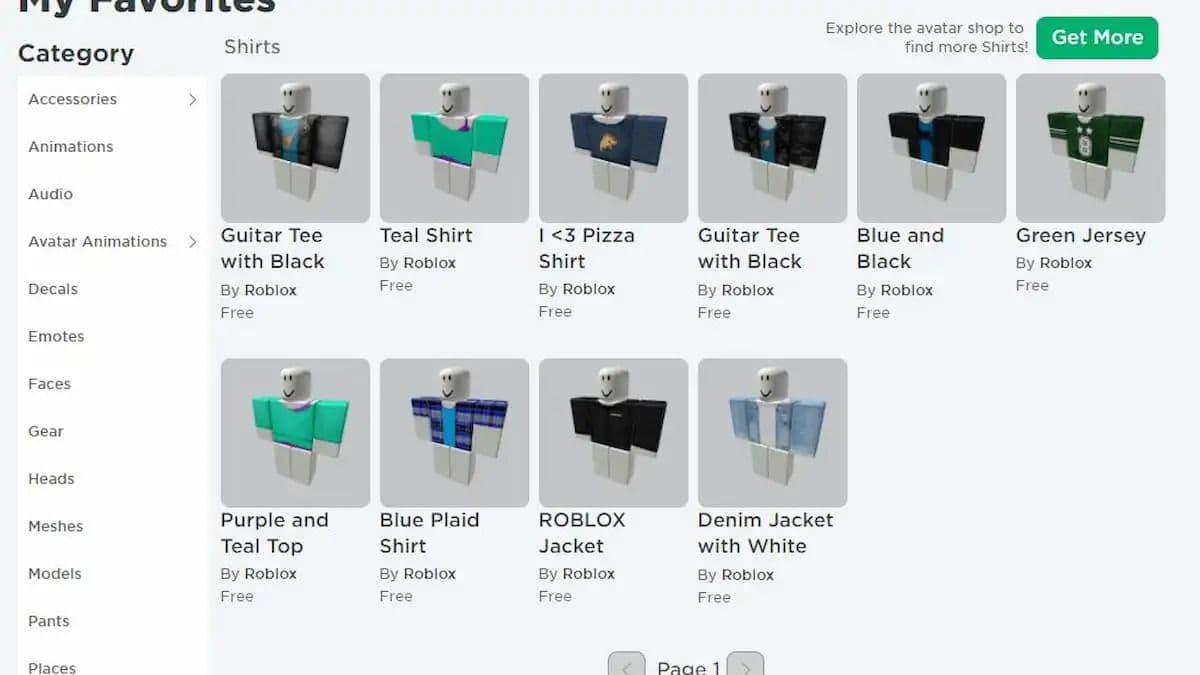
Roblox is a game that gives you the opportunity to browse a catalog full of different items (there are tons of them, we assure you) that may catch your attention. For this reason, it also gives you the opportunity to bookmark the items that are present in its store in order to find them later all in the same convenient location.
If you are reading this guide it is because you are wondering how to see favorites on Roblox. This article explains how to see your favorited items on both PC and mobile so that you can quickly find it whenever you feel like browsing your favorite items.
How to find favorites on Roblox
Being able to see your Roblox favorites is definitely something that can come in handy over time. We are sure that many of the items that are present in the catalog are to your liking, so having a place that contains them all in the same place is very useful.
Roblox gives its players the opportunity to choose between many different items (skins, cosmetics, and more), so a feature that allows you to put your favorites all in one place is a very welcome feature.
Therefore, here are the steps you need to follow if you want to know how to see favorited items on Roblox. Luckily for you, they are actually very simple to perform and even if you are not tech savvy you definitely won't have any problems.
How to see favorites items on Roblox on PC
- Once you are logged into your account in Roblox, select the three-line drop-down menu located on the top-left corner of the page
- The next thing to do is to navigate to the “Profile” tab on the menu.
- Now, click on the three dots on the right.
- Click to open your “Favorites” section and you will be able to see all of the items you have favorited.
How to see favorites items on Roblox on the phone
- Once you are logged into your account in Roblox, select the three dots located on the bottom-right corner of the page.
- The next thing to do is to navigate to the “Profile” tab on the menu.
- Now, scroll down until you see “View Full Profile.”
- Click on the three dots on the right.
- Click to open your “Favorites” Section and you will be able to see all of the items you have favorited.

Obviously, before you are able to take these steps and therefore know how to see your favorites on Roblox, you will actually have to add at least one to the list. Otherwise, you will not be able to see anything in that page. So, once you have added at least one item to your favorites, you can see the complete list of all the items that are part of it. Otherwise, this feature will be greyed out.
As you can see, therefore, knowing how to go to favorites on Roblox is not an absolutely difficult thing. It's simply a matter of making a few clicks and in a few moments you will have the complete list of your Roblox favorite items in front of you. Now that you know how to look at favorites on Roblox, you can monitor them whenever you want quickly and easily.
Why can't I favourite Roblox games?
If you're having trouble favoriting games on Roblox, you're not alone. There are a few reasons why this might happen
- Not logged in:
- You must be logged into your Roblox account to favorite or like games.
- If you're browsing without logging in, those buttons won’t work.
- Account restrictions:
- If you have a child account with parental controls, certain features like favoriting or liking games might be limited.
- Check Account Settings > Privacy to see if there are any restrictions.
- Game doesn't support favoriting:
- Some private or unlisted games can’t be favorited or liked.
- If a developer has disabled access or made a game unlisted, you won’t see the favorite option.
- Platform glitch or bug:
- Roblox occasionally has technical issues.
- Try refreshing the page, switching devices, or waiting a while and trying again.
- Browser or app issue:
- If you’re on a mobile app, try switching to a browser (or vice versa).
- Clear cache or reinstall the app if it seems glitchy.
If you can’t favorite a game on Roblox, start by checking if you're logged into your account—favoriting only works when you're signed in. Try favoriting a different game to see if the issue is specific to one game or all of them. Sometimes, simply logging out and back in or restarting your browser or app can fix the problem. Lastly, visit Roblox’s status page to check if there are any platform-wide issues affecting features like favoriting.
How to unfavorite games on Roblox?
Here is what you need to do:
- Go to your profile:
- Log in to your Roblox account.
- Click on your profile icon in the top-right corner or select “Profile” from the sidebar menu.
- Access your favorites:
- Scroll down until you see the “Favorites” section.
- Click on the “Favorites” tab or "See All" if you don't see all of them.
- Find the game you want to unfavorite: Look through your list and click on the game you want to remove from your favorites.
- Unfavorite the game:
- On the game’s page, look for the star icon near the title or under the game thumbnail.
- If it’s yellow (or filled), that means it’s favorited. Click it once to unfavorite.
- The star will turn gray (or become unfilled), confirming it's been removed.
All Related Guides
 How to connect Claude to Roblox StudioConnect Claude to Roblox Studio with the current MCP method and see how Claude can work with your scripts and ...
 How to fight in Gakuran RobloxLearn how to fight in Gakuran Roblox, from basic attacks to blocking, parrying, posture, and fighting styles....
 How to get a free avatar in RobloxFind out how to get a free Roblox avatar without spending Robux, from free character bundles to Marketplace it...
 How to reduce lag in Roblox: Comprehensive guideRoblox feeling slow or choppy? Find out how to reduce lag in Roblox and improve your game with a few simple ch...
 How to check Roblox player countHow many people play Roblox in 2026? Check the latest Roblox player count and learn what the numbers actually ...
 App Themes: How to change a Roblox Background (2026)Here’s how to change your Roblox background and theme, including Roblox Plus themes, Dark Mode, Light Mode, an...
 Roblox Safety Dashboard: How to check account status & ban riskLearn how the Roblox Safety Dashboard works, check your Account Status, review recent violations, and see whet...
 How to get the Blossoming Gift of New Beginnings in Roblox (Mystery box)Learn how to get the Blossoming Gift of New Beginnings in Roblox, including Roblox Plus requirements, eligibil...
- 1
- 2
- 3
- 4
- 5
- 6
- 7
- 8
- 9
- 10
- 11
- 12