Roblox upgrade problem on Android: How to fix the update loop
Roblox should open, load your favorite experiences, and let you play. On Android, some players instead see a warning that says their version is out of date and that the app will take them to the Google Play Store for an upgrade. This piece goes over the “Roblox upgrade problem” and shows you ways to fix it!
What is the Roblox upgrade problem about?
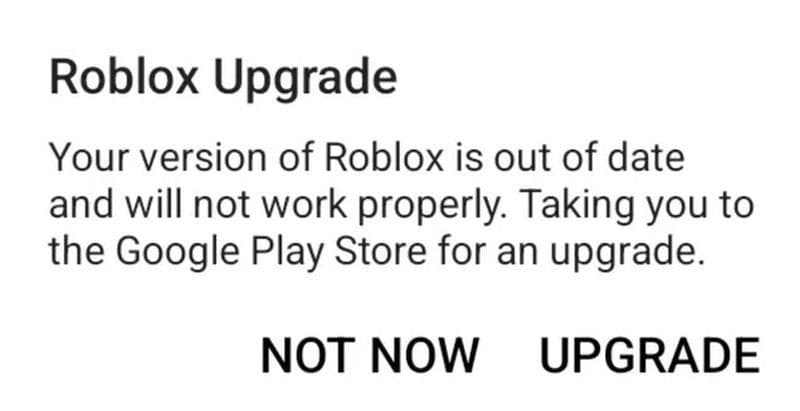
The Roblox upgrade problem on Android shows an error that says: “Your version of Roblox is out of date and will not work properly. Taking you to the Google Play Store for an upgrade.”
You tap Upgrade, the app sends you to the Google Play Store, but there is no Update button. The store only shows Play or Open, and sometimes you already reinstalled Roblox, yet the same message appears again. This issue creates a loop that stops you from playing.
Several factors can trigger this error:
- Roblox enforces a minimum client version. If your app is older than that version, the client shows the “out of date” message/
- Google Play Store cache or Google Play Services cache can be outdated, so the store does not show available updates correctly.
- Roblox files on your device can be corrupted, especially after interrupted updates or repeated installs.
- Your device may have problems with date and time settings, network connection, or available storage.
- In some periods, Roblox itself can have a bug that affects specific Android models, which keeps the popup active even on the latest version.
Understanding these causes helps you choose the right fix instead of reinstalling Roblox again and again.
How to update Roblox on Android the normal way
Before you try advanced fixes, you should confirm that Roblox really runs the latest version available for your account.
- Open the Google Play Store on your Android device.
- Tap the search bar and type Roblox.
- Open the official Roblox app page from Roblox Corporation.
- If you see an Update button, tap it and wait for the download and installation to finish.
- When the button changes to Play, tap it and see if the upgrade message disappears.
If the Play Store already shows Play or Open and no update is available, yet Roblox still shows the “out of date” error, you can move on to the fixes below. If you are new to the game, don’t forget to check out our Roblox beginners piece!
How to fix the Roblox upgrade problem
Try these fixes one by one to fix the Roblox upgrade problem:
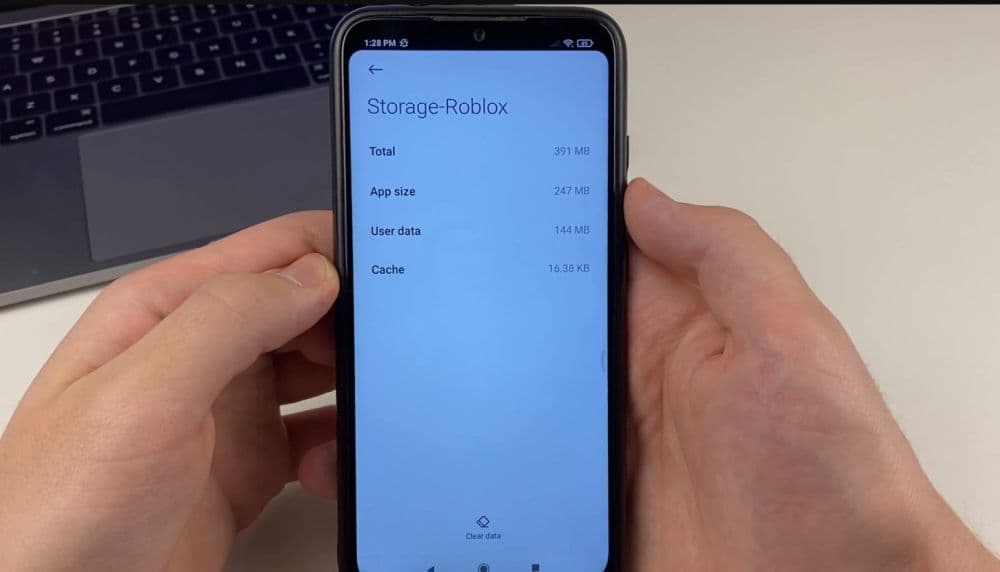
Fix 1: Force stop Roblox and clear its cache and data
This fix resets Roblox locally and often removes broken version checks.
- Open Settings → Apps on your Android device.
- Find and tap Roblox in the app list.
- Tap Force stop and confirm.
- Tap Storage and cache or Storage.
- Tap Clear cache, then tap Clear data or Clear storage.
- Open Roblox again from your app drawer and log back in.
If the upgrade message disappears, you solved the problem with local data only
Fix 2: Reinstall Roblox with a clean install
If cache and data do not help, a clean reinstall can remove any corrupted files.
- Press and hold the Roblox icon on your home screen.
- Tap Uninstall and confirm.
- Restart your phone after the uninstall finishes.
- Open the Google Play Store and search for Roblox.
- Install the app again from the official store page.
- Open Roblox and sign in to your account.
If you still see the upgrade popup, the issue is probably related to Google Play or your account sync.
Fix 3: Refresh Google Play Store and Google Play Services
Sometimes Google Play holds outdated information about available updates.
- Open Settings → Apps → Google Play Store.
- Tap Force stop.
- Tap Storage and cache, then Clear cache and Clear data.
- Go back and open Google Play Services in the app list.
- Tap Storage and cache, then Clear cache.
- Restart your phone and open Google Play Store again.
- Search Roblox, check if an Update button appears, and apply it if available.
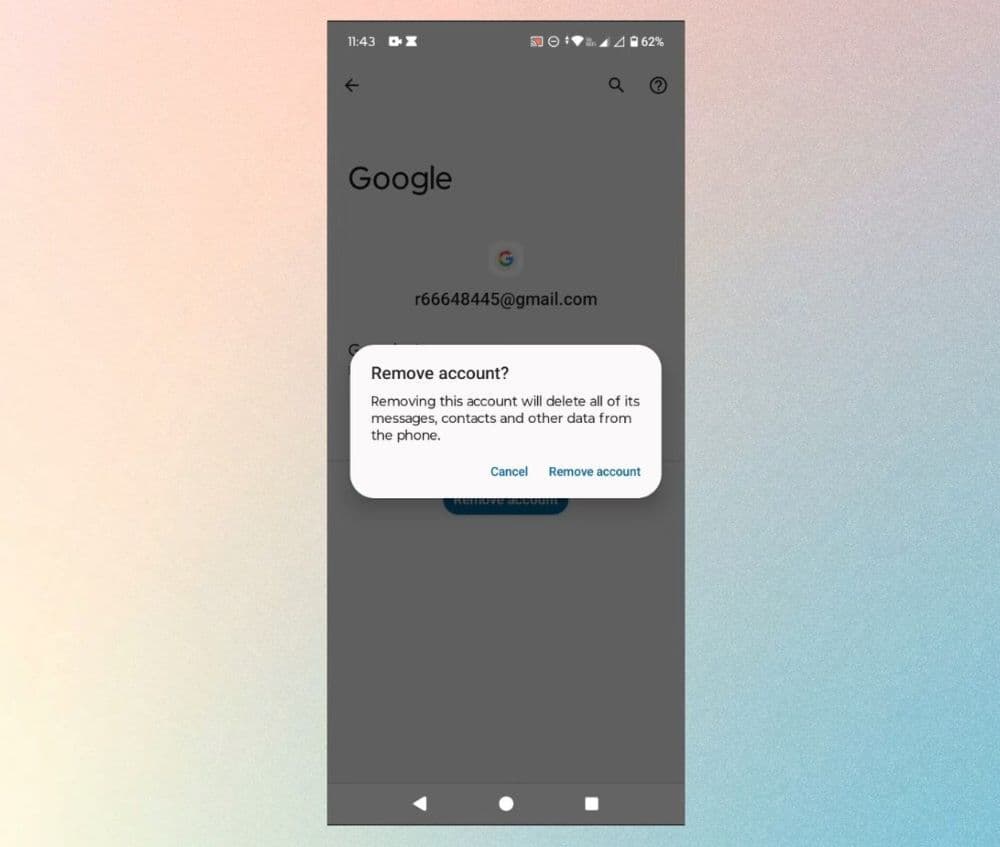
Fix 4: Remove and re-add your Google account
If the Play Store still behaves incorrectly, your Google account sync can be the problem.
- Open Settings → Accounts or Passwords and accounts.
- Select your Google account.
- Tap Remove account and confirm.
- Restart your phone.
- Return to Settings → Accounts and tap Add account.
- Add your Google account again and complete the login steps.
- Open Google Play Store, search Roblox, and check for updates.
When the store finishes syncing, Roblox often recognizes the correct version.
Fix 5: Update Android and check Roblox requirements
Roblox has minimum system requirements for mobile devices. Some older builds may hit compatibility limits.
- Open Settings → System → System update or Software update.
- Check for any available Android updates.
- Download and install all pending updates.
- Restart your phone after the update.
- Open Roblox again and see if the message still appears.
If your phone runs a very old Android version and cannot update further, Roblox may slowly stop full support for that device.
When the Roblox upgrade problem is on Roblox’s side
Sometimes the upgrade loop appears for many users at the same time. In those cases the cause is often a Roblox bug on specific builds or devices.
If you tried every fix above and the error still appears:
- Check social platforms and community posts about current Roblox Android issues.
- Monitor official Roblox channels for hotfix announcements.
- Try again later when a new Roblox update releases.
How to prevent Roblox upgrade problems in the future
You can reduce the chance of seeing this message again with a few habits:
- Turn on auto-updates in Google Play Store → Settings → Network preferences → Auto-update apps.
- Keep a healthy amount of free storage on your phone.
- Restart your device regularly to clear temporary issues.
- Avoid third-party utilities that “optimize” apps by killing processes aggressively.
If you follow these steps, you can usually fix the Roblox upgrade problem on Android and get back into your favorite experiences without the update loop blocking you.
All Related Guides
 How to create a player whitelist in RobloxNeed to limit Roblox game access? Learn how to create a player whitelist in Roblox using UserIds and a server-...
 How to start a hunt in Demonology (Roblox)Learn how to start a hunt in Demonology using cursed objects, Energy management, and hunt triggers to identify...
 Roblox playtime check: How to see how many hours you have on RobloxLearn how to check Roblox playtime, view weekly hours, track game activity, and estimate total time spent on R...
 How to make gamepasses in RobloxA simple guide to Roblox gamepasses, covering what they do, how to make one, and how to sell it the right way....
 Universal Tower Defense X tier list (2026): Best units & moreUniversal Tower Defense X tier list for 2026: best units, Infinite Mode picks, beginner recommendations, and c...
 How to get Dark Ring in Roblox Sailor Piece fastLearn how to get Dark Rings fast in Sailor Piece, including Jinwoo boss location, drop rate, respawn timer, an...
 Opera GX Forsaken rewards guide (2026)Opera GX Forsaken rewards guide: unlock exclusive skins, XP Boosters, Killer Chance Tokens, and daily event re...
 All Roblox color codes list & how to use themComplete Roblox color codes guide: BrickColors, RGB values, Color3, HEX conversion, and how to use colors in R...
- 1
- 2
- 3
- 4
- 5
- 6
- 7
- 8
- 9
- 10
- 11