Fortnite error code 91 fix explained
Facing the 91 error code in Fortnite? Here's how to deal with it.
Are you frustrated by Fortnite error code 91 disrupting your gaming sessions? Fear not! In this guide, we'll walk you through the steps to swiftly fix this pesky connectivity issue. Whether you're on PC, console, or mobile, our troubleshooting tips will have you back in the action-packed world of Fortnite in no time. Let's dive in and conquer Fortnite error code 91 together!
What is error code 91 in Fortnite?
Fortnite Error Code 91 is when players have trouble joining a party in the game. It means there's a problem connecting with other players or the game servers. This can happen if your internet is slow or something is wrong with the game files or network settings. It's annoying, but usually, you can easily fix it.
How to fix Fortnite error code 91
Fixing Fortnite Error Code 91 requires a few steps to troubleshoot and address the underlying connectivity issues. Here's a step-by-step guide on how to resolve Fortnite error code 91:
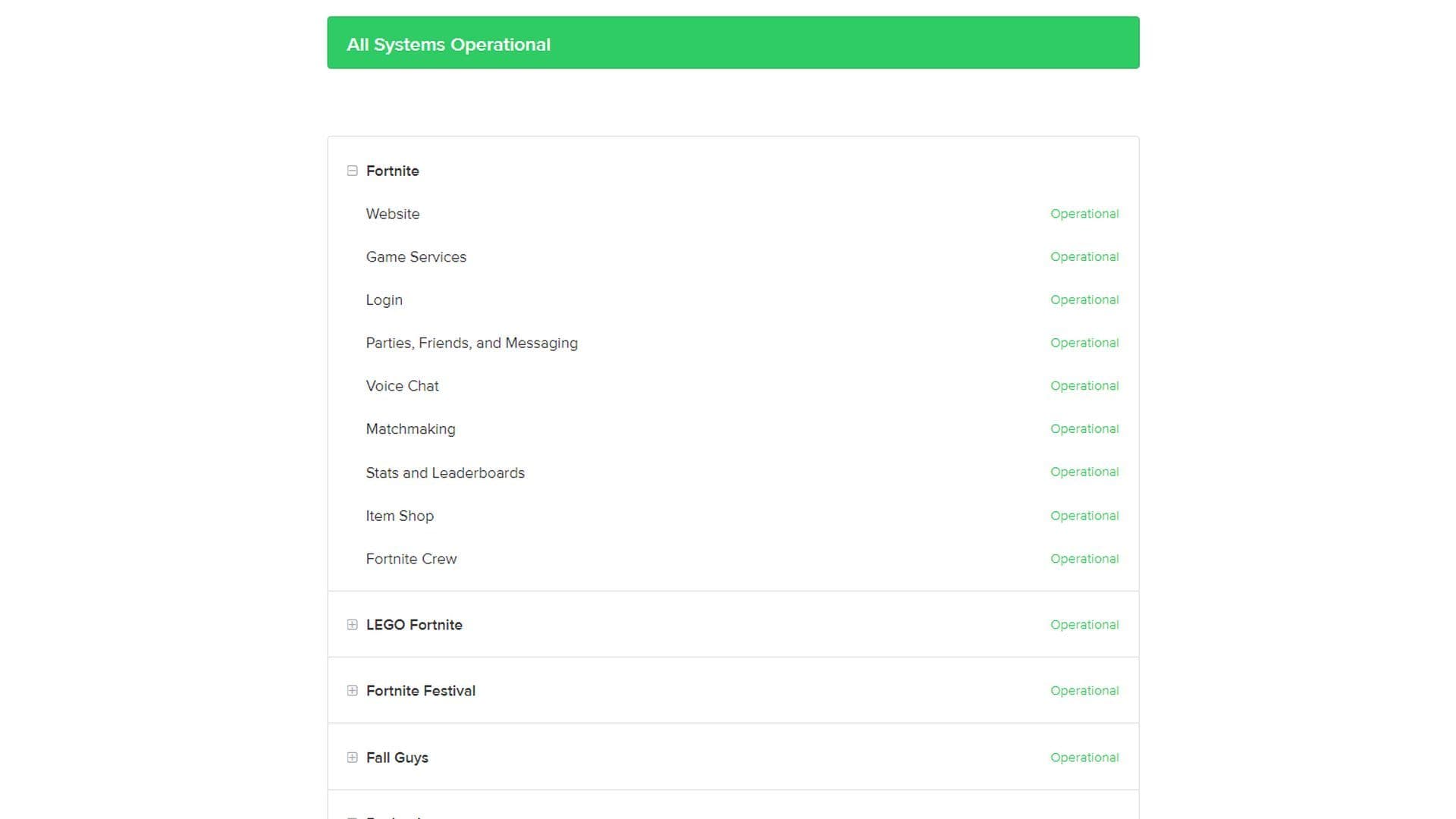
- Check Fortnite server status: Before doing anything else, verify if the Fortnite servers are experiencing any problems. Visit the official Fortnite Twitter page or the Epic Games status website for real-time updates on server status and maintenance schedules. If there is no problem on Fortnite, the site will be shown like this:
- Enable cross-platform play (if applicable): If you're playing on a console like Xbox, PlayStation, or Nintendo Switch, ensure that Cross-Platform Play is enabled in your Fortnite settings. This feature allows players across different platforms to connect seamlessly and might help resolve party joining issues.
- Address NAT type issues:
- Network Discovery: Enable Network Discovery in your system settings to transition to a less restrictive NAT type, potentially resolving Error Code 91.
- Port Forwarding/Virtual Servers: Access your router settings and enable Port Forwarding or Virtual Servers. This ensures that the necessary ports for Fortnite remain unblocked. Refer to your router's manual for specific instructions on adding ports.
- Verify Internet connection: Make sure your internet connection is stable and not experiencing any issues. Restart your router or modem if necessary, and consider connecting via a wired connection for better stability.
- Restart Fortnite and device: Close the Fortnite application completely and restart it. Reboot your gaming device (PC, console, or mobile) to refresh system settings and resolve any temporary glitches.
- Check for corrupted game files: Verify the integrity of your Fortnite game files to ensure they're not corrupted or missing. If you're playing on PC, you can do this through the Epic Games Launcher by navigating to Settings and selecting the option to Verify.
- Contact support (if necessary): If the issue persists despite the above steps, don't hesitate to contact Epic Games support for further assistance. They can provide personalized guidance and troubleshooting tips to help resolve Error Code 91.
By following these detailed steps, you should be able to troubleshoot and fix Fortnite error code 91, allowing you to join parties and resume your gaming adventures without interruption.
FAQs
How to fix Fortnite login error?
- Check if the servers are down.
- Restart your router and gaming device.
- Use a wired internet connection instead of Wi-Fi.
- On PC, verify game files, update graphics drivers, and close unnecessary apps.
- On consoles, clear cache, restart the console, or remove and re-add your account if needed.
Why won't Fortnite let me join my friend's game?
- Restart Fortnite and your device.
- Check your internet connection and router.
- Ensure cross-platform play is enabled if playing across different consoles.
- Switch your lobby to public and re-invite friends through the Epic Games friends list.
- Sync your system's date and time settings.
- Have your friend restart their game and re-invite you.
How to fix Fortnite network failure?
- Restart your router and gaming device, then relaunch Fortnite.
- Use a wired internet connection for better stability.
- Check your internet speed and ping.
- On PC, flush your DNS, reset IP settings, and check firewall rules to ensure Fortnite and related programs are allowed.
- Update your network drivers.
- If problems persist, reinstall Fortnite.
How to fix network connection lost?
To fix the "Network Connection Lost" error in Fortnite, start by restarting your router and gaming device to refresh your internet connection. If possible, use a wired Ethernet connection instead of Wi-Fi for better stability. Make sure your game and device are updated, and try changing your matchmaking region in Fortnite’s settings. On PC, you can also verify the game files and reset your network settings by flushing the DNS and renewing your IP address. If the problem continues, reinstalling Fortnite might help resolve the issue.