7 ways to fix LoL Vanguard Error VAN 84 error
Easy fixes for VAN 84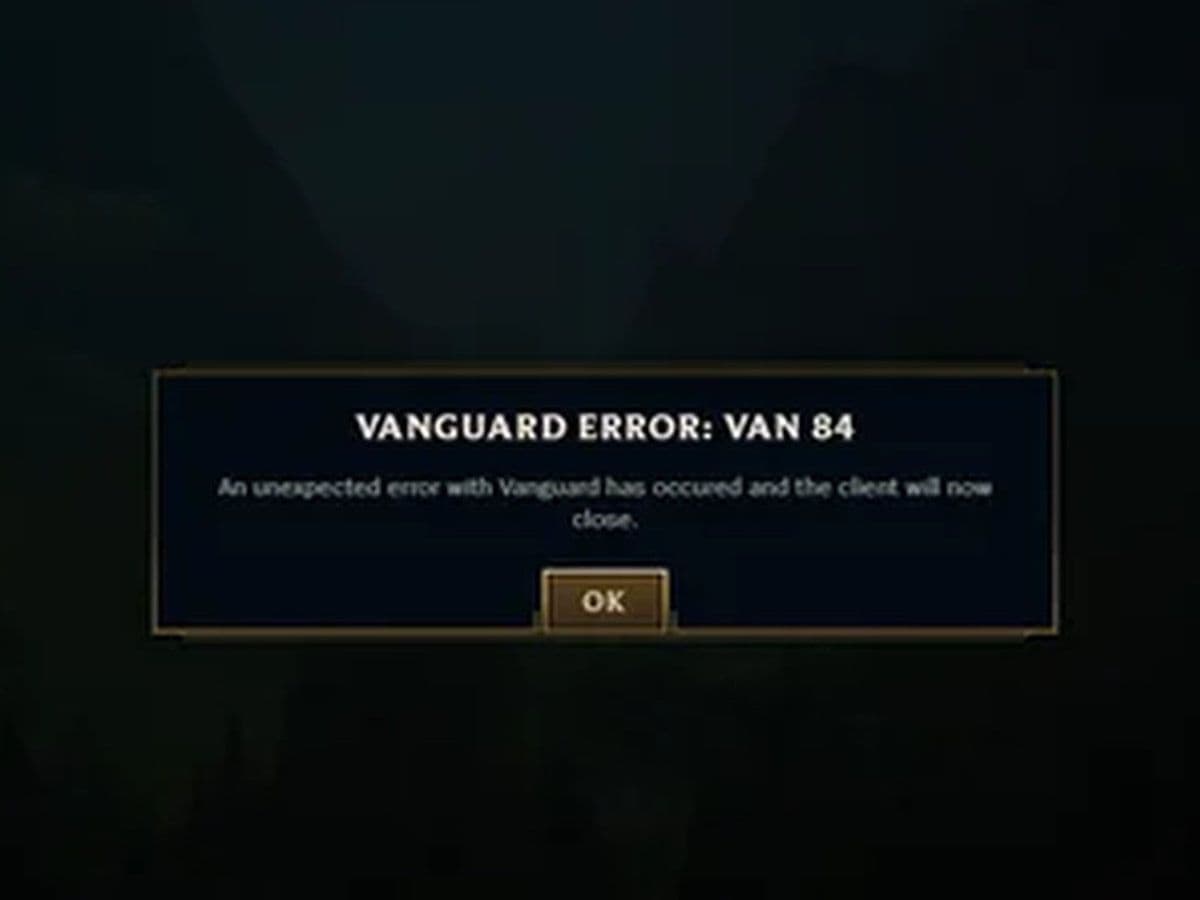
Vanguard Error VAN 84 is a connection error that appears when launching League of Legends or when the client tries to connect to Riot’s servers. The issue is related to Riot Vanguard, Riot Games’ anti-cheat system, which verifies that the game is running in a secure environment.
“An unexpected error with Vanguard has occurred and the client will now close.”
This means the game client failed to maintain a stable connection with Riot’s servers or with the Vanguard service running on your computer.
The good news is that Vanguard Error VAN 84 is usually easy to fix. In most cases, restarting the client or fixing a small network issue resolves it. This guide explains the causes of the error and the best solutions to fix it.
What is Vanguard Error VAN 84?
Vanguard Error VAN 84 occurs when the Riot Client cannot properly communicate with Riot’s servers during login or game launch.
- Unstable Internet Connection
- Riot Client Session Errors
- Riot Server Problems
- Vanguard Service Not Running
- Network Configuration Issue
You can also see it on PS.
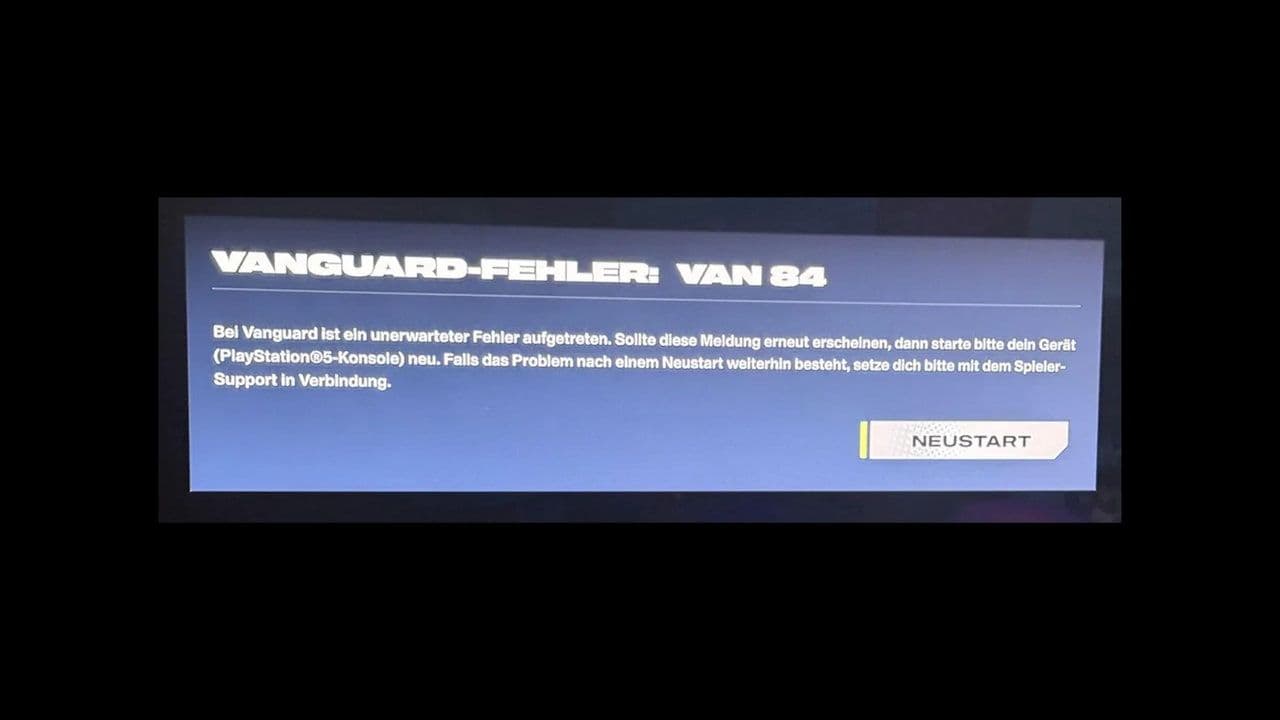
Because Riot Vanguard runs in the background and checks the game, any disruption in this verification process can trigger the VAN 84 error.
How to Fix Vanguard Error VAN 84 fast
Here are your options to fix Vanguard Error VAN 84.
1. Restart the Riot Client
Restarting the client is the simplest and most common solution:
- Close League of Legends
- Open Task Manager
- End these processes:
- Riot Client
- LeagueClient
- Launch the Riot Client again
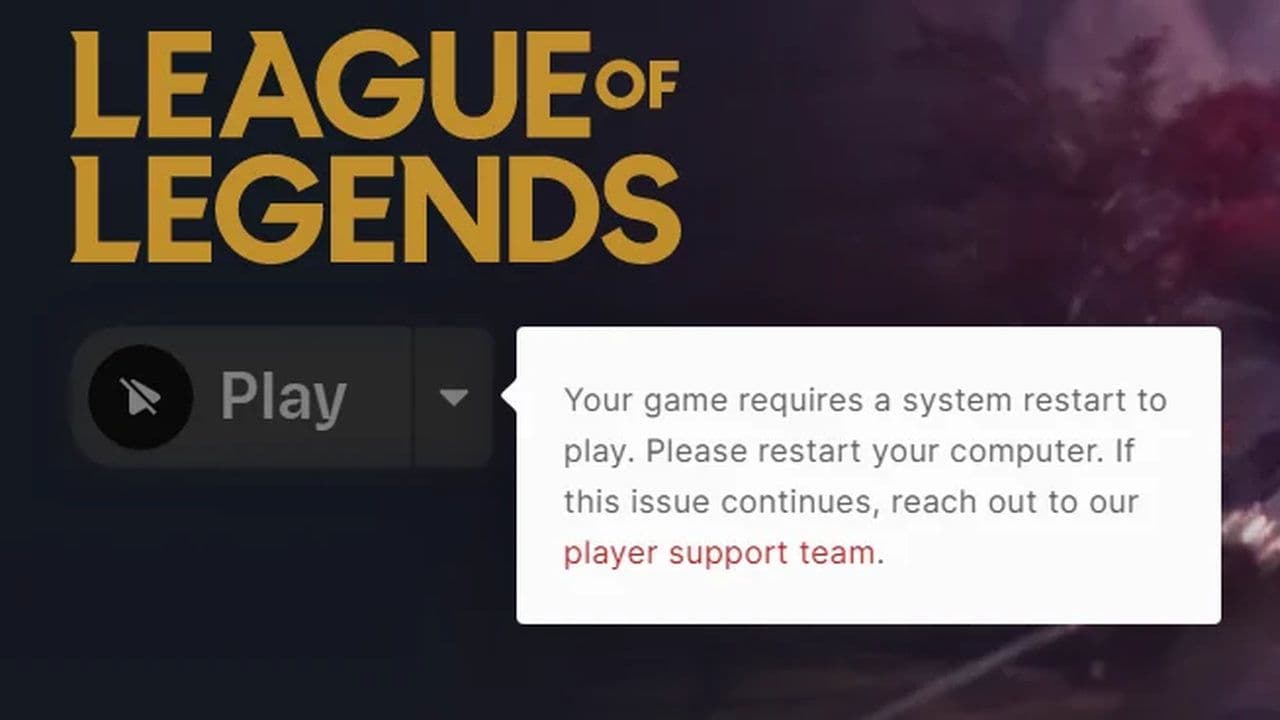
This refreshes the connection to Riot’s servers and resolves many session errors.
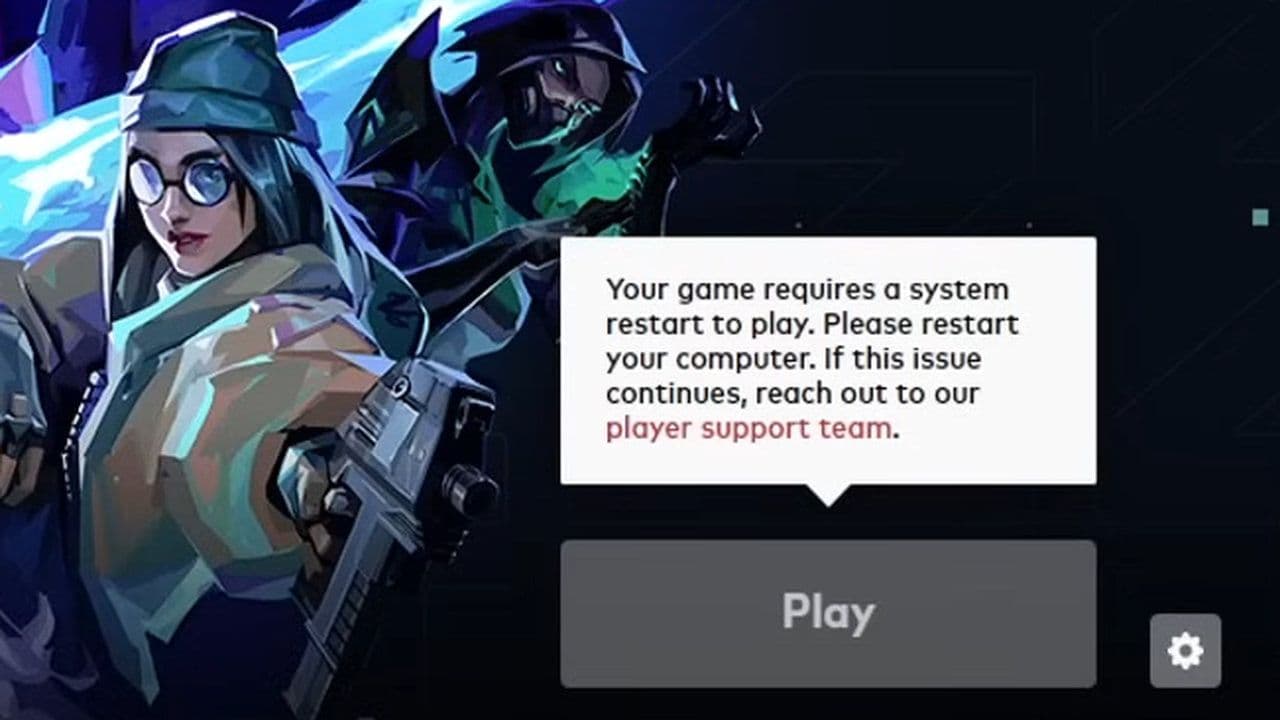
2. Restart your computer
A full system restart resets the Vanguard service and clears temporary network problems:
- Close the Riot Client
- Restart your computer
- Open League of Legends again
3. Check your Internet connection
Because VAN 84 is a connection error, make sure your network is stable.
Try the following:
- Restart your router
- Use a wired Ethernet connection instead of Wi-Fi
- Disable VPN software
- Close other bandwidth-heavy programs
A stable connection helps the client communicate properly with Riot servers.
4. Restart the Vanguard Service
If the Vanguard service stopped running, restarting it may solve the problem:
- Press Windows + R
- Type services.msc
- Find vgc
- Right-click it
- Click Start or Restart
After restarting the service, launch League of Legends again.
5. Reset Network Settings
Network configuration problems can trigger Vanguard Error VAN 84.
You can reset your network stack with these commands:
- Open Command Prompt as Administrator
- Run the following commands:
- ipconfig /flushdns
- netsh winsock reset
- Restart your computer
This clears DNS cache and resets Windows networking settings.
6. Reinstall Riot Vanguard
If Vanguard files become corrupted, reinstalling the anti-cheat system can fix the error:
- Open Control Panel
- Go to Programs and Features
- Uninstall Riot Vanguard
- Restart your computer
- Launch League of Legends
The client will automatically reinstall Vanguard.
7. Update Windows
Outdated Windows files can sometimes interfere with Vanguard drivers.
To update Windows:
- Open Settings
- Go to Windows Update
- Install all available updates
- Restart your PC
Keeping your system updated helps maintain compatibility with Vanguard.
That’s all for today! If you’re hungry for more LoL news, leaks, and guides, check out these must-reads next:
All Related Guides
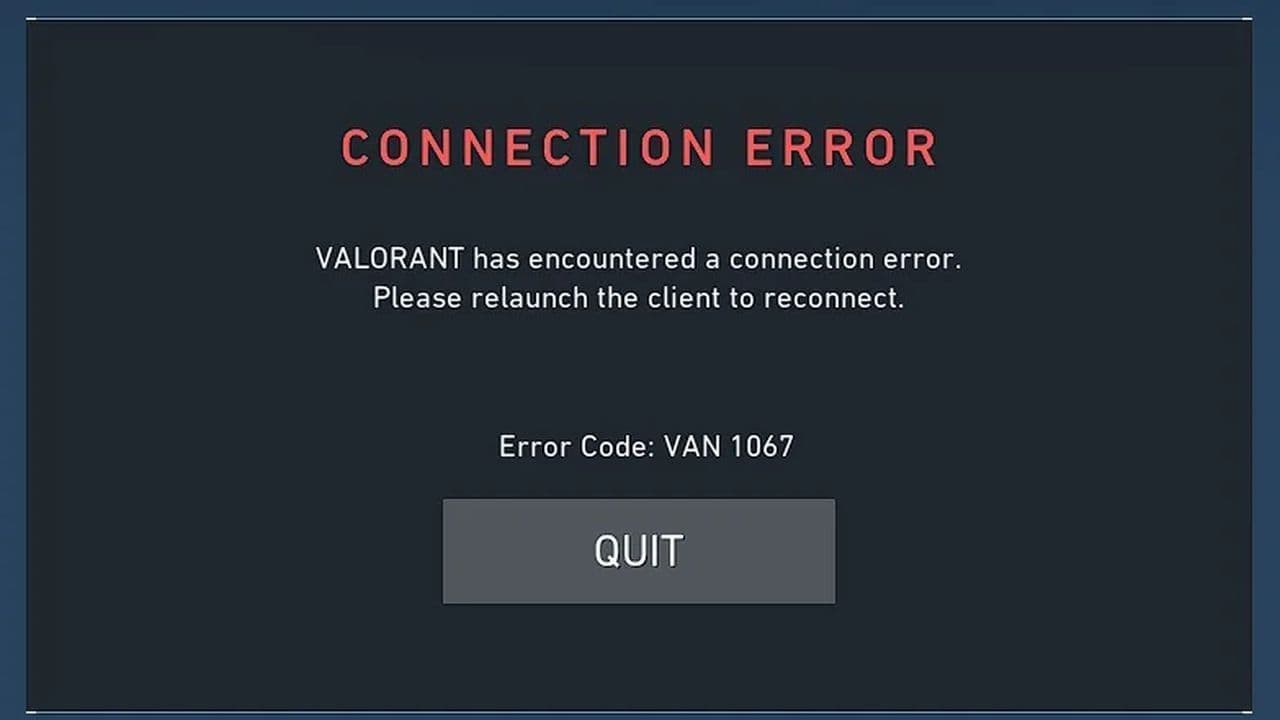 VAN 1067: League of Legends Vanguard error fixFix League of Legends VAN 1067 error with TPM 2.0, Secure Boot, Vanguard reinstall, driver checks, and proven ...
 How to fix the “Vanguard session is initializing” error in League of LegendsFix the Vanguard session is initializing error in League of Legends with simple steps that help you get back i...