VAN 1067: League of Legends Vanguard error fix
Fix Riot Vanguard startup issues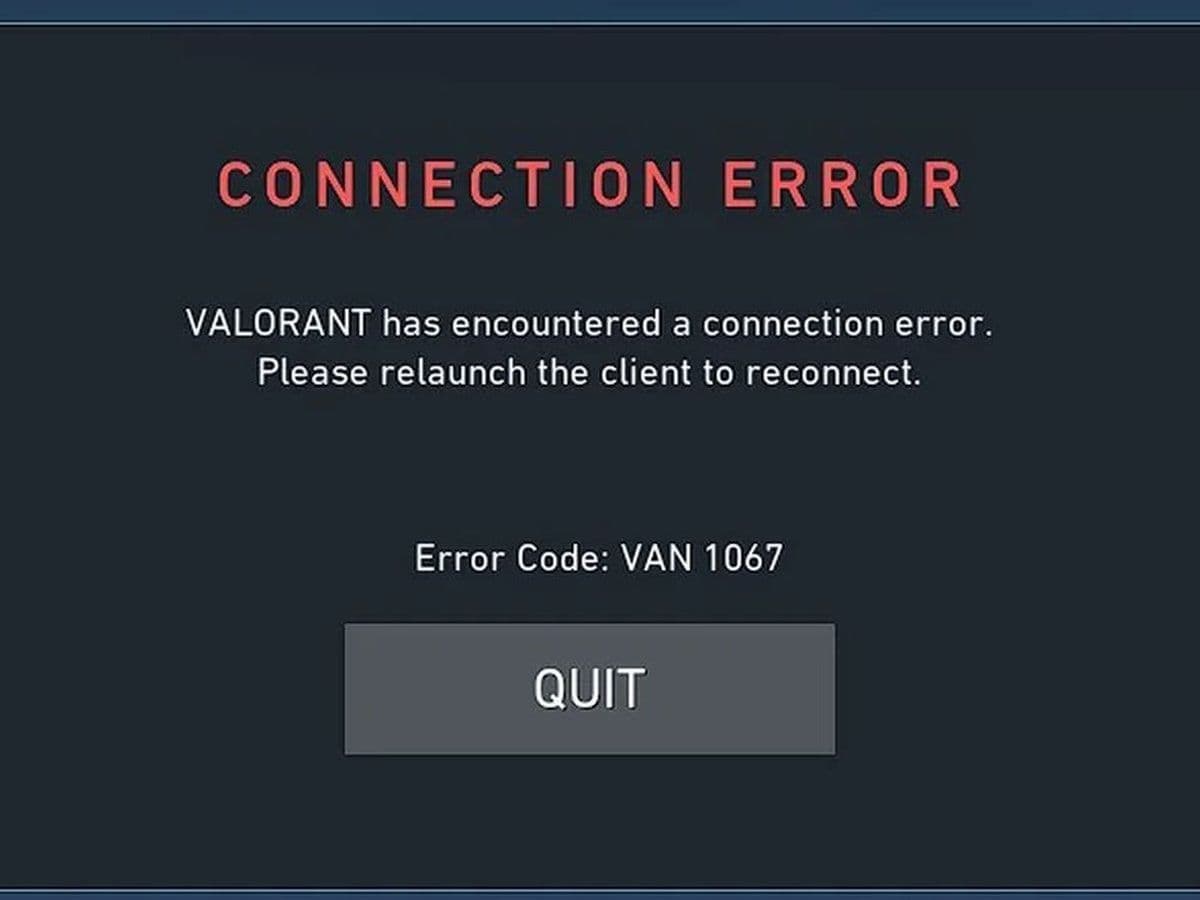
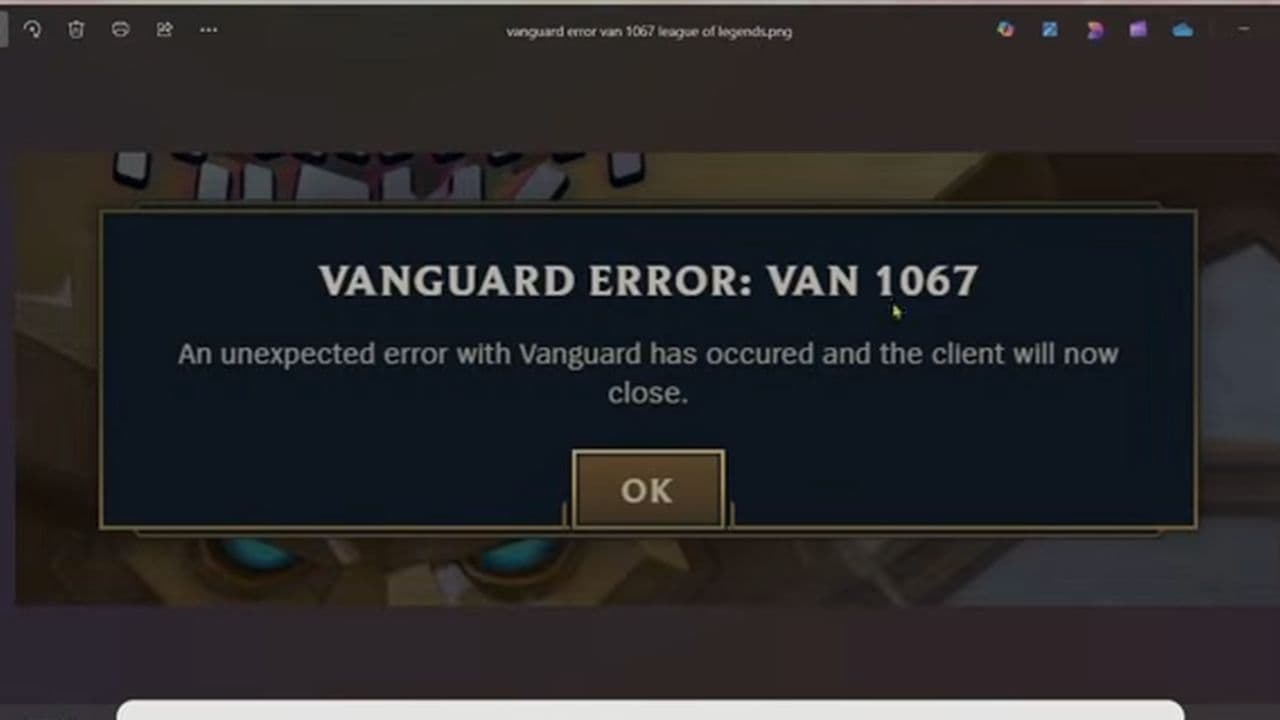
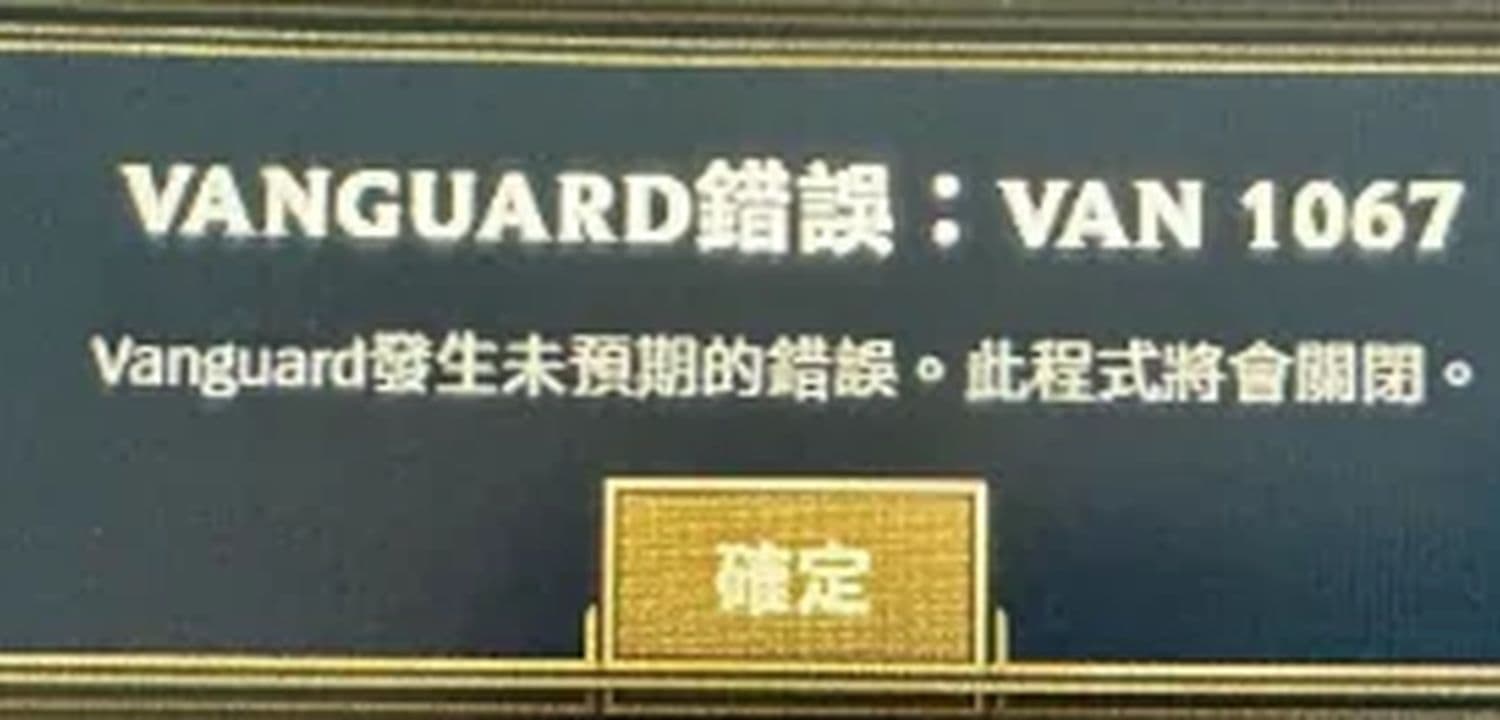
The VAN 1067 error in League of Legends is one of the most common Riot Vanguard problems players face after launching the game. Usually, the game closes instantly or refuses to start, showing a Vanguard connection error message.
The issue is connected to Riot’s anti-cheat system, Riot Vanguard. According to Riot Games, VAN 1067 is a “connection error” that may happen because of unusual software, corrupted Vanguard files, or system security settings.
This guide explains exactly what causes this LoL error, how to fix it, and which solutions work most often on Windows 10 and Windows 11.
What is VAN 1067?
VAN 1067 is a Riot Vanguard startup or verification failure. Vanguard cannot properly initialize, so League of Legends shuts down before entering the game.
Most players see the error after:
- a Windows update
- a Riot Vanguard update
- changing BIOS settings
- installing new software
- enabling virtualization tools
- installing driver-level programs
Riot officially says the error may be caused by “unusual software installed on your computer.”
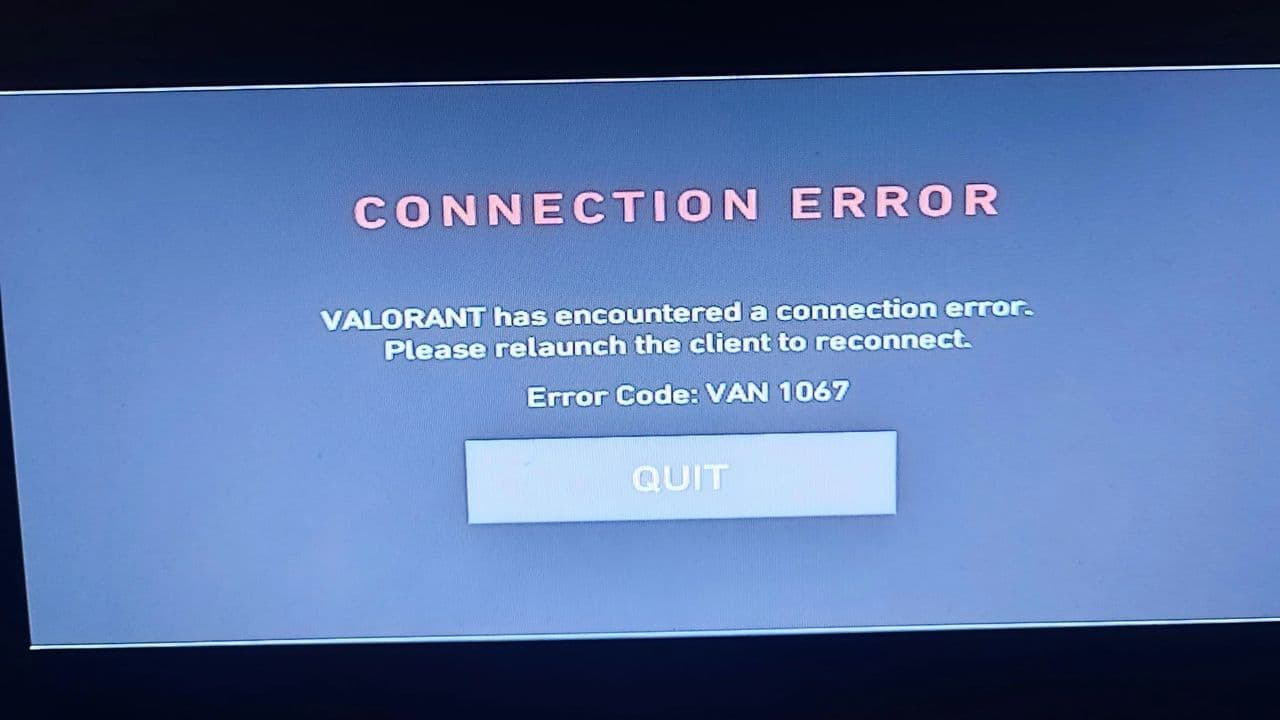
How to fix VAN 1067 League of Legends Vanguard error
The most common causes are:
- TPM 2.0 disabled
- Secure Boot disabled
- Riot Vanguard corruption
- Vanguard service not running
- incompatible drivers
- VPN software
- virtualization tools
- antivirus conflicts
- remote desktop applications
- outdated BIOS or Windows versions
Some users also discovered specific driver conflicts. One Reddit report linked VAN 1067 to the mdnsNSP.dll driver from Audinate Dante Controller software. Removing it fixed the error immediately.
However, if you want to fix VAN 1067 League of Legends Vanguard error, start with:
Fix 1: Restart Your PC
This is the first solution Riot recommends for VAN 1067.
A full reboot can:
- restart Vanguard services
- clear temporary driver conflicts
- reload Riot Client processes
Do not just close League of Legends. Restart the entire system.
Fix 2: Enable TPM 2.0
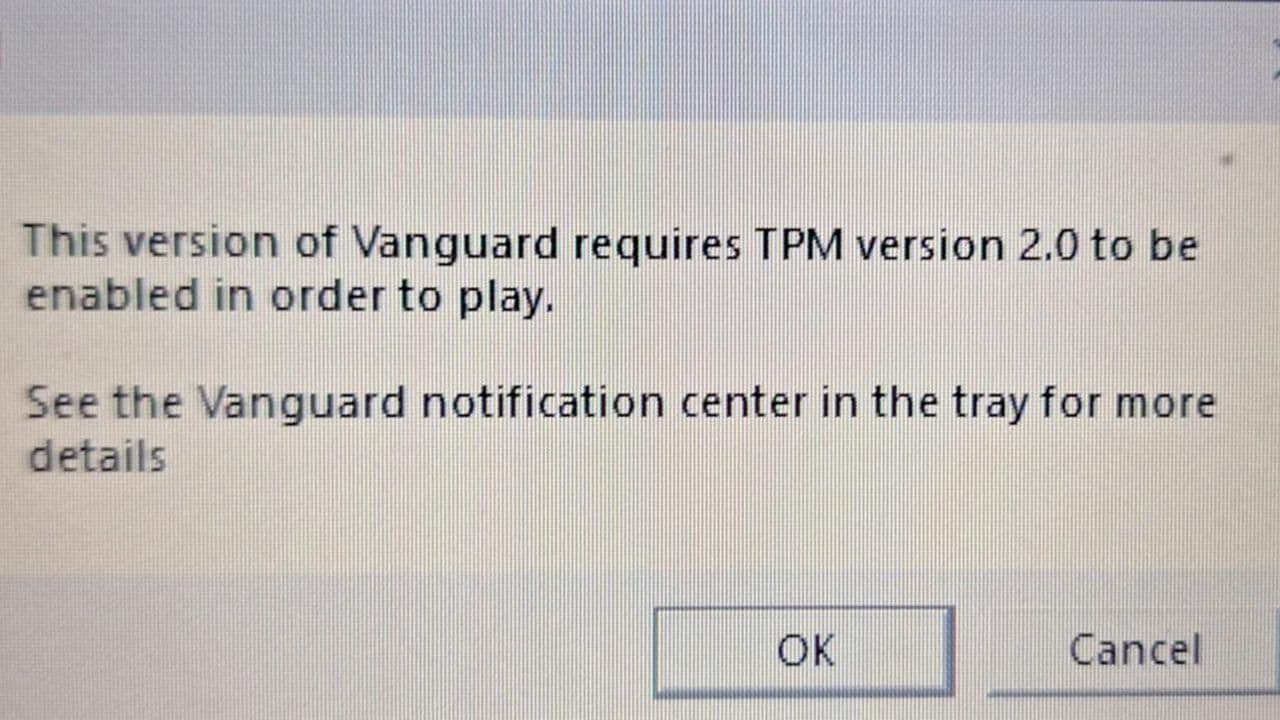
TPM 2.0 is now extremely important for Riot Vanguard, especially on Windows 11 systems. Many VAN 1067 cases happen because TPM is disabled. You can also see this error with it:
Check TPM Status first:
- Press Windows + R
- Type: tpm.msc
- Press Enter
If TPM works correctly, Windows will show:
“The TPM is ready for use”
If TPM is disabled, you must enable it in BIOS.
Enable TPM in BIOS
Restart your PC and enter BIOS using:
- DEL
- F2
- F10
- ESC
Then find one of these settings:
Intel:
- PTT (Platform Trust Technology)
AMD:
- AMD fTPM
Enable the setting, save changes, and reboot.
Fix 3: Enable Secure Boot
Secure Boot is another major requirement for Vanguard. Check Secure Boot by:
- Press Windows + R
- Type: msinfo32
- Press Enter
Find:
- Secure Boot State
If it says “Off,” enable it in BIOS.
Enable Secure Boot
- Enter BIOS
- Open Boot or Security settings
- Enable:
- Secure Boot
- Save and restart
Some systems also require:
- UEFI mode enabled
- Legacy/CSM mode disabled
Fix 4: Restart the Vanguard Service
The Vanguard service (vgc) sometimes fails to start automatically, which triggers VAN 1067.
- Press Windows + R
- Type: services.msc
- Find: vgc
- Right-click → Properties
Set:
- Startup type → Automatic
Then click:
- Start
- Apply
- OK
Restart the PC afterward.
Fix 5: Reinstall Riot Vanguard
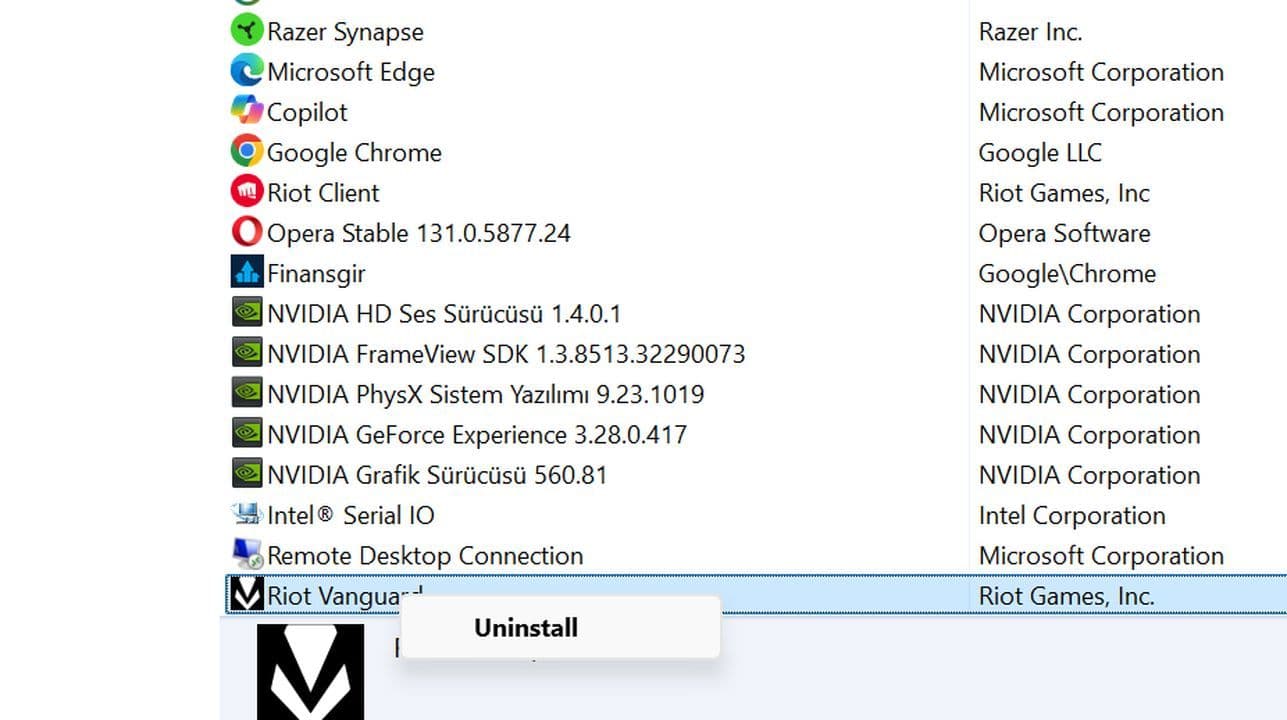
Corrupted Vanguard installations are one of the biggest reasons for VAN 1067. To remove Vanguard:
- Open:
- Control Panel
- Programs and Features
- Uninstall:
- Riot Vanguard
- Restart your computer
Reinstall Vanguard
- Launch League of Legends
- Riot Client automatically reinstalls Vanguard
- Restart the PC again
Riot officially recommends reinstalling Vanguard if restarting does not fix the issue
Fix 6: Remove Conflicting Software
Some programs conflict directly with Riot Vanguard.
Known problematic software includes:
- Audinate Dante Controller
- VPN tools
- VMware
- VirtualBox
- Remote Desktop apps
- driver-level RGB software
- hardware monitoring tools
If the problem started recently, uninstall any newly added system-level applications first.
Fix 7: Disable Virtualization
Virtualization software can interfere with Vanguard.
Disable:
- Hyper-V
- Virtual Machine Platform
- Windows Hypervisor Platform
How to Disable
- Open: “Turn Windows features on or off”
- Uncheck:
- Hyper-V
- Virtual Machine Platform
- Windows Hypervisor Platform
- Restart the PC
Fix 8: Update Windows and Drivers
Old Windows security files can break Vanguard compatibility.
- Update:
Windows - chipset drivers
- network drivers
- BIOS firmware
Go to:
- Settings → Windows Update
Install all available updates before launching League again.
Fix 9: Run Network Reset Commands
Sometimes VAN 1067 is connected to networking problems.
Open Command Prompt as Administrator and run:
ipconfig /flushdns
netsh winsock reset
Restart the computer after running both commands.
Fix 10: Scan for Malware
Riot states that VAN 1067 may indicate suspicious software activity.
Run scans using:
- Windows Defender
- Malwarebytes
- Bitdefender
Remove anything suspicious before relaunching League.
Final Fix: Reinstall League of Legends
If nothing works:
- uninstall League of Legends
- uninstall Riot Client
- uninstall Riot Vanguard
- delete leftover Riot folders
- reinstall everything from scratch
This resolves most persistent VAN 1067 errors.
For many players, TPM and Secure Boot are the real solution. Others solve the issue by uninstalling programs that use low-level drivers or virtualization features.
If none of the fixes work, contact Riot Support and provide Vanguard logs for deeper troubleshooting.
That’s all for today! If you’re hungry for more LoL news, leaks, and guides, check out these must-reads next:
All Related Guides
 How to fix the “Vanguard session is initializing” error in League of LegendsFix the Vanguard session is initializing error in League of Legends with simple steps that help you get back i...
 7 ways to fix LoL Vanguard Error VAN 84 errorLearn how to fix League of Legends Vanguard Error VAN 84 fast with 7 proven solutions, including Riot Client r...