5 ways to check ping on Roblox
Find and fix Roblox lag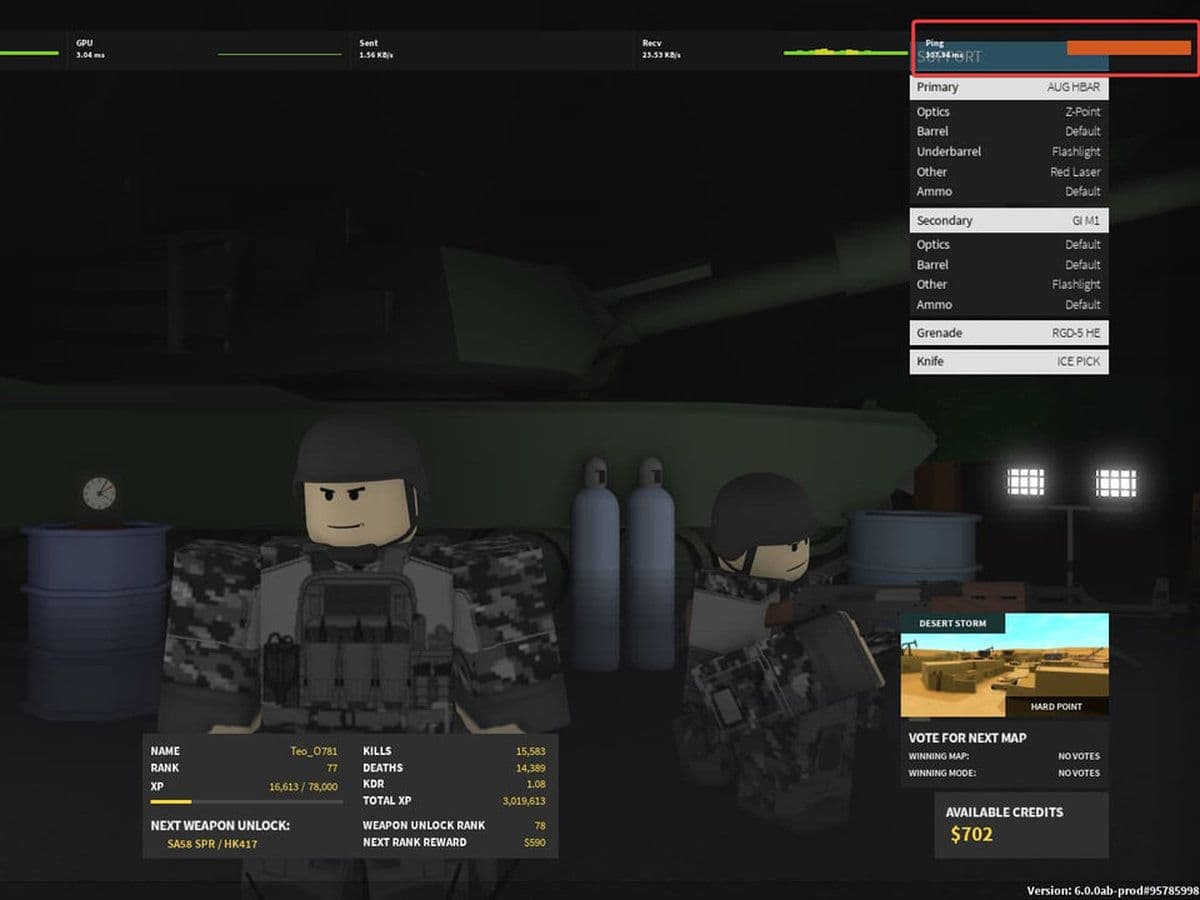
If you experience lag, delayed movement, or slow reactions while playing Roblox, the problem is often high ping. Learning how to check ping on Roblox helps you understand whether the issue comes from your internet connection, the game server, or another network problem.
What is ping in Roblox?
Ping is the time it takes for data to travel between your device and the Roblox server. It is measured in milliseconds (ms).
A lower ping means your connection is faster and more responsive.
Most Roblox games feel smooth when ping is under 100 ms, while under 50 ms is ideal. Let’s find yours!
How to check ping on Roblox fast
Here are the 5 easy ways to check ping on Roblox fast:
- Enable Performance Stats in Roblox Settings
- Use the Network Stats shortcut (Shift + F3)
- Open the Developer Console (F9)
- Enable Performance Stats on Roblox Mobile
- Use game-specific ping commands like /ping or !ping
Here is a detailed look at each way.
Method 1: How to check ping on Roblox using performance stats
The easiest way to check ping is through Roblox Performance Stats.
- Launch Roblox and join any game.
- Press ESC on your keyboard.
- Open the Settings tab.
- Find Performance Stats.
- Turn it ON.
- Close the menu.
You will now see performance information on your screen.
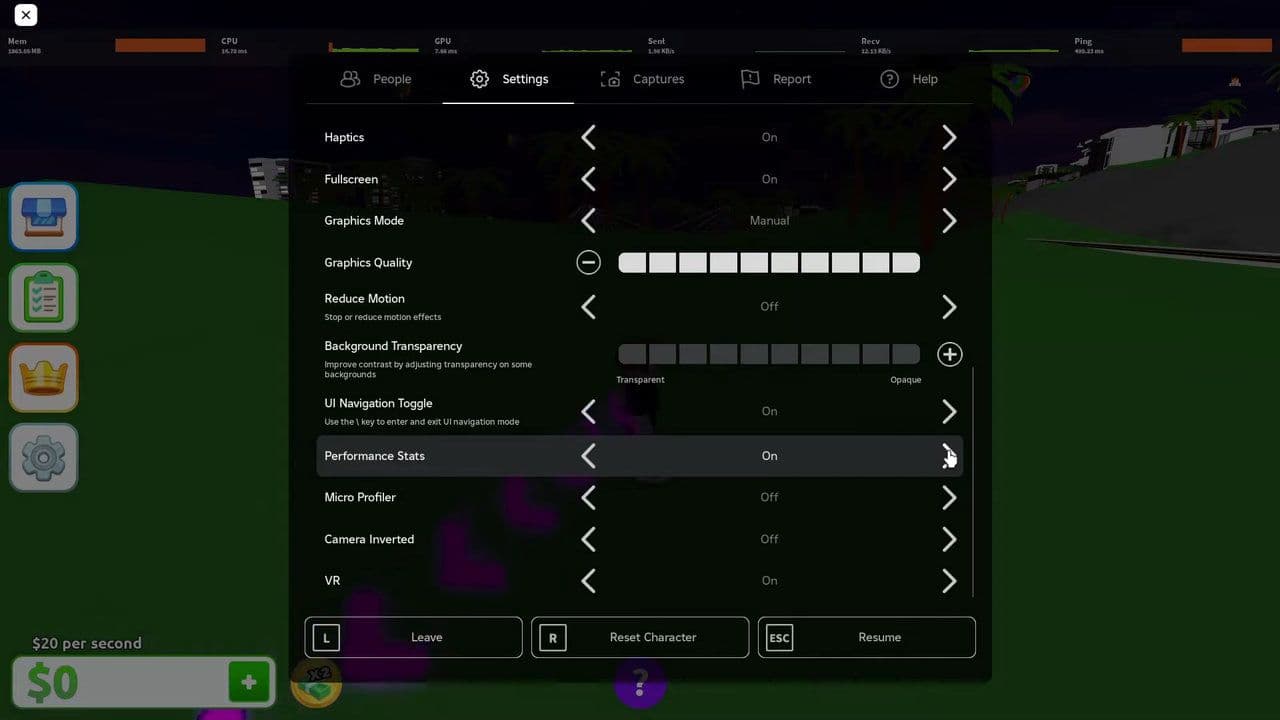
The overlay shows:
- Ping
- FPS (frames per second)
- Memory usage
- Network activity
Ping will appear in milliseconds (ms) in the corner of the screen while you play.
This is the simplest method for checking ping on Roblox.
Method 2: Check ping using Roblox Network Stats
Roblox also includes a hidden network diagnostics panel that shows detailed connection data.
- Join any Roblox game.
- Press Shift + F5. This opens the Network Stats overlay. Inside this panel you can see:
- Ping
- Packet loss
- Data sent and received
- Network latency
- Server communication stats
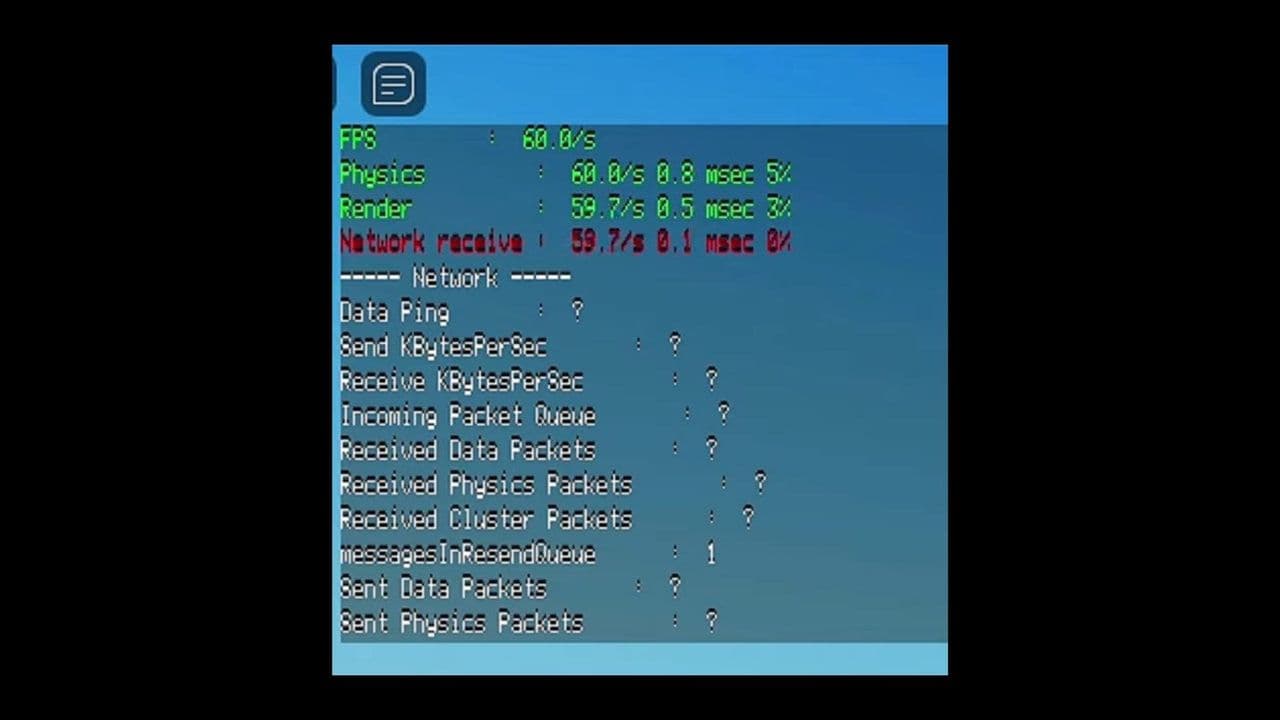
You can press Shift + F5 again to close the panel.
This tool is helpful when you want more detailed information about your connection.
Method 3: Check ping using the Roblox Developer Console
Another way to check ping is through the Developer Console.
- Join a Roblox game.
- Press F9
- The Developer Console will open.
- Select the Network tab.
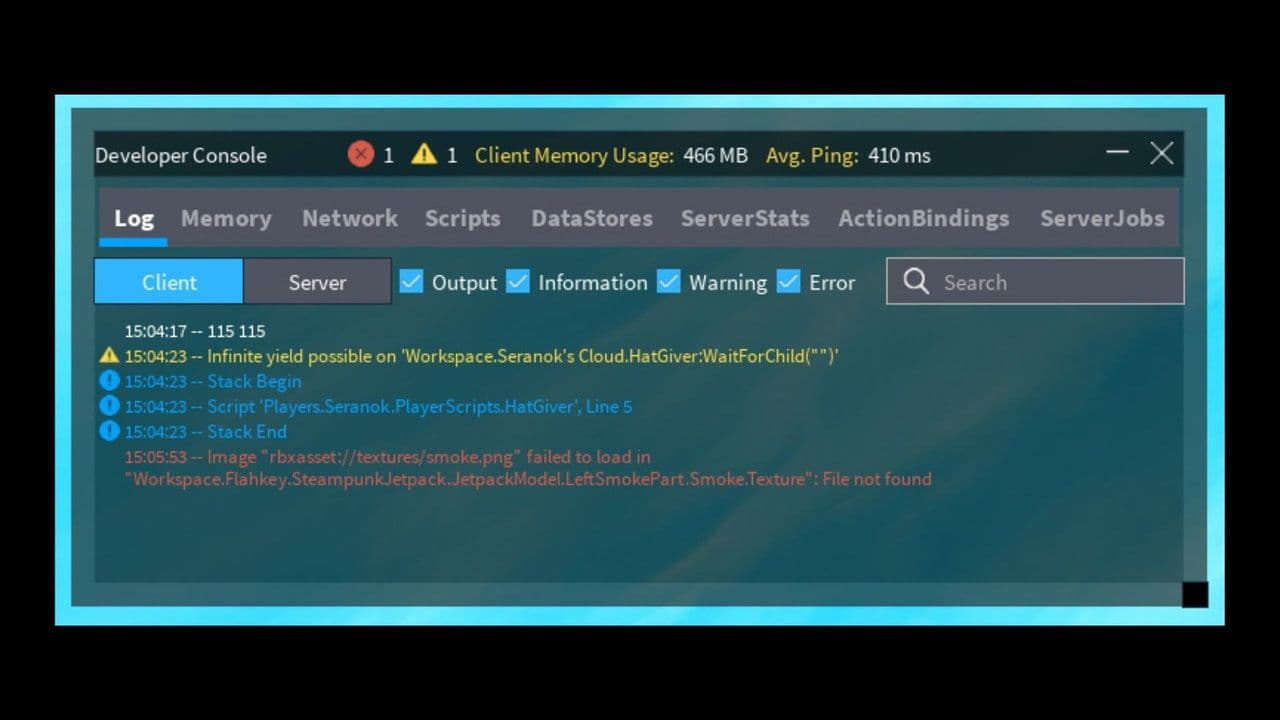
Here you can view:
- Network latency
- Data transfer
- Connection statistics
This method is commonly used by developers and advanced players who want more technical information.
Method 4: How to check ping on Roblox Mobile
You can also check ping on Android, iPhone, and tablets.
- Open Roblox and join a game.
- Tap the menu icon (three lines or Roblox logo).
- Tap Settings.
- Enable Performance Stats.
- Return to the game.
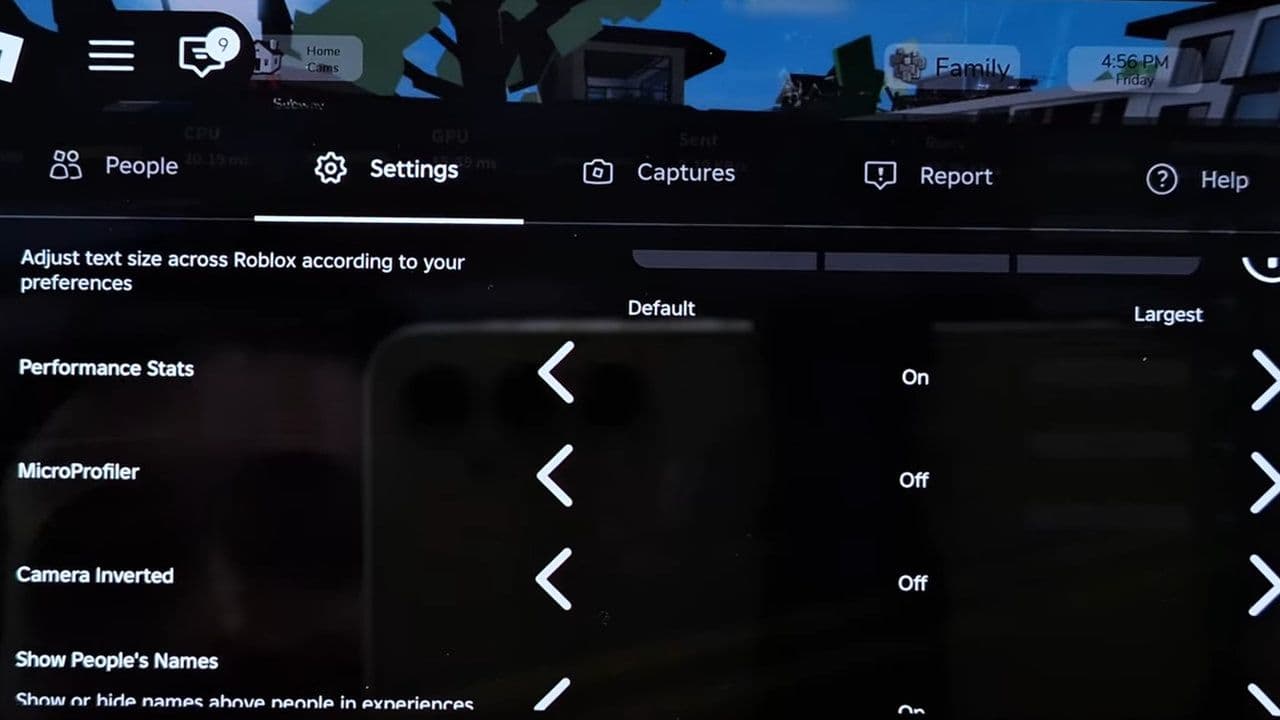
This works the same way as the PC version but uses touch controls instead of keyboard shortcuts.
Method 5: Ping commands in some Roblox Games
Some Roblox experiences include custom commands that show ping, such as:
- /ping
- !ping
However, this feature depends on the game developer, so it is not available in every Roblox game.
How to fix low ping on Roblox
If your ping is high, try these fixes.
- Use a wired connection: Ethernet connections are more stable than Wi-Fi.
- Close background applications: Stop downloads, streaming, or updates while playing.
- Restart your router: Restarting your modem or router can fix temporary network issues.
- Join a different server: Some servers may be closer to your region and provide lower latency.
- Reduce network traffic: Avoid playing while other devices are heavily using the internet.
- Pause downloads and updates: Large downloads from platforms like Steam, Windows Update, or app stores can consume a lot of bandwidth. Pause these tasks before launching Roblox.
- Update your network drivers: Outdated network drivers on your computer can affect connection performance. Updating your Wi-Fi or Ethernet drivers can improve stability and reduce latency.
- Lower Roblox graphics settings: High graphics settings can sometimes cause performance issues that feel like lag. Open the Roblox Settings menu and lower the Graphics Mode to reduce system strain.
- Restart Roblox or your device: If Roblox has been running for a long time, restarting the game or your computer can fix temporary performance problems.
Knowing how to check ping on Roblox is useful for diagnosing lag and improving gameplay. Whether you use Performance Stats, Network Stats (Shift + F3), or the Developer Console, checking your ping helps you understand how well your connection is performing.
If your ping stays high, improving your internet connection or switching servers can often solve the problem.
Monitoring your ping regularly can help ensure a smoother Roblox experience with less lag and faster response times.
That’s all for today! Want free Roblox items? Check out these:
All Related Guides
 Roblox Robux codes (October 2026): Gift cards, free items & moreFind Roblox Robux codes & redeem gift cards, claim free avatar items, convert Roblox Credit, and fix codes tha...
 How to see Roblox purchase historyLearn how to see your Roblox purchase history, check Robux transactions and find real-money receipts on deskto...
 How to find the Monochrome Roblox code and escapeFind the Monochrome Roblox code, collect all four keys, survive the basement maze and open the elevator to com...
 How to connect Claude to Roblox StudioConnect Claude to Roblox Studio with the current MCP method and see how Claude can work with your scripts and ...
 How to fight in Gakuran RobloxLearn how to fight in Gakuran Roblox, from basic attacks to blocking, parrying, posture, and fighting styles....
 How to get a free avatar in RobloxFind out how to get a free Roblox avatar without spending Robux, from free character bundles to Marketplace it...
 How to reduce lag in Roblox: Comprehensive guideRoblox feeling slow or choppy? Find out how to reduce lag in Roblox and improve your game with a few simple ch...
 How to check Roblox player countHow many people play Roblox in 2026? Check the latest Roblox player count and learn what the numbers actually ...
- 1
- 2
- 3
- 4
- 5
- 6
- 7
- 8
- 9
- 10
- 11
- 12
- 13