How to turn your joins off in Roblox (PC, iOS & Android)
Stop players joining your Roblox games
If you’re wondering how to turn your joins off in Roblox, you’re likely looking for more privacy and control over who can enter your game sessions. Whether you want to avoid interruptions, stop random players from joining you, or simply play alone, Roblox offers built-in privacy settings that let you manage this easily.
This guide explains exactly how to turn your joins off in Roblox on desktop, mobile, and other devices. We will also mention related settings that affect who can see your activity and join your experiences.
What does “turning your joins off” mean in Roblox?
In Roblox, the “Join” feature allows other players—usually friends or followers—to:
- See what experience you’re playing
- Click the Join button on your profile
- Enter the same server as you (if space is available)
When you turn your joins off, you prevent other players from using this feature. They won’t be able to click “Join” from your profile or follow you into a game session.
How to turn your joins off in Roblox on Desktop
Follow these steps to turn your joins off in Roblox on Desktop:
- Log in to your Roblox account at Roblox.com or open the Roblox desktop app.
- Click the gear icon in the top-right corner.
- Select Settings from the dropdown menu.
- In the left sidebar, click Privacy.
- Scroll to the section labeled Visibility & private servers.
- Find Visibility
- Change the dropdown setting to No one.
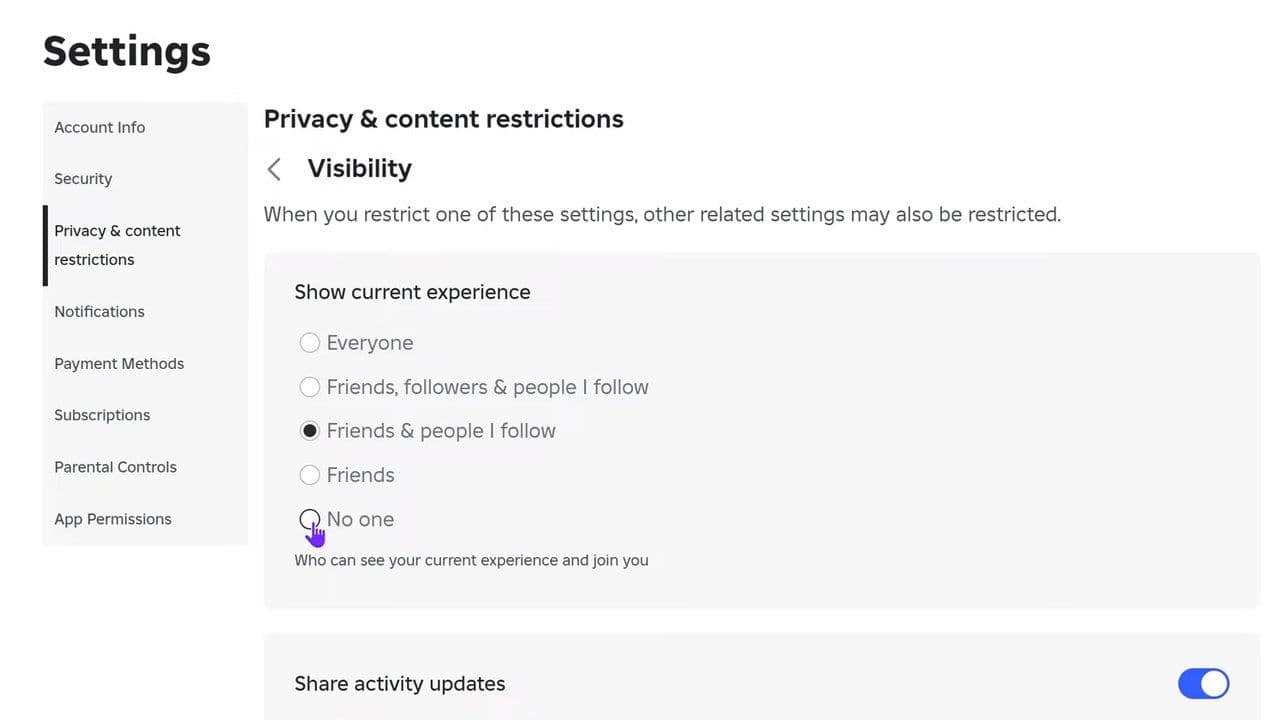
Your setting saves automatically. Once selected, nobody will be able to join your active experience through your profile.
How to turn your joins off in Roblox on Mobile (iPhone & Android)
If you’re using the Roblox mobile app, the process is almost the same:
- Open the Roblox app.
- Tap the More (⋯) button at the bottom of the screen.
- Tap Settings.
- Select Privacy.
- Scroll to Visibility & private servers.
- Tap Visibility
- Choose No one.

The change applies immediately to your account across all devices.
Why might players still appear in your servers?
Even after learning how to turn your joins off in Roblox, you may notice someone ends up in your game. Here are possible reasons:
- Automatic matchmaking: Roblox may place players in the same public server due to region or server availability. This is not the Join feature—it’s automatic server matching.
- Private server invites: If you are in a private server and someone has access or an invite link, they can still join.
- Party feature: Roblox’s Party system can allow players to enter games together. If you want maximum privacy, review Party settings under Privacy > Communication.
How to fix issues
Try these quick fixes:
1. Check permissions
If a parent or guardian manages the account, they must change Settings > Privacy > Who can join me in experiences? to No one.
Also make sure your age is verified.
2. Restart Roblox
Fully close the app or browser, then reopen it. Settings sometimes need a refresh.
3. Log out and back in
Log out, close Roblox, log back in, and confirm Who can join me in experiences? is still set to No one.
4. Lock all privacy settings
Go to Settings > Privacy and set these to No one:
- Who can message me
- Who can chat with me
- Who can join me in experiences
- Who can see my inventory
- Who can trade with me
Enter your account PIN if prompted.
5. Check Roblox server status
If changes are not saving, Roblox may be experiencing issues. Check Downdetector or contact Roblox Support.
If everything is set correctly, your joins should now be fully turned off.
If privacy matters to you, this is one of the most important Roblox settings to adjust. For complete control, combine it with online visibility and communication settings.
Now you can play without interruptions.
Other Roblox safety features you should check
Here’s a list of important Roblox safety features you should check to protect your account or your child’s experience on the platform:
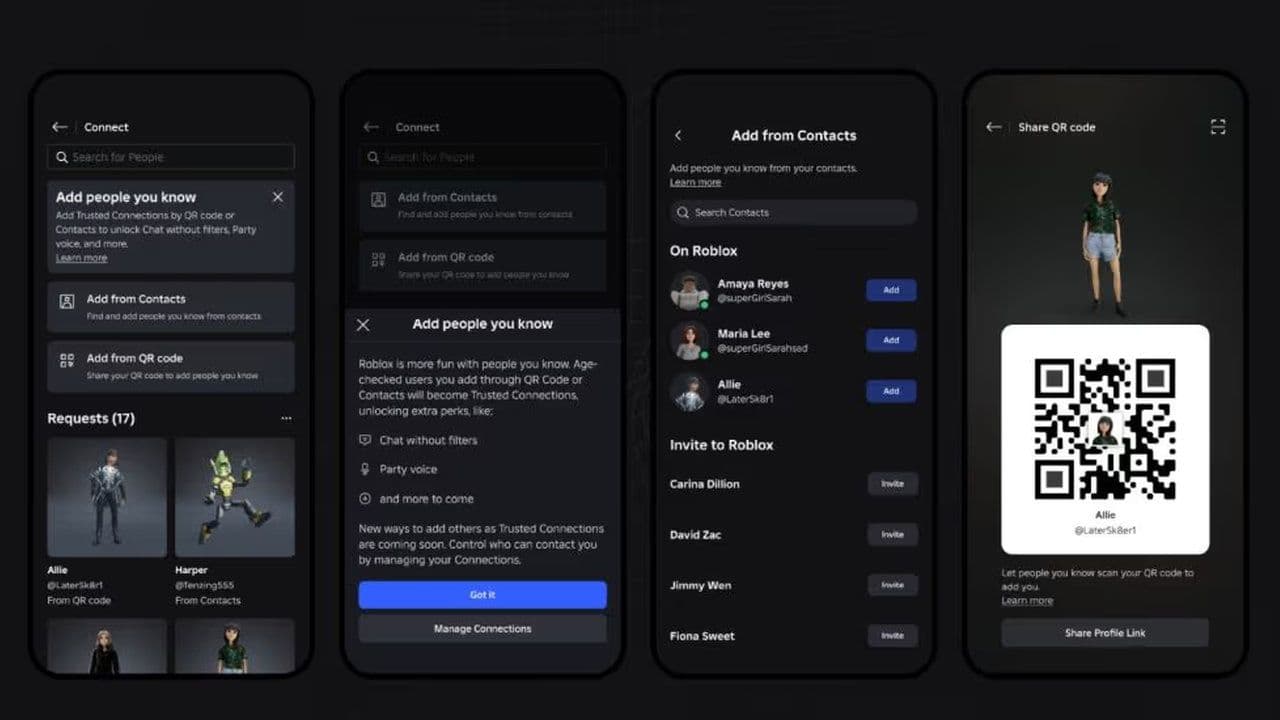
That’s all for today! Want free Roblox items? Check out these:
All Related Guides
 Universal Tower Defense X tier list (2026): Best units & moreUniversal Tower Defense X tier list for 2026: best units, Infinite Mode picks, beginner recommendations, and c...
 How to get Dark Ring in Roblox Sailor Piece fastLearn how to get Dark Rings fast in Sailor Piece, including Jinwoo boss location, drop rate, respawn timer, an...
 Opera GX Forsaken rewards guide (2026)Opera GX Forsaken rewards guide: unlock exclusive skins, XP Boosters, Killer Chance Tokens, and daily event re...
 All Roblox color codes list & how to use themComplete Roblox color codes guide: BrickColors, RGB values, Color3, HEX conversion, and how to use colors in R...
 Guide to the Roblox Bite By Night x Medal Quest: Get your free Fighter Class skinRoblox Bite By Night x Medal Quest guide: how to unlock the free Fighter Class Skin fast and redeem the reward...
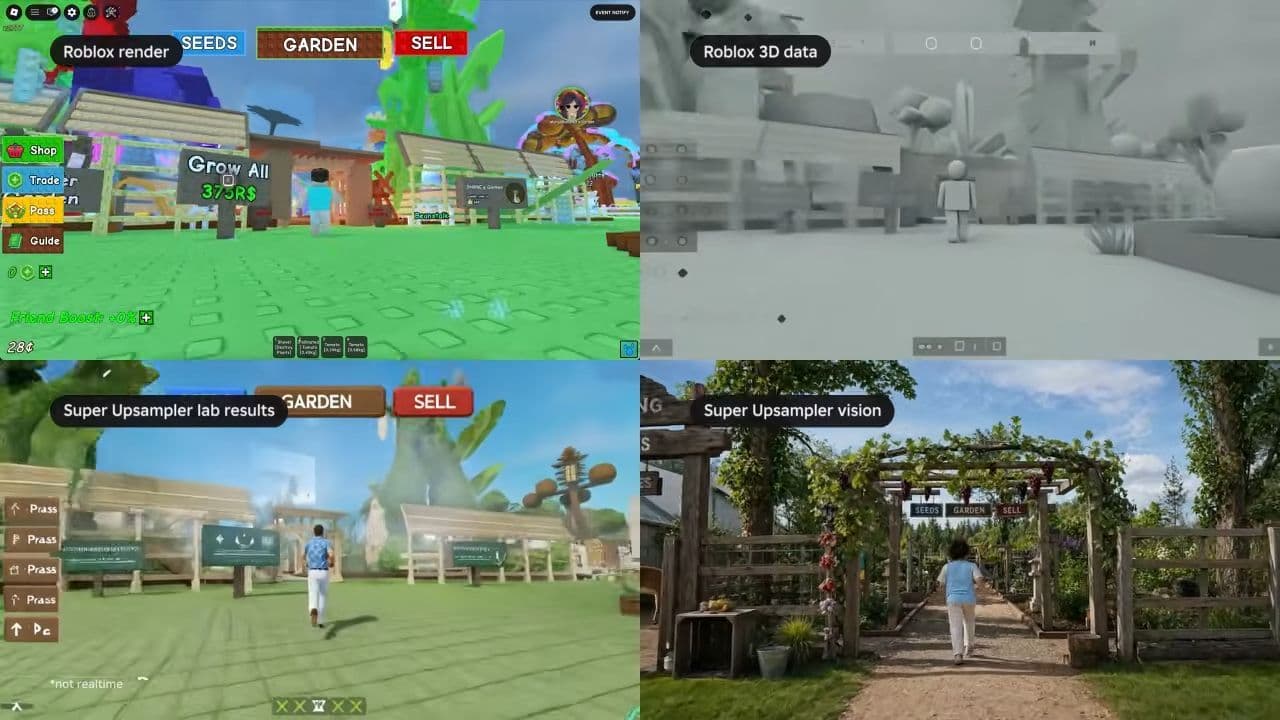 What is Roblox Reality? A detailed look at Roblox’s new hybrid architectureWhat is Roblox Reality? Learn how Roblox’s new AI-powered hybrid architecture brings photorealistic multiplaye...
 What is Roblox Plus? Benefits, Robux, Premium changes & how to get itWhat is Roblox Plus? Learn benefits, pricing, Robux bundles, Premium changes, private servers, and whether Plu...
 How to cancel Roblox PremiumLearn how to cancel Roblox Premium on mobile, PC, iPhone, and Android with simple steps to stop renewal and av...
- 1
- 2
- 3
- 4
- 5
- 6
- 7
- 8
- 9
- 10