How to get the Roblox Trusted Connections QR code
Add Trusted Connections instantly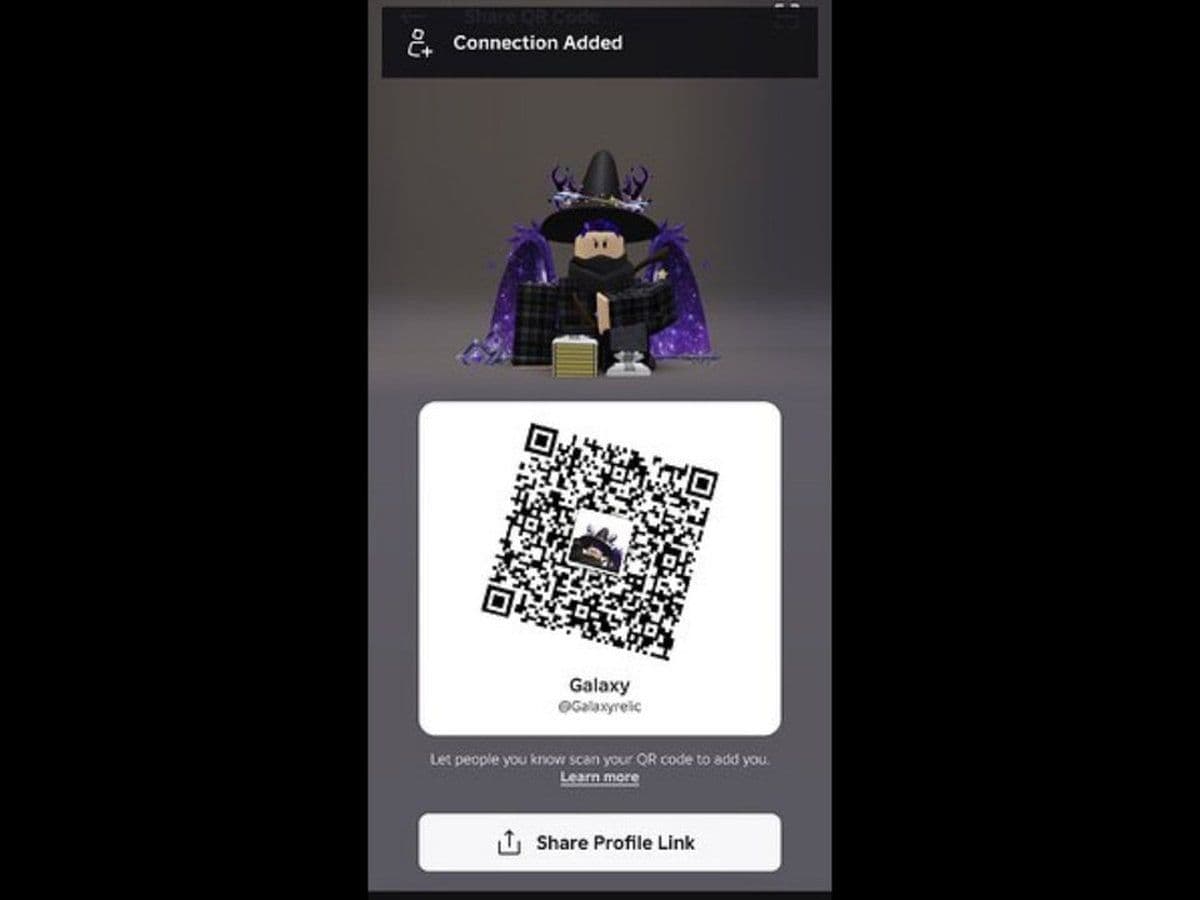
The Roblox Trusted Connections QR code is a safety feature that allows players to verify real-life relationships and unlock more open communication on Roblox. Instead of simply adding someone as a friend, the QR code system helps confirm that you actually know the person. This guide explains exactly what it is, how it works, how to use it, and the important safety rules you need to understand.
What is the Roblox Trusted Connections QR code?
The Roblox Trusted Connections QR code is a unique, scannable code inside the Roblox app that helps users add someone as a Trusted Connection.
Trusted Connections are different from regular friends. Once someone becomes a Trusted Connection, Roblox allows:
- More open chat communication
- Access to voice chat in some cases
- Fewer chat filter restrictions (depending on age)
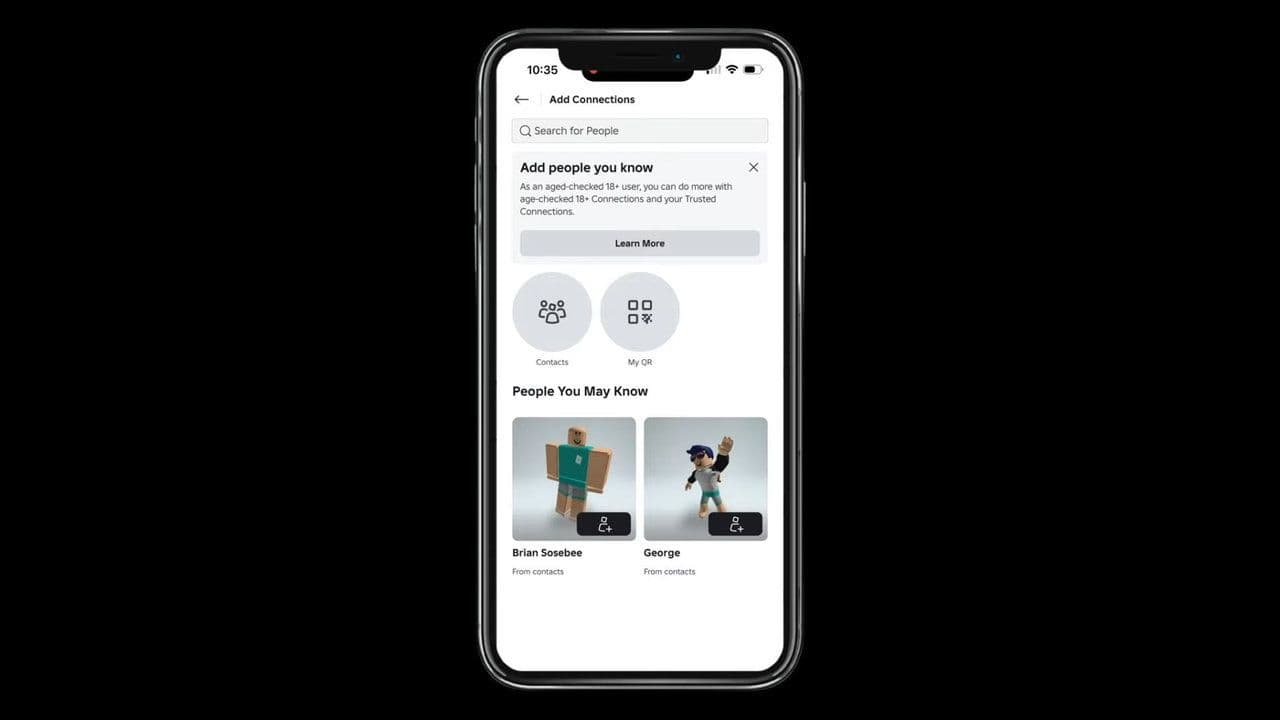
The QR code acts as a verification tool. It confirms that two people are physically together or know each other in real life, which makes the connection safer.
Age requirements for the Roblox Trusted Connections QR code
Before you can use the Roblox Trusted Connections QR code, your account must meet Roblox’s age rules.
Under 13
- Cannot use Trusted Connections
- Cannot use QR code for this feature
- Only standard friend system is allowed
Age 13 to 17
- Can use Trusted Connections
- Must use QR code to connect with adults (18+)
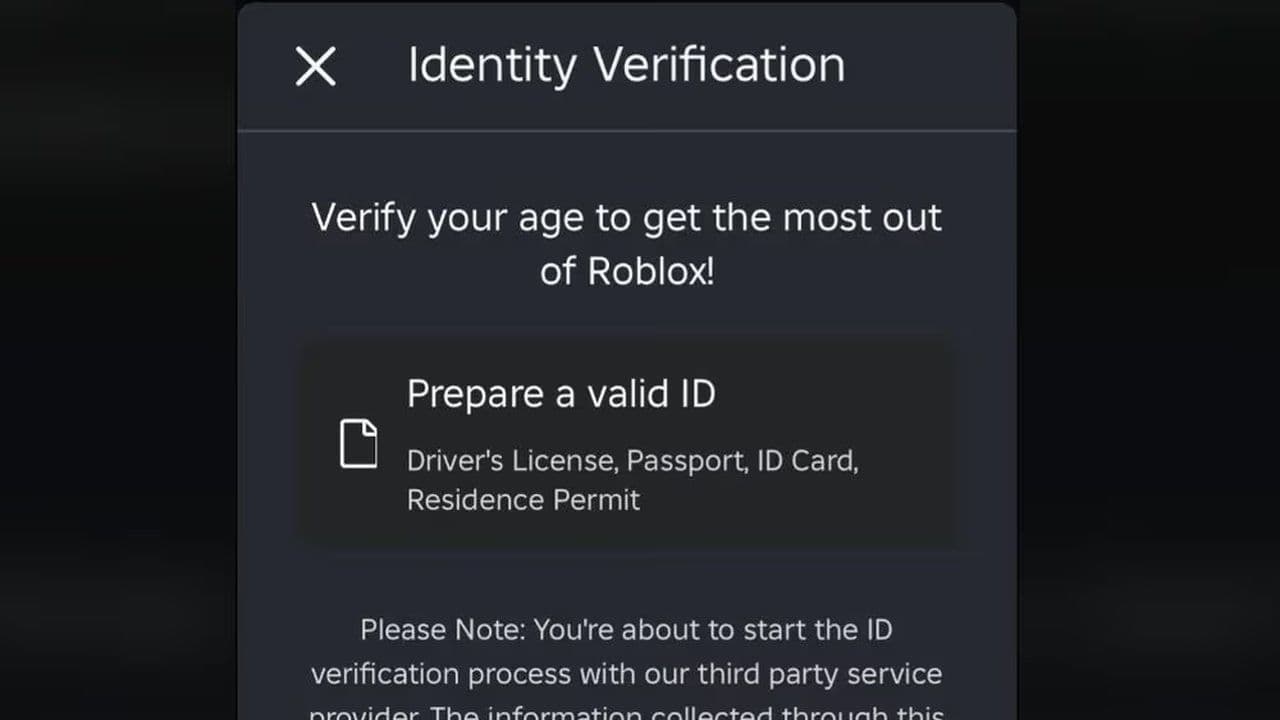
- Must complete age verification
Age 18 and older
- Can use Trusted Connections
- Can generate and scan QR codes
- Can connect with teens only through QR code verification
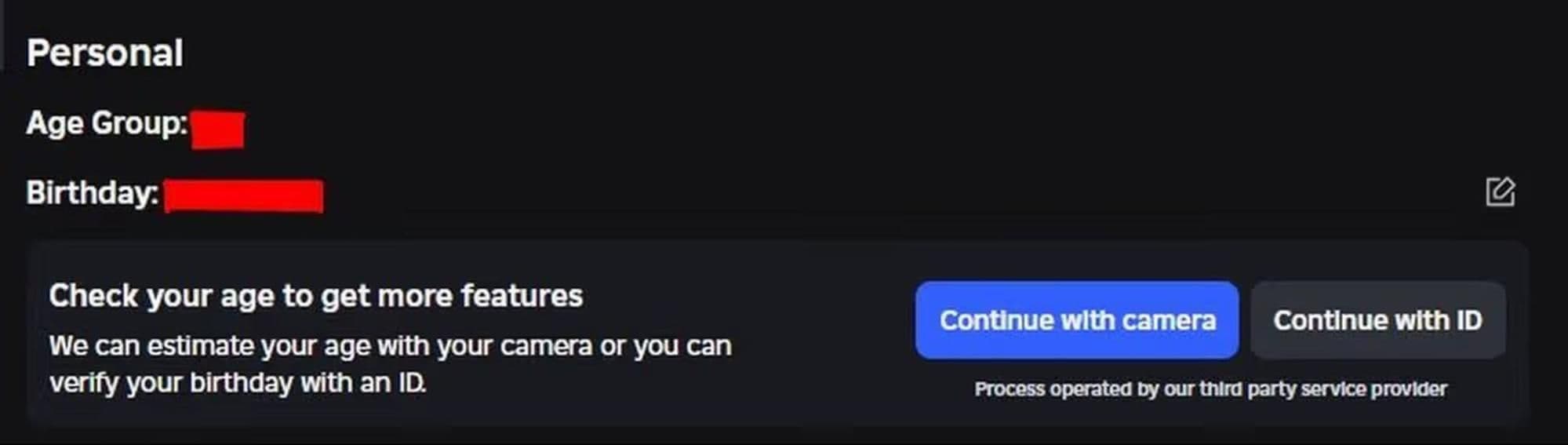
Age verification is required. Without it, the Trusted Connections feature will not work.
How to find your Roblox Trusted Connections QR code
Follow these steps to generate your QR code:
- Open Roblox app: Use the mobile Roblox app on your phone.
- Go to Home: Tap the Home button.
- Tap the Connect icon: Look for the “Connect” or “Add Friends” icon.
- Tap “My QR Code”: Roblox will display your personal Trusted Connections QR code.
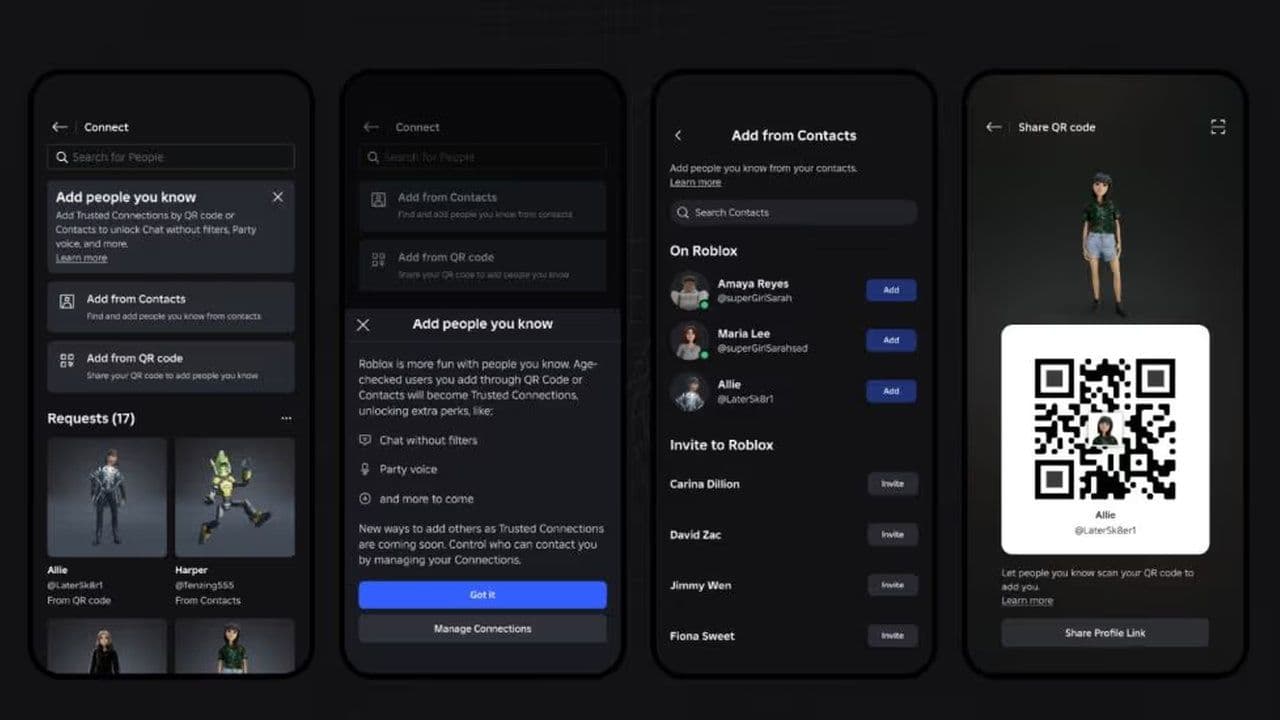
This code is unique to your account.
How to scan a Roblox Trusted Connections QR code
To add someone as a Trusted Connection:
- Open Roblox app: Both users must open the Roblox mobile app.
- Go to Connect section: Tap the Connect icon.
- Tap Scan QR Code: Use the scanner option.
- Scan the other person’s QR code: Point your camera at their screen.
- Send Trusted Connection request: Roblox will send the request automatically.
- Wait for approval: The other user must accept the request.
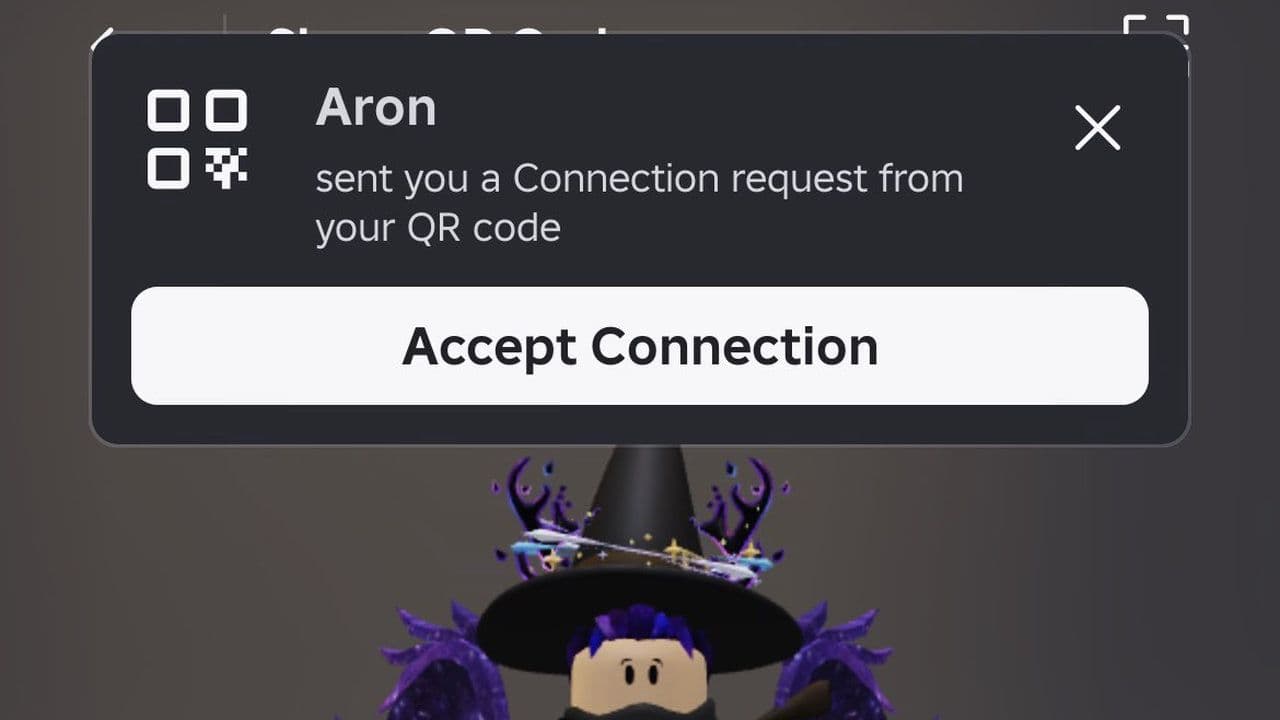
Once accepted, the Trusted Connection is complete.
Is your Roblox Trusted Connections QR code not working?
If the QR code does not work, try these solutions.
- Update Roblox app: Old versions may not support the feature.
- Use mobile app: QR scanning only works in the mobile Roblox app.
- Check camera permissions: Roblox needs access to your camera.
- Wait for feature rollout: Some users receive features later.
- Complete age verification: Trusted Connections require age verification.
Difference between Trusted Connections and friends
Many users confuse Trusted Connections with normal friends.
Important safety rules
Even though the Roblox Trusted Connections QR code is designed for safety, users must still be careful.
Follow these rules:
- Only scan QR codes from people you know in real life
- Do not share your QR code publicly
- Review your Trusted Connections regularly
- Parents should monitor teen accounts
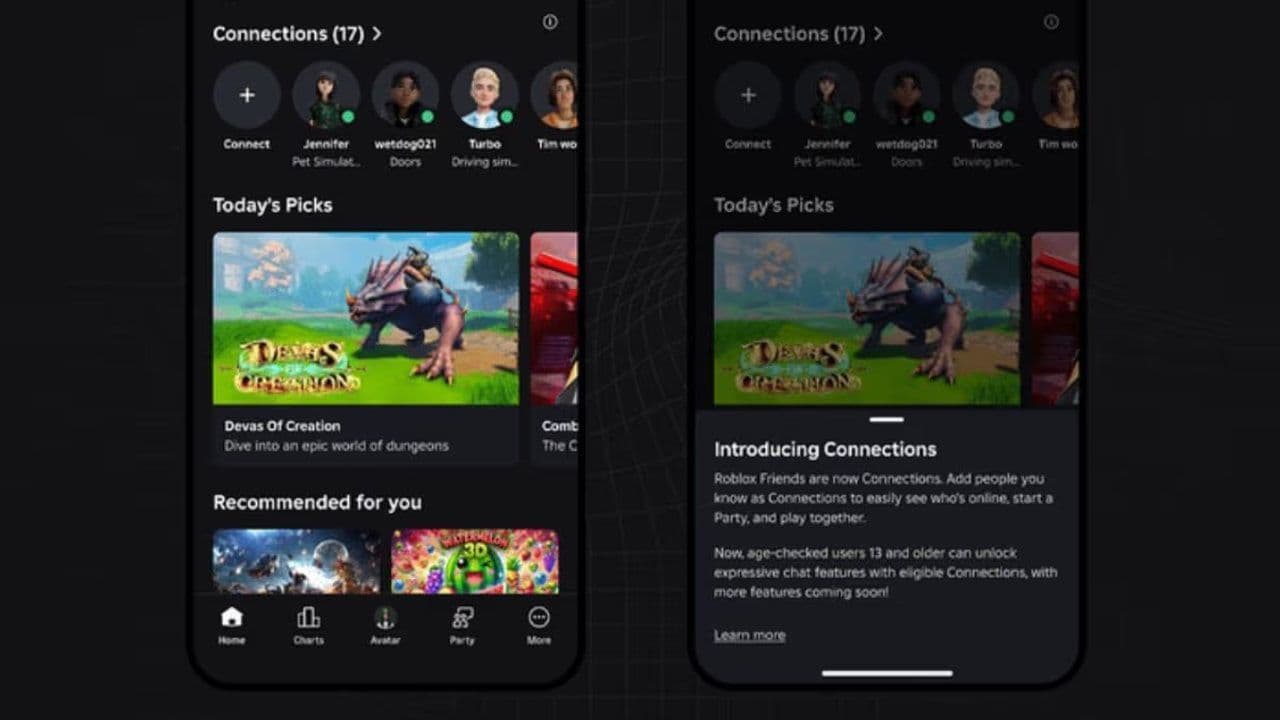
Roblox uses QR codes for Trusted Connections to improve safety. Both users must scan each other’s code in person, which helps confirm identity and prevent strangers from connecting.
It also unlocks safer chat and voice features for verified friends. To find it, open the mobile app, go to Connect, and tap My QR Code.
That’s all for today! Want free Roblox items? Check out these:
All Related Guides
 How to connect Claude to Roblox StudioConnect Claude to Roblox Studio with the current MCP method and see how Claude can work with your scripts and ...
 How to fight in Gakuran RobloxLearn how to fight in Gakuran Roblox, from basic attacks to blocking, parrying, posture, and fighting styles....
 How to get a free avatar in RobloxFind out how to get a free Roblox avatar without spending Robux, from free character bundles to Marketplace it...
 How to reduce lag in Roblox: Comprehensive guideRoblox feeling slow or choppy? Find out how to reduce lag in Roblox and improve your game with a few simple ch...
 How to check Roblox player countHow many people play Roblox in 2026? Check the latest Roblox player count and learn what the numbers actually ...
 App Themes: How to change a Roblox Background (2026)Here’s how to change your Roblox background and theme, including Roblox Plus themes, Dark Mode, Light Mode, an...
 Roblox Safety Dashboard: How to check account status & ban riskLearn how the Roblox Safety Dashboard works, check your Account Status, review recent violations, and see whet...
 How to get the Blossoming Gift of New Beginnings in Roblox (Mystery box)Learn how to get the Blossoming Gift of New Beginnings in Roblox, including Roblox Plus requirements, eligibil...
- 1
- 2
- 3
- 4
- 5
- 6
- 7
- 8
- 9
- 10
- 11
- 12