How to make footsteps louder in Warzone: PC, PS5, and Xbox settings
Fine-tune your Warzone audio
To make footsteps louder in Warzone, keep Effects Volume high, lower music and voice chat, and choose an audio mix that makes nearby movement easier to distinguish. Then adjust your platform’s audio settings if footsteps still get buried.
Raising the master volume also makes gunfire and explosions louder. Start by improving the balance, then set a comfortable listening volume.
Below are recommended starting settings, PC Loudness Equalization instructions, PS5 Audio Focus options, and Xbox adjustments.
Best Warzone audio settings for louder footsteps
Open Settings, then Audio, and use this as a starting preset. These are recommendations to compare on your own headphones, rather than a universally best configuration.
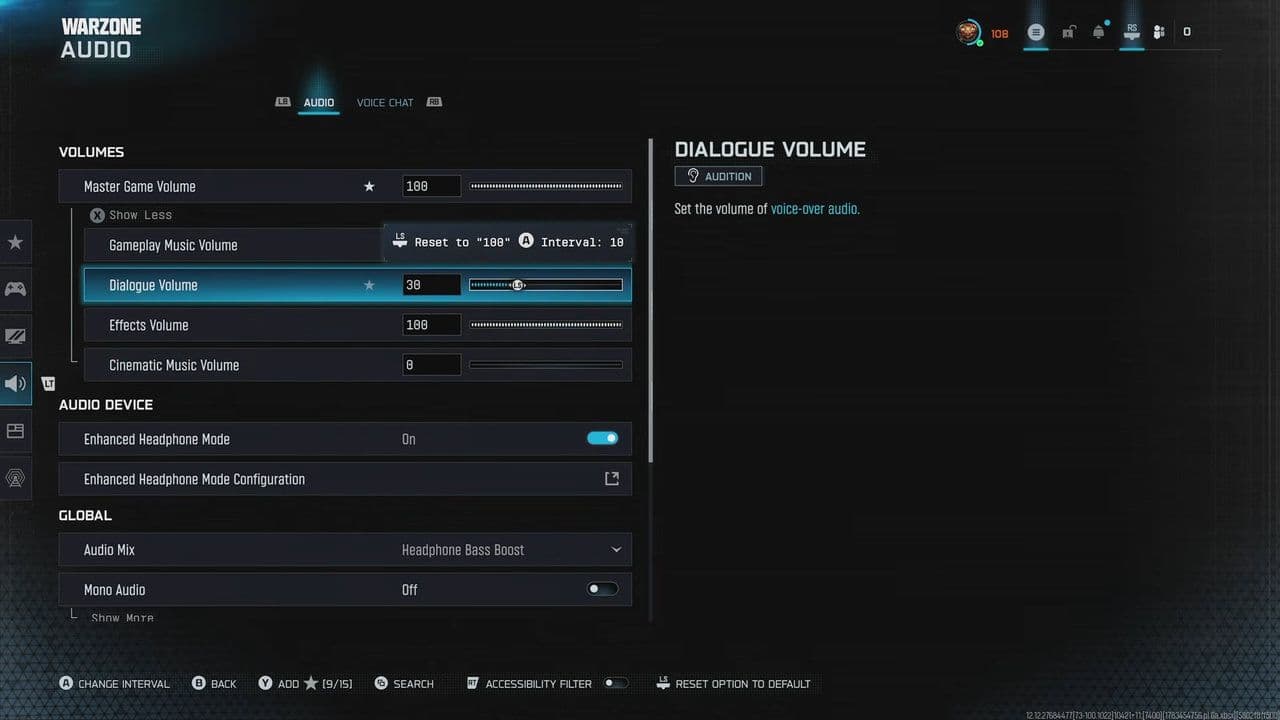
Keep Effects Volume high relative to the other categories. Footsteps share this channel with gunfire, explosions, doors, and other effects, so lowering it reduces more than enemy movement.
Use your headset or system volume to control the final loudness. An Effects setting of 100 does not require maximum headphone volume.
Which Warzone audio mix is best for footsteps?
Start with Headphones, then compare Sucker Punch if that option appears in your current menu. You can also test Headphones Bass Boost, particularly if your headset sounds thin.
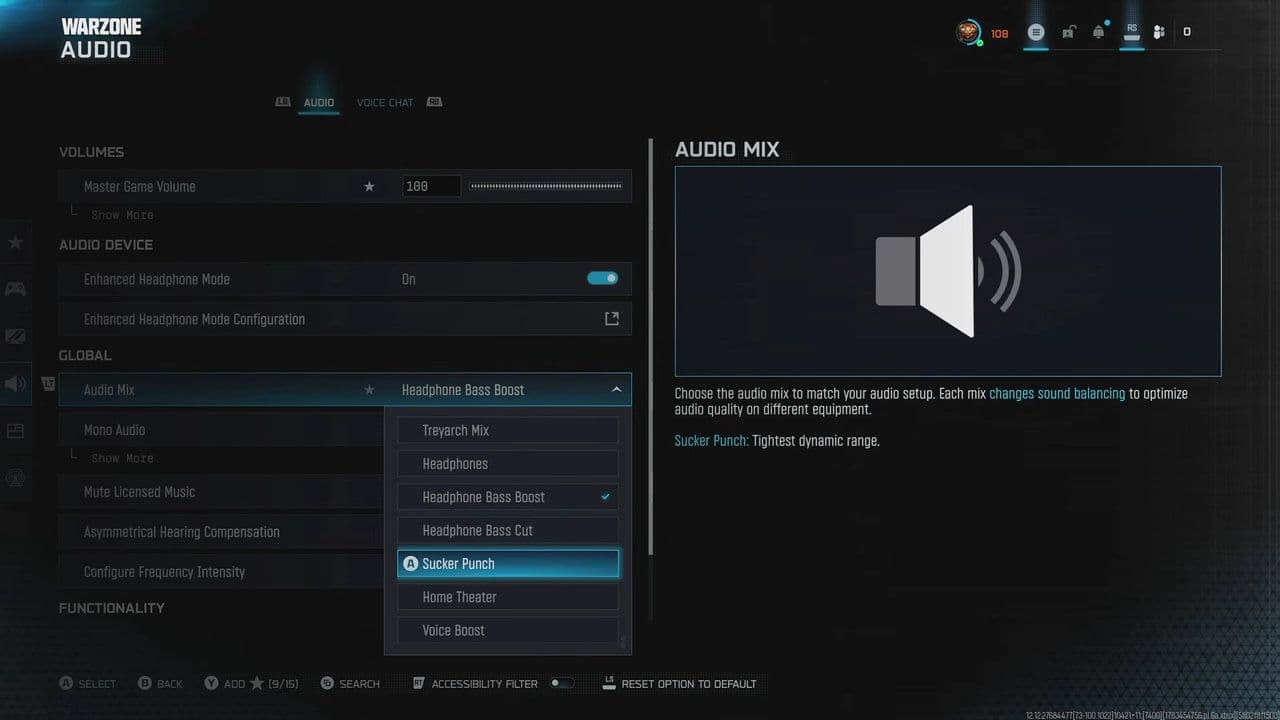
Choose the mix that helps you identify where an enemy is moving. A preset that makes every sound louder but makes distance harder to judge may be less useful.
Compare mixes in similar conditions: the same headset, similar volume, and the same type of indoor or outdoor area. Avoid changing your EQ and spatial settings during that comparison.
How to make Warzone footsteps louder on PC
First, confirm that Warzone is using the correct playback device. Then test Windows Loudness Equalization if your audio device supports it.
Enable Loudness Equalization in Windows
On Windows 11:
- Open Settings.
- Select System, then Sound.
- Open More sound settings.
- In Playback, select the headphones or audio device carrying your game sound.
- Select Properties.
- Open Enhancements, if available.
- Enable Loudness Equalization.
- Select Apply and test Warzone.
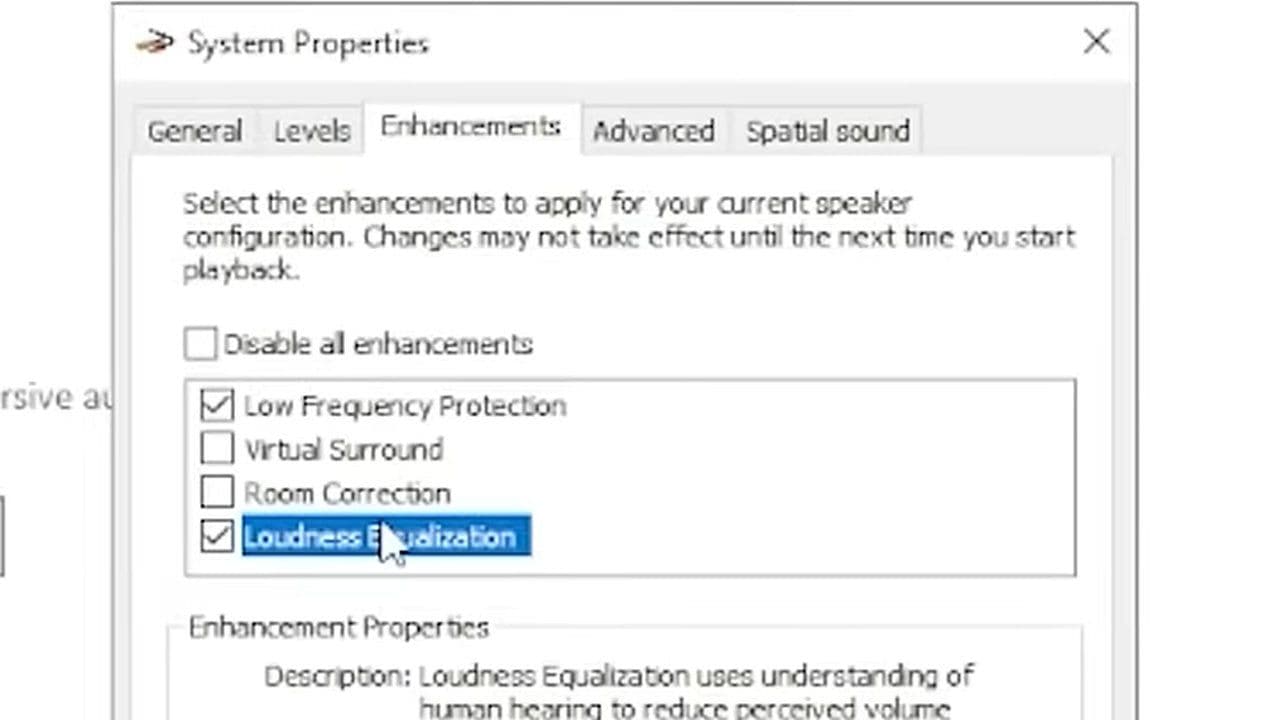
Some devices and drivers do not expose this option. If the Enhancements tab or setting is missing, check your headset’s supported software rather than assuming something is broken.
Microsoft describes Loudness Equalization as a way to make quieter sounds more audible while controlling loud peaks. It affects the overall signal, including sounds other than footsteps.
Compare clarity and distance before keeping it
Test whether quiet movement becomes easier to notice without making distant action sound misleadingly close.
Turn the feature off again if the audio pumps noticeably, becomes tiring, or makes positioning harder. Loudness Equalization is an optional adjustment, not a requirement for competitive audio.
How to make Warzone footsteps louder on PS5
PS5 includes Audio Focus, which can emphasize quieter sounds through headphones.
To try it:
- Connect your headphones.
- Open PS5 Settings.
- Select Sound, then Volume.
- Open Audio Focus.
- Enable Use Audio Focus.
- Set Focus Type to Boost High Pitch.
- Start with Weak amplification.
- Use Audio Preview, then compare it in Warzone.
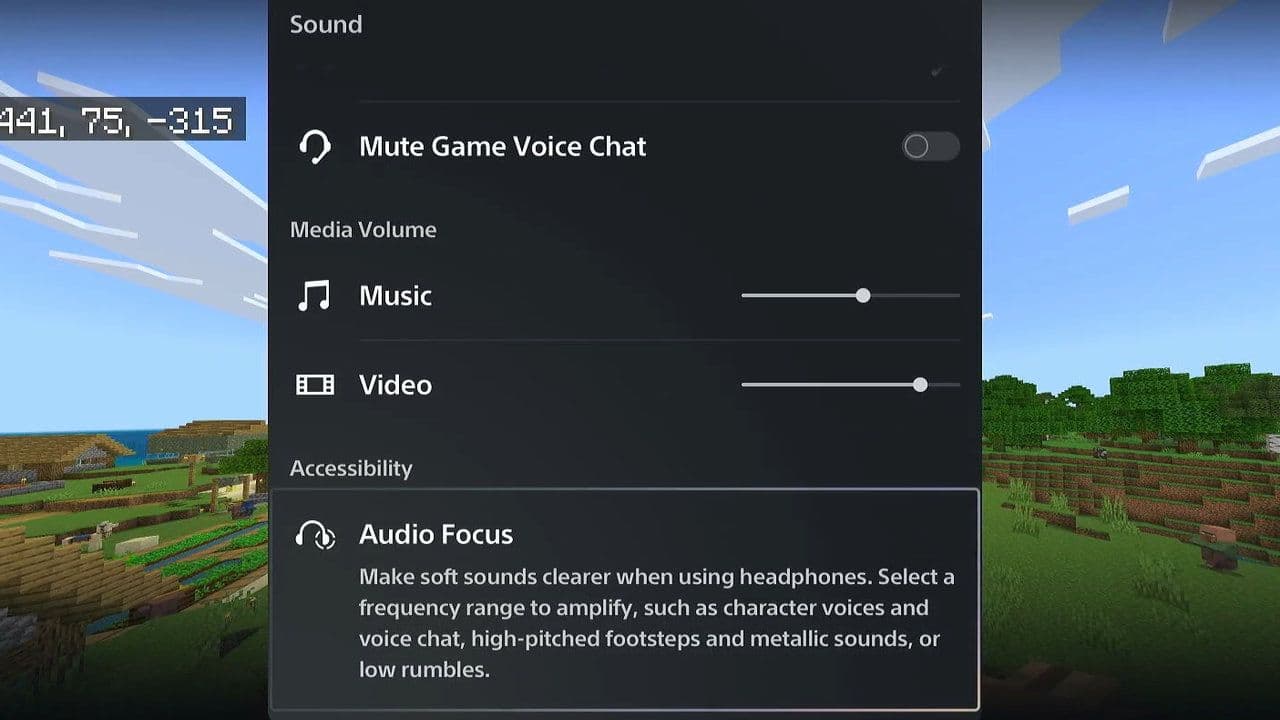
Sony specifically identifies footsteps and metallic noises as examples of sounds emphasized by Boost High Pitch. You can also compare Boost Quiet Sounds, which amplifies quieter audio across a broader frequency range.
Test Audio Focus with Enhanced Headphone Mode off first. Embody’s setup instructions recommend disabling PS5 Audio Focus when using its Enhanced Headphone Mode, so treat them as separate configurations to compare.
How to improve Warzone footstep audio on Xbox
Start with the in-game preset above, then check that your headset’s game/chat balance is not heavily favoring party chat.
For a straightforward headphone baseline:
- Open Xbox Settings.
- Select General, then Volume & audio output.
- Find Headset audio.
- Select Stereo uncompressed.
- Disable any additional headset surround processing during your initial test.
If you prefer Dolby Atmos or Windows Sonic, compare that configuration separately with Enhanced Headphone Mode disabled.
When using Enhanced Headphone Mode, Embody recommends Stereo Uncompressed on Xbox and disabling additional headset surround processing.
Should you enable Enhanced Headphone Mode in Warzone?
Test it for directional accuracy, rather than assuming it is a footstep-volume switch.
Enhanced Headphone Mode uses spatial processing to help represent sound direction. Its Universal Profile is free; a paid Personalized Profile is a separate option. You can compare the free mode before considering a purchase.
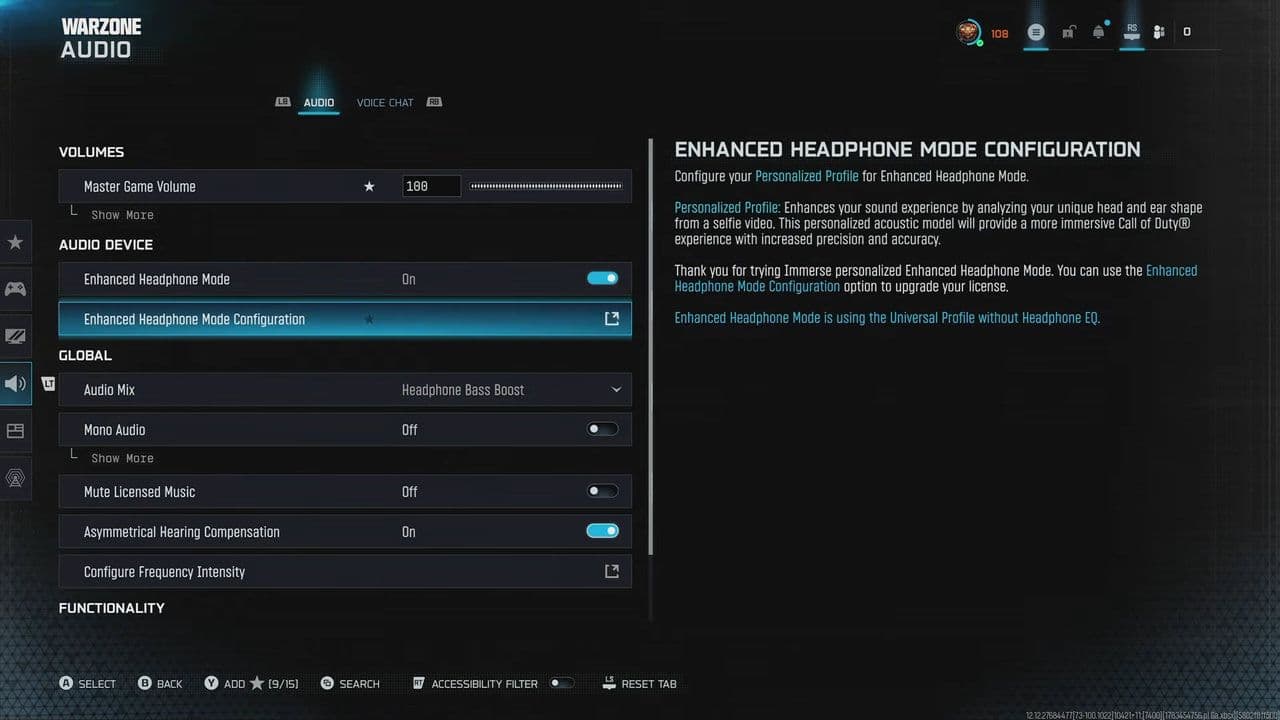
When testing it, disable competing spatial systems such as:
- Windows Sonic.
- Dolby Atmos for Headphones.
- DTS headphone processing.
- PS5 3D Audio for Headphones.
- Your headset’s virtual surround mode.
Embody explicitly recommends avoiding simultaneous spatial processing with Enhanced Headphone Mode. Compare one setup at a time so you can tell which change improves positioning.
Can EQ make footsteps easier to hear?
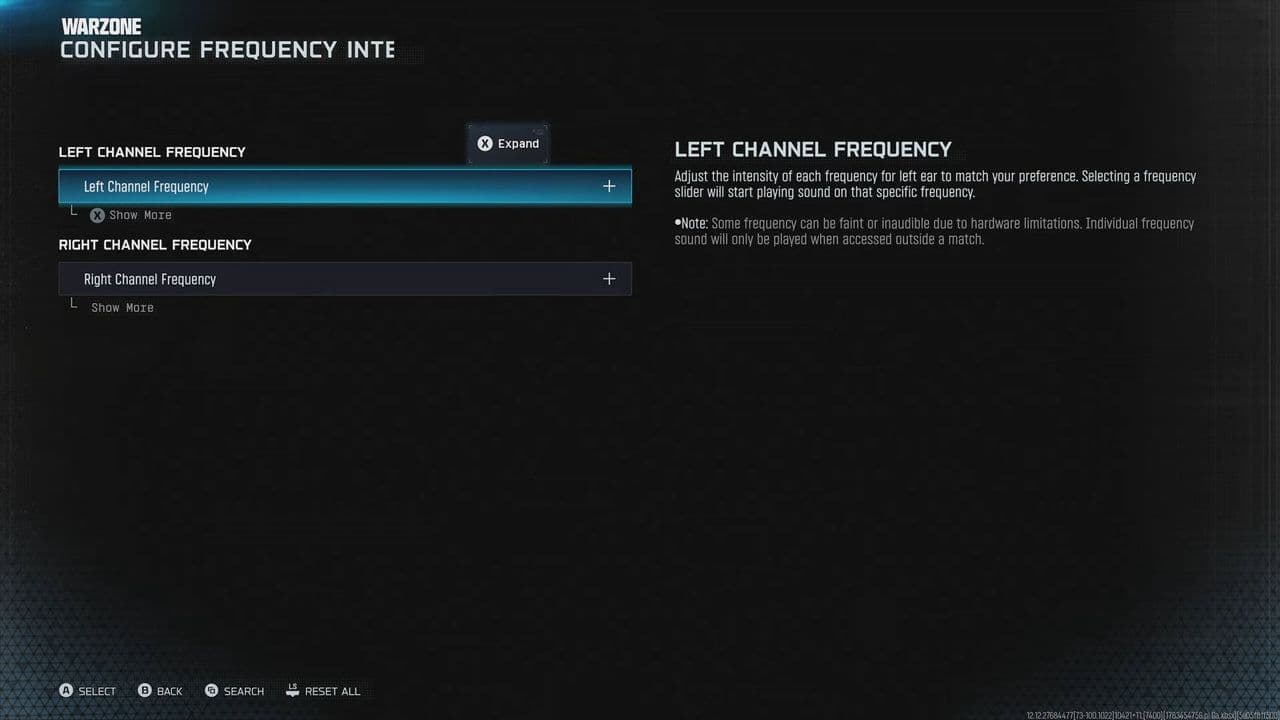
EQ can help if your headphones produce excessive bass or obscure useful detail. Start with a flat profile and make small changes.
If explosions sound boomy, try a modest bass reduction. Then compare a small midrange adjustment while listening for movement. Avoid sharply boosting several bands at once: footsteps vary with surfaces and movement, and other effects occupy overlapping frequencies.
A headset preset labeled “footsteps” is worth testing, but keep it only if you can locate enemies more consistently.
Why are Warzone footsteps still difficult to hear?
If the settings above do not help, check these common causes:
Finally, compare several encounters before judging a preset. Explosions, movement, surrounding geometry, and other simultaneous sounds can change what you hear.
Keep the configuration that makes footsteps easier to notice and locate. That is more useful than making the entire match louder.
Guide Categories
All Related Guides
 How to get easy lobbies in Warzone: Bot lobbies & moreLearn how to get easier Warzone lobbies, what bot lobbies actually are, and how matchmaking, playtime, playlis...
 How to Prestige in Warzone fastLearn how to Prestige in Warzone, what resets at Level 55, how Permanent Unlocks work and the fastest route th...
 How to check MW4 Beta stats: K/D, wins, kills & Combat RecordLearn how to check your MW4 Beta stats, including K/D, wins, kills, playtime, weapon stats, Combat Record, and...
 How to change your name in WarzoneChanging your Warzone name is simple once you know where to look. Follow the steps and learn how Activision ID...
 How to inspect your gun in WarzoneLearn how to inspect your gun in Warzone on PC, PS5, PS4, and Xbox, plus how to view a weapon’s equipped attac...
 What are Loot Caches in Warzone? Caches vs. Crates explainedWhat are Loot Caches in Warzone? Learn what counts, the difference between caches and crates, and the fastest ...
 What is an infil weapon in Warzone?What is an Infil Weapon in Warzone? Learn what counts and how to get Infil Weapon eliminations....
 Warzone Lockdown Casual guide (New mode)Learn how Warzone Lockdown Casual works, including objectives, respawns, loadouts, rewards, and the best strat...
- 1
- 2
- 3
- 4
- 5
- 6