How to inspect your gun in Warzone
Inspect weapons and reveal attachments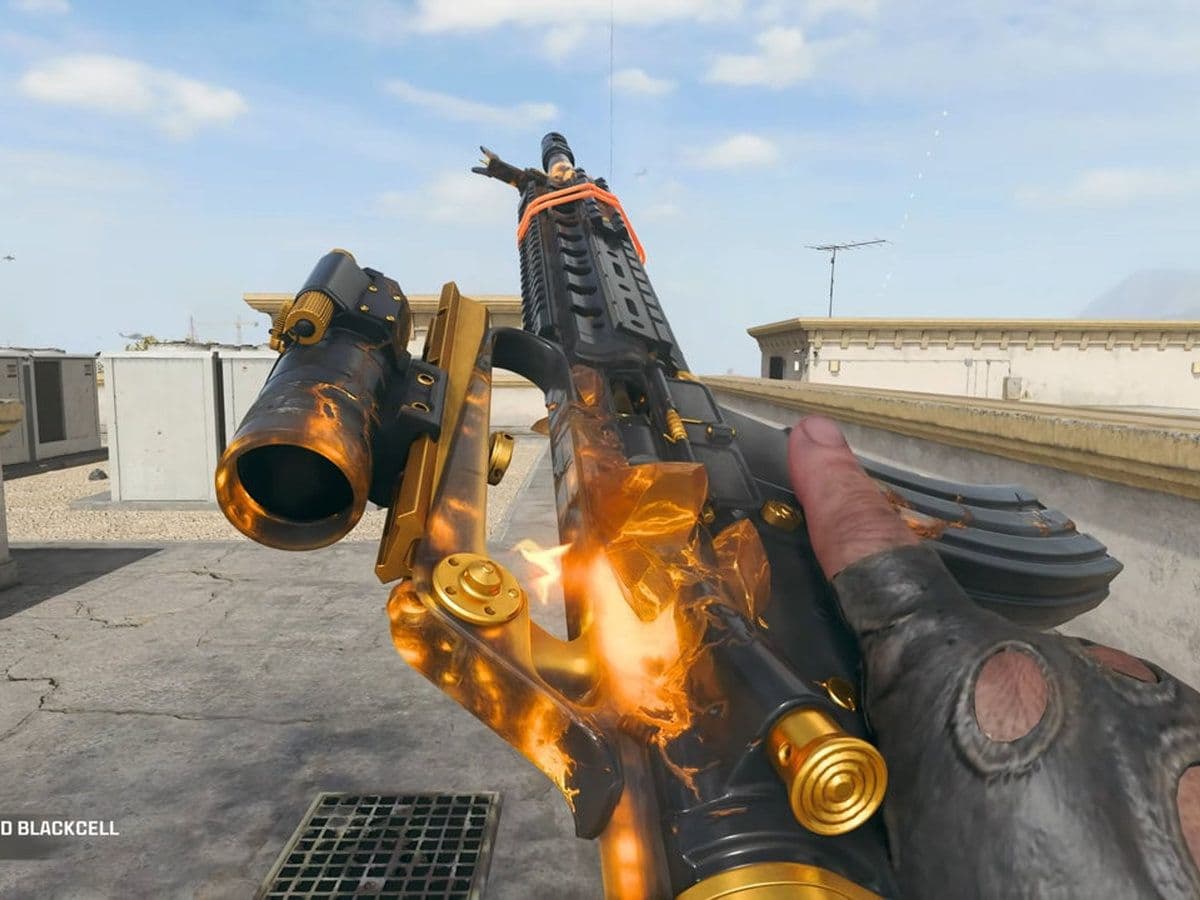
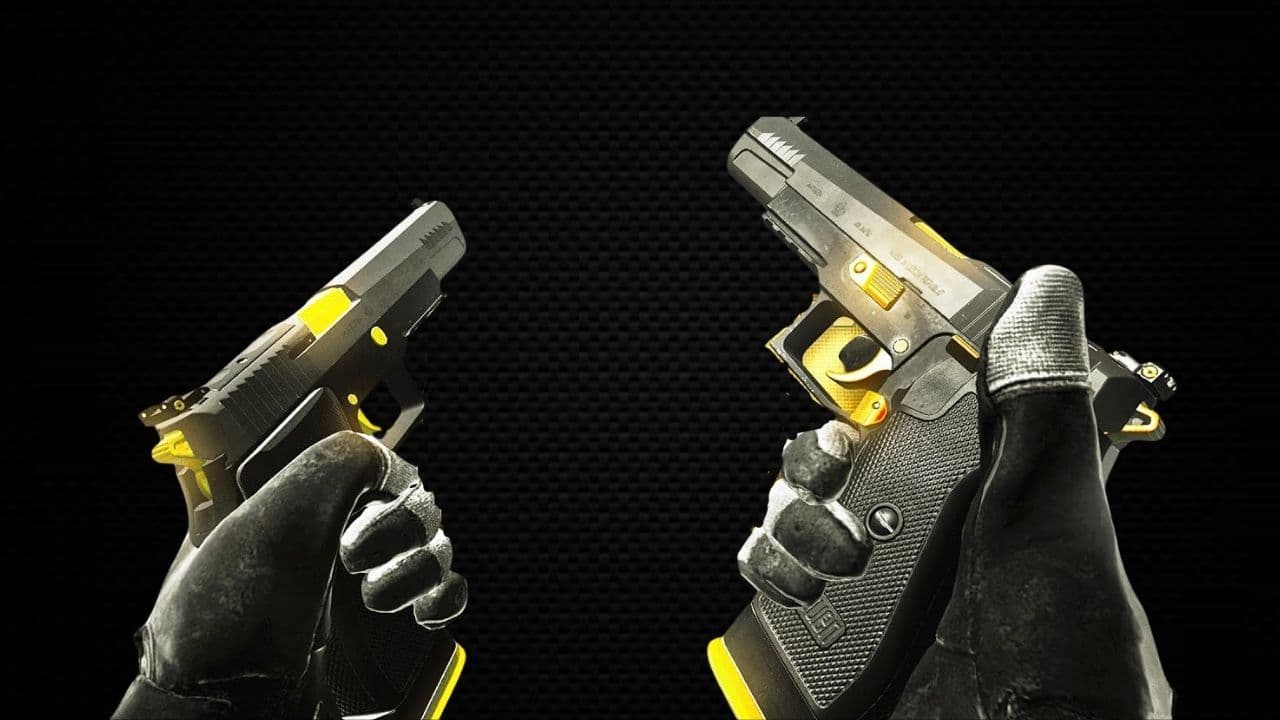
Warzone weapon inspection isn't only for checking out a new Blueprint or camo anymore. Warzone can also display the attachments fitted to the weapon you're inspecting, which is particularly useful when you pick up a strong enemy build and want to recreate it later. Activision added the attachment display with the return of Verdansk.
How to inspect a weapon in Warzone on PC
If you're playing Warzone with a mouse and keyboard:
- Equip the weapon you want to inspect.
- Make sure you're somewhere reasonably safe.
- Hold "I" on your keyboard.
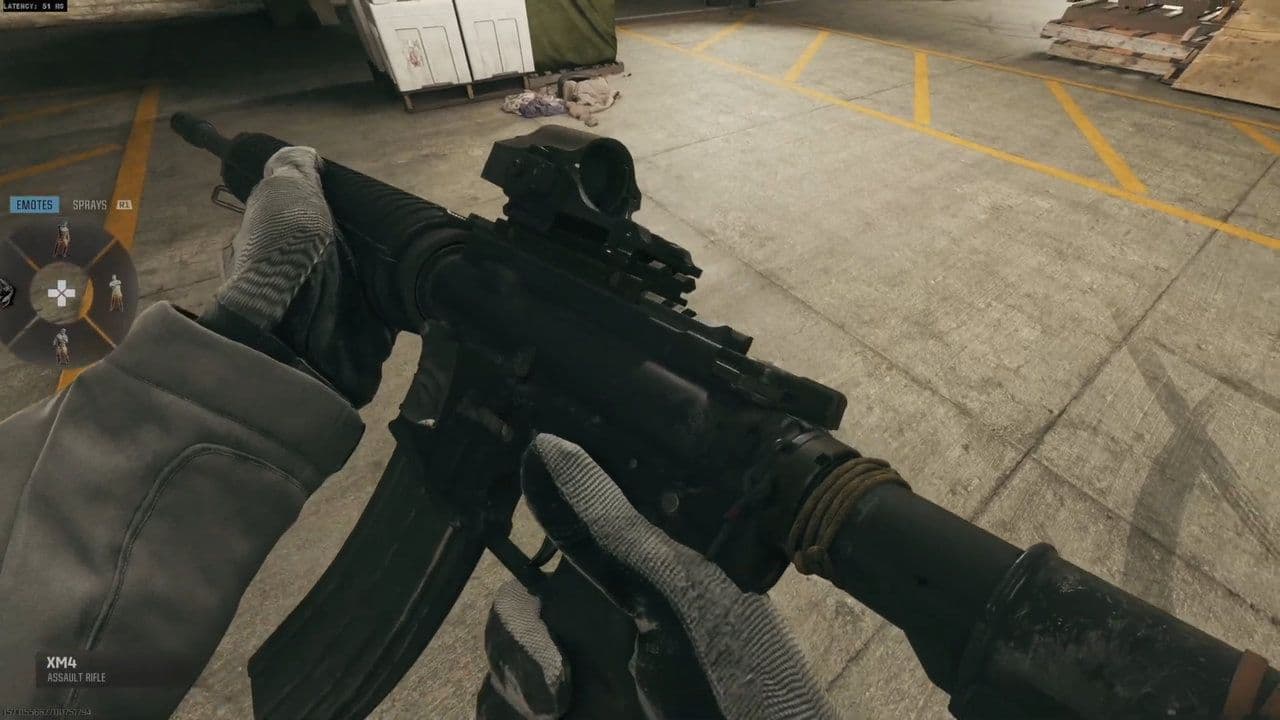
- Your Operator will begin the Weapon Inspect animation.
- Check the weapon and, when available, its attachment information in the bottom-right corner.
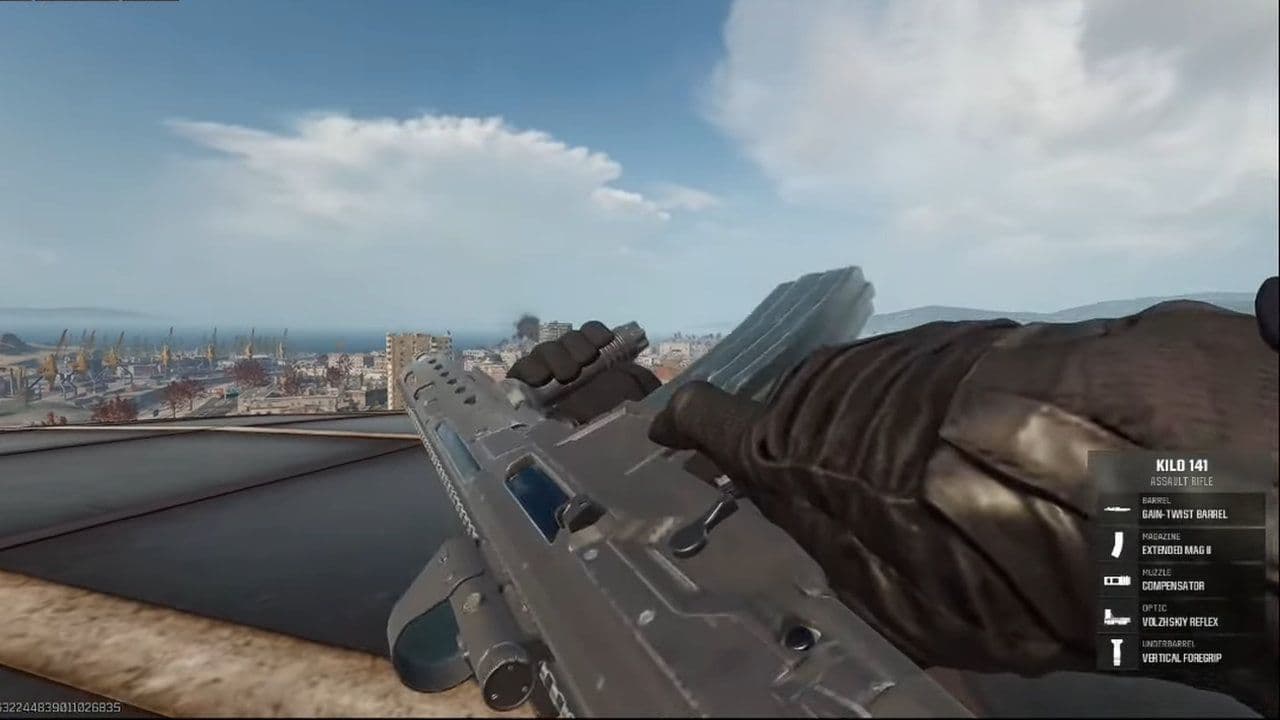
"I" is the standard Weapon Inspect input, although your key may be different if you've changed your Warzone keybinds.
You can inspect both primary and secondary weapons.
How to inspect a gun in Warzone on PS5, PS4 and Xbox
Controller players use the D-pad instead:
- Equip the gun you want to inspect.
- Hold Left on the D-pad.
- This opens the Emotes/Sprays wheel with the Weapon Inspect command.
- Press Left on the D-pad again to trigger Weapon Inspect.
- Your Operator will hold up and examine the weapon.
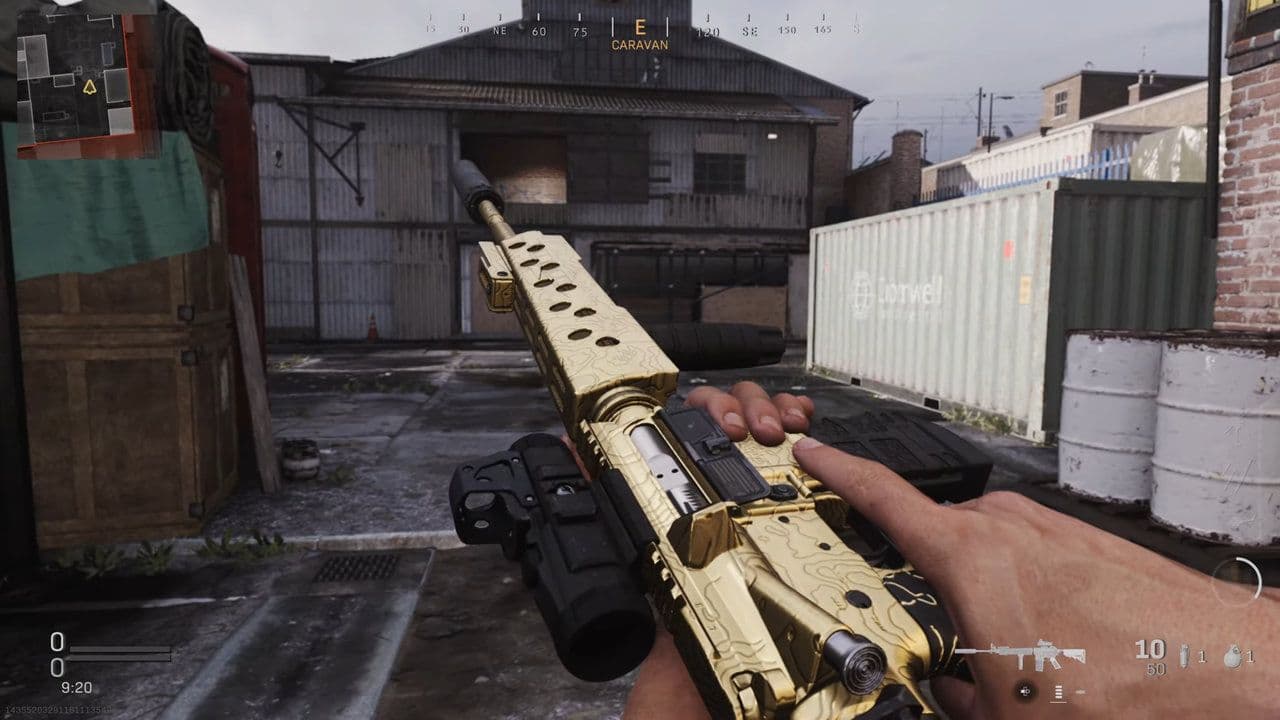
This works with PlayStation and Xbox controllers.
Depending on your controller layout and current Warzone settings, the exact behavior of the first D-pad input can differ. If simply holding Left starts the inspection on your setup, you don't need the second input.
Warzone Weapon Inspect controls
Here's the quick answer:
If you've customized your controls, your Weapon Inspect bind may be different.
How to see a gun's attachments in Warzone
This is where Weapon Inspect has become genuinely useful rather than purely cosmetic.
If you pick up a gun from ground loot, a defeated player, or a Loadout Drop, inspect it and Warzone can display the equipped attachments in the bottom-right corner of your HUD. Activision specifically added the feature so players could identify attachments on weapons they find during a match.
That means if somebody's ground-loot build feels ridiculously good, you don't have to guess which optic, barrel, magazine, or other attachments they're running.
Inspect it before dropping the weapon and take a screenshot if you want to recreate the setup in Gunsmith afterward.
Common error: Attachments aren't appearing when I inspect
The attachment display can be toggled in Warzone's settings.
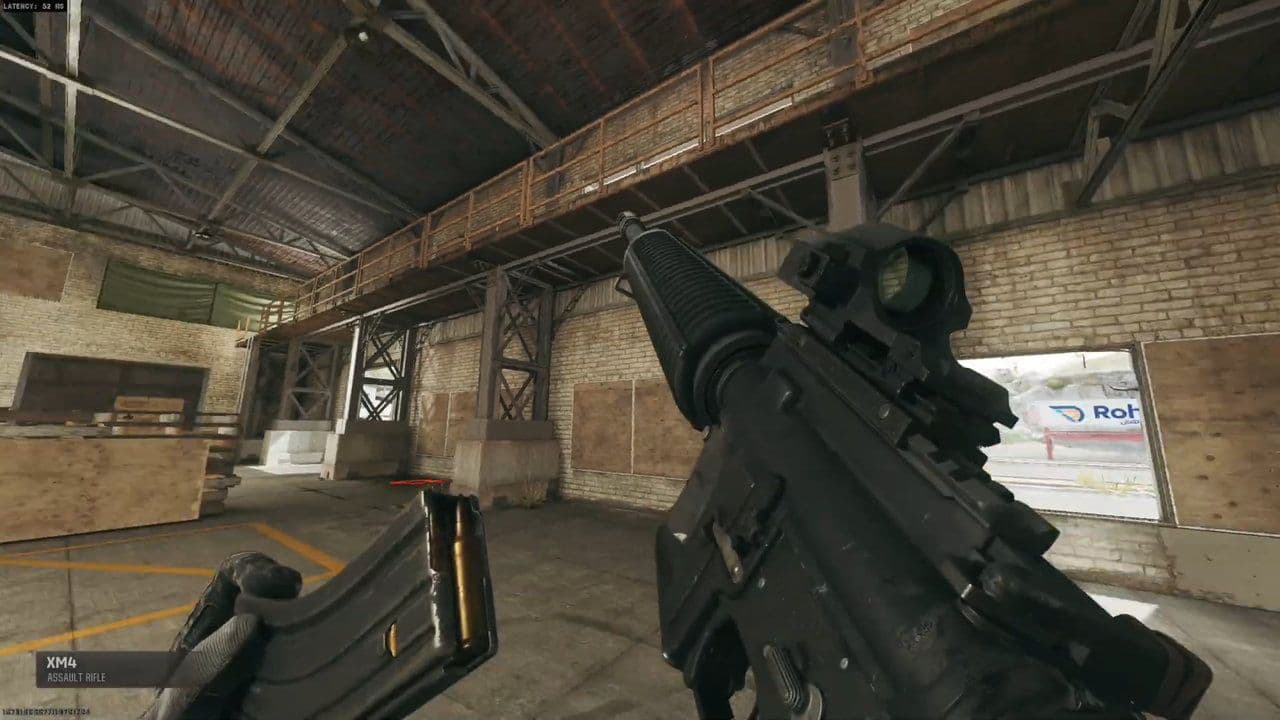
Go to:
- Settings → Interface → Gameplay HUD
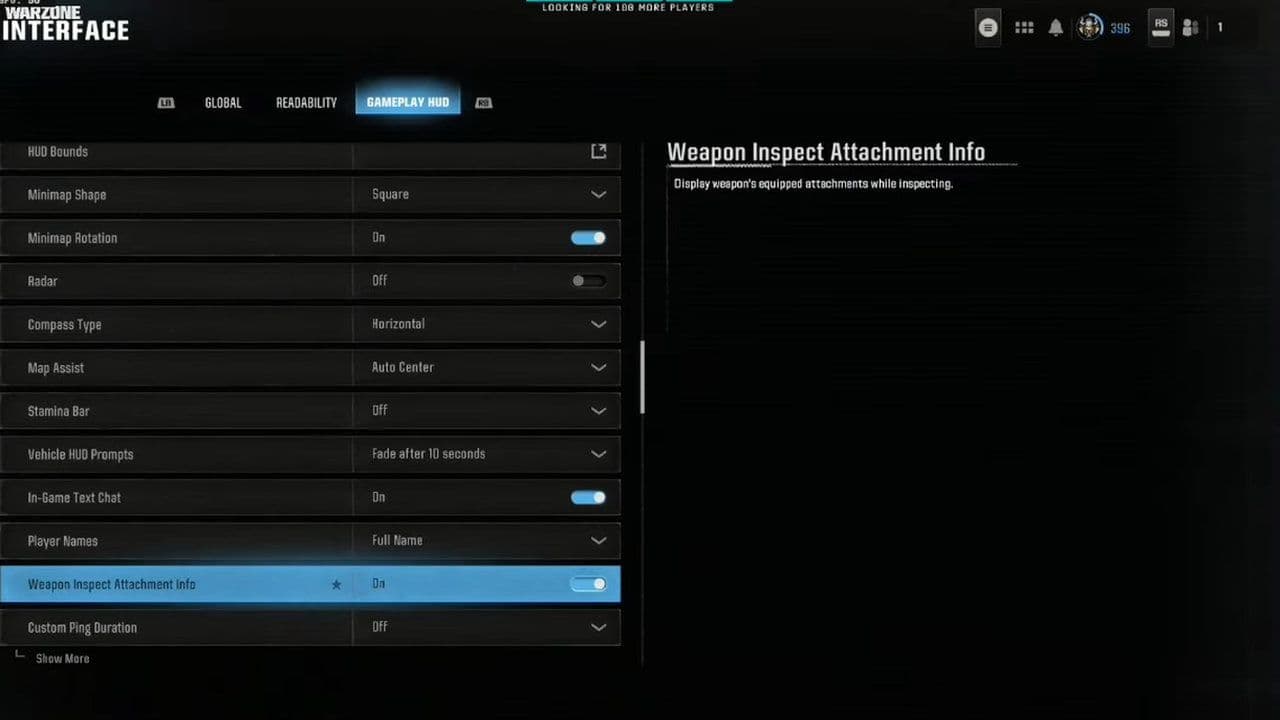
Then look for the Weapon Inspect attachment-display option and make sure it's enabled. Activision confirms the feature can be switched on or off from the Gameplay HUD menu.
This is worth checking if the inspection animation works normally but you aren't seeing attachment names in the bottom-right corner.
How to change the Weapon Inspect keybind on PC
If I doesn't inspect your weapon—or you simply want a more convenient button—you can change the bind.
Open:
- Settings → Keyboard & Mouse → Keybinds
Then search for Weapon Inspect and assign the input you want.
If I isn't doing anything, check this before assuming Weapon Inspect is broken.
Why can't I inspect my weapon in Warzone?
If Warzone Weapon Inspect isn't working, your first check should be your current keybind/control layout.
Other common causes include:
- You've changed the default Weapon Inspect input.
- You're tapping the controller button instead of holding it long enough to access the appropriate command.
- Another action shares or conflicts with the same input.
- You're performing another action that interrupts the animation.
- The weapon or current gameplay state is preventing the animation from starting.
- Your Warzone settings changed following an update.
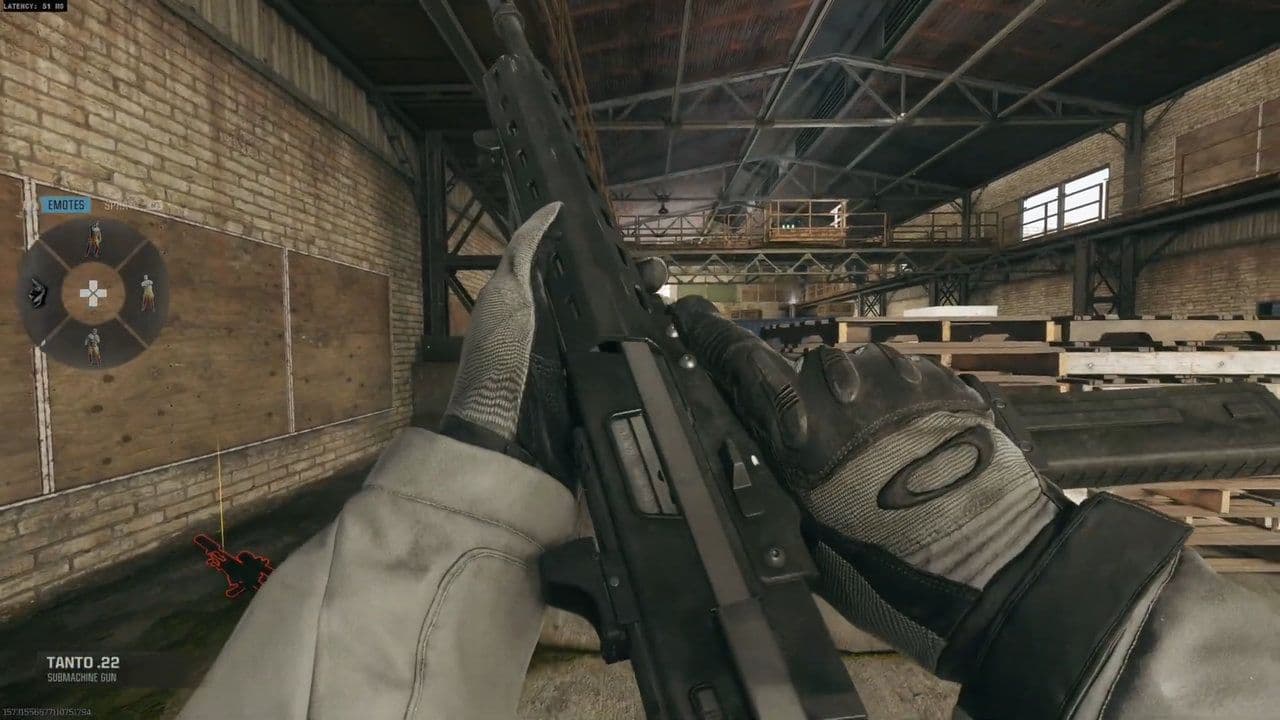
On PC, search the keybind menu for Weapon Inspect and verify what's currently assigned.
On controller, try holding Left D-pad to bring up the wheel and then triggering Weapon Inspect from there.
Be careful when inspecting weapons
Don't inspect your new camo in the middle of a gunfight.
The animation occupies your hands and attention for several seconds, leaving you vulnerable if somebody pushes while you're admiring the weapon. You can interrupt an inspection by taking another action, such as aiming or firing, but you'll still lose valuable reaction time.
If you're inspecting an enemy gun specifically to identify its attachments, move behind cover first.
Verdansk has enough windows pointed at you already.
That’s all for today! Don’t forget to check out these Warzone guides and news too:
Guide Categories
All Related Guides
 How to get easy lobbies in Warzone: Bot lobbies & moreLearn how to get easier Warzone lobbies, what bot lobbies actually are, and how matchmaking, playtime, playlis...
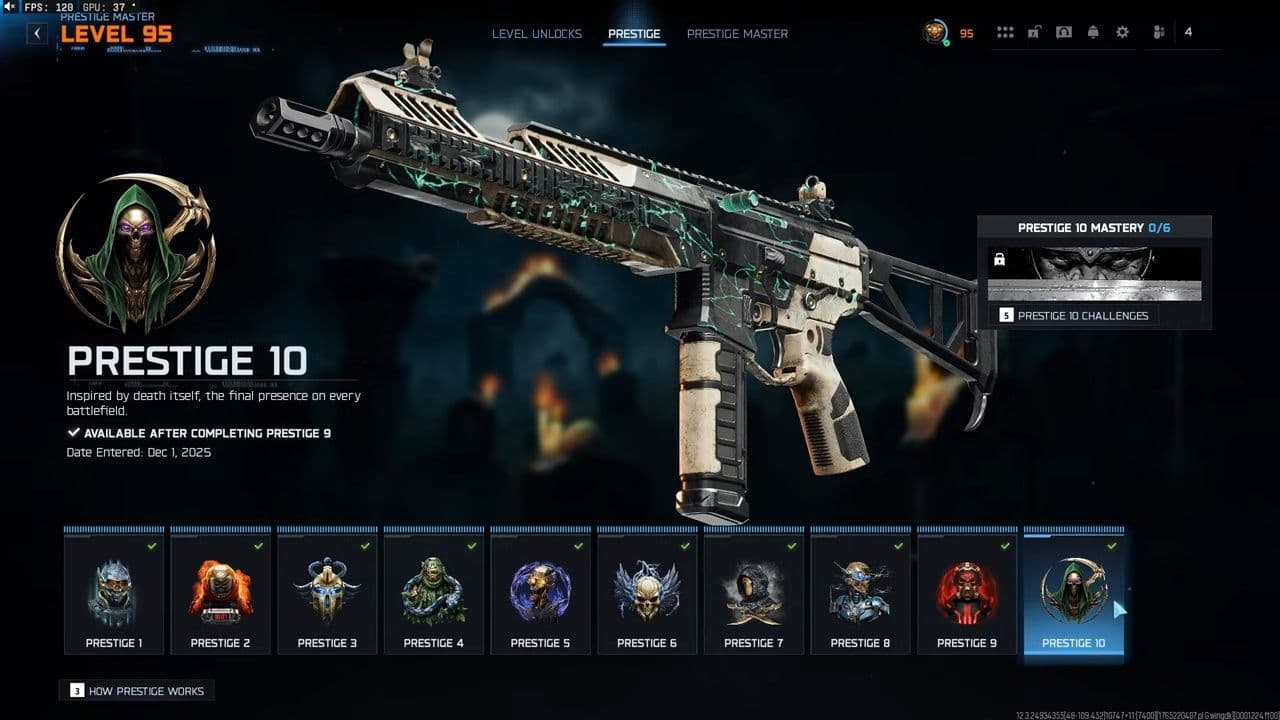 How to Prestige in Warzone fastLearn how to Prestige in Warzone, what resets at Level 55, how Permanent Unlocks work and the fastest route th...
 How to check MW4 Beta stats: K/D, wins, kills & Combat RecordLearn how to check your MW4 Beta stats, including K/D, wins, kills, playtime, weapon stats, Combat Record, and...
 How to change your name in WarzoneChanging your Warzone name is simple once you know where to look. Follow the steps and learn how Activision ID...
 What are Loot Caches in Warzone? Caches vs. Crates explainedWhat are Loot Caches in Warzone? Learn what counts, the difference between caches and crates, and the fastest ...
 What is an infil weapon in Warzone?What is an Infil Weapon in Warzone? Learn what counts and how to get Infil Weapon eliminations....
 Warzone Lockdown Casual guide (New mode)Learn how Warzone Lockdown Casual works, including objectives, respawns, loadouts, rewards, and the best strat...
 How to get Juggernaut in Warzone fastLearn how to get the Juggernaut in Warzone fast, where Juggernaut Drops spawn, and the best tips to survive us...
- 1
- 2
- 3
- 4
- 5
- 6