How to link LEGO account to Fortnite
This easy process can lead to you getting some rewards. Here is a step-by-step guide on how to link your Fortnite and LEGO accounts!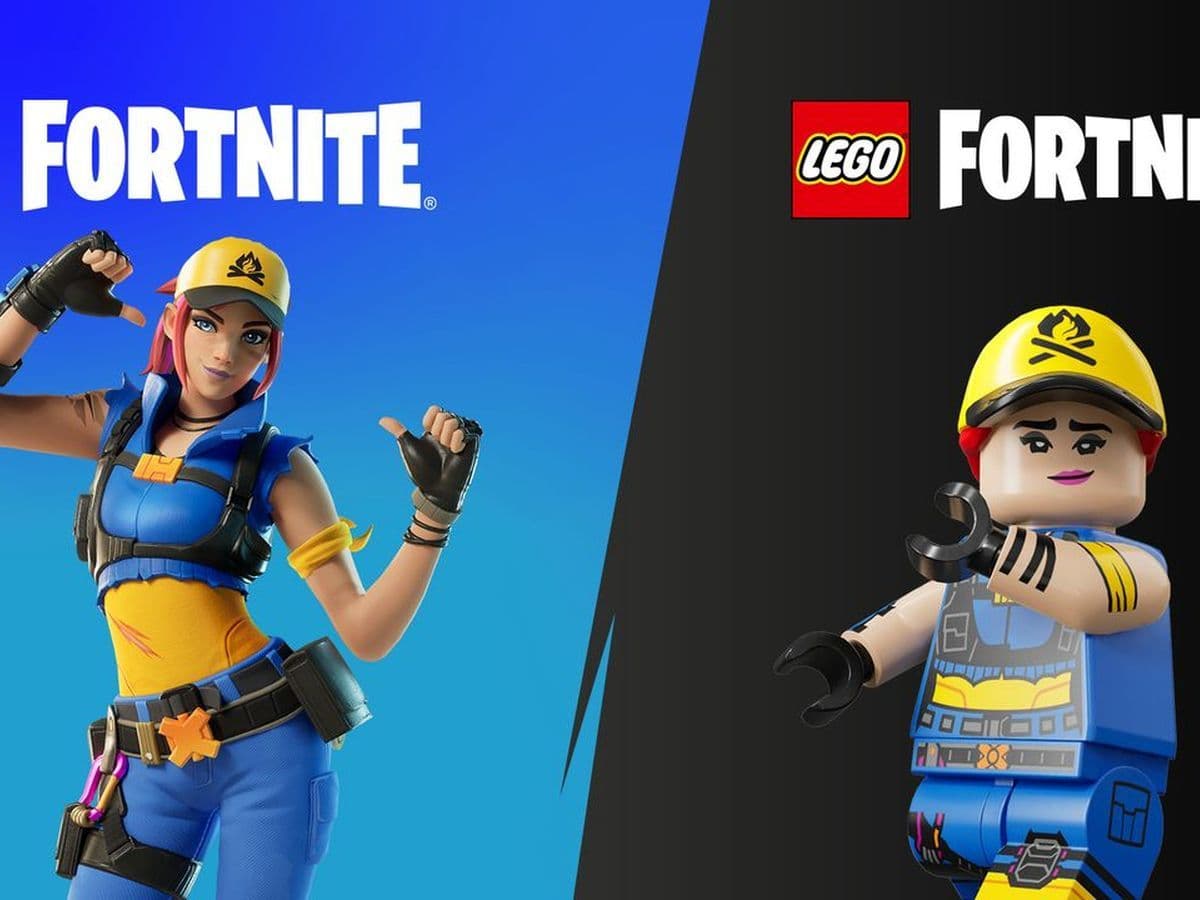
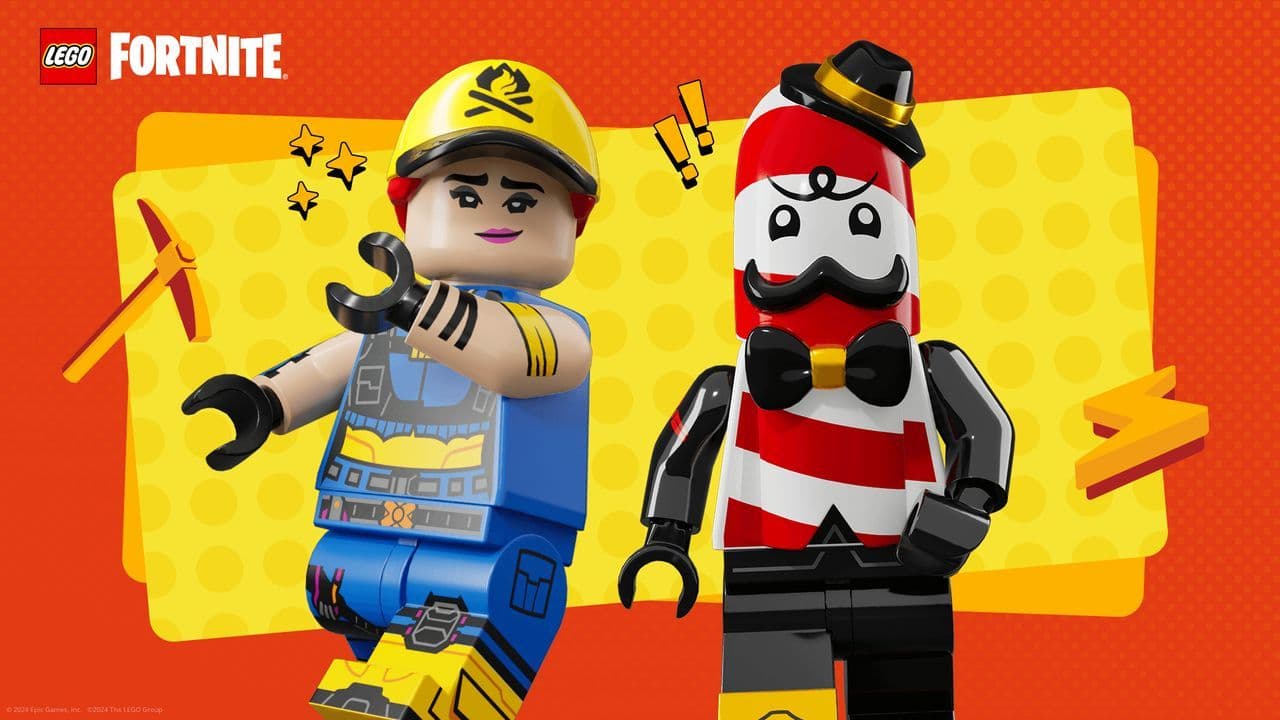
Linking your LEGO account to Fortnite is an easy and straightforward process that can unlock exclusive rewards like the Explorer Emilie and Mr. Dappermint outfits. These outfits come in two styles: LEGO Style and Fortnite Style, so you'll get the best of both worlds. Plus, if you're a LEGO Insiders Club member, you’ll also enjoy extra benefits like a special badge.
How to link LEGO account to Fortnite
Here’s a detailed step-by-step guide to help you connect your LEGO account to your Epic Games account and claim your exclusive Fortnite rewards:
- Sign In to Your Epic Games Account
- Go to Epic Games Login.
- Enter your Epic Games credentials (email and password) or create an account if needed.
- Access Your Account Settings
- Click on your profile icon in the top-right corner.
- Select Account from the dropdown menu.
- In the left sidebar, click Apps and Accounts.
- Connect Your LEGO Account
- Scroll down to find the LEGO Account section.
- Click Connect next to LEGO Account.
- You’ll be redirected to the LEGO website.
- Log in to Your LEGO Account
- Enter your LEGO account credentials (email and password).
- If you don’t have a LEGO account, create one by following the registration steps.
- Confirm the Link
- Click Allow or Confirm to link your LEGO account to your Epic Games account.
- Check Your Fortnite Account
- Log in to Fortnite and visit your Locker to find the Explorer Emilie and Mr. Dappermint outfits in both LEGO Style and Fortnite Style.
Read here if you don’t want to miss the rewards: You must start the linking process from Epic Games’ website (epicgames.com/id/login or the Apps and Accounts section). This ensures that you’ll receive the rewards.
Can’t you link LEGO account to Fortnite?
If you're in Bahrain, Brazil, the United Arab Emirates, Kuwait, or Qatar, you might encounter difficulties when linking your LEGO account to your Epic Games account. This could be due to regional restrictions or other technical issues. If you’re facing troubles, we recommend double-checking the linking steps outlined below to ensure you haven’t missed anything. Additionally, you can try using a VPN to bypass any potential geo-blocking. If the issue persists, don’t hesitate to reach out to Epic Games support for further assistance.
How to unlink LEGO Account from Epic Games
If you ever decide to unlink your LEGO account from your Epic Games account, here’s how you can do it:
- Log into your Epic Games account and go to the Apps and Accounts section in the settings.
- Under the Accounts section, locate your linked LEGO account and click on Remove to unlink it from Epic Games.
- After confirming, your LEGO account will no longer be connected to your Epic Games account.
That’s all! Want more Fortnite guides? Take a look at these:
- How to get Wool Fabric in LEGO Fortnite in 9 easy steps
- How to get Power Cells in LEGO Fortnite
- How to get glass in LEGO Fortnite: Finding Sand, building the Metal Smelter, and more
FAQs
Do you get a free skin in Fortnite if you link your LEGO account?
Yes, linking your LEGO account with your Epic Games account gives you free LEGO-themed Fortnite skins. These skins are automatically added to your locker once the connection is complete. It’s a bonus reward for joining the two accounts together and doesn’t cost anything.
How do you claim the LEGO Fortnite skin?
To claim the free LEGO Fortnite skins, you first need both a LEGO account and an Epic Games account. Log in to your Epic Games account, go into settings, and choose the option to link accounts. Select LEGO from the list, then log in with your LEGO account details.
Once you accept the connection, your accounts are officially linked. The free skins will then appear in your Fortnite locker. If they don’t show right away, restart the game and check again.
Can you transfer skins between Fortnite accounts?
No, skins cannot be moved or traded between different Fortnite accounts. Once a cosmetic is unlocked on one Epic Games account, it stays there permanently. However, if you play Fortnite on multiple platforms using the same Epic account, all of your skins will be available everywhere you log in.
The only way to use your skins across devices is by making sure you always play under the same Epic account.
All Related Guides
 How to enable 2FA on FortniteLearn how to enable 2FA on Fortnite. It’s not just a safety protocol, enabling two-factor authentication on Fo...
 How to change Fortnite nameAre you tired of your gamertag in Fortnite and think it is time for a change? Check out this guide about how t...
 How much is Fortnite Battle Pass, and why do you need to get itLearn how much is Fortnite Battle Pass and unlock exclusive skins, emotes, and more. Dive into a world of in-g...
 Is Fortnite free?Is Fortnite Free? Discover how this popular game stays accessible. Explore optional purchases, gameplay, and r...
 What are Account Levels in Fortnite?Account Levels are how Fortnite tracks the way you level up across all seasons and chapters. Think of it like ...
 Can you merge Fortnite accounts?Despite what you'll read elsewhere it's actually pretty easy to merge Fortnite accounts… as long as you've go...
 How to switch Fortnite accounts on PS4Play Fortnite with all your friends! Learn how to switch accounts on PS4 and join the fun....
 How to delete a Fortnite accountMaybe you need a break, maybe you’re addicted. Maybe you’re spending too much, or maybe you’ve got to cram in ...
- 1
- 2