Best Fortnite settings for PS4

Fortnite isn’t the most demanding game on the planet by any stretch, but you still need to run it on the best settings for your machine. Especially since most of the advanced, pro settings are for PC gamers, as a PlayStation Fortnite player, you’ll need the best settings to keep up.
Peak performance Fortnite is a game-changer. A smooth frame rate goes a surprisingly long way towards helping you beat the other 99 players.
Thankfully, getting the best Fortnite settings isn’t difficult. Read on and we’ll show you exactly what settings make Fortnite look better and run better on PS4.
Do you really need to change Fortnite’s settings?
Since Fortnite’s default PS4 settings lean towards favoring a more casual playstyle, if you want the very best, pro-level experience, you’ll need to tweak your settings.
If you’re a beginner though, you can probably afford to wait a while, get familiar with the game before you dive into customizing your settings.
One thing’s clear – until you customize your settings to suit your strengths and style, you’ll never level up from newbie to godly. Plus, if you want to stand a chance against those PC players and their mouse and keyboard setup, you’re going to need the very best controller settings!
So, in a nutshell, yes… you do need to change your Fortnite settings on PS4. We won’t go over every setting in this guide though, just the best ones.

Choosing the best PS4 settings for Fortnite
Fortnite’s customizable settings on PS4 aren’t quite as full-on as PC. With fewer settings to sift through, you’ll have an easier time configuring the best settings for you.
The main thing to remember when editing your PS4 settings is the console’s FPS (frames per second) limit. The max on PS4 is 60 FPS, and that’s absolutely what you want to run Fortnite on, any less just won’t compete.
Yes, PS5 or PC gamers can choose higher FPS settings, but if yours is set to 60 then you’ll be more than a match for them.
You also can’t edit the graphics settings on PS4 (though you can change the color settings). Still, it’s best to focus on your controller settings and keybinds.
With the following settings on your side, you’ll be off to a flying start… (but don’t be afraid to change any settings that feel uncomfortable to you – personal preference is a big part of choosing the best settings for any game).
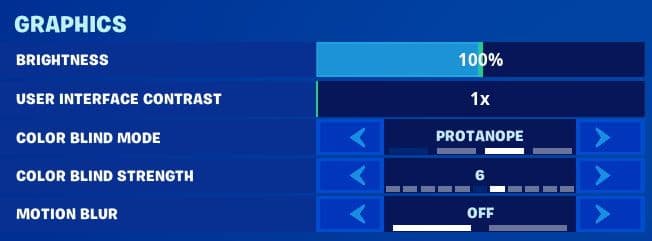
Best Fortnite graphics and display settings
Use these settings on your next PS4 game of Fortnite and you’ll be giving yourself the kind of edge the pros rely on to be so awesome every time. Neat, huh?
Best Fortnite game settings
Play Fortnite with these game settings for the best possible experience on your PS4. These settings are designed to free up your buttons for the most important functions, and give you a competitive edge against your PC-using opponents.
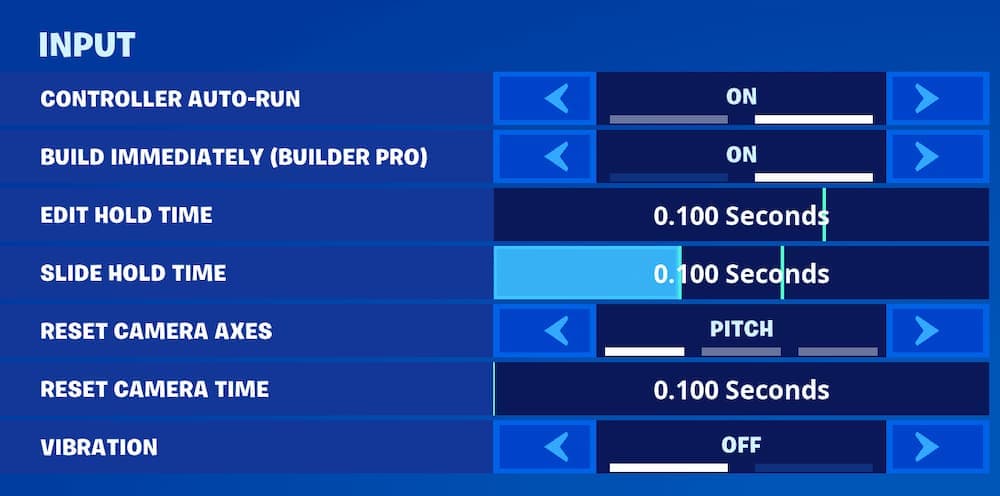
Best Fortnite PS4 Controller settings
Choose controller settings like this for the best Fortnite experience using a PS4 controller. With these settings, you’ll be auto-running, building, and editing as fast as any mouse-and-keyboard using PC player.
Whatever you do, make sure your horizontal and vertical speeds are the same or it’ll throw off your aim.
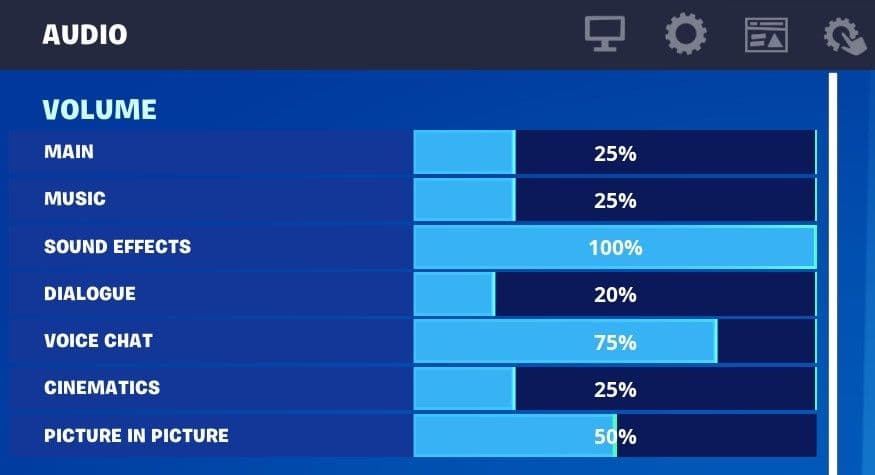
Best Fortnite audio settings for PS4
Most players agree that the best audio settings in Fortnite focus on giving you an edge, and that’s what these will do. Use these settings to make sure your sounds don’t clash and you can always hear your opponents.
Fortnite settings FAQs
What are Deadzone settings?
The Deadzone is basically how much force you need to push your movement stick with before it registers the movement. Higher values in Deadzone settings = more force needed.
Most players prefer lower Deadzone settings as it lets them react faster. It’s also dead handy for eliminating any pesky stick drift.
Should I really use color bind settings?
It’s totally optional, but plenty of pro Fortnite players use color blind settings because it makes it easier to spot enemies.
Pro players like Bugha use Protanope, and the likes of Sway and Clix use Tritanope. Give them a try and see if they give you that competitive edge you’ve been looking for!
Which settings will improve my aim in Fortnite?
They won’t improve your aim exactly, but the color blind settings can make it much easier to spot your enemies. Increasing your brightness setting can also help make your enemies stand out like neon signs just begging to be shot.
And don’t forget the usual suspects like Aim Assist, of course!
Should I change my Fortnite settings for new chapters/seasons?
Plenty of pro Fortnite players spend hours tweaking their settings regularly to give them the optimal experience, and that goes doubly for when Epic releases new Chapters and Seasons.
Since new Chapters often mean new game mechanics, it’s always worth studying up on what those mechanics are each Season, and editing your settings to suit those mechanics if needs be.
Usually, you’ll only be looking at very minor settings adjustments per Chapter/Season.
What are the best PS4 sensitivity settings in Fortnite?
Some players like their movement and aiming sensitivity faster than others, so it’s almost impossible to say. We’ve suggested a range of 4 to 7 based on what’s most popular among PlayStation players, but your best bet is to play around and see what works for you.
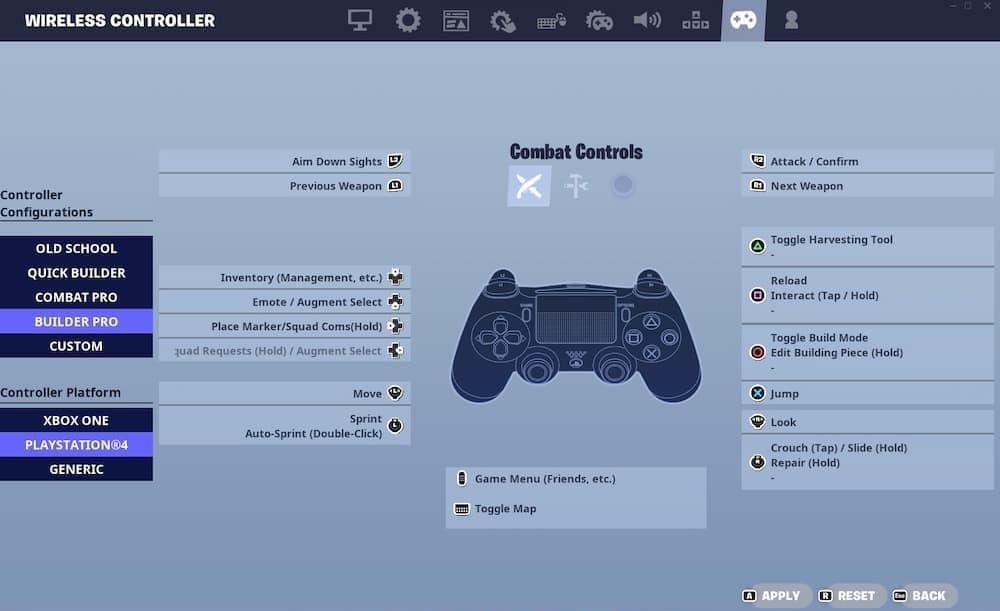
What’s the best Fortnite controller configuration for PS4?
Most players from beginner to pro agree that you’re best off with the Builder Pro controller layout. It’s probably the most solid base for controller players to build their own customized configuration from.
The best button layout really depends on how you play Fortnite. If you’re a claw grip kinda player, you’ll want the best settings to suit your crab-like hand position. But that might not be best if you hold the controller “normally”.
We’d definitely suggest binding Edit to your left-stick click (L3) though, as it will make fast editing way easier (that’s why we also suggest turning on Sprint By Default, to free up that L3 click for this).
Are the aim assist settings really worth it?
YES! Unless you don’t want to level the playing field against mouse and keyboard PC players, that is?
It’s no secret that mouse and keyboard gives players the highest possible accuracy in games like Fortnite. Not using aim assist when you’re using a controller on PS4 is like trying to run with a ball and chain around your ankle.
What’s the best way to change Fortnite settings?
Two words – Creative Mode.
Fire up a new Creative Mode session and use the safety of this mode to tweak whatever settings you need to get the most out of your Fortnite PS4 experience. This is the place to figure out all your advanced settings, nail your aim and sensitivity settings, figure out your HUD, and… well, you get the picture!
What settings do Fortnite pros use?
Most pro Fortnite players choose settings that give the highest FPS and lowest lag possible. That generally involves setting most graphics settings to Low, and turning off advanced video settings like Motion Blur. Pros using PS4 controllers tend to use the Builder Pro configuration, and edit it to suit their preferences (e.g. most will at least change L3 to be their build/edit button).
What’s the best Look Input Curve in Fortnite?
This setting isn’t the most self-explanatory, is it? In a nutshell…
Exponential slows your aim at first, then speeds it up as you move your stick. If you already have a godly aim and are master of quick flicks, this setting might be best for you.
Linear is better for consistent building and editing though. It’ll put you on a more level playing field to PC players, and most pros agree it’s the better option for PS4.
What are the best Gyro Aiming settings?
This might be controversial… but the best Gyro Aiming settings are to leave it turned off. Aiming by moving your controller will never be as accurate as using the joysticks (no matter what “they” might say).
FAQs
How to make Fortnite graphics better on PS4?
To improve Fortnite's graphics on PS4, lower settings like motion blur, shadows, and effects. Keep your console cool and clean to avoid overheating. Use a wired internet connection and make sure your system has enough free storage. Updating the game regularly also helps maintain performance.
What is the best way to get better at Fortnite on PS4?
Practice regularly in Creative mode, use Builder Pro controls, and enable settings like "confirm edit on release" and "sprint by default." A low-latency display or game mode on your TV can also improve reaction time.
How do I increase Fortnite FPS on PS4?
Go into Fortnite’s settings and enable the 60 FPS option. On a PS4 Pro, turn on Boost Mode in the system settings. Disabling replays and keeping the console clean can also improve frame rate stability.
Does Fortnite run 60 FPS on PS4?
Yes, Fortnite can run at 60 FPS on standard and Pro PS4 consoles, but this setting must be turned on in the game’s video options.
Can PS4 get 120 FPS in Fortnite?
No, PS4 is not capable of running Fortnite at 120 FPS. That performance is only available on newer consoles like the PlayStation 5.
All Related Guides
 Best Fortnite settings on PCOptimizing your FPS in Fortnite can be the key to your success, especially for PC gamers. These Fortnite PC se...
 How to Turn on Ping in FortniteDon't let your connection let you down! Turn on this indicator and check your ping in Fortnite....
 How to turn on footsteps in FortniteLearn in easy steps how to turn on footsteps in Fortnite settings...
 How do I find the best sens for Fortnite? (Updated 2025)Need help building faster and winning more gunfights? Learn how to find the best PC and controller sensitivity...
 How to turn off parental controls on FortniteHow to turn off parental controls on Fortnite Learn to disable Fortnite parental controls in 7 easy steps. Exp...
 How to turn on Aim Assist in FortniteAim assist is a must in Fortnite to improve your aim against other players. Here is how to turn it on!...
 Does Fortnite have proximity chat?Does Fortnite have proximity chat? Explore how this feature works in Creative mode, how to enable it, and more...
 How to sit out in Fortnite: A gamer's guide to taking a break in the heat of battleLearn how to sit out in Fortnite's intense battles with our step-by-step guide to sitting out in the game. Cat...
- 1
- 2