Best Fortnite controller settings for different playstyles (PS & Xbox)
Whether you're playing Fortnite on PlayStation or Xbox, we got you covered with the finest settings for your controller.
Are you on the hunt for the best Fortnite controller settings that match your playstyle? Well, you’re in luck! We’ve put together a tailored list just for you. Honestly, the default settings are pretty solid, but there are plenty of options you should consider to take your gameplay to the next level. While creating this list, we went beyond the typical articles out there and did our research on what specific changes can help you level up your game.
Why do Fortnite controller settings matter?
Customizing Fortnite settings can improve your gameplay by enabling quicker reactions, more precise aiming, and smoother movements. With crossplay available, you'll often face players using a keyboard and mouse, making it crucial to have settings that help you perform at your best.
Best Fortnite controller settings for aggressive, building, balanced & casual playstyles
Whether you like to dive into intense battles, focus on building, or play casually, having the right settings is key to improving your gameplay for both PS4, PS5 & Xbox. The right sensitivity can help you aim better, react faster, and enjoy the game more.
Aggressive combat playstyle
If you thrive in fast-paced battles and focus on taking down opponents, your settings should emphasize quick reflexes and precision aiming.

- Build Sensitivity Multiplier: 2.0x
- This allows for rapid building in intense combat situations.
- Look Sensitivity: 7 (Fast)
- High sensitivity aids in fast aiming and quick turns.
- Aim Sensitivity (ADS): 7 (Fast)
- Quick aim adjustments can be crucial during close-range fights.
- Vibration: Off
- Reducing vibrations helps maintain focus and accuracy.
- Controller Deadzone: Minimal deadzone for rapid movements without stick drift.
- Left Stick Deadzone: 5%
- Right Stick Deadzone: 5%
Want to learn how to aim better in Fortnite? Visit our detailed guide & learn!
Building and editing focus
For players who prioritize building and editing strategies, having precise control over building mechanics is essential.

- Build Mode Sensitivity Multiplier: 2.2x
- Increased speed for placing structures quickly.
- Edit Mode Sensitivity Multiplier: 2.3x
- Enhances editing speed for quick escapes or counterattacks.
- Look Sensitivity: 4 (Normal)
- A lower sensitivity helps maintain accuracy during building.
- Aim Sensitivity (ADS): 5 (Normal)
- This setting allows for controlled aiming while still being responsive.
- Reset Build Choice: On
- Automatically resets your building selection to speed up transitions between builds.
- Instant Boost When Building: On
- This feature gives a boost in sensitivity while constructing, aiding in faster placement.
Balanced playstyle
If you prefer a mix of combat and building without specializing too much in either, a balanced approach will work best.

- Look Sensitivity: 5 (Normal)
- A moderate sensitivity that balances aiming and building.
- Aim Sensitivity (ADS): 5 (Normal)
- Maintains a consistent feel across combat and building.
- Build Mode Sensitivity Multiplier: 2.0x
- Allows for quick building without sacrificing aim.
- Edit Mode Sensitivity Multiplier: 2.1x
- Supports faster edits while maintaining control.
- Controller Auto-Run: On
- Makes movement easier, allowing focus on building and combat.
- Vibration: Off
- Helps maintain focus during intense situations.
Casual playstyle
For players who enjoy the game without the competitive pressure, casual settings can provide a more relaxed experience while still being fun.

- Look Sensitivity: 3 (Low)
- Lower sensitivity for relaxed aim adjustments.
- Aim Sensitivity (ADS): 3 (Low)
- Provides smooth aiming without sudden jerks.
- Build Mode Sensitivity Multiplier: 1.5x
- Slower build speeds allow for more thoughtful placements.
- Edit Mode Sensitivity Multiplier: 1.5x
- Makes edits more forgiving, reducing frustration.
- Auto Open Doors: On
- Simplifies movement and exploration.
- Visualize Sound Effects: On
- Offers visual cues for sounds, enhancing awareness without intense focus.
Finding the best controller settings tailored to your playstyle in Fortnite can significantly help your performance. Whether you prefer aggressive combat, focus on building and editing, maintain a balanced approach, or enjoy casual play, these settings are a great starting point.
Remember to adjust them as needed based on your personal comfort and gameplay preferences. Don’t you know how to change them? Keep reading and find out!
Changing controller settings in Fortnite
Now that you know which settings to adjust, here’s how to do it:
- Launch Fortnite: Open the game and wait for it to load.
- Go to the Main Menu: Once you're on the main menu, select the three horizontal lines (the “hamburger” menu) in the top right corner of the screen.
- Access Settings: From the menu that appears, select the “Settings” option (it looks like a gear icon).
- Navigate to the Controller Tab: In the settings menu, use the tabs at the top to find the “Controller” tab. This is where you can adjust all your controller-related settings.
- Adjust Sensitivity Settings:
- Look Sensitivity: Change the sensitivity for aiming. Higher values allow for quicker movements. Here is a detailed guide for finding the best sens for Fortnite.
- Aim Sensitivity (ADS): This adjusts sensitivity while aiming down sights.
- Build Sensitivity Multiplier: Increase this to build faster in combat situations.
- Edit Mode Sensitivity Multiplier: Adjust this to speed up your editing skills.
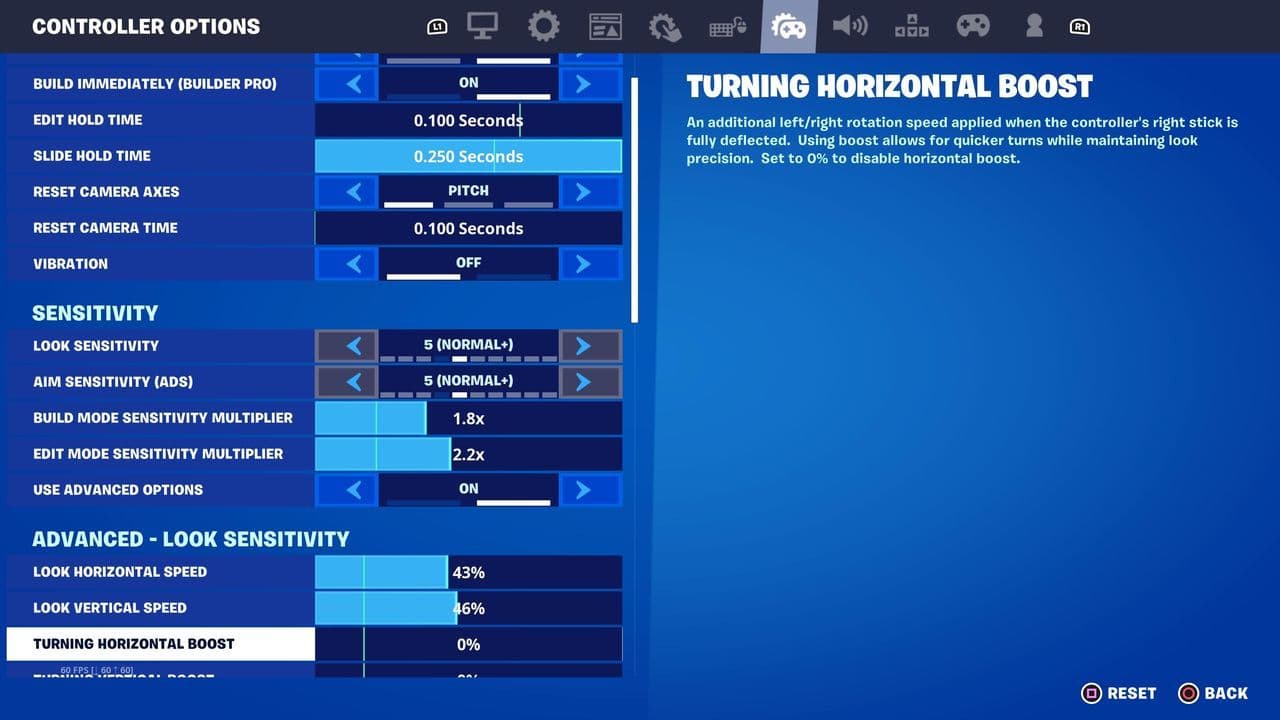
- Set Controller Deadzone: This setting controls how much you can move your sticks before it registers in-game. Lower values allow for quicker reactions.
- Toggle Vibration: You can turn vibration on or off. Disabling it can help improve focus during the heat of the moment.
- Additional Settings: Explore other options like Auto-Run, Reset Build Choice, and Instant Boost When Building to enhance your gameplay experience.
- Save Changes: After making your adjustments, be sure to save your settings. This usually happens automatically, but it's a good idea to double-check.
- Practice Your Settings: Jump into a game or creative mode to test your new settings and see how they feel. Adjust as needed until you find what works best for you.
FAQs
How can I aim better on controller in Fortnite?
Improving aim on a controller involves both settings adjustments and practice. Start by setting a balanced sensitivity that allows for fast reactions without overshooting your target. Adjust the controller deadzone to a lower value to reduce input lag and make small movements more precise. Enabling Aim Assist is crucial for tracking targets, especially during close-range fights. Practicing regularly in aim training maps helps build muscle memory and improves reaction times. Additionally, maintaining a comfortable grip and consistent posture while playing can significantly affect aim accuracy.
How do I get 100% Aim Assist in Fortnite?
To maximize Aim Assist, open the Settings menu and navigate to Controller Options. Enable Advanced Options, then set Aim Assist Strength to 100%. Adjust the Look Input Curve to Linear for smooth targeting and set the Aim Assist Window Size to a medium value, such as 20–30, with Aim Assist Ease In around 90–100. This setup ensures that your crosshair locks onto targets effectively, making aiming much easier and more accurate in fast-paced situations.
Which sensitivity is best for Fortnite?
The best Fortnite sensitivity varies by player, but common recommendations are: Look Sensitivity around 6–7, Aim Sensitivity (ADS) 4–5, Build Mode Sensitivity Multiplier 2.0–2.2x, and Edit Mode Sensitivity Multiplier 2.0–2.3x. These settings provide a good balance between quick movement and precision. Experimenting with minor adjustments can help you find the ideal setup for your personal playstyle.