Are your Hytale mods not working? Here is how to fix them
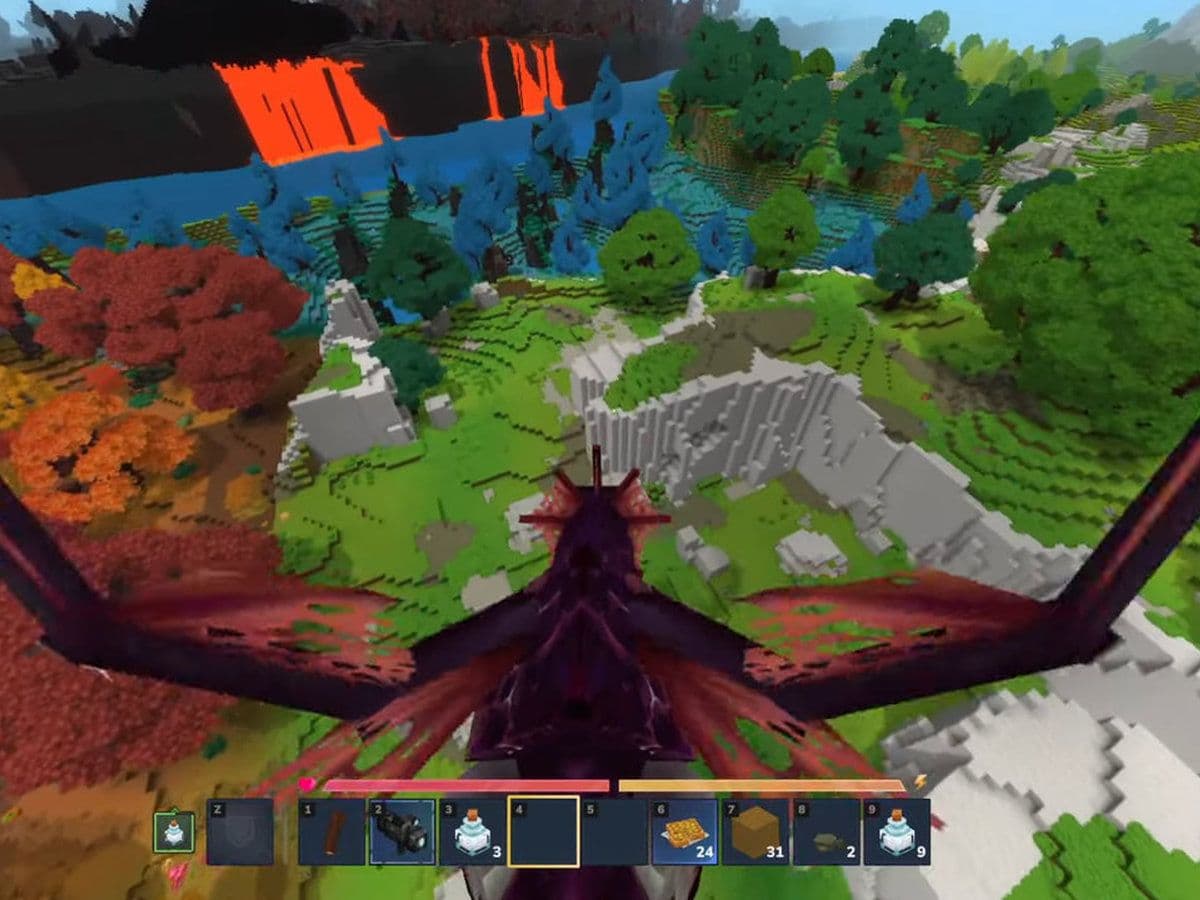
If you are experiencing Hytale mods not working, you are not alone. Many players run into problems where mods do not load, do not appear in the game, or cause crashes. This guide explains the exact reasons why this happens and provides clear, step-by-step solutions to fix Hytale mods properly.
Why does your mod not work in Hytale?
Before fixing the issue, you need to understand the most common causes. Usually, Hytale mods not working happens because of one of these problems:
- Mods are in the wrong folder
- Mods are not enabled in your world
- The mod version is incompatible
- Missing dependencies
- Mod conflicts
- Corrupted or incomplete mod files
- Server and client mismatch
Fixing these problems correctly will solve most mod issues.
10 ways to fix Hytale mods not working
If mods aren’t working, often something went wrong in installation, activation, compatibility, or folder placement.
1. Make sure mods are in the correct folder
Hytale mods folder location is the most common reason for mods not working. Your mods must be inside the official mods folder. Correct folder locations:
- Windows: %appdata%\Hytale\UserData\Mods\
- macOS: ~/Library/Application Support/Hytale/UserData/Mods/
- Linux: ~/.local/share/Hytale/UserData/Mods/
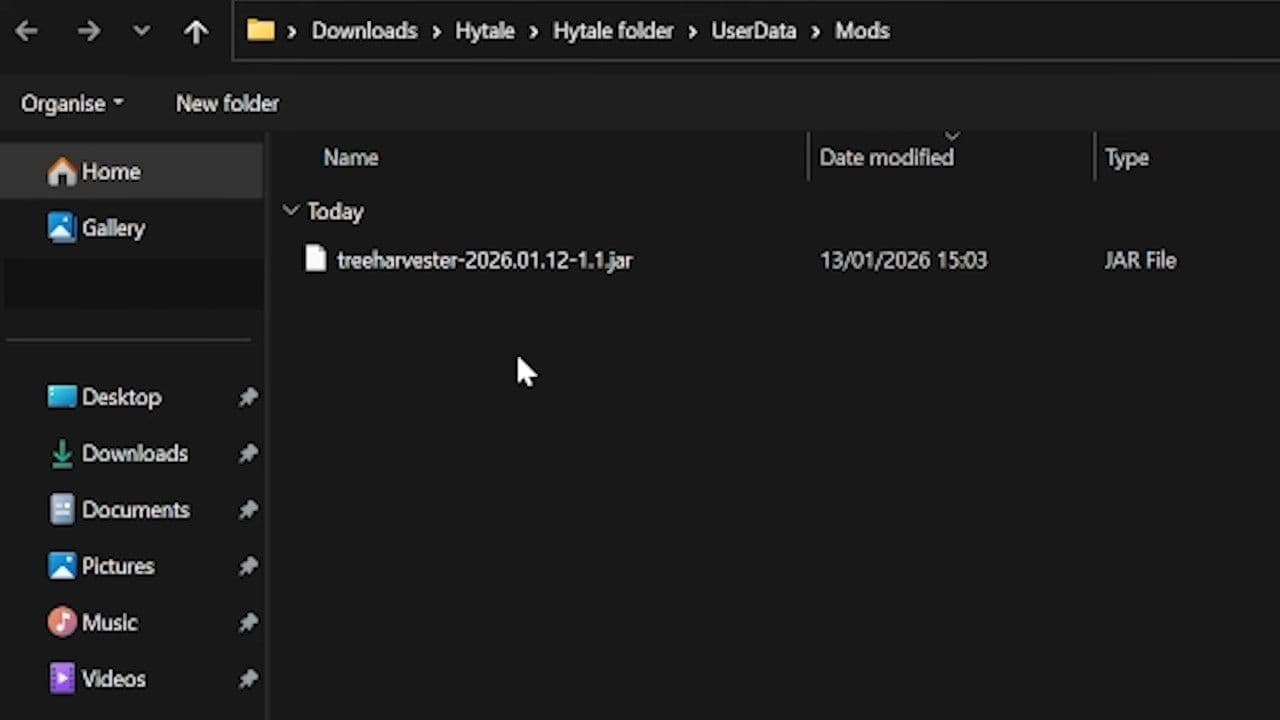
Important rules to remember:
- Place the mod file directly inside the mods folder
- Do NOT place mods inside extra folders
- Do NOT rename mod files unless instructed
- Keep the file format as .jar or .zip if required
After placing mods, restart Hytale.
2. Enable mods in your world settings
Even if Hytale mods are installed, they will not work unless enabled.
- Open Hytale
- Click Play
- Select your world
- Click the Settings icon
- Find the Mods section
- Enable the mod
- Start the world
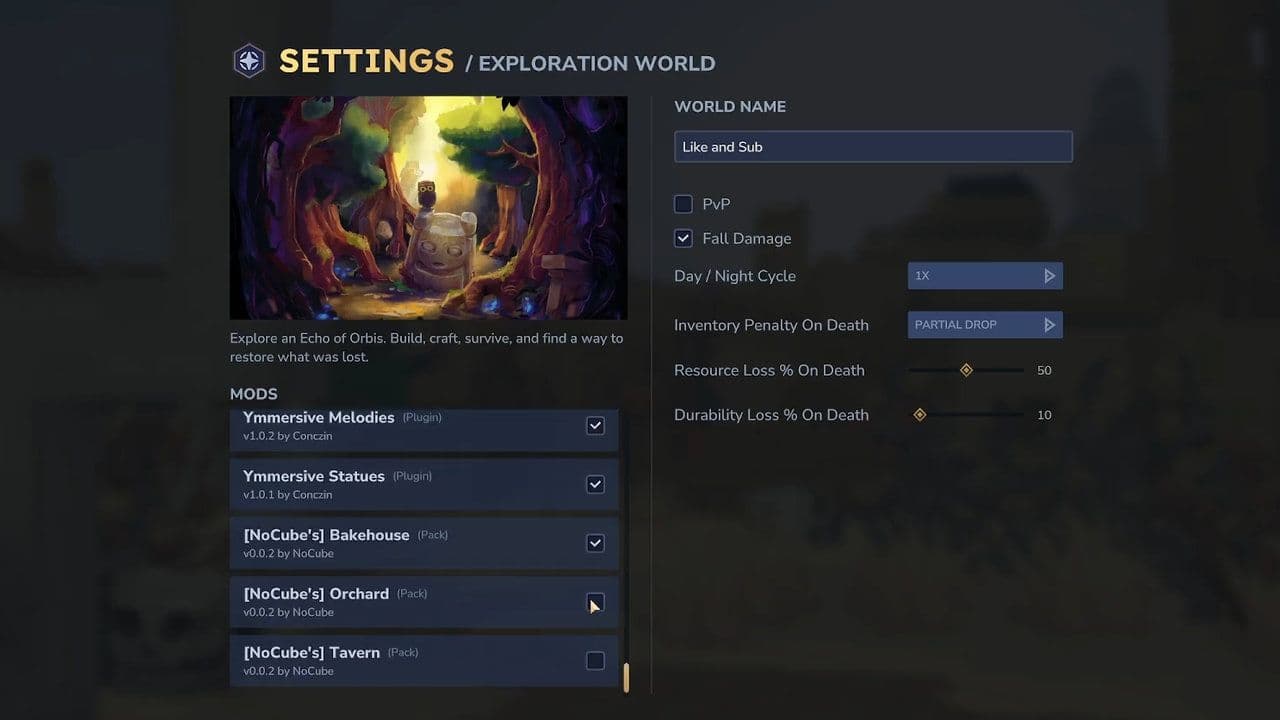
If the mod does not appear here, it means Hytale cannot detect it. This usually means wrong folder placement or incompatibility.
3. Check mod version compatibility
Another major reason for Hytale mods not working is version mismatch. Mods must match your game version.
- Download the latest version of the mod
- Update your game
- Make sure both versions match
Always download mods from trusted sources like CurseForge.
4. Install required dependencies
Some mods need additional files to work. These are called dependencies. If missing, the mod will fail.
- Open the mod download page
- Check the Requirements section
- Download required libraries
- Place them in the same mods folder
Without dependencies, the mod cannot load.
5. Fix mod conflicts
Sometimes mods conflict with each other. This happens when two mods change the same system.
Symptoms:
- Game crash
- Mods missing
- Game freezes
How to find the broken mod:
- Remove all mods
- Start game
- Add one mod
- Test game
- Repeat
When the problem returns, the last mod added is the cause. Remove or replace it.
6. Check server and client mods
If you play on a server, both sides must match. This is very important. Install the same mods on:
- Server
- Client
Restart the server after installing the Hytale mods.
7. Reinstall the mod
Sometimes Hytale mod files are corrupted. This happens if download failed.
- Delete the mod file
- Download again
- Install again
- Restart game
This fixes many issues.
8. Restart Hytale properly
Hytale loads mods at startup. If you install mods while the game is open, they will not load. Always:
- Close Hytale
- Install mod
- Reopen Hytale
9: Check for duplicate mods
Duplicate mods can break loading. You have to remove duplicates. Keep only one version.
10. Check server logs and error logs
Hytale creates logs when mods fail. Logs tell you exactly what is wrong. Common log errors:
- Missing dependency
- Version mismatch
- Mod conflict
Fix based on log message.
How to install mods in the local folder
Follow these steps to install your Hytale mod properly:
- Download the mod file (.jar or .zip)
- Do not rename the file unless instructed
- Place it directly inside the Mods folder
- Do not use subfolders
- Launch Hytale
- Enable the mod in the world’s Mods menu if needed
Best Hytale mods so far
Here are some of the best Hytale mods you can try:
Modding in Hytale is powerful, but correct installation is critical.
When dealing with Hytale mods not working, the problem is usually simple: wrong folder, wrong version, or mod conflict.
By carefully following this guide, you can fix your mods and enjoy Hytale with full mod support.
That’s all for today! Looking for more? Check out these:
All Related Guides
 How to find the Hytale mods folder locationLearn how to find the Hytale mods folder location on Windows, macOS, Linux & servers. Step-by-step install gui...
 Hytale Everlands: Guide to CoD-style serverHytale Everlands server guide: maps, weapons, modes, how to join, and server status. Play COD-style PvP in Hyt...