How to turn off vibrant visuals in Minecraft: Comprehensive guide
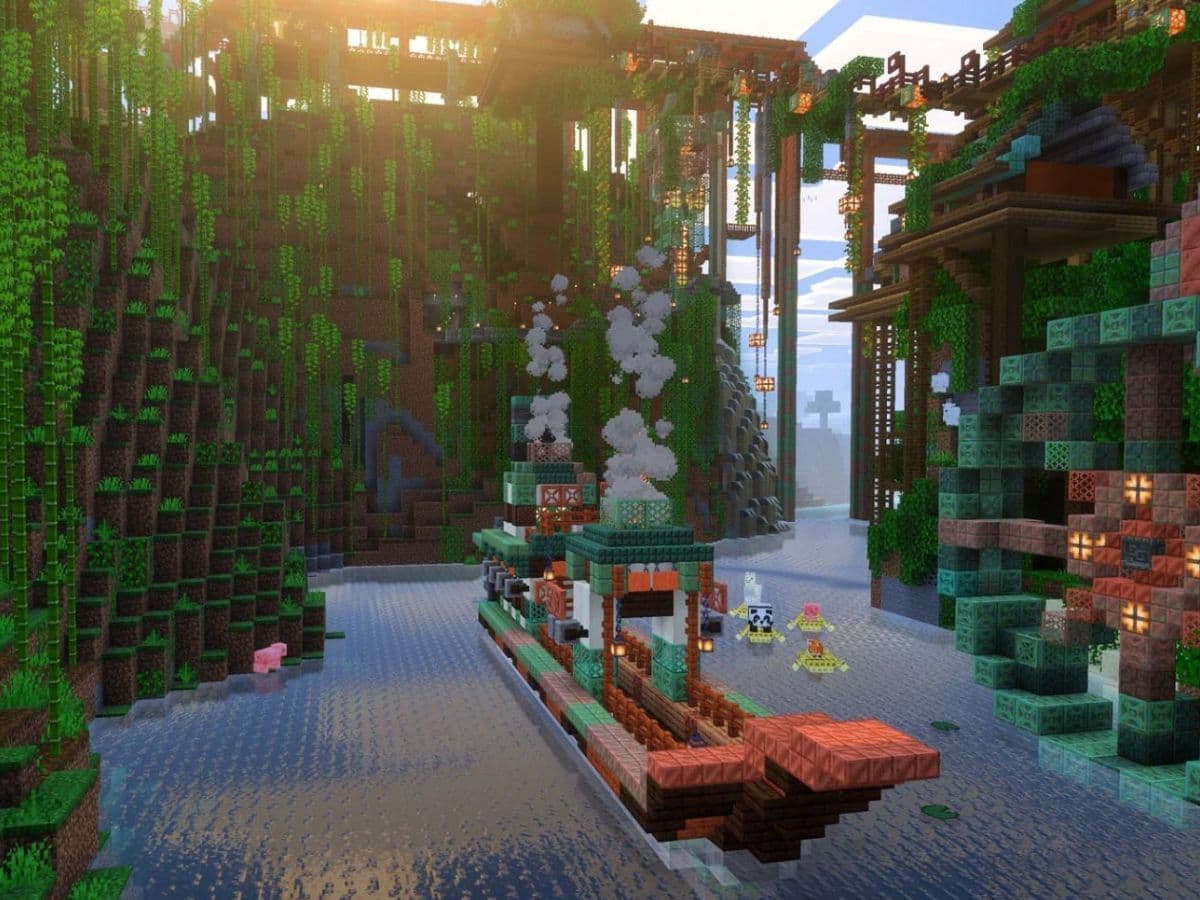
Minecraft keeps evolving, and the Vibrant Visuals update marks one of its biggest visual shifts in years. Many players like the richer lighting and cleaner look. Others want the classic style back, or they want steadier performance on their device. If you are one of those who want to go back to the classic Minecraft style, this guide is for you! Here is how to turn off Vibrant Visuals in Minecraft, its advantages, disadvantages, and how to tweak the settings for your system!
What are vibrant visuals in Minecraft?
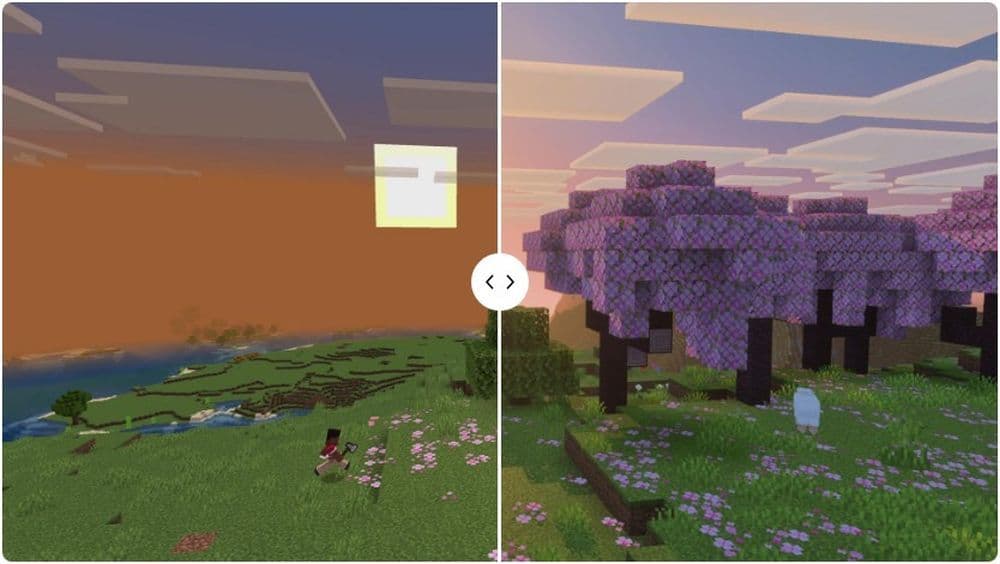
Vibrant Visuals acts as a graphics mode inside Minecraft Bedrock. It upgrades lighting, shadows, and water rendering, and it adds more atmosphere in scenes like caves, forests, and shorelines. Mojang positions it as a visual upgrade that keeps the blocky Minecraft identity intact, but it adds more depth and polish.
Mojang rolls this feature out as part of the Chase the Skies era of Bedrock updates, and it can become the default graphics mode on compatible devices. That default choice explains why many players see it “turn on” after an update without touching any settings.
You will also see confusion around Java Edition. Mojang discusses plans and technical work for a Java path, but Bedrock carries the feature first in the standard settings experience
How to turn off Vibrant Visuals and handle locked settings
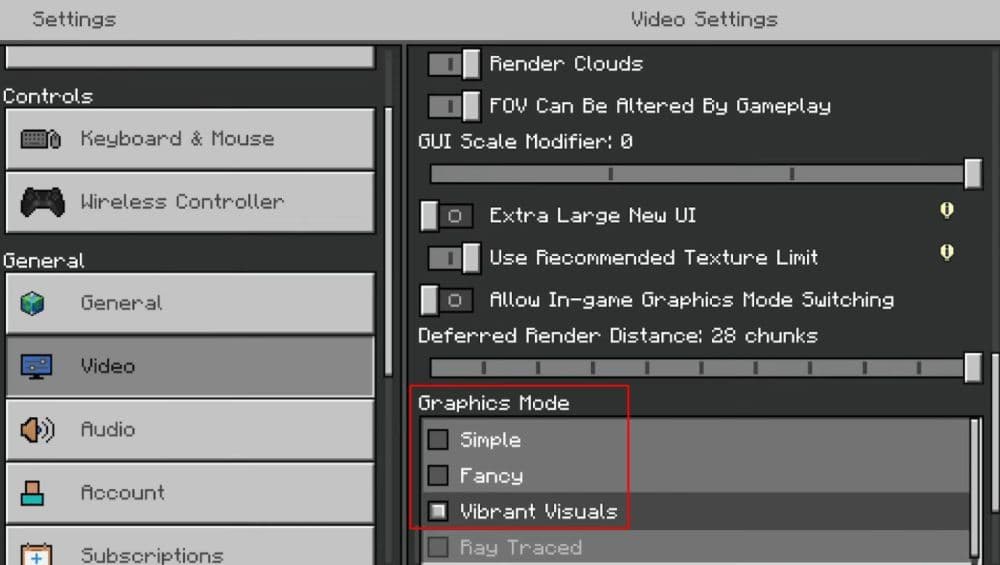
You can turn off Vibrant Visuals from the Video menu. Minecraft treats this as a graphics mode switch, so you do not need extra installs, shader packs, or downloads.
Turn off Vibrant Visuals in the main menu (recommended path)
- Open Minecraft.
- Select Settings.
- Open the Video tab.
- Find Graphics Mode.
- Select Simple or Fancy instead of Vibrant Visuals.
- Exit Settings and load your world.
Minecraft documents this exact menu path under Video settings and Graphics Mode.
Pick the right replacement mode
- Simple: Choose this mode for maximum FPS and the most stable feel on older PCs, handheld play, or busy worlds.
- Fancy: Choose this mode if you want a more classic look but you still want extra detail like improved transparency and nicer edges.
Mojang also frames Vibrant Visuals as the most demanding option, so Simple often brings the biggest performance gain.
If the option locks or grays out
Minecraft can block graphics mode changes in a few common situations. Mojang lists these cases and the fixes.
1) You change settings while you play a world
Minecraft can lock Graphics Mode during active gameplay. Exit the world to the title screen, then change the setting from Settings in the main menu.
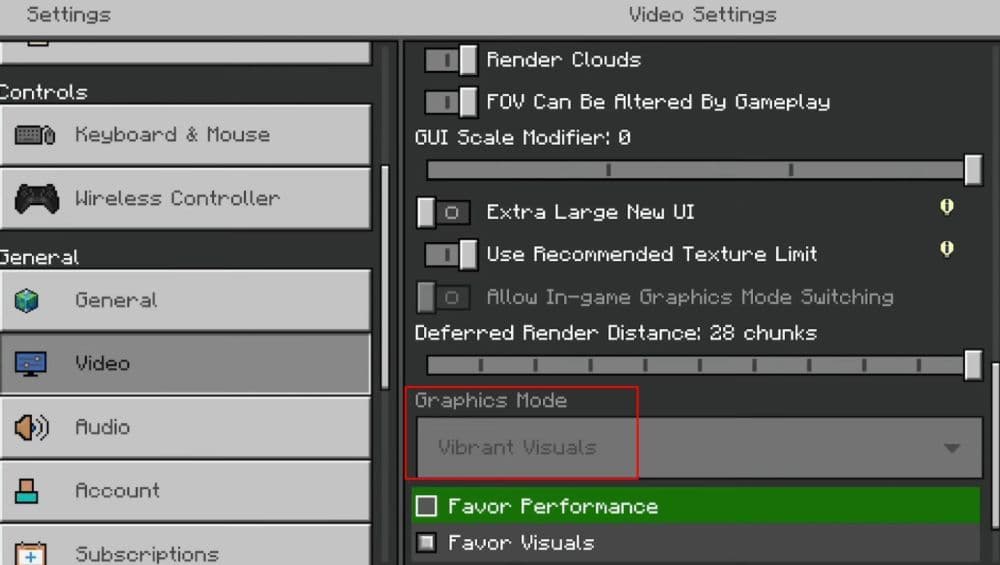
2) Your device fails compatibility checks
Minecraft can disable advanced visuals when the device does not meet minimum requirements. Update your OS and GPU drivers when your platform allows it, then try again.
3) Add-ons or packs conflict with the mode
Some worlds, texture packs, or add-ons can cause conflicts. Test a clean setup:
- Disable global resource packs.
- Open a vanilla test world.
- Re-check Graphics Mode.
Mojang calls out conflicting add-ons and incompatible content as a known cause.
If you need help with setting up the game or changing the settings, you may want to check our Minecraft guide for beginners!
Advantages of turning off Vibrant Visuals
Turning off Vibrant Visuals helps most players for one reason: consistency. You get a simpler render path, and the game often feels steadier.
Key benefits you can expect:
- Higher and more stable FPS in big builds, crowded villages, and fast travel.
- Lower heat and less fan noise on laptops and some consoles.
- Better battery life on mobile devices and handheld play.
- Fewer visual distractions during combat or precision building.
Mojang also includes presets like “Favor Performance” inside Vibrant Visuals, which signals that performance can drop on weaker hardware. That same logic explains why Simple often feels smoother.
Disadvantages of turning off Vibrant Visuals
You trade visual depth for stability. Many players accept that trade, but it still matters for certain play styles.
Main downsides:
- You lose enhanced lighting and shadows, so caves and interiors look flatter.
- Water and reflective surfaces look simpler.
- Screenshots and cinematic builds lose some impact, especially at sunrise, sunset, and in fog-heavy biomes.
If you create content, you may need to adjust your capture settings, since your world can look darker or less dramatic after the switch.
How to use medium Vibrant Visuals in Minecraft
You do not need a strict on-or-off approach. Mojang ships built-in tuning options that reduce load.
If you want Vibrant Visuals but you want fewer dips:
- Switch to Favor Performance inside the Vibrant Visuals options.
- Reduce expensive effects inside Vibrant Visuals Options.
- Keep one test spot in your world and re-check FPS after each change.
Mojang highlights “Favor Performance,” “Favor Visuals,” and a Custom approach as official ways to balance quality and performance.
Vibrant Visuals brings a modern lighting style to Minecraft Bedrock, and Mojang can enable it by default on compatible devices. You keep control. Open Settings → Video → Graphics Mode, then switch to Simple or Fancy to turn it off. If the option locks, return to the title screen, and check for device limits or pack conflicts
Featured Image Credit: Mojang
All Related Guides
 How to breed frogs in MinecraftBreed frogs in Minecraft with this simple guide to slimeballs, frogspawn, tadpoles, frog variants, and common ...
 Best Minecraft PS5 seeds in 2026 - Version 26.2Discover the best Minecraft PS5 seeds in 2026, with strong Bedrock worlds for survival and creative projects....
 Best Minecraft PS5 seeds in 2026 - Version 26.2Find the best Minecraft PC seeds in 2026, with great worlds for survival, villages, building, exploration, and...
 Top 5 Minecraft 26.1 seeds you must try todayFind the best Minecraft 26.1 seeds for villages, rare biomes, island survival, and creative builds, with seed ...
 How to turn on keep inventory in MinecraftUse the correct Keep Inventory command in Minecraft and learn how it works across Java, Bedrock, servers, and ...
 How to breed tropical fish in MinecraftCan you breed tropical fish in Minecraft? Here is the clear answer, plus how to catch, move, and use tropical ...
 Minecraft Chaos Cubed guide: Everything new in the 2026 updateExplore everything new in Minecraft Chaos Cubed, including Sulfur Caves, Sulfur Cubes, geysers, new blocks, co...
 How to change render distance in MinecraftChange render distance in Minecraft with simple steps for Java and Bedrock, plus tips to balance better visibi...
- 1
- 2
- 3
- 4
- 5
- 6
- 7
- 8
- 9