How to fix an unexpected error has occurred in Roblox: 9 easy solutions
This pesky error can get in the way of you enjoying Roblox. Here are some solutions to quickly deal with it.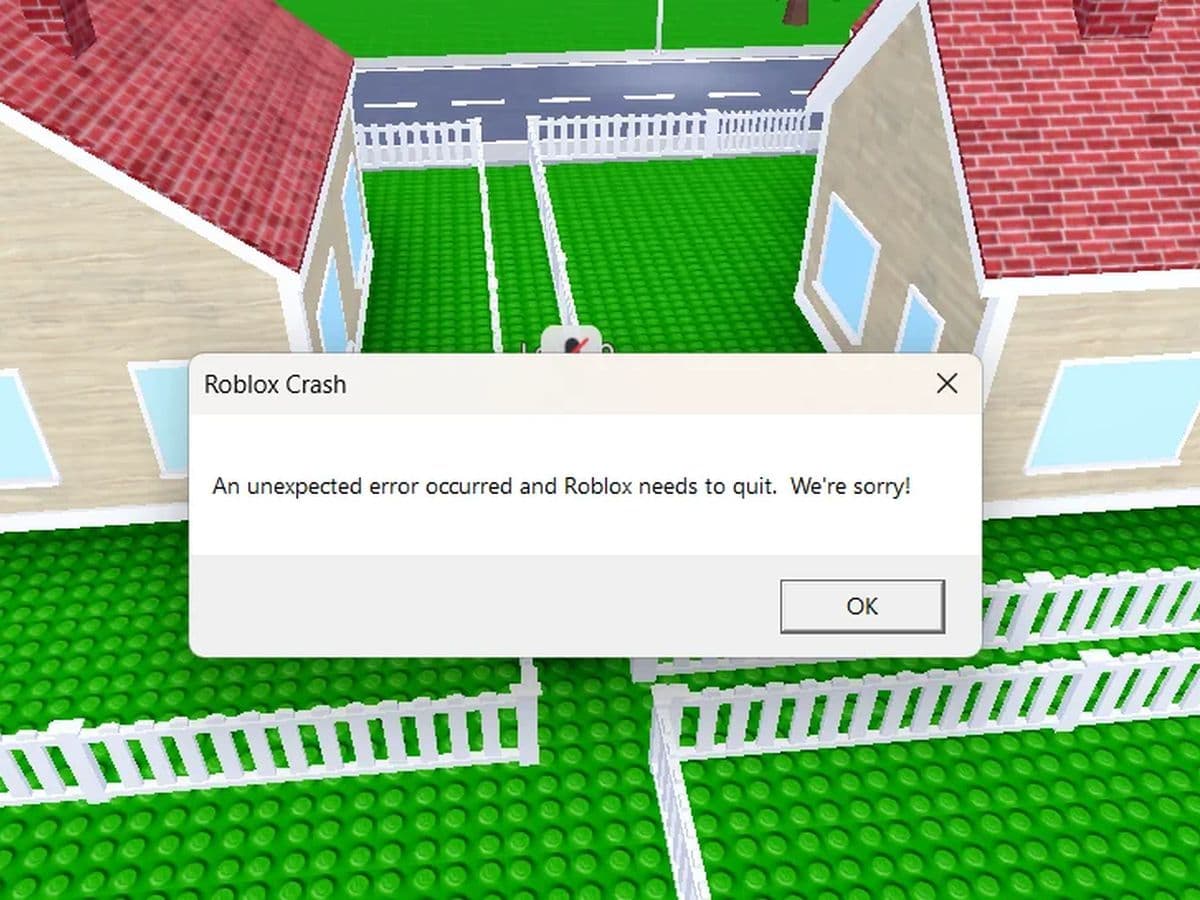
“How to fix an unexpected error has occurred in Roblox?” If you’re seeing this message, it means Roblox encountered a problem that’s preventing it from running correctly. This error might be due to temporary glitches, file issues, conflicts with other software, or network problems.
Don’t worry—there are several simple steps you can take to solve this issue and get Roblox back up and running.
What does Roblox an unexpected error has occurred error mean?
The “An unexpected error has occurred” error in Roblox typically means that something went wrong with the application, causing it to close unexpectedly.
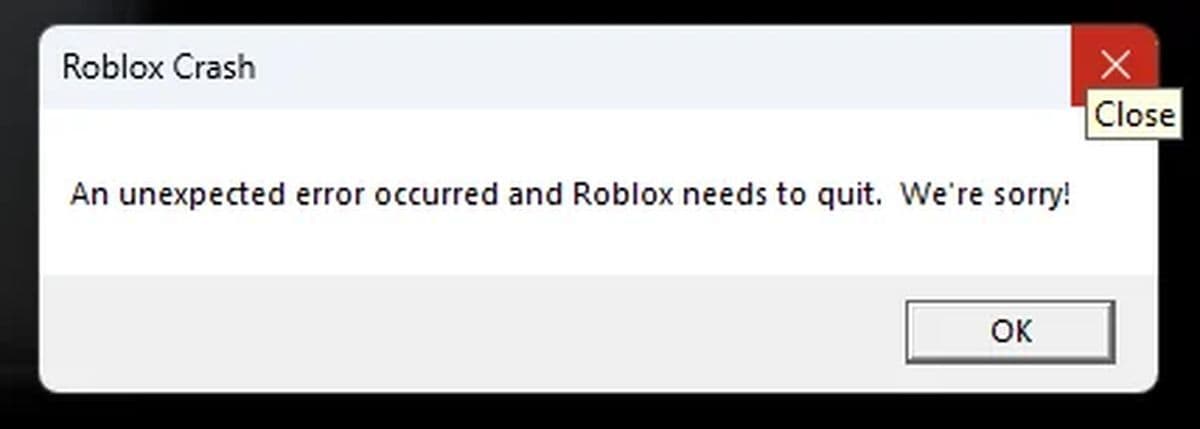
This could be due to:
- Temporary software glitches
- Corrupted files
- Conflicts with other applications
- Insufficient permissions
- Outdated software
- Network problems
- Restrictive system settings
Troubleshooting these potential issues can help resolve the error and restore normal functionality.
How to fix an unexpected error has occurred in Roblox
Fixing the “An unexpected error has occurred” message in Roblox involves several steps to address potential underlying issues:
- Run the Windows App Troubleshooter
- Check for app updates in Microsoft Stor
- Reset or repair the Roblox app
- Reset the Windows Store via Command Prompt
- Re-register all store apps
- Run Roblox as administrator
- Disable Memory Integrity (Windows 11 Only)
- Update your Windows version
- Uninstall and reinstall Roblox
Run the Windows App Troubleshooter
- Open Settings: Press Windows Key + X and select Settings.
- Navigate to Troubleshoot: Go to Update & Security and then Troubleshoot.
- Select Windows Store Apps: Scroll down and click Windows Store Apps, then choose Run the Troubleshooter. This tool will diagnose and fix issues related to Windows Store apps, which may resolve problems with Roblox.
Check for app updates in Microsoft Store
- Open Microsoft Store: Click on the Microsoft Store icon.
- Access Updates: Click the three dots in the top right corner and select Downloads and updates.
- Update Roblox: Click Get updates to ensure Roblox is up-to-date. Installing the latest updates can fix compatibility issues.
Reset or repair the Roblox app
- Go to Apps: Open Windows Settings, then go to Apps.
- Find Roblox: Select Apps & Features and locate Roblox in the list.
- Advanced Options: Click on Roblox and choose Advanced Options.
- Reset or Repair: Select either Reset or Repair. This action can fix corrupted files or settings. Restart your PC afterward.
Reset the Windows Store via Command Prompt
- Open Command Prompt: Type cmd in the Windows Search box.
- Run as Administrator: Right-click Command Prompt and select Run as Administrator.
- Execute Command: Type WSreset.exe and press Enter. This command will clear the Windows Store cache. Restart your computer afterward.
Re-register all store apps
- Open PowerShell: Press Windows Key + X and select Windows Powershell (Admin).
- Enter Command: Copy and paste the following command and press
Get-AppXPackage -AllUsers | Foreach {Add-AppxPackage -DisableDevelopmentMode -Register "$($_.InstallLocation)\AppXManifest.xml"} - Restart PC: This will re-register all Windows Store apps, which can resolve issues with Roblox.
Run Roblox as Administrator
- Right-click Roblox: Locate Roblox on your desktop or Start Menu.
- Select Run as Administrator: Choose Run as Administrator from the context menu to grant the app the necessary permissions.
Disable Memory Integrity (Windows 11 Only)
- Open Windows Security: Search for Windows Security and open the app.
- Navigate to Core Isolation: Go to Device Security > Core Isolation Details.
- Turn Off Memory Integrity: Disable the Memory Integrity option and confirm any prompts. This feature can sometimes interfere with Roblox.
Update your Windows version
- Check for Updates: Go to Settings > Update & Security > Windows Update.
- Install Updates: Click Check for Updates and install any available updates to ensure your system is up-to-date.
Uninstall and reinstall Roblox
- Uninstall Roblox: Go to Windows Settings > Apps > Apps & Features, select Roblox, and click Uninstall.
- Restart PC: Restart your computer to clear any remaining issues.
- Reinstall Roblox: Open the Microsoft Store Hub, go to My Library, and reinstall Roblox.
By following these detailed steps, you can address various potential causes of the unexpected error in Roblox and restore its functionality
How to fix unexpected error on Roblox redeem?
Encountering an "unexpected error" when redeeming a Roblox gift card can be frustrating. Here are some steps you can follow to resolve the issue:
- Check for server issues: Sometimes, Roblox experiences server outages that can affect gift card redemptions. You can check the current status of Roblox services on their status page.
- Verify the gift card code: Ensure that you've entered the code correctly, paying close attention to similar characters like '0' (zero) and 'O' (letter O).
- Clear browser cache and cookies: Cached data can sometimes cause issues. Clearing your browser's cache and cookies might help resolve the problem.
- Try a different browser or device: Switching to another browser or device can help determine if the issue is specific to your current setup. Some users have reported success using different browsers.
- Ensure the gift card is activated: If the card wasn't properly activated at the time of purchase, it won't work. Contact the retailer to confirm activation.
- Contact Roblox Support: If none of the above steps work, reach out to Roblox Support for assistance. Provide them with details like the gift card code and purchase receipt.
All Related Guides
 How to fix Roblox error code 600 Learn how to fix Roblox error code 600, understand the new IP-based ban system, and explore potential workarou...
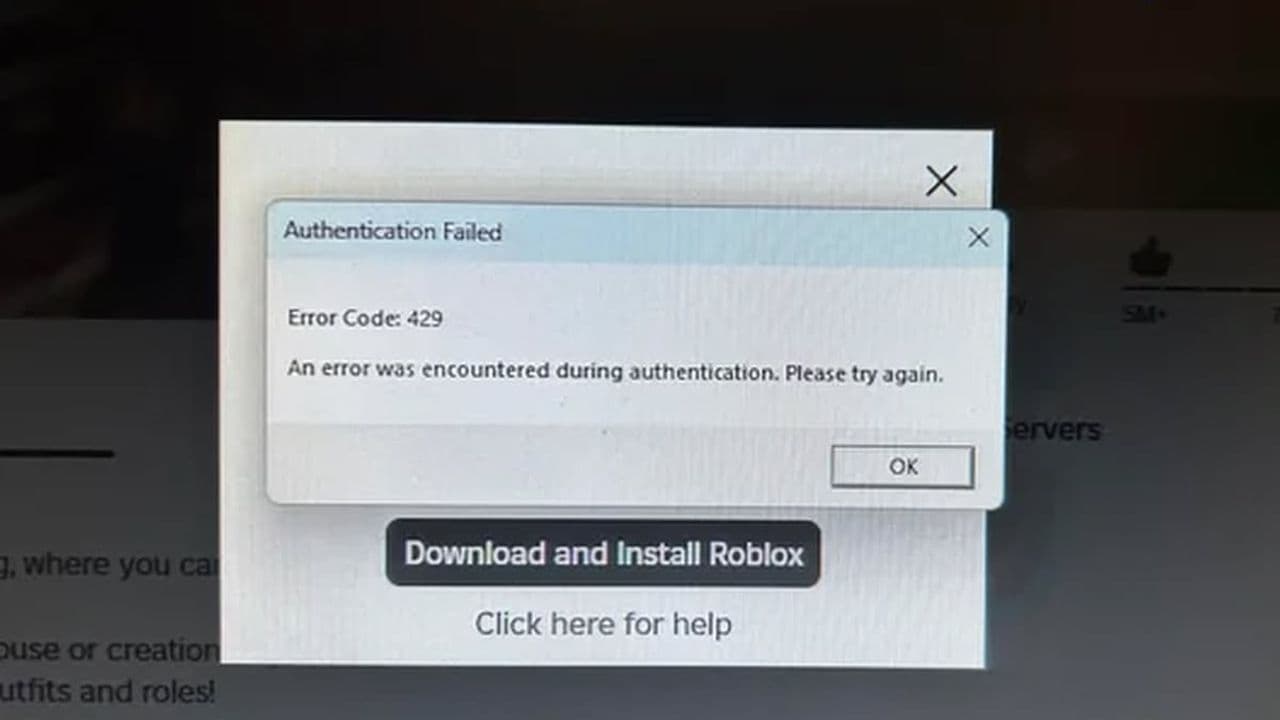 How to fix Roblox error code 429: Authentication issues and too many requestsRoblox error code 429 explained: causes, rate limits, and potential malware risks. Learn how to avoid it and f...
 What does error code e01 mean in Roblox?Roblox error code e01 is one of those uncommon errors but we have a couple of fixes that you must try to fix t...
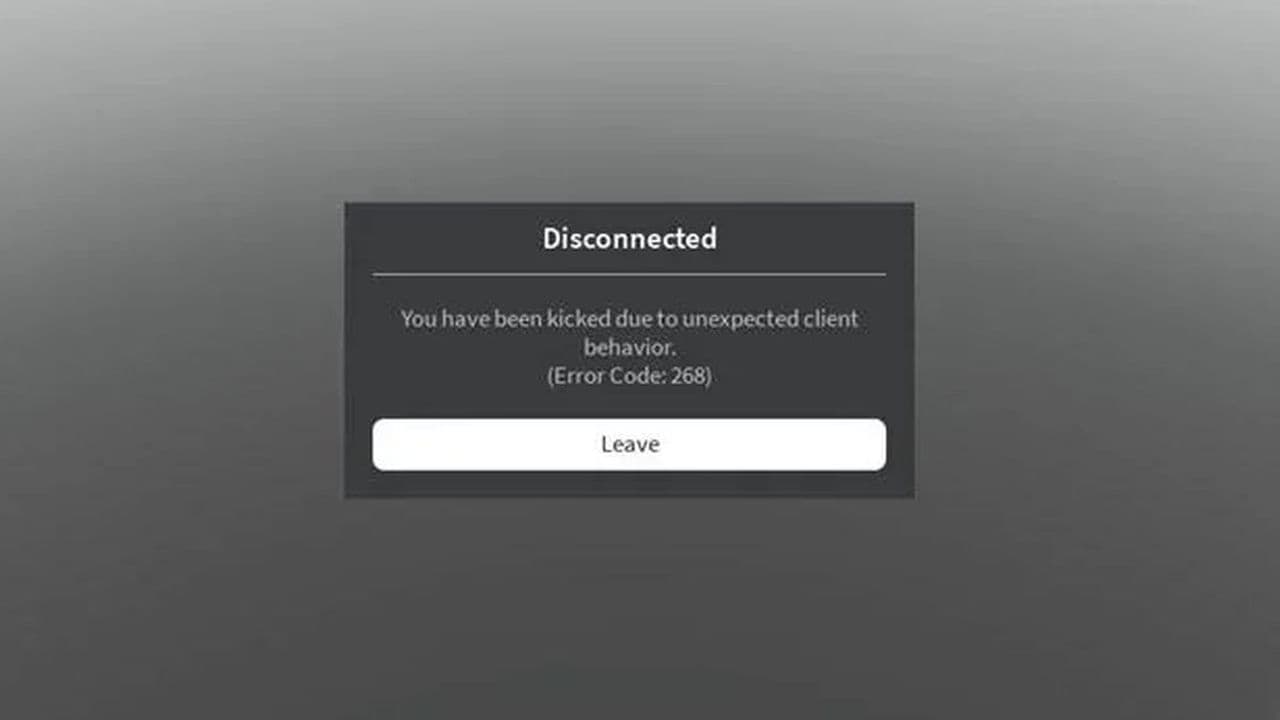 How to fix Roblox error code 268: 8 easy waysLearn 8 simple ways to fix Roblox error code 268 and resolve the "unexpected client behavior" issue. Troublesh...
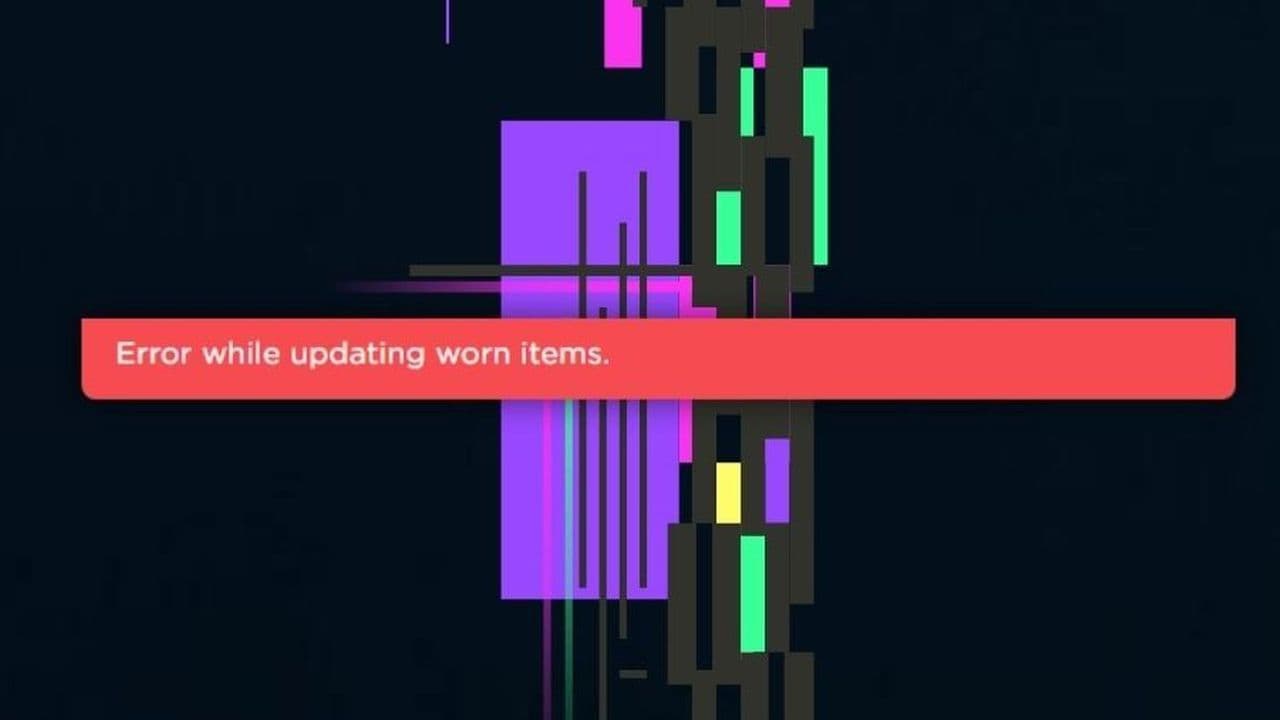 How to fix error while updating worn items in RobloxFix the 'error while updating worn items' on Roblox with simple steps. Learn why it happens and how to resolve...
 How to fix Roblox connection error on WindowsThere are many Roblox error codes on Windows and luckily we know a couple of ways to fix them. Check them out ...
 How to fix error code 264 for RobloxRoblox error code 264 is one of the frustrating hiccups that will prevent you from playing the game, unless yo...
 What does code 288 mean in Roblox?All Roblox error codes have different meanings and error code 288 is one of the worst. Here is how to fix it!...
- 1
- 2
- 3
- 4