How to fix Roblox connection error on Windows
Facing this error on Windows can be pesky to deal with. Here are fixes so you can get back to the Roblox world.
Many Roblox users on Windows experience connection problems that interrupt their experience. There might be different reasons behind the Roblox connection error on Windows and there are plenty of possible fixes too, just like we have on almost all other Roblox error codes. In this guide, we will take a look at the signs and reasons behind the Roblox connection error on Windows and give you useful tips to overcome this issue!
Signs and reasons behind Roblox connection error on Windows
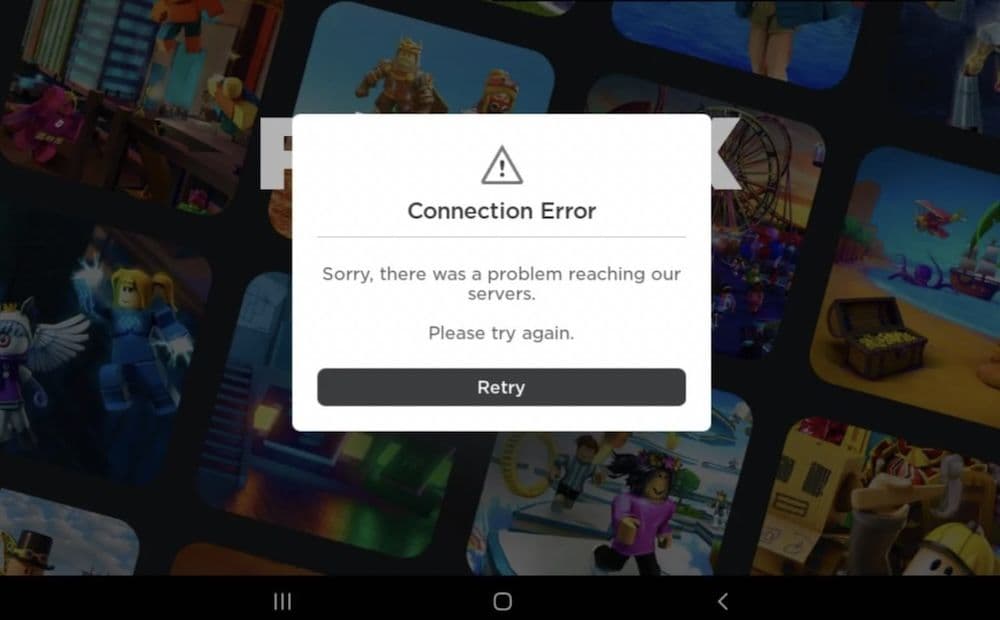
When you try to play games on Roblox and can't connect, you might see messages like "Could Not Connect" or "ID=17 Failure."
These messages mean your computer is having trouble connecting to Roblox's servers.
Sometimes, the Roblox website may load very slowly or not finish loading at all. You might be able to work on game environments in Build or Edit modes, but playing games might not work. Additionally, games might unexpectedly shut down while you are playing.
The error message 'HttpSendRequest failed: HRESULT 0x80072efd' points to problems with sending information to Roblox's servers. Several issues can cause this:
- Firewall Settings: Often, the Windows Defender Firewall blocks Roblox from accessing the internet.
- Slow Internet or Large Games: If your internet is slow and the Roblox game is large, the game might take a long time to load or not load at all.
- Empty Games: Sometimes a game might load but nothing appears because the creator did not add any content to it.
- Poorly Designed Games: Some games might not work well because they have errors in their design or too many objects, which makes them run poorly.
How to fix Roblox connection error on Windows
Roblox acknowledges and discusses general connectivity issues on the official website and there are quite a few fixes that you can try. We compiled all and added a couple of more possible fixes against Roblox connection errors on Windows. Here are all the fixes:
Adjusting Firewall Settings
Sometimes the firewall blocks Roblox by mistake. To fix this:
- Go to Control Panel > System and Security > Windows Defender Firewall.
- Click on 'Allow an app or feature through Windows Defender Firewall'.
- Click 'Change settings' and then 'Allow another app'.
- Click 'Browse', find the Roblox program, and click 'Add'.
Using the Right Browser
Make sure your internet browser works well with Roblox. If you have problems, try using a different browser like Microsoft Edge, Firefox, or Chrome.
Checking Browser Security Settings
If your browser's security settings are too high, they might stop Roblox from working. Check these settings and adjust them so they don't block Roblox.
Checking Your Internet Connection
If you're using Wi-Fi and have connection problems, try using a wired connection. If that doesn't help, your firewall might be causing the issue.
Reinstalling Roblox
If nothing else works, you might need to reinstall Roblox. The installation files could be broken. To reinstall:
- Press Win + I to open Settings.
- Click on Apps and then 'Apps & features'.
- Find Roblox, click on it, and choose 'Uninstall'.
- Making Sure Network Ports Are Open
Roblox uses specific network ports (UDP 49152 - 65535). Make sure these ports are open on your router to help Roblox connect better.
Configuring Firewall and Router
Sometimes antivirus or security software blocks internet access for programs like Roblox. Make sure your security settings allow Roblox to use the internet.
Turning Off Browser Add-Ons
Add-ons like ad-blockers can interfere with Roblox. If you have problems, try turning off these add-ons to see if it helps.
Why won't Roblox work on Windows?
Following these steps, you can solve most of the connection issues with Roblox on Windows. This will allow you to enjoy playing without disruptions. Don’t forget to check out these guides too:
All Related Guides
 How to fix Roblox error code 600 Learn how to fix Roblox error code 600, understand the new IP-based ban system, and explore potential workarou...
 How to fix Roblox error code 429: Authentication issues and too many requestsRoblox error code 429 explained: causes, rate limits, and potential malware risks. Learn how to avoid it and f...
 What does error code e01 mean in Roblox?Roblox error code e01 is one of those uncommon errors but we have a couple of fixes that you must try to fix t...
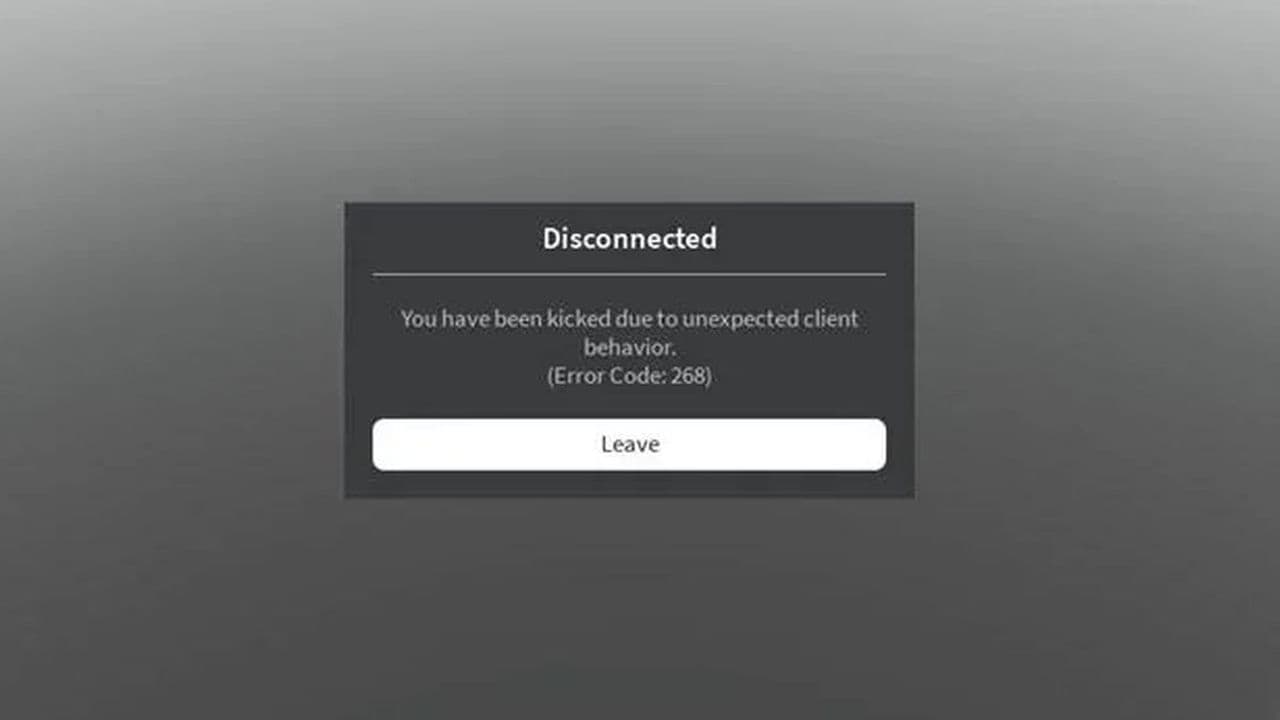 How to fix Roblox error code 268: 8 easy waysLearn 8 simple ways to fix Roblox error code 268 and resolve the "unexpected client behavior" issue. Troublesh...
 How to fix error while updating worn items in RobloxFix the 'error while updating worn items' on Roblox with simple steps. Learn why it happens and how to resolve...
 How to fix error code 264 for RobloxRoblox error code 264 is one of the frustrating hiccups that will prevent you from playing the game, unless yo...
 What does code 288 mean in Roblox?All Roblox error codes have different meanings and error code 288 is one of the worst. Here is how to fix it!...
 How to fix error code 529 in RobloxError 529 is one of the frustrating hiccups in Roblox but we have a couple of tips for you to get rid of this ...
- 1
- 2
- 3
- 4