Best settings for Warzone 2.0 Xbox
Configuring the best settings won’t get you far without a bit of skill too. Still, without the right settings for Call of Duty’s record-breaking battle royale Warzone 2, you won’t come away with the win. It’s as simple as that, whether you’re an Xbox player or not.
Console players don’t have as many settings to sift through to totally optimize their Warzone 2 experience, but it can still be pretty mind-boggling at times. And that goes double when you’re new to the game!
That’s why we’re here today – to kit you out with the best Xbox settings for Warzone 2.0. Whether you want to master your movement or take your aim game to the next level, this is the post for you.
Whether you’re rocking an Xbox One or a Series X or S, the best Warzone 2 settings will go a long way towards seeing you take home the victory.
Why bother changing your Warzone 2 settings anyway?
The best controller, aiming, and sensitivity settings will give you a major advantage over PC players, and since crossplay is enabled by default in Warzone 2, you’re going to need that leg up on the competition!
We’d call the settings in this post the best for Warzone 2 on Xbox, easy. But you shouldn’t be afraid to tweak them to find what’s comfortable for you. Use these pro settings as a starting point – if they work for you, great! If not, adjust them until they do.
So grab your controller and get ready to drop into your next battle royale in Al Mazrah with a new edge!
Best Warzone 2 Xbox controller settings
Input settings
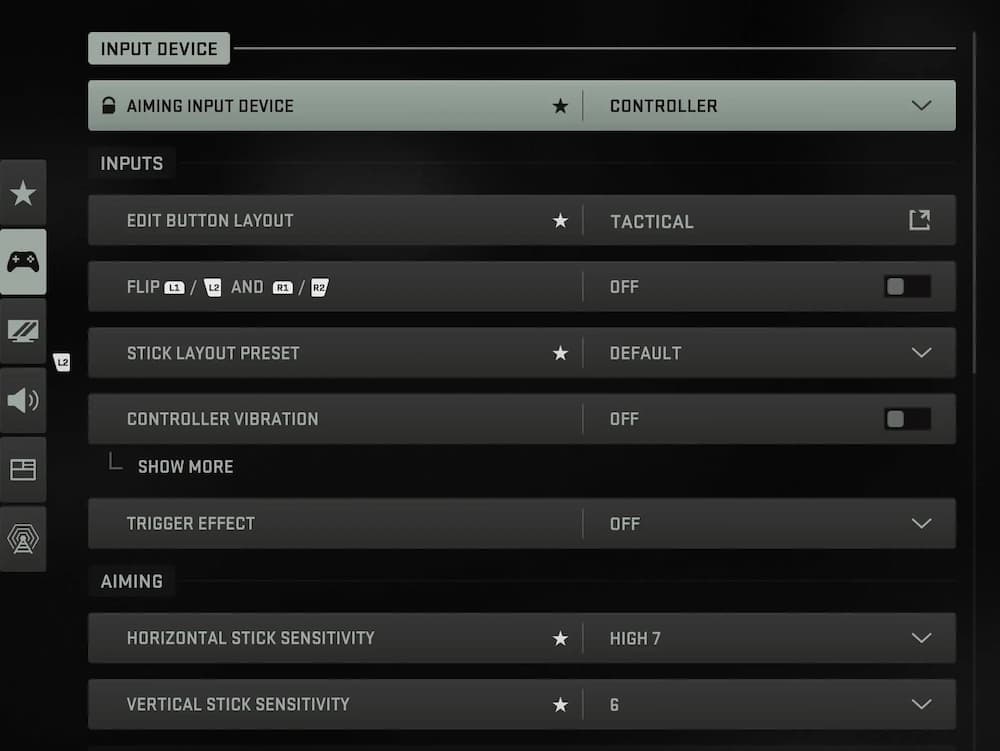
Tactical layout is best for Xbox controllers since it lets you slide, dive, and crouch while your other thumb stays on the right stick, ready to aim at enemies at a moment’s notice.
Flipping the triggers and shoulder buttons is entirely optional, but if you play with the claw grip so you can press buttons faster, you’re best off with this setting turned on.
Aiming settings
6 or 7 is a fairly solid starting point for figuring out the best right stick sensitivity for you, but this will always come down to personal preference. Find what works for you.
ADS sensitivity is a tricky setting to nail. Basically, the higher your stick sensitivity, the lower you’re likely to want this setting. Again, it’s personal preference – go with what feels comfortable.
Gameplay settings
Advanced aiming settings
Setting Aim Response Curve Type to Dynamic might feel a bit off at first if you’re used to other COD titles, but it’s the setting best suited to Warzone 2, for sure. If you really can’t get a handle on it though, use the Standard setting instead.
Only increase your Custom Sensitivity Per Zoom setting if the sensitivity on high optical zoom is too slow.
Deadzone settings are only really helpful if your controller suffers from stick drift. If it’s as responsive as a brand-new Xbox controller, you’ll likely have this setting as low as possible. Only turn it up if your sticks are sticking and not as responsive as you’d like.
Aim assist settings
There’s literally no reason not to use the aim assist setting on Xbox, it’s an advantage every analog-stick-using Xbox player should have on their side.
Warzone 2 offers 4 different aim assist settings to choose from. For our money, Default and Black Ops are your best options for a more traditional slow-down aim assist when your crosshair nears the target.
Precision is only ideal for players who are already a dab hand at popping heads with an Xbox controller, and Focusing is best for those new to shooters like Warzone.
Movement behaviors
The auto move forward setting is only useful if your controller’s left stick doesn’t work. Automatic grounded mantle is more risky than it’s worth, trust us!
Diving is dead handy in Warzone 2 – it’ll get you out of more sticky situations than sliding, so we suggest inverting these settings for the best experience.
Definitely toggle the auto-chute setting off too as you’ll have a stronger advantage over your enemies if you deploy manually, closer to the ground.
Combat behaviors
Vehicle behaviors
Overlay behaviors
Best Warzone 2 Xbox A/V settings
Graphics settings
Tempting as it may be, resist the urge to crank up the FOV setting and higher than 115 or you risk not being able to spot enemies from afar.
With the Third-Person ADS Transition setting, it’s really all down to personal preference.
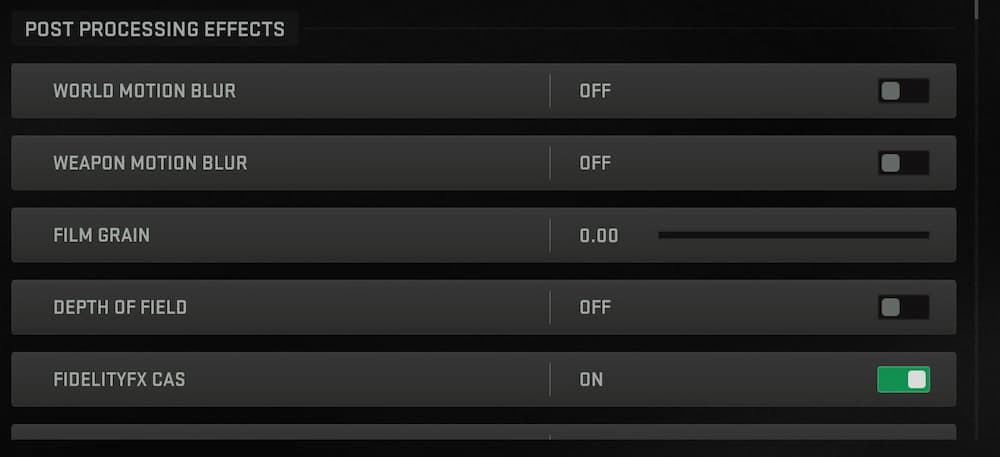
Audio settings
Interface settings
When it comes to Warzone 2’s interface settings, they’re all down to personal preference. Play a few games and you’ll soon know how you like your subtitles, the best size for your minimap, and if you need to customize Warzone’s colors at all.
Warzone 2 crossplay settings
Crossplay settings in Warzone 2.0 are on by default, but you can turn them off if you’d rather only play with your fellow Xbox gamers. Here’s how…
- Open the General Settings on your Xbox.
- Open the Online Safety and Family options.
- Open the Privacy and Online Safety options.
- Select Xbox Privacy, then View Details.
- Select Customize, then Communication and Multiplayer.
- Toggle the Cross-Network Play setting off.
FAQs
Is Warzone 120 FPS on Xbox?
Yes, Warzone can run at 120 FPS on Xbox Series X and Series S if your display supports a 120 Hz refresh rate. You’ll need to enable 120 Hz output in your Xbox display settings and use Performance Mode for smoother gameplay.
How to get better aim in Warzone on Xbox?
Set your sensitivity to a balanced level that feels comfortable. Adjust your deadzones to reduce input lag or stick drift. Use Aim Assist to help track moving targets, and practice keeping your crosshair at head level. Playing regularly in smaller matches or using aim trainers can improve reaction time and accuracy over time.
How to hear footsteps better in Warzone on Xbox?
In the audio settings, choose an Audio Mix that emphasizes footsteps, like “Boost High” or “Headphones.” Raise the Effects Volume and lower or mute Music and Dialogue Volume to reduce distractions. Use a good stereo or surround headset, and consider enabling Dolby Atmos or spatial sound for clearer directional awareness.
How to boost bass on Xbox?
Go to Settings → General → Volume & Audio Output, and choose a headset format like Windows Sonic, Dolby Atmos, or DTS Headphone:X. Then, in your headset’s app or sound settings, increase bass levels through the equalizer. This deepens low-frequency sounds like explosions or footsteps, helping you hear important cues more clearly.
Guide Categories
All Related Guides
 Warzone 2 controller settingsBest Warzone 2 controller settings here! For Controller players looking to make the best out of Warzone 2, her...
 Best audio settings for Warzone 2Without the best audio settings for Warzone 2, you’ll miss crucial sounds like footsteps or gunfire—and that’s...
 Best graphics settings for Warzone 2Don’t waste another second trying to figure out Warzone 2's best graphics settings from scratch, we’ve done th...
 Best settings for Warzone on PlaystationThere are a lot of minor tweaks you can introduce in Warzone's settings to adjust your gameplay experience. TH...
 Is Warzone 2 split screen?Do you wonder if you can play Warzone 2 split screen? Here is your answer!...
 How to Slide Cancel in Warzone Slide cancelling is back in Call of Duty so read our guide on how to effectively slide cancel in Warzone to ou...
 How to turn on proximity chat in Warzone 2In this guide, we will show you How to turn on proximity chat in Warzone 2 and use the feature in your games!...
 Best Warzone 2 settings PCThis guide will walk you through the best PC settings to optimize your gameplay for maximum performance and vi...