Best settings for Warzone on Playstation
If Call of Duty Warzone is your go-to game on Playstation then here is a guide on how to optimize your experience.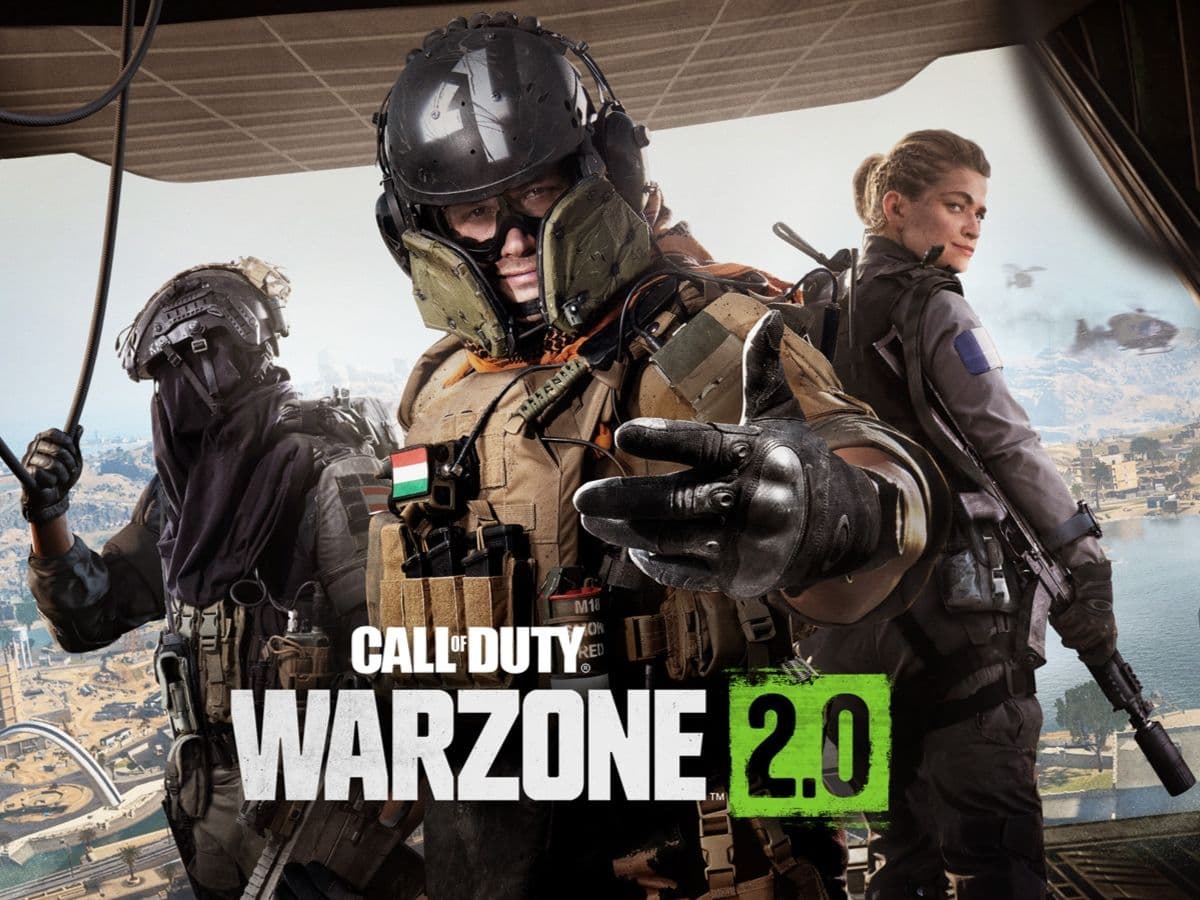
While Warzone certainly thrives on individual mechanics and your ability to outlast opponents in gunfights, fine-tuning your settings is essential to not only enhance your gaming experience but also position yourself for the ideal opportunity to defeat your adversaries and secure victory. Here are the settings that will set you up for the most optimal gaming experience on Playstation.
Graphics
One of the essential aspects of gameplay that has the potential to make or break your Warzone 2 experience on Playstation is the graphic settings you choose to employ. Warzone 2 allows you to effectively customize a variety of factors that influence graphics, including but not limited to Motion Blur, Field of View, Frame Rate, all of which can improve your performance if set to the right parameters. Here are the best graphic settings for Warzone 2 on PS4 and PS5. A notable parameter we have recommended for the field of view is a value between 100-115; however, this can be quite subjective, and individuals might find themselves being more comfortable with a lower FOV value, and the only way to accurately arrive on an ideal value is through playing the game.
Details and textures
On-demand texture streaming | On (if possible) |
Allocated texture cache size | Auto |
Post processing effects
World motion blur | Off |
Weapon motion blur | Off |
Film grain | 0.00 |
Depth of field | Off |
FidelityFX CAS | On |
FidelityFX CAS strength | 50 |
View
120Hz refresh rate | On |
Field of view | 100-115 |
ADS field of view | Affected |
Weapon field of view | Default |
3rd-person field of view | 80 |
3rd-person ADS transition | 3rd-person ADS |
Default spectator camera | Game perspective |
High dynamic range (HDR) | On |
HDR brightness | 1.000 |
Audio
Beyond the captivating visual elements, the PlayStation Warzone 2 experience is significantly shaped by audio settings. We've excluded the Subtitles and Voice Chat categories from this guide, as they tend to be more personalized preferences. Instead, we focus on providing recommendations for fine-tuning the remaining settings to help you optimize your competitive gaming experience.
Audio mix | Headphone bass boost |
Master volume | 100 |
Music volume | 0 |
Dialogue volume | 0 |
Effects volume | 100 |
Hit marker volume | 100 |
Mono audio | Off |
Mono amount | N/A |
Channels
Mute yourself when connecting | Off |
Game voice channel | All lobby |
Audio Advanced Settings
Juggernaut music | Off |
Hit marker sound effects | MW |
Reduce tinnitus sound | Off |
Interface
Another critical facet of your gaming experience involves the meticulous adjustment of HUD elements that provide crucial in-game information. By effectively optimizing these elements, you can harness valuable intel and built-in tools, giving you a strategic edge. This may involve sneaking up on your adversaries after pinpointing their location or gaining a competitive advantage in gunfights through a customized crosshair. Here are the top interface settings for Warzone 2 on PlayStation:
HUD

Minimap shape | Square |
Minimap rotation | On |
Horizontal compass | On |
Crosshairs | On |
Crosshair bobbing | Off |
Hit markers visuals | On |
Damage-based hit markers | On |
Player names | Abbreviated |
Vehicle HUD prompts | Fade after 5 seconds |
Telemetry
Gameplay tips | On |
Tooltips | On |
Parallax effects | On |
Center dot | Off |
Center dot scale | Default |
Advanced Interface Settings
Gameplay tips | On |
Tooltips | On |
Parallax effects | On |
Center dot | Off |
Center dot scale | Default |
Controller
Last but not least, the controller input settings that will ultimately elevate your experience to perfection. While we have a comprehensive article exploring controller settings in-depth, here's a succinct overview of the key controller settings for Warzone 2 on PlayStation:
Button Layout Preset | Default |
Flip L1/L2 with L2/R2 | Off |
Stick Layout Preset | Default |
Controller Vibration | Off |
Trigger Effect (PS5) | Off |
Aiming
Horizontal Stick Sensitivity | 6 |
Vertical Stick Sensitivity | 6 |
ADS Sensitivity Multiplier | 0.9 |
Sensitivity Multiplier
Third Person: | 1.00 |
Ground Vehicles: | 1.00 |
Air Vehicles | 1.00 |
Tablet | 1.00 |
Third Person | 1.00 |
It's highly recommended to experiment with these settings and observe their impact on your gameplay. Feel free to make adjustments according to your personal preferences to tailor your experience precisely to your unique needs.
FAQs
How to make Warzone smoother on PS5?
Use Performance Mode rather than Resolution Mode in your PS5’s Game Presets. Go to Settings → Saved Data & Game/App Settings → Game Presets and pick Performance Mode to prioritize frame rate. Then under Settings → Screen & Video → Video Output, enable 120 Hz Output (Automatic) so your display can run at higher refresh rates. Inside Warzone, turn off heavy graphical effects like shadows, reflections, or motion blur to reduce load and help the game feel smoother.
How to aim better in PS5 Warzone?
Adjust your stick sensitivity to a comfortable mid range and fine-tune deadzones so your sticks respond accurately without drifting. Enable Aim Assist or use the default assist settings, which help track targets. Practice centering your crosshair—always keep your aim at head height—and play warm-up matches to get consistent with recoil control, flicking and adjusting aim on the fly.
How to get 120 FPS on Warzone PS5?
First, you need a display (TV or monitor) that supports 120 Hz and an HDMI 2.1 cable. On the PS5, go to Settings → Screen & Video → Video Output and set 120 Hz Output to Automatic. Then enable Performance Mode in Game Presets so your system favors frame rate over resolution. In Warzone’s graphics settings, switch on any option for 120 FPS Mode if available. If all is set correctly, you should see the smoother 120 frames per second in supported matches.
Guide Categories
All Related Guides
 Warzone 2 controller settingsBest Warzone 2 controller settings here! For Controller players looking to make the best out of Warzone 2, her...
 Best audio settings for Warzone 2Without the best audio settings for Warzone 2, you’ll miss crucial sounds like footsteps or gunfire—and that’s...
 Best settings for Warzone 2.0 XboxKit yourself out with the best Xbox settings for Warzone 2.0. Whether you want to master your movement or take...
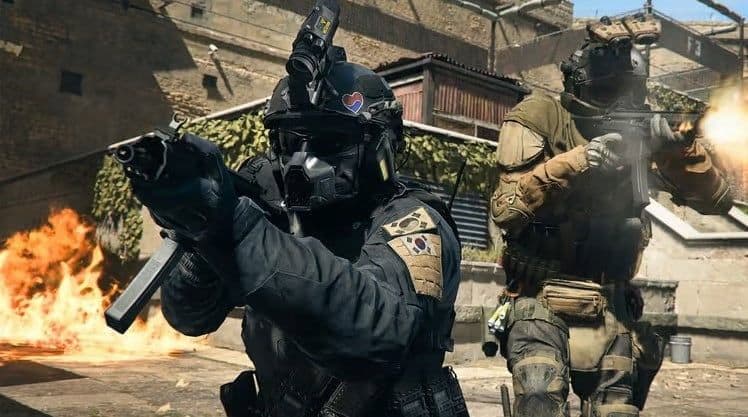 Best graphics settings for Warzone 2Don’t waste another second trying to figure out Warzone 2's best graphics settings from scratch, we’ve done th...
 Is Warzone 2 split screen?Do you wonder if you can play Warzone 2 split screen? Here is your answer!...
 How to Slide Cancel in Warzone Slide cancelling is back in Call of Duty so read our guide on how to effectively slide cancel in Warzone to ou...
 How to turn on proximity chat in Warzone 2In this guide, we will show you How to turn on proximity chat in Warzone 2 and use the feature in your games!...
 Best Warzone 2 settings PCThis guide will walk you through the best PC settings to optimize your gameplay for maximum performance and vi...