How to turn on proximity chat in Warzone 2
Here's a guide on how to turn on and use proximity chat in Warzone 2.
Warzone, one of the latest additions to the Call of Duty franchise, has stirred up excitement among gamers, offering a range of engaging features. One such feature causing a buzz is the proximity chat. But what exactly is proximity chat, and how does it work in this highly anticipated game? This article delves into the ins and outs of Warzone 2's proximity chat, providing a guide on how to use it and troubleshoot any issues, ultimately enhancing the gaming experience for players.
Does Warzone 2 have Proximity chat?
Indeed, Warzone 2 brings the feature of proximity chat to the gaming table. This nifty tool allows players to talk to others within a 50-meter range. As folks move away from each other, the volume at which they can be heard diminishes, making it an engaging way to communicate in the game.
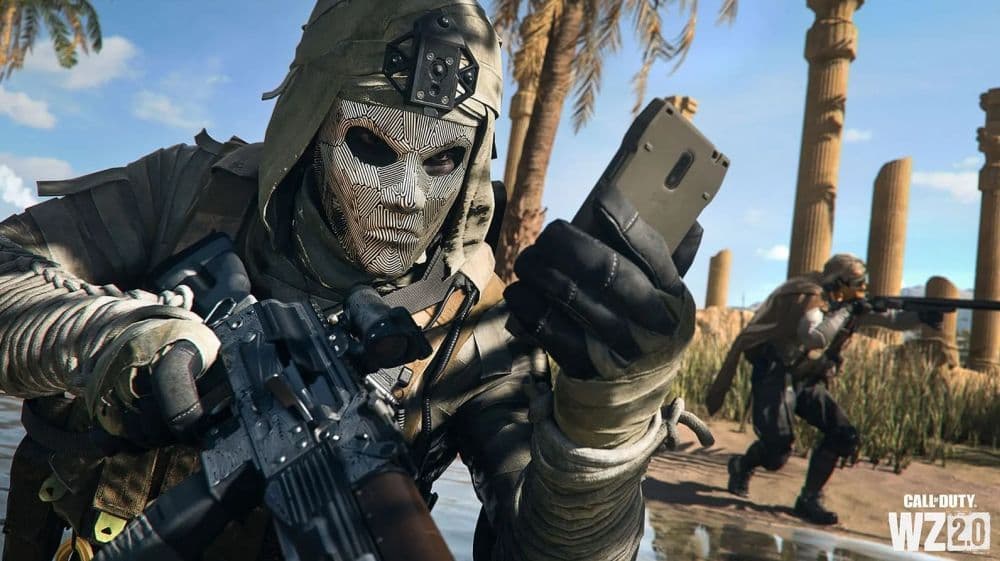
It's not just about chit-chat; proximity chat introduces a whole new level of interaction in Warzone 2. Players can team up, negotiate, or, if they're feeling mischievous, trick others by making false alliances. This feature spices up the gameplay, especially in modes like Assimilation, where squads can join forces on the go.
How does Proximity Chat work in Warzone 2?
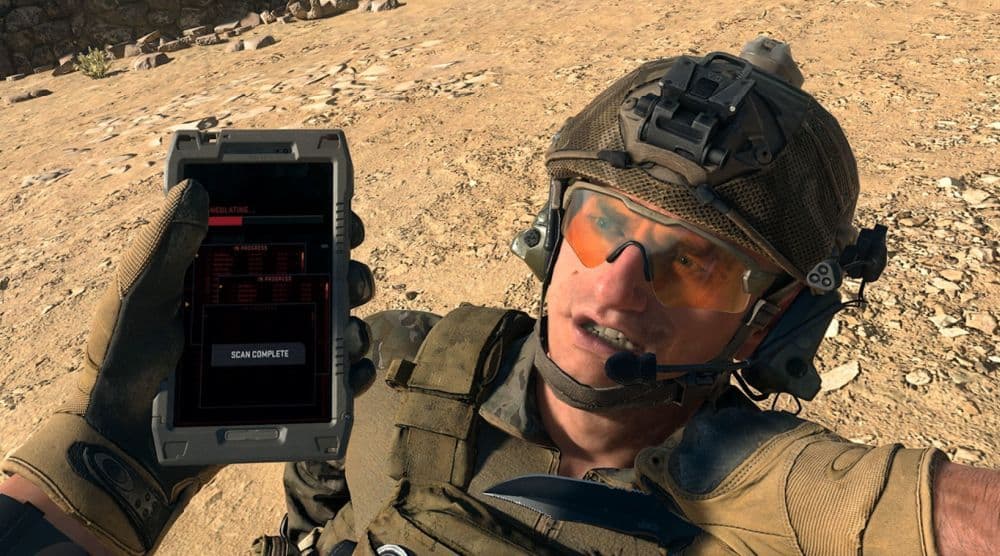
Warzone 2's proximity chat is creating some buzz. It's a way for players to chat when they're near each other in the game. This might not sound like a big deal, but it opens up opportunities for teamwork and sneakiness.
The chat works when players' characters are close in the game. It's different from the regular squad chat or post-elimination talk. For now, it's live in Warzone 2's DMZ and battle royale modes, but not in Modern Warfare 2’s multiplayer.
How to turn on Proximity Chat in Warzone 2
If you want to use proximity chat in Warzone 2, here's how to get it going:
- Settings: Click on the gear icon on the top-right.
- Audio Tab: Choose 'Settings' and go to the 'Audio' section.
- Voice Chat: Scroll down to find 'Voice Chat.'
- Enable Proximity Chat: Make sure it's on. It usually is, but if not, turn it on here.
How to turn off Proximity Chat in Warzone 2
If you'd rather not have your mic open to nearby players, here's how to turn off proximity chat:
- Audio Settings: Go to 'Audio' in the settings.
- Voice Chat: Scroll down to the 'Voice Chat' section.
- Disable Proximity Chat: Find the 'Proximity Chat' option and switch it off.
- This will stop you from hearing players close to you, and they won't hear you either.
Can't hear Proximity Chat in Warzone 2: What to do?
Sometimes, games come with bugs or issues. If you're having trouble with proximity chat, try these steps:
Check Voice Chat Settings:
- Go to the Audio Menu and ensure Voice Chat is on.
- Check the output device and set the volume to 70 or higher.
Enable In-Game Lobby Chat:
- Change the default Game Voice Channel to All Lobby.
- Avoid setting it to Friends or Party Only, as it might mute Proximity Chat.
For Battle.Net Users: Privacy & Communication Check
- Make sure Voice Chat has Listening & Speaking enabled in the Privacy & Communication Menu.
- Players with Parental Controls ON might need guardian approval to adjust settings.
By following these steps, you might fix issues and make your Warzone 2 experience smoother. As technology continues to shape the landscape of gaming, tools like proximity chat in Warzone 2 open up new dimensions of player interaction. Whether fostering alliances, setting up sneaky traps, or troubleshooting issues, the realm of gaming constantly evolves. Understanding and leveraging these features not only enriches gameplay but also underscores the ever-expanding possibilities within the gaming community. With Warzone 2's proximity chat, players are empowered to strategize, collaborate, and have an enriched gaming experience, creating unforgettable moments in the gaming universe.
FAQs
What audio settings are best for Warzone?
To get the best Warzone audio experience and situational awareness:
- Keep Voice Chat enabled, with Open Mic or Push-to-Talk, whichever you prefer.
- Turn on Proximity Chat if you want to hear nearby players.
- Raise incoming voice volume to a level where you can clearly hear both teammates and nearby enemies.
- Lower or disable background music, ambient noise, and reverb effects so footsteps, gunshots, and directional sounds are clearer.
- Use a good headset and confirm your mic and output devices are set properly in both your OS and the game.
Why can’t I hear proximity chat in COD Warzone?
There are a few common reasons: proximity chat might be turned off in the audio settings, your voice chat type (Open Mic vs Push-to-Talk) may be set incorrectly, or your chat volume (incoming voice) is too low. Also, game updates sometimes reset audio settings, so your mic or chat settings could have been toggled off without you realizing it.
How to enable voice chat in Warzone?
Go to the game’s Options or Settings menu, then open the Audio tab.
- Turn Voice Chat to Enabled.
- Choose your recording mode: Open Mic (always live) or Push-to-Talk (you press a button to speak).
- Also make sure Proximity Chat is toggled On, if the game supports it.
- Finally, check that the incoming voice volume is high enough so you can hear others.
Guide Categories
All Related Guides
 Warzone 2 controller settingsBest Warzone 2 controller settings here! For Controller players looking to make the best out of Warzone 2, her...
 Best audio settings for Warzone 2Without the best audio settings for Warzone 2, you’ll miss crucial sounds like footsteps or gunfire—and that’s...
 Best settings for Warzone 2.0 XboxKit yourself out with the best Xbox settings for Warzone 2.0. Whether you want to master your movement or take...
 Best graphics settings for Warzone 2Don’t waste another second trying to figure out Warzone 2's best graphics settings from scratch, we’ve done th...
 Best settings for Warzone on PlaystationThere are a lot of minor tweaks you can introduce in Warzone's settings to adjust your gameplay experience. TH...
 Is Warzone 2 split screen?Do you wonder if you can play Warzone 2 split screen? Here is your answer!...
 How to Slide Cancel in Warzone Slide cancelling is back in Call of Duty so read our guide on how to effectively slide cancel in Warzone to ou...
 Best Warzone 2 settings PCThis guide will walk you through the best PC settings to optimize your gameplay for maximum performance and vi...