Warzone 2 controller settings
We've got the best Warzone 2 controller settings out there so you're ready for battle right off the bat!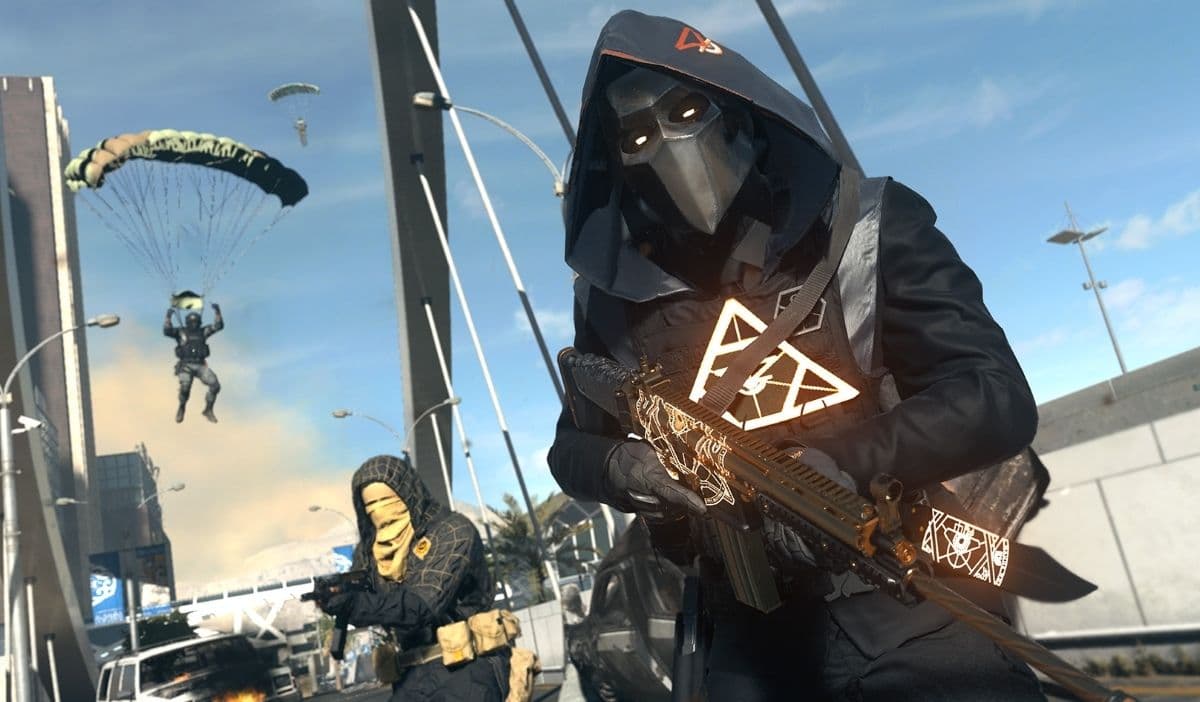
While Warzone is accessible on PC for those who prefer a keyboard and mouse, embracing the game with a controller imparts a delightful dose of nostalgia, transporting players back to the earlier days of Call of Duty. Yet, frequently, the game's default settings may not cater to the majority, and newcomers may find themselves lost in the maze of available settings and customizations. This is precisely why we've created a comprehensive guide to help demystify the available settings and offer our expert recommendations for optimizing your gameplay experience.
Your complete guide to the best Warzone 2 controller settings
Now, here’s why you should adjust your Warzone 2 controller settings and exactly what you need to know about each one.
Inputs
Opting for a default input layout is standard across the board in terms of settings employed by professional players regardless of the level of competitive gameplay they engage in. However, there is an exception to this rule as some players opt to activate the 'Flipping L1/L2 with L2/R2' option when using the 'claw grip,' a unique method of holding the controller that enhances access to specific inputs. If you're not yet familiar with this concept, it's advisable to leave this option turned off for now.
• Button Layout Preset: Default
• Flip L1/L2 with L2/R2: Off
• Stick Layout Preset: Default
• Controller Vibration: Off
• Trigger Effect (PS5): Off
Aiming
• Horizontal Stick Sensitivity: 6
• Vertical Stick Sensitivity: 6
• ADS Sensitivity Multiplier: 0.9
Sensitivity Multiplier
• Third Person: 1.00
• Ground Vehicles: 1.00
• Air Vehicles: 1.00
• Tablet: 1.00
Vertical Aim Axis
• On Foot: Standard
• Third Person: Standard
• Ground Vehicles: Standard
• Air Vehicles: Standard
Aiming is a highly subjective aspect of gaming, as everyone's preferences are shaped by their prior gaming experiences. Many professional players have converged on a sensitivity setting of 6, paired with an Aiming Down Sights multiplier of 0.9, which strikes a balance between lightning-fast and overly sluggish movements. This configuration subtly restrains your field of view, allowing you to lock onto targets with precision and execute precise shots. Nevertheless, I recommend that players take these settings into the game, experiment with them, and observe how adjustments impact their performance. Making necessary changes will help you discover your personal sweet spot for tailoring the perfect shooting experience
Gameplay
• Aim Down Sight Behavior: Hold
• Automatic Sprint: Automatic Tactical Sprint
• Equipment Behavior: Hold
• Weapon Mount Activation: ADS + Melee
• Interact/Reload Behavior: Prioritize Reload
• Armor Plate Behavior: Apply One
While some of these options are fairly self-explanatory, the last two can significantly influence your gameplay. The ability to prioritize reloading is invaluable in scenarios where you're engaged in a gunfight near interactable objects like doors or weapon pickups. In such instances, the optimal priority is to reload swiftly and eliminate the enemy, rather than getting bogged down by unintended interactions that could compromise your chances of survival.
Regarding Armor Plates, in situations where these plates are scarce, it might be more advantageous to conserve them, even if it means taking a hit to your health, rather than exhausting all your armor and being left vulnerable, especially in the later stages of the game.
Advanced
• Target Aim Assist: On
• Aim Assist Type: Default
• Aim Response Curve Type: Dynamic
• ADS Sensitivity Multiplier: 0.90
• ADS Sensitivity Transition Timing: Instant
• Custom Sensitivity Per Zoom: Default
Inputs Deadzone
• Left Stick Min: 0.05
• Right Stick Min: 0.05
• Left Stick Max: 0.99
• Right Stick Max: 0.99
• L2 Button Deadzone: 0.00
• R2 Button Deadzone: 0.00
Reducing the Deadzones to lower values enhances your aiming precision, although it might require an adjustment period. This heightened accuracy can translate to more eliminations and an improved KDA.
However, it's essential to acknowledge that stick drift is an inevitable issue that can affect any controller, so aiming for a deadzone of 0.00 is rarely perfect. The key is to maintain the lowest possible deadzone without encountering stick drift. When you start noticing persistent stick drift, it's wise to incrementally adjust the slider to a point where the impact on your gameplay is minimized.
Movement Behaviors
• Sprint/Tactical Sprint Behavior: Toggle
• Auto Move Forward: Off
• Tactical Sprint Behavior: Single Tap Sprint
• Grounded Mantle: Off
• Automatic Airborne Mantle: Partial
• Automatic Ground Mantle: Off
• Invert Slide and Dive Behavior: Standard
• Plunging Underwater: Movement
• Parachute Auto-Deploy: Off
• Sprinting Door Bash: On
Although movement speed has been toned down in Modern Warfare 2 and Warzone 2, agility remains a key asset. We've also suggested disabling Grounded Mantle to prevent unwanted mantling and turned off Parachute Auto-Deploy, granting you the flexibility to descend closer to the ground as needed.
Combat Behaviors
• ADS Stick Swap: Off
• ADS Interruption Behavior: Interrupt
• Weapon Mount Movement Exit: On
• Weapon Mount Exit Delay: Medium
• Depleted Ammo Weapon Switch: On
• Quick C4 Detonation: On
While the controller settings provided for Warzone 2 above offer an excellent starting point, it's worth noting that the ideal settings may vary from player to player. Discovering the perfect controller settings often comes through hands-on gameplay experience, so don't hesitate to fine-tune them according to your personal preferences as you dive into the game.
Guide Categories
All Related Guides
 Best audio settings for Warzone 2Without the best audio settings for Warzone 2, you’ll miss crucial sounds like footsteps or gunfire—and that’s...
 Best settings for Warzone 2.0 XboxKit yourself out with the best Xbox settings for Warzone 2.0. Whether you want to master your movement or take...
 Best graphics settings for Warzone 2Don’t waste another second trying to figure out Warzone 2's best graphics settings from scratch, we’ve done th...
 Best settings for Warzone on PlaystationThere are a lot of minor tweaks you can introduce in Warzone's settings to adjust your gameplay experience. TH...
 Is Warzone 2 split screen?Do you wonder if you can play Warzone 2 split screen? Here is your answer!...
 How to Slide Cancel in Warzone Slide cancelling is back in Call of Duty so read our guide on how to effectively slide cancel in Warzone to ou...
 How to turn on proximity chat in Warzone 2In this guide, we will show you How to turn on proximity chat in Warzone 2 and use the feature in your games!...
 Best Warzone 2 settings PCThis guide will walk you through the best PC settings to optimize your gameplay for maximum performance and vi...