How to create and use free Aternos Hytale server
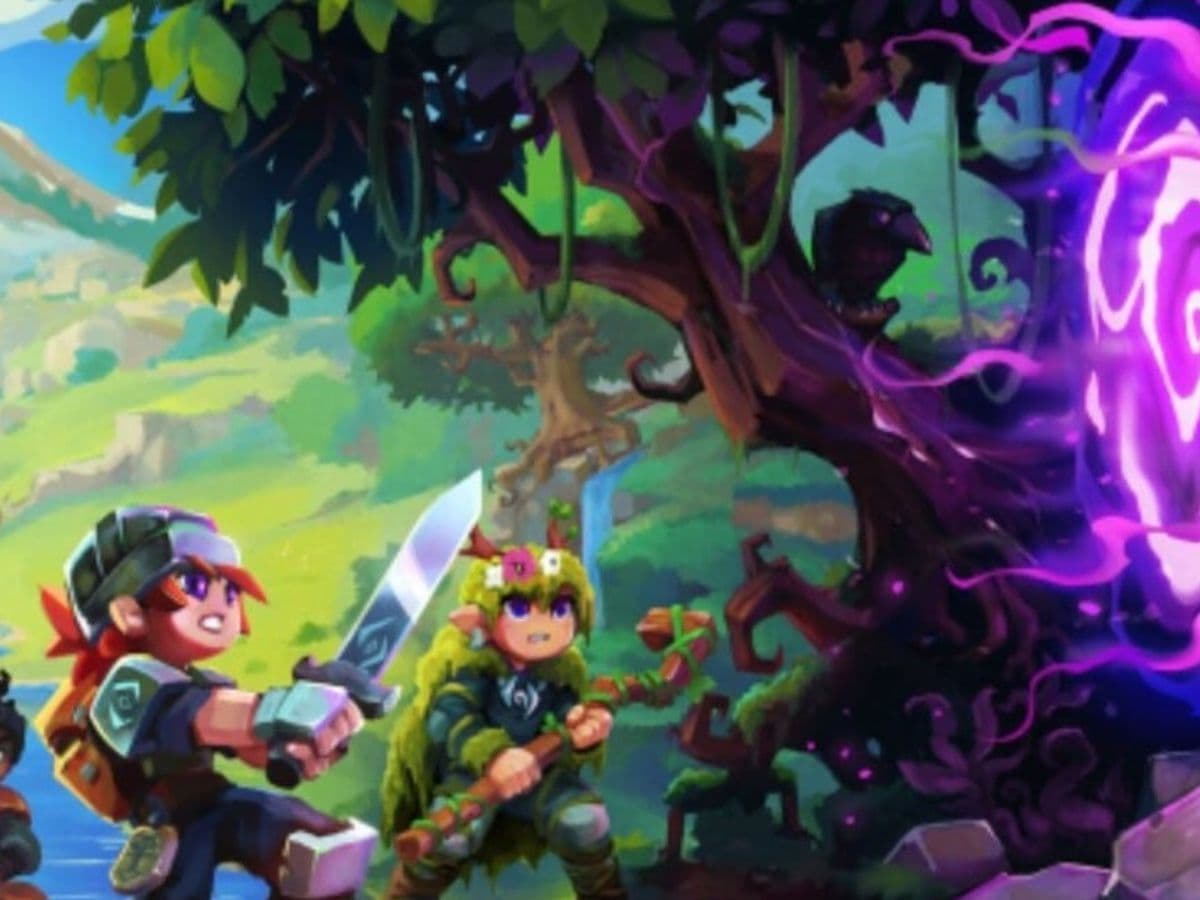
Aternos is a familiar term for gamers, especially those who used to play Minecraft on different servers. You want a server that you control, but you do not want to pay before you even build a world worth sharing. That is where Aternos matters for Hytale. It gives you a web panel that lets you start a server, manage worlds, and invite friends with a simple address. In this guide, we go over how to create and connect to an Aternos Hytale server, how to fix common issues, and more!
What is Aternos in Hytale?
Aternos is a free game server hosting platform. In Hytale terms, it acts as the control center for a hosted multiplayer server that you run from a browser. You do not host on your own PC. Instead, you use the Aternos panel to start and manage the server.
An Aternos Hytale server usually includes these basics:
- A server status indicator that shows when the server goes online.
- A server address and port that players use to connect.
- Pages for world or universe management.
- A mods section and a file manager for manual uploads.
- If you want free Hytale server hosting, Aternos targets that use case. You still need to start the server before your group joins, and you need the full address details to connect.
If you want free Hytale server hosting, Aternos targets that use case. You still need to start the server before your group joins, and you need the full address details to connect.
Create and connect to a free Aternos Hytale server
This section merges setup and connection into one flow. It matches how players actually move through the process.
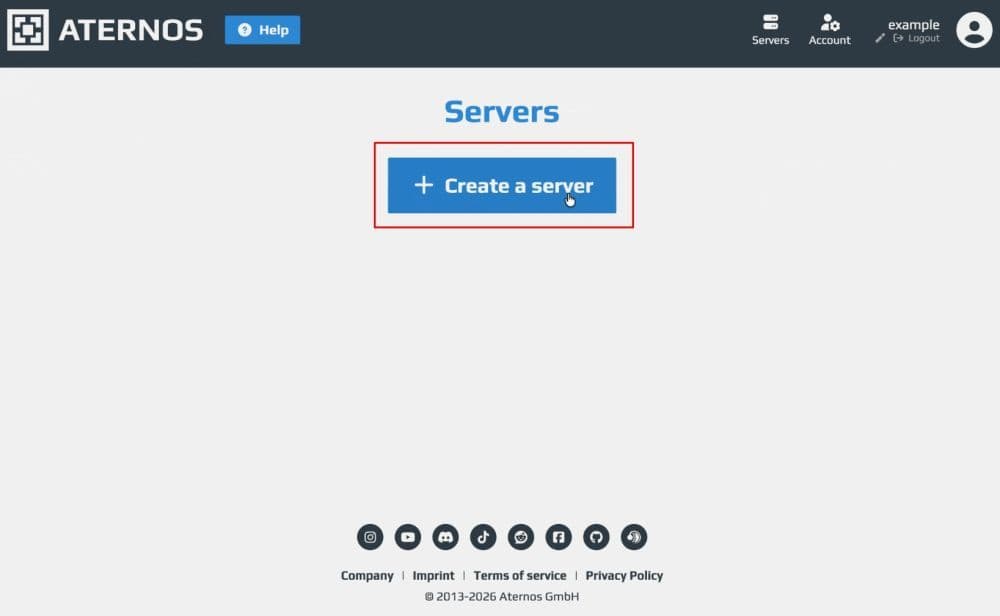
Step 1: Create your server in Aternos
- Sign in to Aternos.
- Create a new server and choose Hytale as the server software.
- Open the server page and review the main dashboard tabs, like server status, Worlds, Files, and Mods.
Step 2: Start the server
You must run the server before you can join it.
- Open your server page.
- Press Start.
- Wait until the server shows Online with a green status.
Step 3: Copy the server address and port
Hytale connections rely on two parts: the address and the port.
- Copy the full server address from the server page.
- Keep the port in the address. Do not remove it.
- Re-check server status before you join.
Step 4: Join the server in Hytale
- Launch Hytale.
- Open the servers menu.
- Use Direct Connect or add the server to your list.
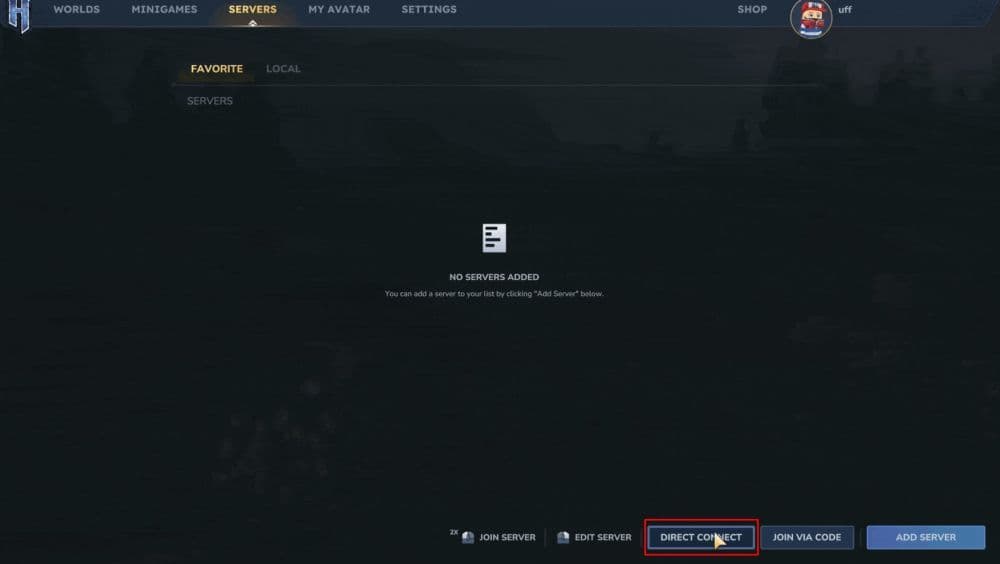
- Paste the address with the port and connect.
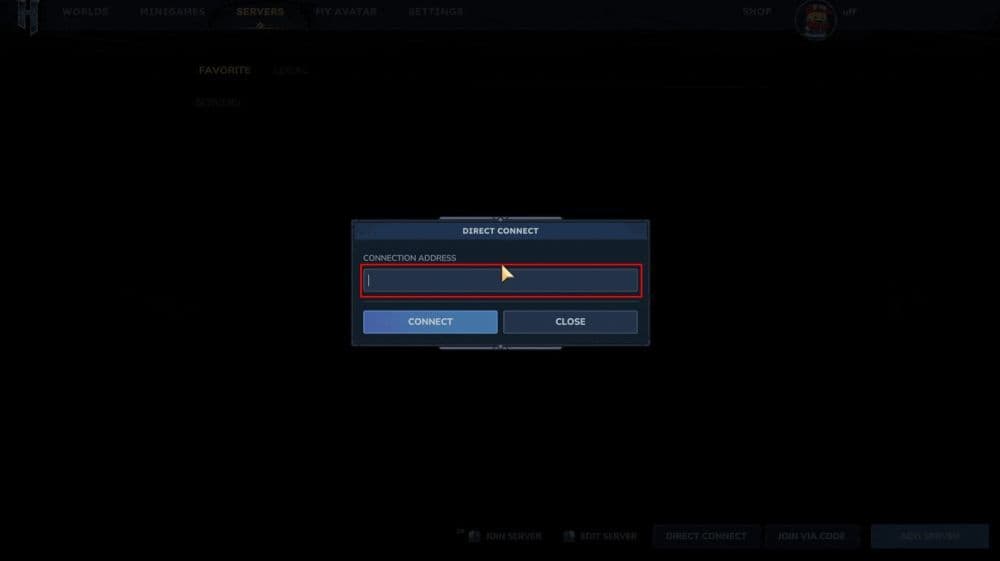
If you share the server with friends, send them the copied address exactly as it appears. Small formatting changes can break the connection. Don’t forget to check our guide on how to join Hytale server as well!
How to upload a Hytale universe
Hytale saves use a structure that matters for multiplayer. A “universe” includes your full save state. It holds player data and every world or dimension inside that save. A “world” sits inside the universe, but it does not carry all player progress.
Use this simple rule:
- Upload a universe when you want full progress, including player data.
- Upload a single world when you want a map swap without player history.
Find your local saves
- Open the Hytale launcher.
- Open settings.
- Use the option that opens the local game directory.
- Navigate to UserData and then saves.
- Open the folder that matches your save. You will find a folder named universe inside.
Upload a universe to Aternos
- Open your server in Aternos.
- Go to the Worlds page.
- Choose the universe upload option.
- Select the universe folder or a ZIP archive.
- Start the server after the upload completes.
Upload a single world
- Go to the Worlds page.
- Pick the world you want to replace.
- Upload the world folder or ZIP.
- Restart the server.
If you want extra worlds on the same server, create them first through the server console command for adding worlds. Then you can replace the new slot with an uploaded world.
Can I use mods on my Aternos Hytale server?
Yes, you can use mods on an Aternos Hytale server.
Hytale mods run on the server side. Your players join normally. They do not need extra client installs to enter the modded server.
You have two practical options:
- Install from the built-in mod library. Search the mods list, install your choices, then restart the server.
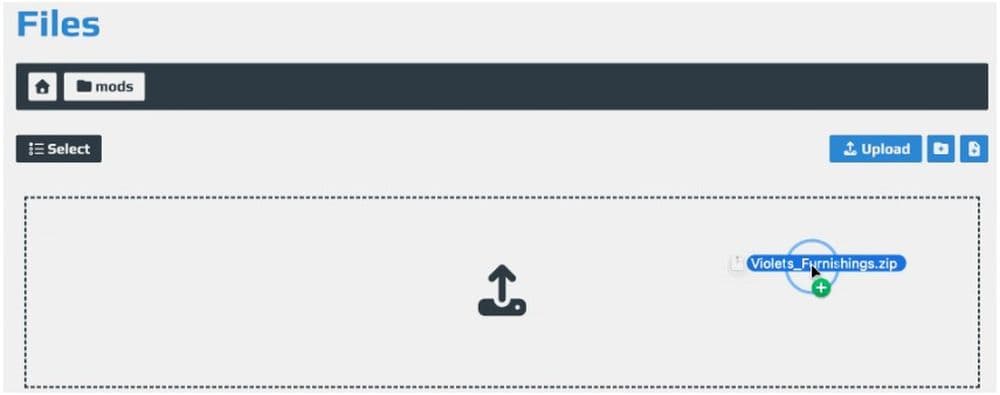
- Upload mod files manually. Upload mod ZIP files through the Files page into the /mods folder. Then restart the server.
Use a clean routine for stability:
- Stop the server.
- Install or upload mods.
- Start the server again.
- Test join with one player before you invite everyone.
Why can’t I create a free Aternos server for Hytale?
There may be many different reasons but according to the Aternos support page, here are the most common ones and how to fix them:
“Failed to connect to server”
This error often appears when you forget the port.
Fix: Use the full server address with the port. Copy it from the Aternos server page and paste it into Hytale without edits.
Server shows Online, but you still cannot join
Early access builds can show small join bugs, especially on new servers.
Fix: Restart the server and restart the Hytale game. Then try again.
One player cannot join, but others can
This usually points to a player-specific error.
Fix: Open the server log in Aternos and look for warnings or errors tied to that player’s username. Fix the cause, then retry the join.
Universe upload works, but progress looks wrong
This problem often happens when you upload only a world and expect full player progress.
Fix: Upload the full universe when you want player data and complete progression. Upload a single world only when you want a map change.
Mods install, then the server behaves oddly
A bad mod file or a missed restart can cause this.
Fix: Stop the server, remove the last mod you added, then restart. Add mods one at a time until you find the conflict.
Here are more Hytale guides:
- List of all Hytale mobs, what they drop & how to find them
- How does the Hytale class system actually work? Guide to builds
- Where to play Hytale and how to install the game
- Hytale Early Access Roadmap: What to expect in future updates
- Hytale Update 4: New features, changes, and patch notes
Featured Image Credit: Hytale
All Related Guides
 Best Hytale MMORPG servers to play inExplore the best Hytale MMORPG servers for PvE, PvP, guilds, quests, dungeons, and long-term RPG progression....