What is the Roblox memory dump error and how to fix it
Roblox players may encounter a memory dump error from time to time. In most cases, it does not mean your PC “ran out of memory.” The good news is that you can fix the Roblox memory dump error with a clear set of steps. Start with the quick checks, then move to deeper fixes. This order saves time and avoids risky changes.
What is a memory dump in Roblox?
A memory dump is a crash snapshot. Roblox writes it when the Roblox Player stops working in a way it cannot recover from. You may see it as a pop-up, a sudden close, or a failed launch. The dump file itself is not the problem. The crash that creates it is the real issue.
What causes the Roblox memory dump error?
This error can block your session in several ways. It can stop Roblox from launching, crash during loading, or kick you back to desktop mid-game. If you ignore it, you often repeat the same crash loop. That can waste time and break your local Roblox files again after each update.
Common causes include:
- Corrupted Roblox install files or a broken “Versions” folder
- Outdated or unstable GPU drivers
- Conflicts with overlays, recorders, or third-party launchers
- Security settings that block Roblox components from running correctly
- Low free disk space that prevents Roblox from updating cleanly
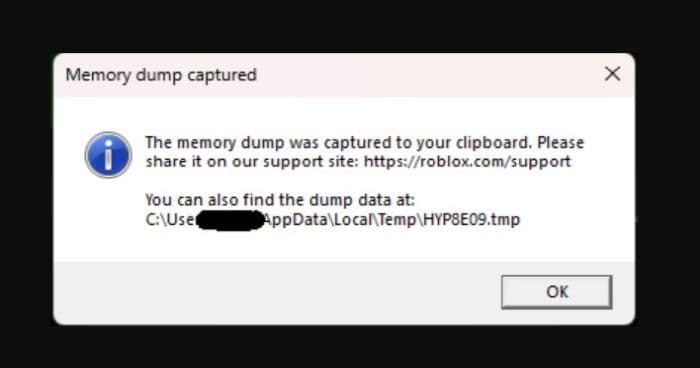
How to fix memory dump Roblox (best order)
Follow these steps in order. After each step, launch Roblox and join a game to test.
1) Do a clean reinstall
A normal uninstall can leave leftovers. A clean reinstall removes broken files.
- Uninstall Roblox from Windows.
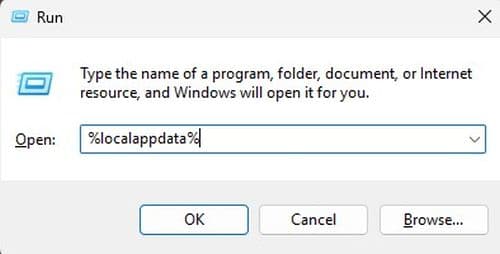
- Press Win + R, type %localappdata%, and hit Enter.
- Delete the Roblox folder (or at least the Versions folder inside it).
- Restart your PC.
- Download Roblox again and install it fresh.
2) Update your GPU driver and reboot
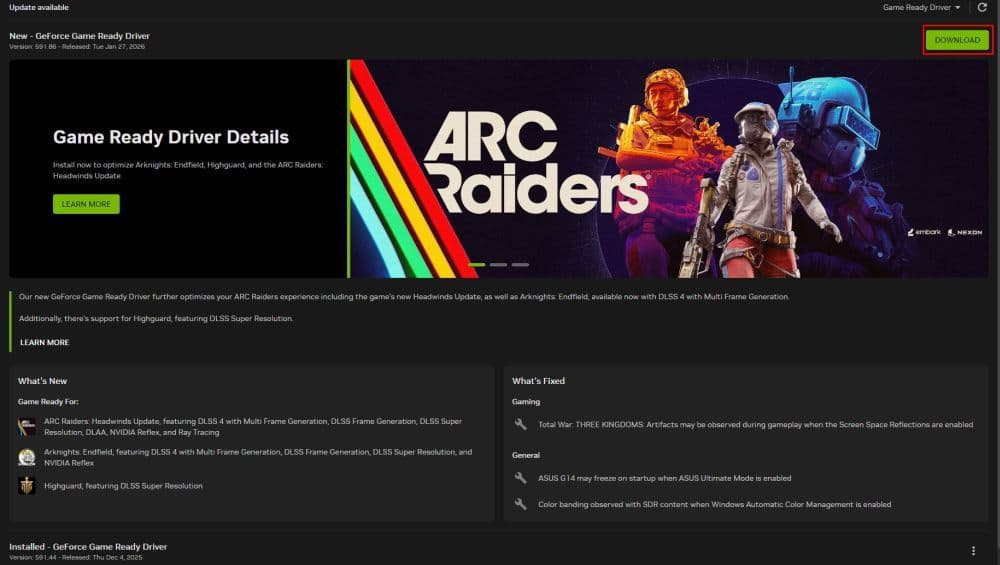
Roblox relies on your graphics driver for stability.
- Update Nvidia, AMD, or Intel graphics drivers through the official app or website.
- Restart your PC after the update.
- Avoid beta drivers if you see frequent crashes.
3) Turn off overlays and background hooks
Some apps inject overlays that can crash games.
Disable or close:
- Discord overlay
- GeForce Experience overlay
- Xbox Game Bar capture
- MSI Afterburner and RivaTuner
- Screen recorders and macro tools
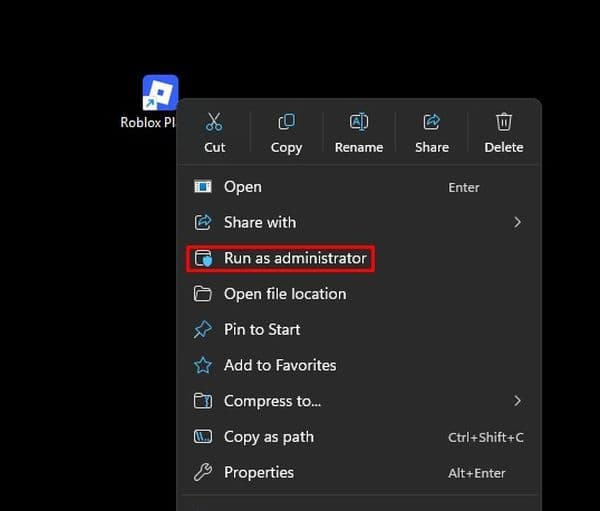
4) Run Roblox as administrator
This step helps when Windows blocks access to key files.
- Right-click Roblox Player and select Run as administrator.
- If it works, keep your system clean and repeat Step 1 if crashes return.
5) Try the Microsoft Store version as a workaround
If the web installer keeps crashing, the Store build can behave differently.
- Install Roblox from the Microsoft Store.
- Use it to confirm the issue links to your current install path.
6) Check Windows security settings last
Some systems block Roblox under stricter isolation rules. Only use this step if everything else fails.
- Review Windows Security settings that can restrict apps.
- Change one setting at a time, then test Roblox again.
- Revert changes if you see no improvement.
How to confirm the fix and reduce future crashes
Use this quick checklist:
- Roblox launches without delay.
- You join multiple games without a crash.
- The memory dump pop-up does not return after a reboot.
To keep Roblox stable:
- Keep at least 5–10 GB of free disk space.
- Update GPU drivers on a regular schedule.
- Avoid unnecessary launchers, overlays, and “optimizer” tools.
We have more Roblox guides you can check below:
- Latest Roblox One Touch codes and how to use them
- Roblox Hunters codes: How to redeem rewards
- New Roblox Peroxide codes & hair IDs
- Latest Roblox Elemental Dungeons codes & how to redeem them
- New Roblox Project Mugetsu codes & how to redeem them
Featured Image Credit: Roblox
All Related Guides
 Roblox Robux codes (October 2026): Gift cards, free items & moreFind Roblox Robux codes & redeem gift cards, claim free avatar items, convert Roblox Credit, and fix codes tha...
 How to see Roblox purchase historyLearn how to see your Roblox purchase history, check Robux transactions and find real-money receipts on deskto...
 How to find the Monochrome Roblox code and escapeFind the Monochrome Roblox code, collect all four keys, survive the basement maze and open the elevator to com...
 How to connect Claude to Roblox StudioConnect Claude to Roblox Studio with the current MCP method and see how Claude can work with your scripts and ...
 How to fight in Gakuran RobloxLearn how to fight in Gakuran Roblox, from basic attacks to blocking, parrying, posture, and fighting styles....
 How to get a free avatar in RobloxFind out how to get a free Roblox avatar without spending Robux, from free character bundles to Marketplace it...
 How to reduce lag in Roblox: Comprehensive guideRoblox feeling slow or choppy? Find out how to reduce lag in Roblox and improve your game with a few simple ch...
 How to check Roblox player countHow many people play Roblox in 2026? Check the latest Roblox player count and learn what the numbers actually ...
- 1
- 2
- 3
- 4
- 5
- 6
- 7
- 8
- 9
- 10
- 11
- 12
- 13