How to Enable Voice Chat on Roblox After the Update (2026)
Roblox voice chat, often called VC, lets you talk to other players with your microphone while you play. In 2026, more players search for VC because Roblox ties voice access more tightly to safety checks and account settings. The big shift comes from Roblox’s new communication rules. Roblox now places voice, experience chat, and party chat behind an age check in many regions. Here is how to get and use voice chat in Roblox after the latest updates!
What is Roblox voice chat?
Roblox voice chat allows eligible players to speak in supported experiences. Roblox does not enable voice everywhere, so you need two things at the same time:
- Your account qualifies for voice chat
- The experience supports voice chat
When VC works, you usually see a voice icon inside the experience. Roblox also lets you connect or disconnect from voice during the session, so you control when your mic stays live.
Roblox VC in 2026: All of the latest updates
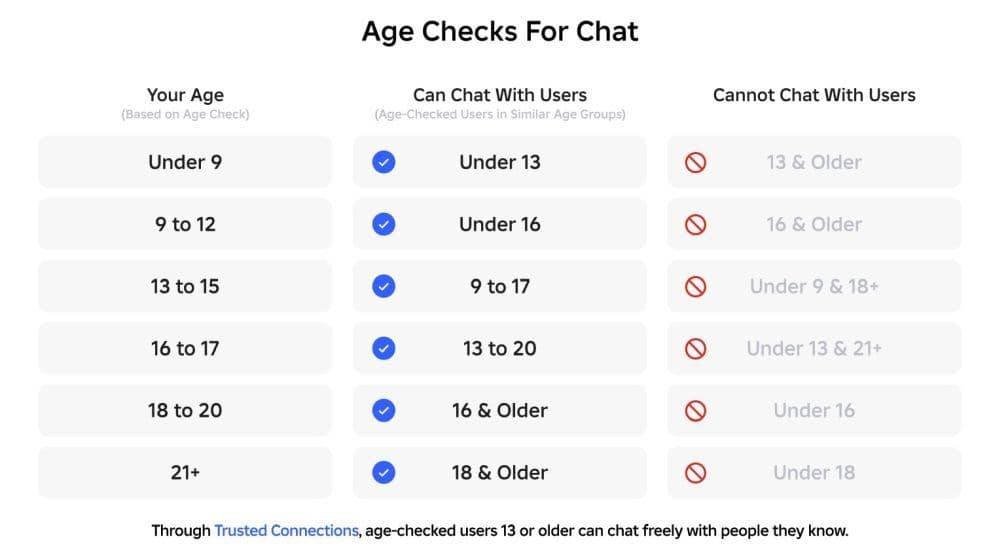
Roblox now requires an age check for communication features. This requirement rolls out globally in 2026, and it affects voice chat access for many users.
If you are a beginner, here is what you need before VC shows up:
- You must meet the age rule: Roblox limits voice chat to users who qualify as 13+ in supported regions.
- You must complete an age check: Roblox uses an age check to unlock communication settings and to place users into chat age groups.
- Your device must allow microphone access: Roblox cannot use your mic if your operating system blocks it.
- Your region and the experience must support voice: Some regions restrict communication features, and many experiences never enable VC.
- Phone verification does not unlock VC: Roblox no longer treats phone verification as a path to voice access.
Roblox also tightens chat controls for younger users. Kids ages 5 to 9 need parental consent to enable experience chat, and users under 13 need parental consent for direct chat.
How to complete the Roblox age check
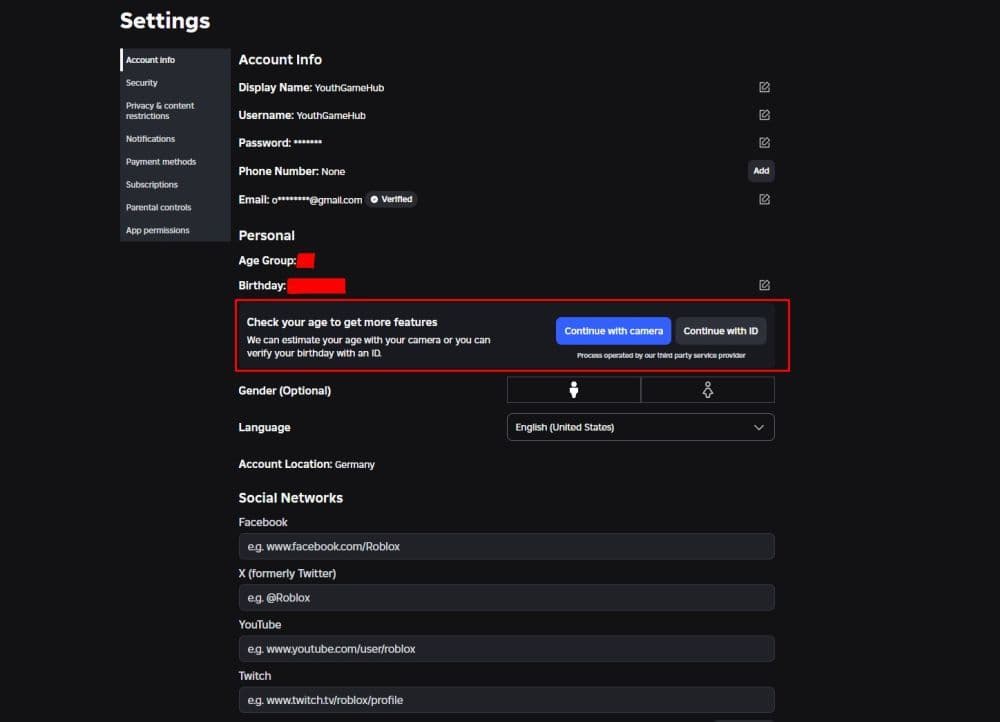
Start with the age check because Roblox can hide chat and voice settings until you finish it. Roblox can offer more than one method, based on your region and device.
Follow this general flow:
- Open Roblox and sign in.
- Go to Settings.
- Open Account Info.
- Look for the age check option or a prompt to confirm your age.
- Complete the on-screen steps until Roblox confirms success.
After Roblox finishes the check, it assigns you to an age group for chat and it unlocks communication settings for your account. If Roblox still reviews your check, you may need to wait and try again later.
How to enable voice chat on Roblox
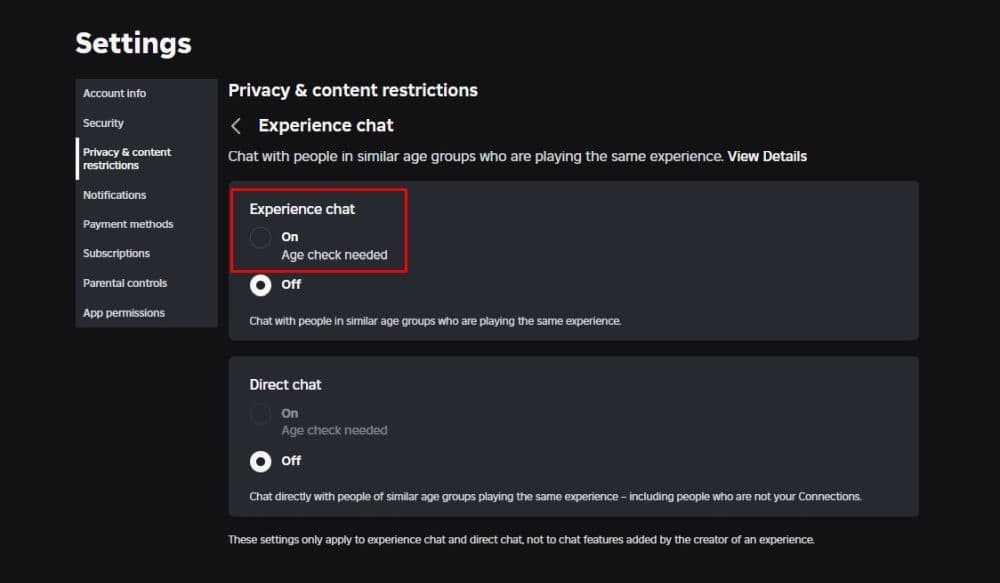
After you finish the age check, turn on voice in your Roblox privacy settings. The exact menu labels can vary, but the path stays similar on most platforms.
Here is how you do it:
- Open Roblox and log in.
- Go to Settings.
- Open Privacy.
- Find Voice Chat.
- Turn on Enable Voice Chat.
If Roblox does not show the voice toggle, Roblox blocks voice on your account, your region, or your device.
Allow microphone access on your device
You also need to allow the microphone at the system level.
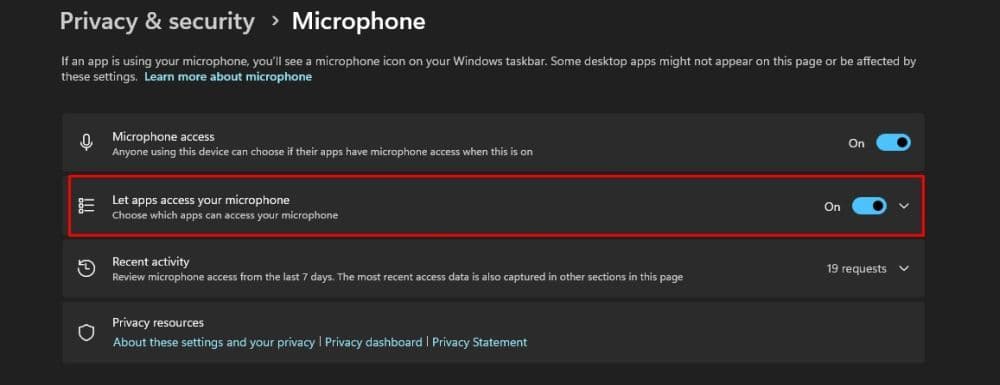
- Windows: Open Windows settings, go to Privacy and security, then Microphone, and allow Roblox.
- macOS: Open System Settings, go to Privacy and Security, then Microphone, and allow Roblox.
- iPhone and iPad: Open iOS Settings, go to Privacy, then Microphone, and allow Roblox.
- Android: Open Settings, go to Apps, select Roblox, then Permissions, and allow Microphone.
- Xbox: Open Xbox privacy and communication settings, allow communication features, then check Roblox settings.
Why VC does not show up and how to fix it
Most VC problems come from one of these causes:
- Roblox marks your account as under 13
- Roblox did not confirm your age check
- Roblox restricts voice in your region
- The experience does not support voice chat
- Your device blocks microphone access
- Another voice system overrides Roblox voice, especially on consoles
Try these fixes in order:
- Restart Roblox, then check Privacy settings again.
- Confirm you completed the age check, then re-run it if Roblox prompts it.
- Test VC in a known voice-enabled experience.
- Recheck microphone permissions on your device.
- Disconnect from other voice systems, then retry VC inside the experience.
Complete the age check first, then enable voice in privacy settings, then allow mic access on your device, and then test VC in a voice-enabled experience. This path solves most issues, and it keeps your account ready for future communication updates.
Check out some of our updated Roblox codes pieces:
- Latest Roblox One Touch codes and how to use them
- Roblox Hunters codes: How to redeem rewards
- New Roblox Peroxide codes & hair IDs
- Latest Roblox Elemental Dungeons codes & how to redeem them
- New Roblox Project Mugetsu codes & how to redeem them
Featured Image Credit: Roblox
All Related Guides
 Roblox Robux codes (October 2026): Gift cards, free items & moreFind Roblox Robux codes & redeem gift cards, claim free avatar items, convert Roblox Credit, and fix codes tha...
 How to see Roblox purchase historyLearn how to see your Roblox purchase history, check Robux transactions and find real-money receipts on deskto...
 How to find the Monochrome Roblox code and escapeFind the Monochrome Roblox code, collect all four keys, survive the basement maze and open the elevator to com...
 How to connect Claude to Roblox StudioConnect Claude to Roblox Studio with the current MCP method and see how Claude can work with your scripts and ...
 How to fight in Gakuran RobloxLearn how to fight in Gakuran Roblox, from basic attacks to blocking, parrying, posture, and fighting styles....
 How to get a free avatar in RobloxFind out how to get a free Roblox avatar without spending Robux, from free character bundles to Marketplace it...
 How to reduce lag in Roblox: Comprehensive guideRoblox feeling slow or choppy? Find out how to reduce lag in Roblox and improve your game with a few simple ch...
 How to check Roblox player countHow many people play Roblox in 2026? Check the latest Roblox player count and learn what the numbers actually ...
- 1
- 2
- 3
- 4
- 5
- 6
- 7
- 8
- 9
- 10
- 11
- 12
- 13