How to get multiple hairs on Roblox and layer hairstyles properly

Roblox hairs are cosmetic items that change how your avatar looks. They sit on the head slot and often define your whole style. You can pick classic free hairs, premium styles from the Avatar Shop, or hairs that come inside character bundles. Players can also wear multiple hairs on Roblox, and this guide explains everything you need to know about it!
How to change your hair in Roblox (basic method)
The basic hair change uses the standard Avatar Editor.
- Open Roblox in your browser or app and go to your Avatar or Customize menu.
- Select Head & Body and then Hair.
- Click or tap a hair from your inventory to equip it.
- Wait a moment for your avatar preview to update.
- If the avatar does not refresh, use any Redraw or Retry button you see, or reload the page.
This method equips only one hair in the Hair slot. If you select a different hair, Roblox removes the previous one automatically.
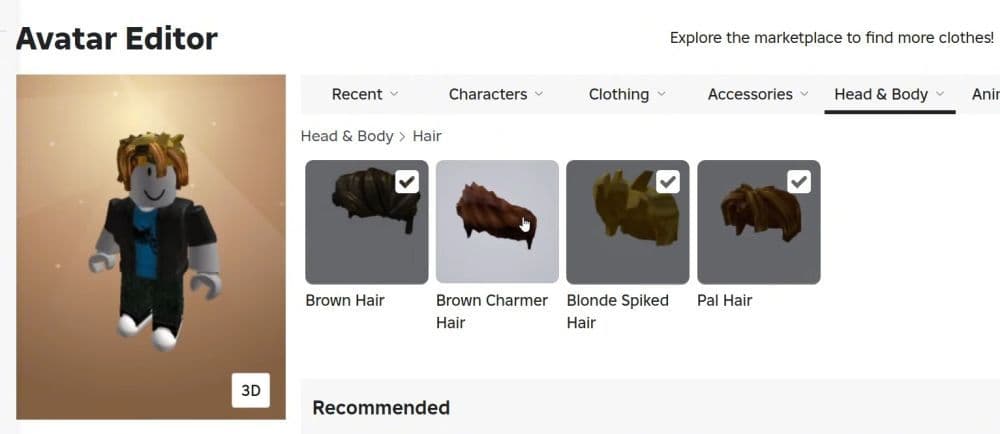
How to get multiple hairs on Roblox using the Avatar Editor
You can layer several hairs by using the Advanced settings and Asset IDs on the Roblox website. This uses tools that Roblox already provides, so it stays inside the official system, even if it feels a bit hidden.
Follow these steps:
- Open the Avatar Shop and search for the hairs you want.
- Click each hair to open its item page in a new tab.
- Look at the URL in your browser and find the long number in the link. That number is the Asset ID for that hair.
- Copy the Asset ID for each hair you plan to stack.
- Open the Avatar page again and go to Head & Body → Hair.
- Click Advanced at the bottom of the hair list.
- Paste each Asset ID into a different Asset ID box.
- Click Save, then confirm the change and let your avatar redraw.
If everything works, your avatar will show multiple hairs at once. You must stay under Roblox’s total accessory limit, so avoid filling every slot with extra items if you already use many hats and head accessories.
How to get multiple hairs with browser extensions
Some players use browser extensions such as BTRoblox or similar tools. These extensions change how the Roblox website looks and often add extra buttons that make multi-hair outfits easier to equip.
The typical process looks like this:
- Open the Chrome Web Store or your browser’s add-on page.
- Search for a Roblox helper extension such as BTRoblox.
- Add the extension to your browser and restart the Roblox site.
- Go back to the Avatar page and open the Hair section.
- Use the new interface options to turn on several hairs at once.
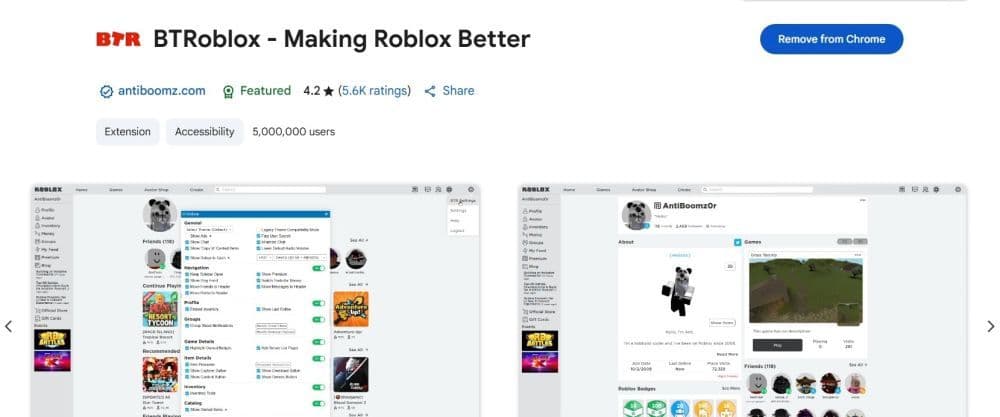
You must treat this method as unofficial. These extensions do not belong to Roblox and Roblox does not support them. You install them at your own risk, you should always check reviews and permissions, and you should remove any extension that behaves strangely. If you prefer to stay completely safe, use only the built-in Advanced menu method instead.
Can you equip 3 hairs in Roblox?
Yes, you can equip 3 hairs in Roblox in many cases. The default editor usually allows one Hair accessory, but the Advanced Asset ID method and some mixed accessory types let you stack several styles so they appear together. Some players even manage four or more pieces, as long as they respect the total accessory limit.
However, Roblox sometimes shows a message such as “A maximum of 1 Hair Accessories is allowed” on specific accounts or after certain updates. If you see that message, you may need to remove one hair or use a different type of item, such as a hat that looks like hair.
Why multiple hairs might not work and how to fix it
If your multi-hair setup fails, one of these issues usually causes it:
- You reach the maximum number of accessories in one category.
- You add the same Asset ID twice.
- You edit your avatar in the mobile app instead of the full website.
- The avatar preview has not updated yet.
You can try these quick fixes:
- Remove one or two accessories from the Hair and Head categories, then save again.
- Double-check every Asset ID and remove duplicates.
- Open Roblox in a desktop browser or request the desktop site on mobile, then repeat the Advanced steps.
- Reload the Avatar page or rejoin a game to force a new render.
For broader issues with your account or connection, you can look at our breakdowns of Roblox error code 529 or Roblox error code 288, which explain how server and client problems work.
Featured Image Credit: Roblox
All Related Guides
 Roblox Robux codes (October 2026): Gift cards, free items & moreFind Roblox Robux codes & redeem gift cards, claim free avatar items, convert Roblox Credit, and fix codes tha...
 How to see Roblox purchase historyLearn how to see your Roblox purchase history, check Robux transactions and find real-money receipts on deskto...
 How to find the Monochrome Roblox code and escapeFind the Monochrome Roblox code, collect all four keys, survive the basement maze and open the elevator to com...
 How to connect Claude to Roblox StudioConnect Claude to Roblox Studio with the current MCP method and see how Claude can work with your scripts and ...
 How to fight in Gakuran RobloxLearn how to fight in Gakuran Roblox, from basic attacks to blocking, parrying, posture, and fighting styles....
 How to get a free avatar in RobloxFind out how to get a free Roblox avatar without spending Robux, from free character bundles to Marketplace it...
 How to reduce lag in Roblox: Comprehensive guideRoblox feeling slow or choppy? Find out how to reduce lag in Roblox and improve your game with a few simple ch...
 How to check Roblox player countHow many people play Roblox in 2026? Check the latest Roblox player count and learn what the numbers actually ...
- 1
- 2
- 3
- 4
- 5
- 6
- 7
- 8
- 9
- 10
- 11
- 12
- 13