How to link your Medal account to Roblox: Step-by-step explained
There is a huge community of Roblox players sharing their in-game clips with each other. However, many others find it hard to do it as they first need to link their Medal and Roblox accounts. If you want a simple way to capture highlights and share them, linking Medal to Roblox helps you move faster. This guide explains what Medal does, how to link your Roblox account, and how to clip Roblox gameplay!
What is Medal?
Medal is a game capture and sharing app. It lets you save short highlights with a single hotkey and then trim and share clips from one place. Medal also supports a wide catalog of games, and Roblox sits on that list.
Medal also offers account linking for faster sign-in and social features. When you connect Roblox, you can streamline login and sometimes spot friends from your Roblox network inside Medal.
Connect Medal to Roblox and start clipping
Linking your Roblox account takes a minute, and then you can clip Roblox with a single key press.
Step-by-step: link your Roblox account to Medal
- Open Medal and go to Settings.
- Select Connected Accounts.
- Choose the Roblox icon.
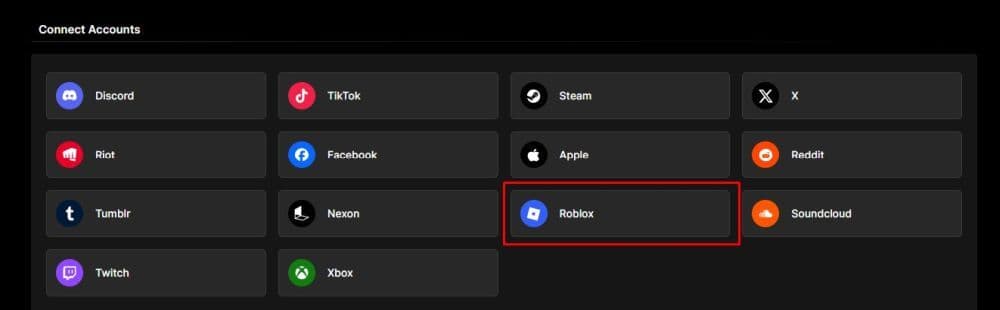
- Sign in to Roblox when the prompt appears.
- Pick the profile you want to connect, then confirm access.
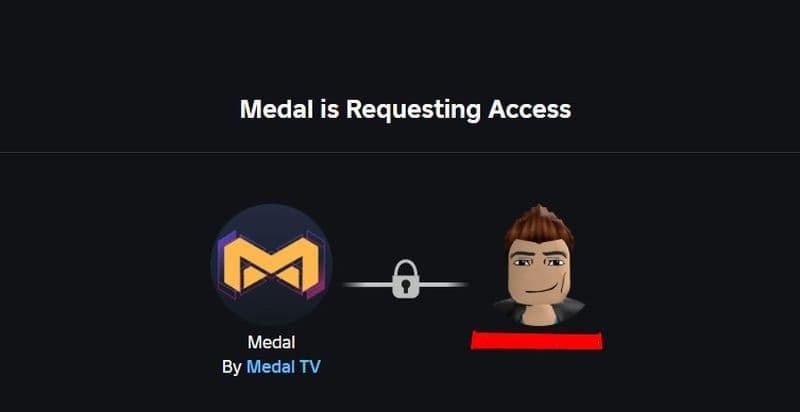
- Look for the “You’re all set!” message to confirm the link.
Important: Roblox blocks this connection for accounts registered as under 13, so the option may not appear or may fail for age-related reasons.
Can Medal clip Roblox?
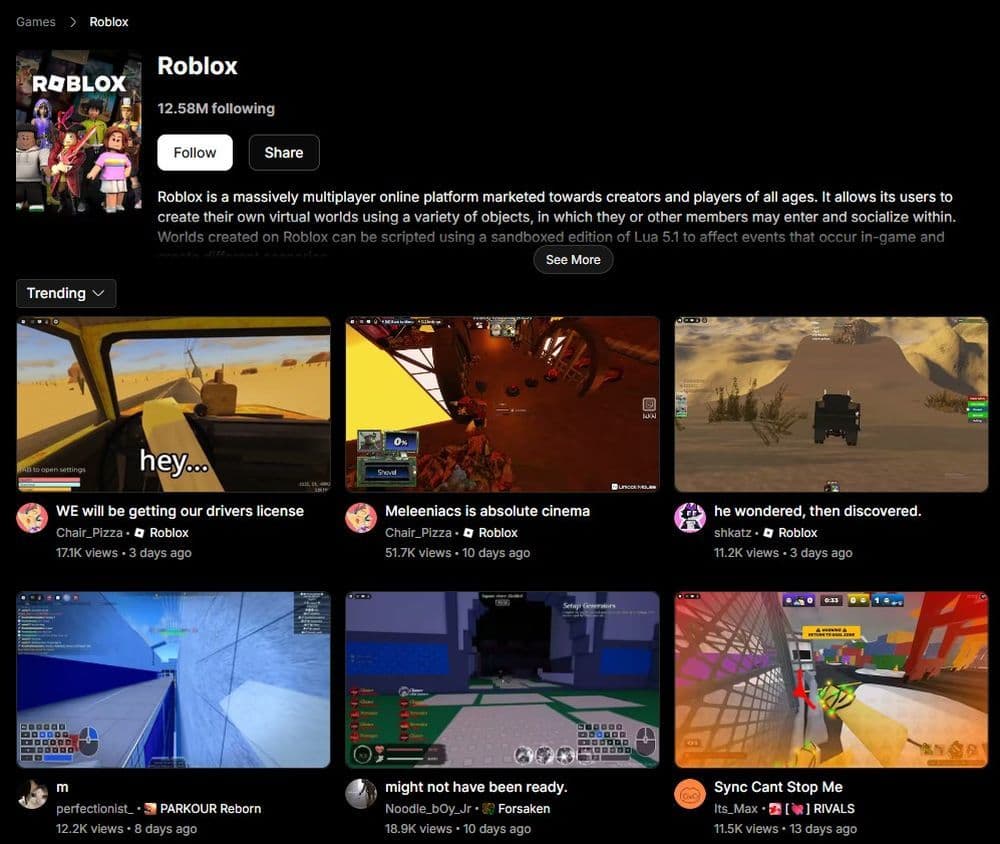
Yes. Medal supports Roblox and provides a dedicated Roblox capture page that explains the hotkey-based clipping flow. You press the hotkey while you play, and Medal saves your recent gameplay as a clip.
How to clip Roblox with Medal
After you link the account, you can focus on capture. The standard flow stays simple:
- Launch Roblox first.
- Keep Medal running in the background.
- Press your Medal clip hotkey (often F8) to save the last moments of gameplay.
If you prefer longer sessions, Medal also supports long recordings. In that mode, the clip hotkey can act like a bookmark so you can mark moments and cut clips later.
How to fix Medal not detecting Roblox
When detection fails, focus on three areas: game detection, hotkeys, and blocks from security tools. This is not a common issue, such as error code 429, but there are certain workarounds. Use the fixes below in order:
Medal shows “No game detected” while Roblox runs
Open Medal Settings, then check game detection and custom game handling. If Roblox does not hook correctly, add Roblox through Medal’s custom game settings and try again while Roblox stays open.
Roblox detects, but Medal does not clip when you press the hotkey
Go to Settings, Clip Settings, and then Clipping Hotkeys, and confirm the clip key. Medal often uses F8 by default. Also avoid uncommon keys like punctuation because they can fail in-game. Use letters, numbers, or function keys instead.
Medal clips other games, but Roblox still fails
Open Medal’s Roblox game page and confirm you use the same capture workflow it expects. Then restart Roblox and Medal once to force a fresh hook. This step often helps when Roblox changes window focus or launches in a new instance.
Security tools block Medal from detecting Roblox
If you run antivirus or endpoint tools, add an allow-list rule for Medal and then run Medal’s repair flow if your setup blocks capture components. This fix targets cases where Medal runs but cannot hook into the game process.
Check out these Roblox guides as well:
- Latest Roblox One Touch codes and how to use them
- Roblox Hunters codes: How to redeem rewards
- New Roblox Peroxide codes & hair IDs
- Latest Roblox Elemental Dungeons codes & how to redeem them
- New Roblox Project Mugetsu codes & how to redeem them
Featured Image Credit: Medal
All Related Guides
 Roblox Robux codes (October 2026): Gift cards, free items & moreFind Roblox Robux codes & redeem gift cards, claim free avatar items, convert Roblox Credit, and fix codes tha...
 How to see Roblox purchase historyLearn how to see your Roblox purchase history, check Robux transactions and find real-money receipts on deskto...
 How to find the Monochrome Roblox code and escapeFind the Monochrome Roblox code, collect all four keys, survive the basement maze and open the elevator to com...
 How to connect Claude to Roblox StudioConnect Claude to Roblox Studio with the current MCP method and see how Claude can work with your scripts and ...
 How to fight in Gakuran RobloxLearn how to fight in Gakuran Roblox, from basic attacks to blocking, parrying, posture, and fighting styles....
 How to get a free avatar in RobloxFind out how to get a free Roblox avatar without spending Robux, from free character bundles to Marketplace it...
 How to reduce lag in Roblox: Comprehensive guideRoblox feeling slow or choppy? Find out how to reduce lag in Roblox and improve your game with a few simple ch...
 How to check Roblox player countHow many people play Roblox in 2026? Check the latest Roblox player count and learn what the numbers actually ...
- 1
- 2
- 3
- 4
- 5
- 6
- 7
- 8
- 9
- 10
- 11
- 12
- 13