Fixing the not logged in to Rocket League servers error
Fix Rocket League login issues fast.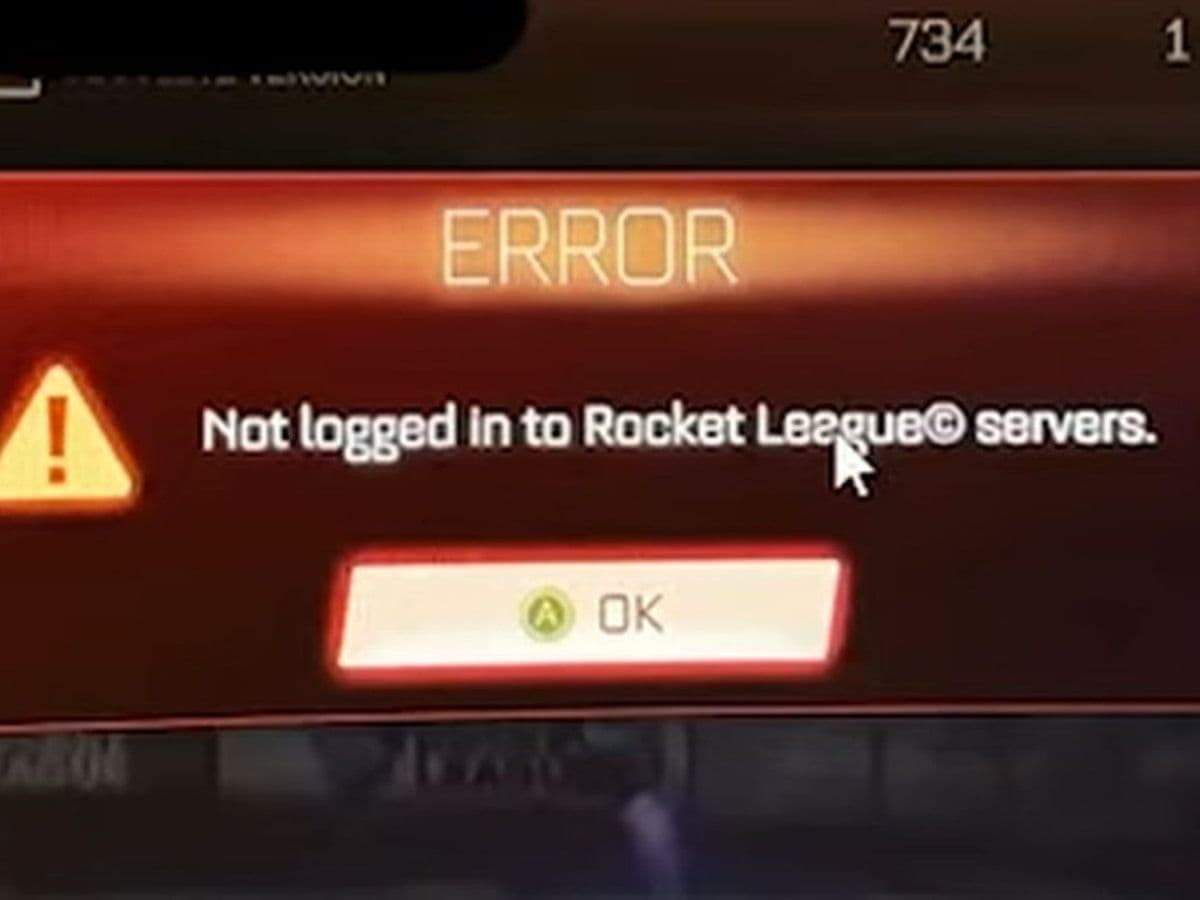
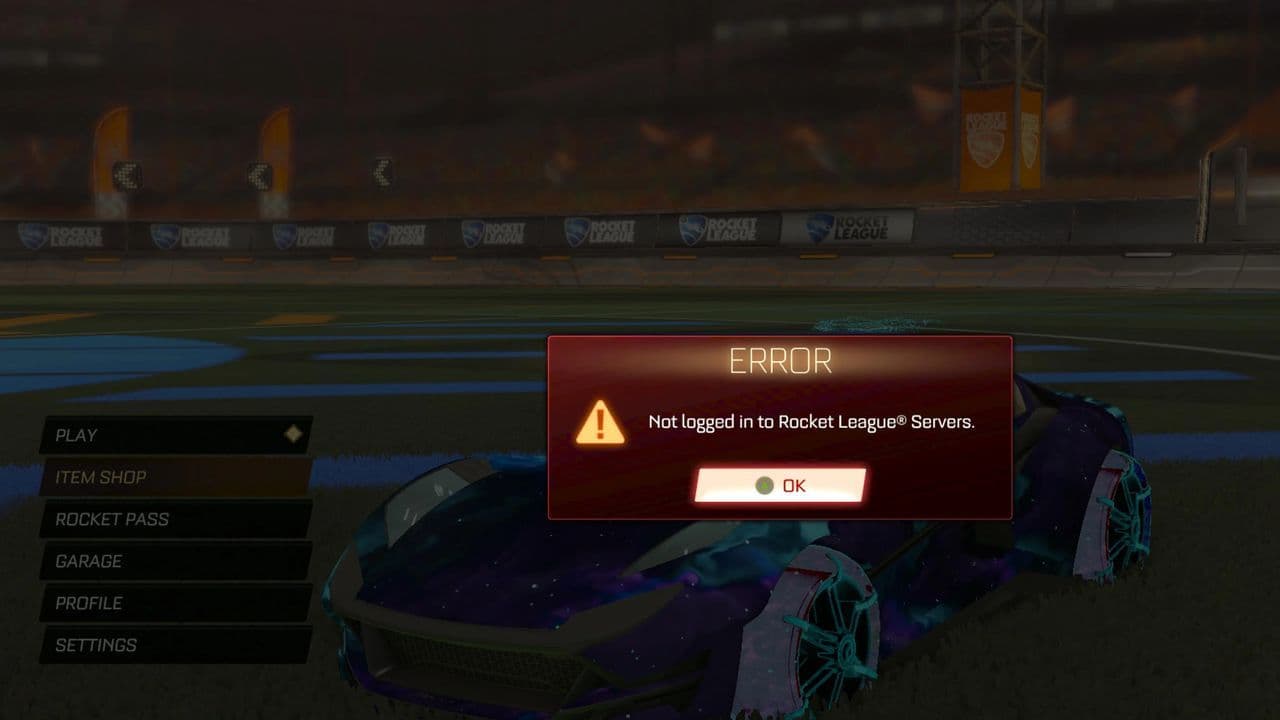
Not logged in to Rocket League servers error message appears when the game cannot connect your client to Rocket League’s online multiplayer servers. In other words: you’re logged into the game locally, but the game cannot authenticate or maintain a connection with the official server infrastructure, so you cannot play online.
Here’s how to fix not logged in to Rocket League servers error step by step
The not logged in to Rocket League servers error is common but easy to fix. Start with:
1. Check Rocket League server status
Before changing anything, make sure the servers aren’t down. Visit the Epic Games Status page or check Rocket League’s official Twitter.
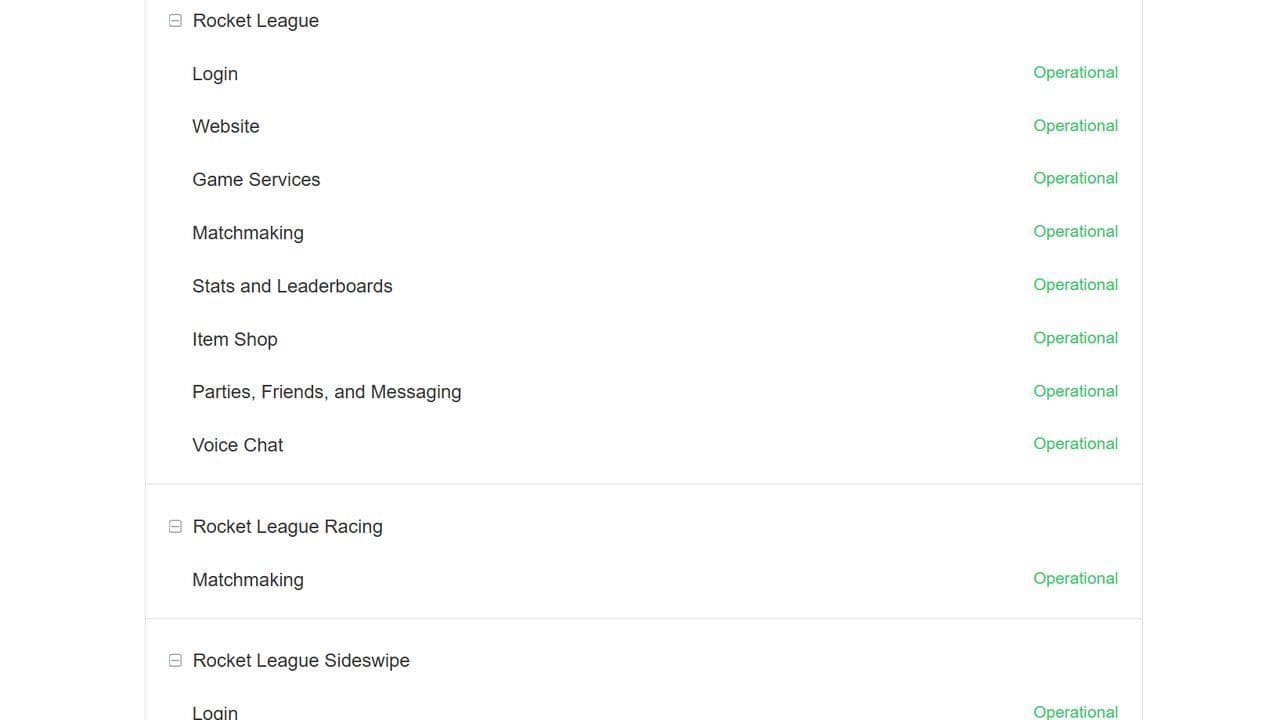
If the servers are under maintenance, you’ll need to wait until they’re back online.
2. Restart your game and router
Most connection errors fix themselves after a restart.
- Close Rocket League completely.
- Reboot your console or PC.
- Restart your modem or router. Then open the game again and check if you’re still not logged in to Rocket League servers.
3. Verify your Internet connection
Test your connection speed and stability. If possible, switch from Wi-Fi to a wired Ethernet connection.
If other online games work fine, the issue is likely with Rocket League’s connection rather than your internet.
4. Sync your system clock
Rocket League’s login system can fail if your PC or console clock is out of sync.
- On PC: right-click the clock → Adjust date/time → Sync now.
- On console: go to system settings and enable automatic time sync.
5. Clear cache or verify game files
Corrupted cache or game files may cause login issues.
- Epic Games Launcher or Steam: Right-click Rocket League → Verify integrity of game files.
- On console: reboot in Safe Mode (if supported) or reinstall the game. After that, relaunch to check if the not logged in to Rocket League servers error is gone.
6. Check firewall or antivirus settings
Your firewall or antivirus might block the game. Temporarily disable them to test.
If the game connects, add Rocket League as an exception in your security software.
7. Reinstall the game or contact support
If nothing works, uninstall Rocket League and reinstall it from Epic Games or Steam.
If the “not logged in to Rocket League servers” issue still appears, contact Rocket League Support with your platform details and a screenshot of the error. Generally Rocket League team deals with the errors fast.
The not logged in to Rocket League servers error is common but easy to fix. Start with checking server status and your internet, then move to cache, clock, or firewall fixes. Most players solve it within minutes.
That’s all for today! Looking for more Rocket League guides? Check out these:
- Rocket League Lightning McQueen: Price, hitbox & how to get it
- A guide to Rocket League Nissan Fairlady Z: Price, hitbox & availability
- How to get the Cybertruck in Rocket League? Is it still possible?
- How to get Fennec in Rocket League for free on PS5, PS4 and more
- 10 best Rocket League workshop maps and how to get one
Guide Categories
All Related Guides
 How to change MPH to KPH in Rocket LeagueLearn how to change MPH to KPH in Rocket League through the Metric setting, switch back to MPH, and learn what...
 How to rank up in Rocket League and what is a good rank?Trying to climb in Rocket League? Learn how ranking works, which skills matter most, and how to make steady pr...
 How to get the JUNKO title in Rocket LeagueTrying to get the Junko title in Rocket League? Here is how the title works, who can earn it, and where BALRIG...
 How to get Rocket League on mobileFind out how to play Rocket League on mobile, where to download Rocket League Sideswipe, and whether it suppor...
 Did Rocket League get stuck on “Press any button to start”? Here is how to fix it on PCRocket League stuck on press any button to start? Try these PC fixes for cache, files, login issues, controlle...
 Rocket League codes (July 2026): All active redeem codes & free rewardsLooking for Rocket League codes? Redeem all active Rocket League redeem codes to unlock free Player Titles, th...
 How to get Jynxzi Rocket League skin & moreLearn how to get the Jynxzi Rocket League decal, title, and exclusive rewards through the Season 23 community ...
 How to fix latency variation in Rocket LeagueLearn how to fix Rocket League latency variation with Ethernet, CSTS input buffer, correct server region, and ...
- 1
- 2
- 3
- 4
- 5
- 6
- 7
- 8
- 9