Did Rocket League get stuck on “Press any button to start”? Here is how to fix it on PC
Has your game got stuck on the “Press any button to start” screen? No, you are not alone; this is actually a very common issue that many Rocket League players face from time to time. This usually means the game reads your input, but something blocks the next step. The problem can come from server issues, account login errors, damaged local files, controller conflicts, or PC settings. The good news is that most PC players can fix this without reinstalling the game. Here is everything you can do to get rid of this issue!
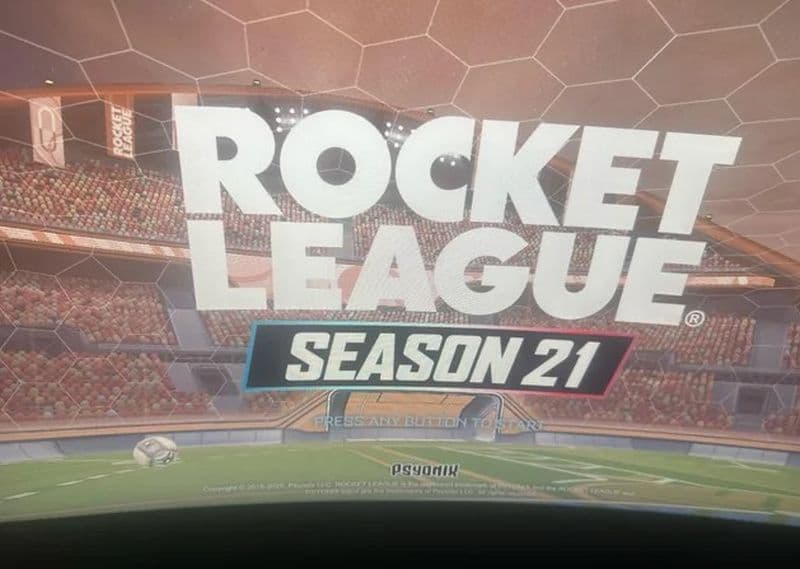
How to fix it
There might be quite a few reasons behind this error, but there are always usual suspects that you should prioritize fixing. Here they are:
Check Rocket League servers and restart your launcher
Start with the fastest check. Close Rocket League, then close the Epic Games Launcher or Steam fully. Open it again, sign in, and launch Rocket League.
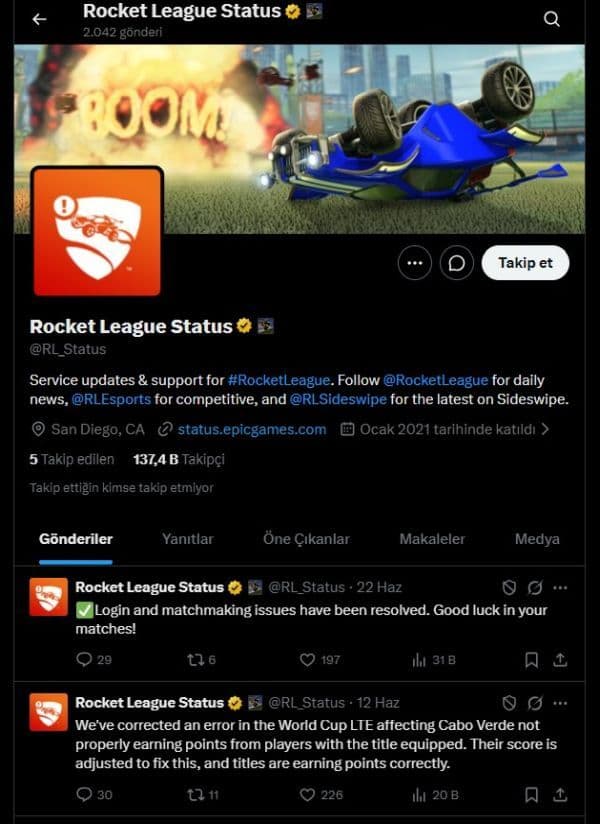
If the game still stops at the start screen, check whether Rocket League services have an active issue. When servers or account services have problems, local fixes may not work. In that case, wait until services return to normal, then try again.
Sign out, sign back in, and sync your Windows clock
Rocket League needs a valid account session before it loads online features. Sign out of Epic Games Launcher or Steam, restart the launcher, then sign back in.
Next, check your Windows clock. Wrong time or time zone settings can cause login and connection errors. On Windows, open Settings > Time & language > Date & time. Turn on automatic time and automatic time zone, then select Sync now. Restart your PC after this step.
Delete the Rocket League cache folder
The cache folder stores temporary local data. If that data breaks, Rocket League can freeze or stop at the title screen.
Use these steps:
- Close Rocket League.
- Open Documents on your PC.
- Go to My Games > Rocket League > TAGame.
- Delete the Cache folder.
- Restart your PC.
- Launch Rocket League again.
The game creates a new cache folder when it starts. This does not delete your online progress, rank, items, or account data.
Verify Rocket League game files
Damaged or missing files can stop Rocket League from loading past the title screen. File verification checks the installation and replaces broken files.
On Epic Games Launcher:
- Open your Library.
- Select Rocket League.
- Click the three dots.
- Choose Manage.
- Select Verify.
On Steam:
- Open your Library.
- Right-click Rocket League.
- Select Properties.
- Open Installed Files.
- Select Verify integrity of game files.
After the scan finishes, restart the launcher and open the game again.
- Also Read: Rocket League Version Mismatch on Steam & more: Causes and step-by-step solutions for error fixes
Unplug extra controllers and disable input conflicts
Rocket League can act strangely when several input devices send signals at the same time. Unplug extra controllers, racing wheels, flight sticks, and unused USB devices. Leave only your keyboard and mouse, or one controller.
Steam players should also check Steam Input. Open Rocket League properties in Steam and test the game with Steam Input enabled or disabled. Controller settings can differ by setup, so try both options if the start screen still does not respond.
Turn off overlays, mods, and background apps
Some PC tools can interfere with game launch, input, or display behavior.
Close Rocket League first, then turn off overlays and background tools before you relaunch the game.
Check these apps first:
- Discord overlay
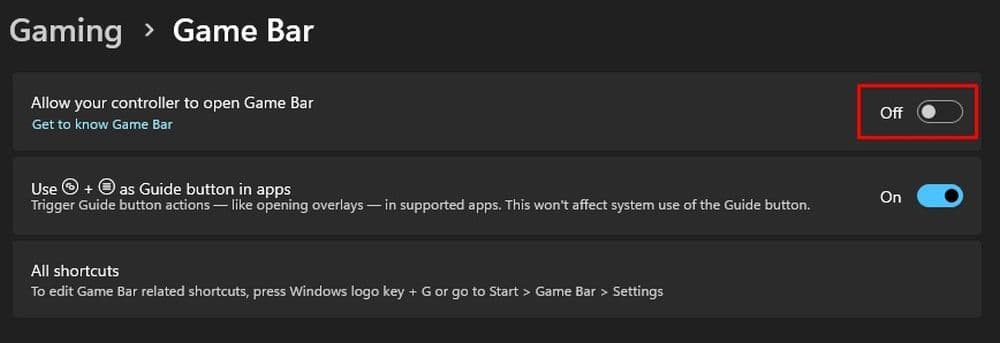
- Xbox Game Bar
- NVIDIA or AMD overlay
- MSI Afterburner and RivaTuner
- Recording tools
- Rocket League mods or third-party tools
You do not need to uninstall these apps right away. Close them for one test, then launch Rocket League again.
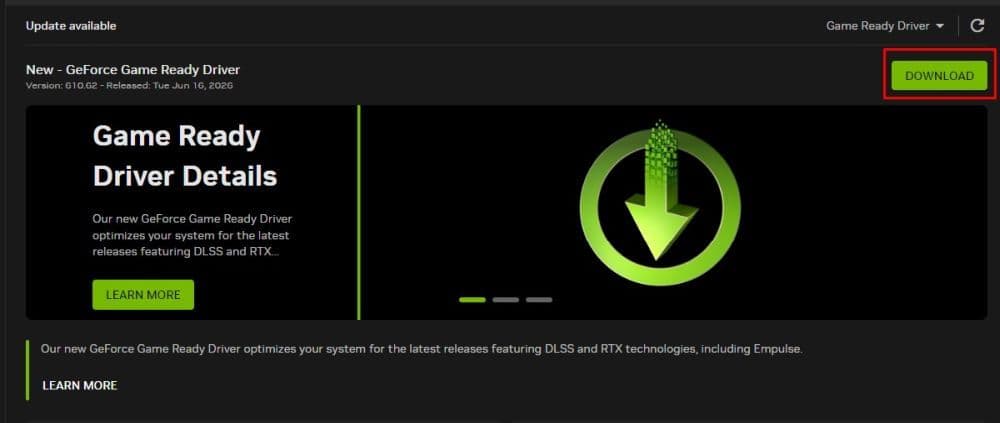
Update your graphics driver and Windows
Old drivers can cause launch issues, black screens, title screen freezes, and display bugs. Update your GPU driver through NVIDIA, AMD, or Intel software. Then install any pending Windows updates.
Restart your PC after the updates. This clears old sessions and gives Rocket League a clean start.
Reinstall Rocket League as the last step
Reinstall Rocket League only after you try the faster fixes. Cache deletion, file verification, launcher restart, account sign-in, and input checks solve most title screen problems on PC.
Find more Rocket League guides below:
- How to join a club in Rocket League
- What is SSL in Rocket League & how to climb there fast
- Rocket League Ferrari F40: How to get it, hitbox & more
- 10 best Rocket League workshop maps and how to get one
- Why is Rocket League so laggy & how to fix it?
Featured Image Credit: Rocket League
Guide Categories
All Related Guides
 How to change MPH to KPH in Rocket LeagueLearn how to change MPH to KPH in Rocket League through the Metric setting, switch back to MPH, and learn what...
 How to rank up in Rocket League and what is a good rank?Trying to climb in Rocket League? Learn how ranking works, which skills matter most, and how to make steady pr...
 How to get the JUNKO title in Rocket LeagueTrying to get the Junko title in Rocket League? Here is how the title works, who can earn it, and where BALRIG...
 How to get Rocket League on mobileFind out how to play Rocket League on mobile, where to download Rocket League Sideswipe, and whether it suppor...
 Rocket League codes (July 2026): All active redeem codes & free rewardsLooking for Rocket League codes? Redeem all active Rocket League redeem codes to unlock free Player Titles, th...
 How to get Jynxzi Rocket League skin & moreLearn how to get the Jynxzi Rocket League decal, title, and exclusive rewards through the Season 23 community ...
 How to fix latency variation in Rocket LeagueLearn how to fix Rocket League latency variation with Ethernet, CSTS input buffer, correct server region, and ...
 Rocket League TikTok Drops guide: How to get free rewardsRocket League TikTok Drops guide: earn free cosmetics, reward codes, RLCS drops, and learn how to redeem TikTo...
- 1
- 2
- 3
- 4
- 5
- 6
- 7
- 8
- 9