How to fix latency variation in Rocket League
Rocket League network troubleshooting
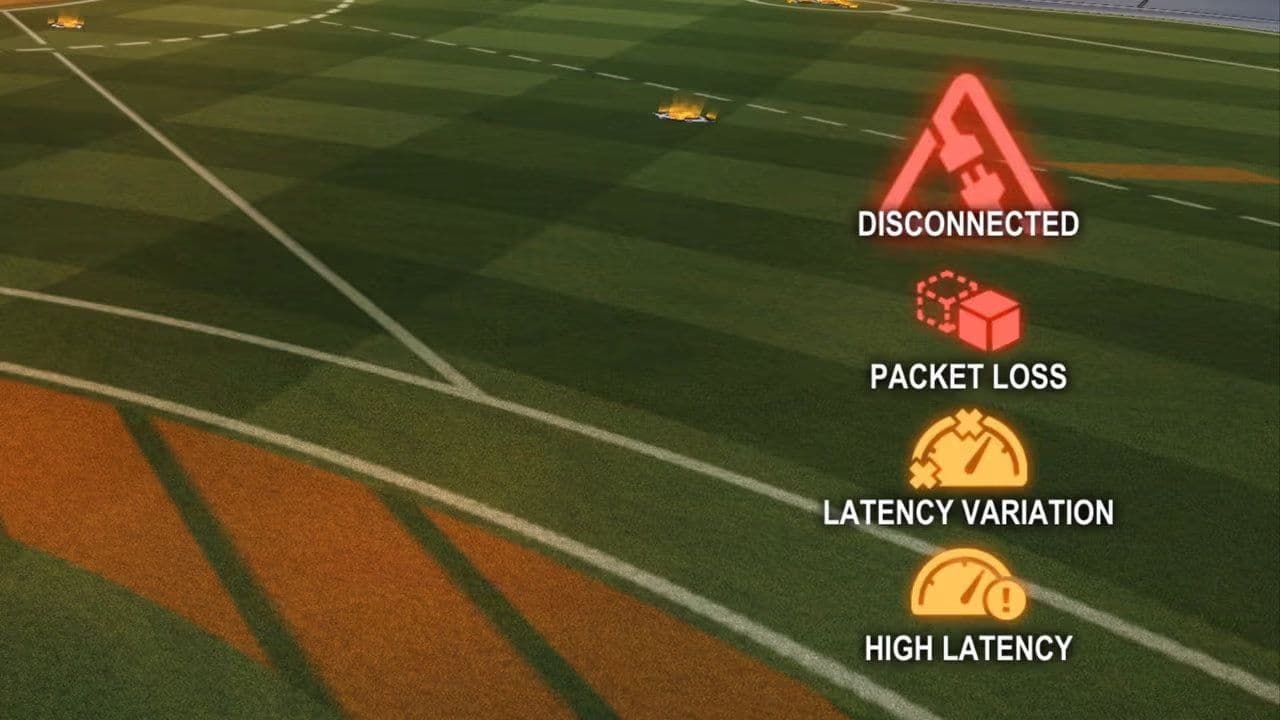
Few things are more frustrating than seeing the Rocket League latency variation warning appear in the middle of a match. When it happens, your car may feel delayed, rubber-band across the field, miss touches, or suddenly change position. Even if your ping looks normal, latency variation can still make the game nearly unplayable.
The good news is that latency variation is usually caused by connection instability rather than raw internet speed. In most cases, you can fix or significantly reduce it with a few troubleshooting steps.
This guide covers the most effective solutions for PC, PlayStation, Xbox, and Nintendo Switch players.
What is latency variation in Rocket League?
Latency variation occurs when your connection to the Rocket League server becomes inconsistent. Instead of maintaining a stable ping, your connection constantly fluctuates, causing delays and desync during gameplay.
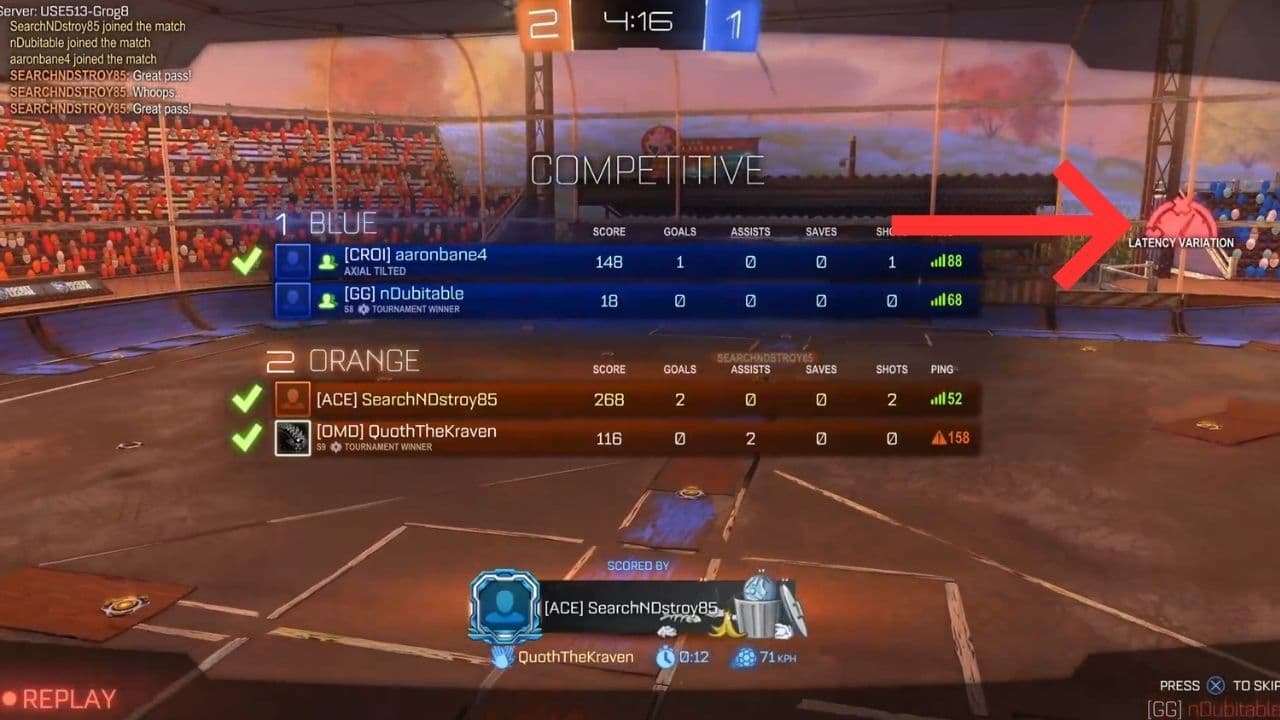
Common symptoms include:
- Rubber-banding
- Delayed ball touches
- Cars teleporting around the field
- Random lag spikes
- Packet loss warnings
- Inconsistent gameplay despite low ping
11 ways to fix the Rocket League latency variation error
Unlike high ping, latency variation is usually caused by unstable data transmission rather than slow internet speeds. That’s why start with:
1. Switch to a wired Ethernet connection
The most effective fix for Rocket League latency variation is using a wired Ethernet connection instead of Wi-Fi.
Wi-Fi signals can experience interference from:
- Walls
- Other devices
- Streaming services
- Nearby wireless networks
Rocket League requires a stable connection more than a fast one, making Ethernet the preferred option.
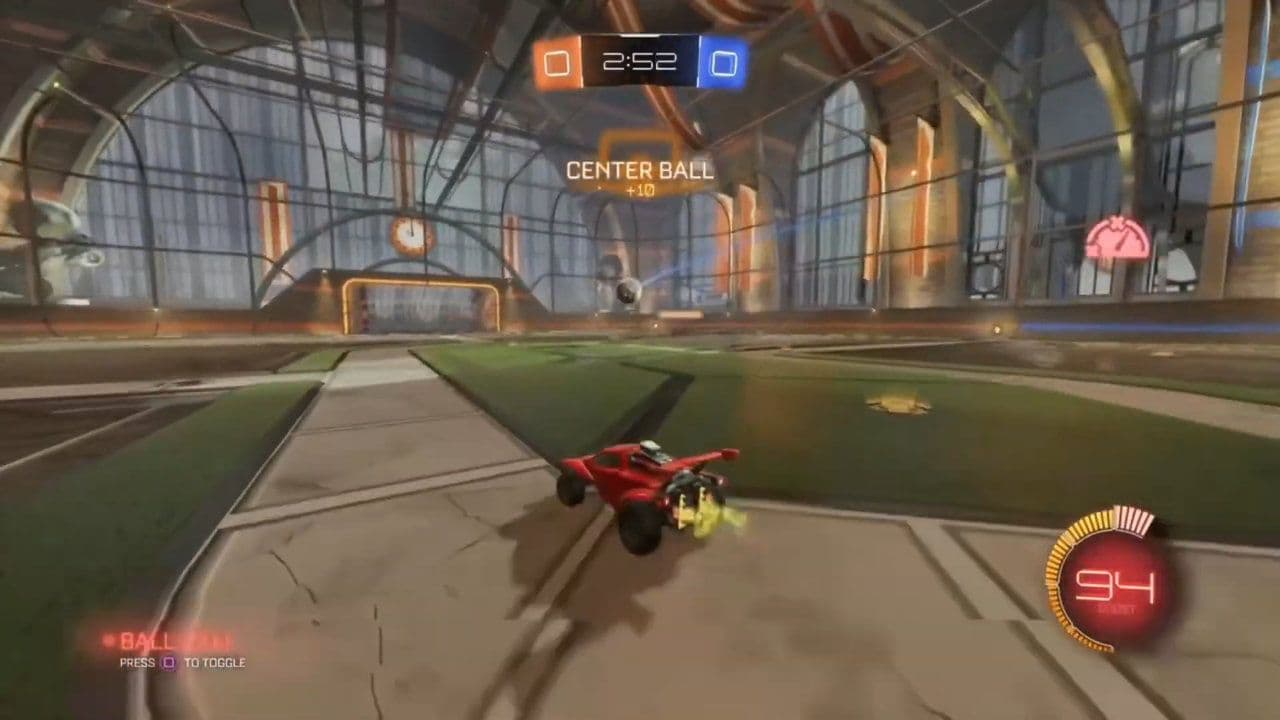
If you cannot run an Ethernet cable directly, consider using Powerline adapters as an alternative.
2. Restart your router and modem
Temporary network issues can cause latency variation.
To properly restart your network:
- Turn off Rocket League.
- Unplug your modem and router.
- Wait 30–60 seconds.
- Plug the modem back in.
- Wait for it to reconnect.
- Turn the router back on.
- Launch Rocket League again.
Many players report this immediately resolves sudden latency problems.
3. Check your Rocket League region
Rocket League allows players to manually select matchmaking regions.
Using the wrong region can dramatically increase connection instability.
Recommended settings
- US-East → If you live on the East Coast
- US-West → If you live on the West Coast
- Europe → European players
- Oceania → Australian and New Zealand players
- South America → South American players
Avoid using "Recommended" if it frequently places you in distant servers.
4. Change your input buffer setting
Rocket League includes an Input Buffer option that can improve connection stability.
Navigate to:
- Settings → Gameplay → Input Buffer
Available options:
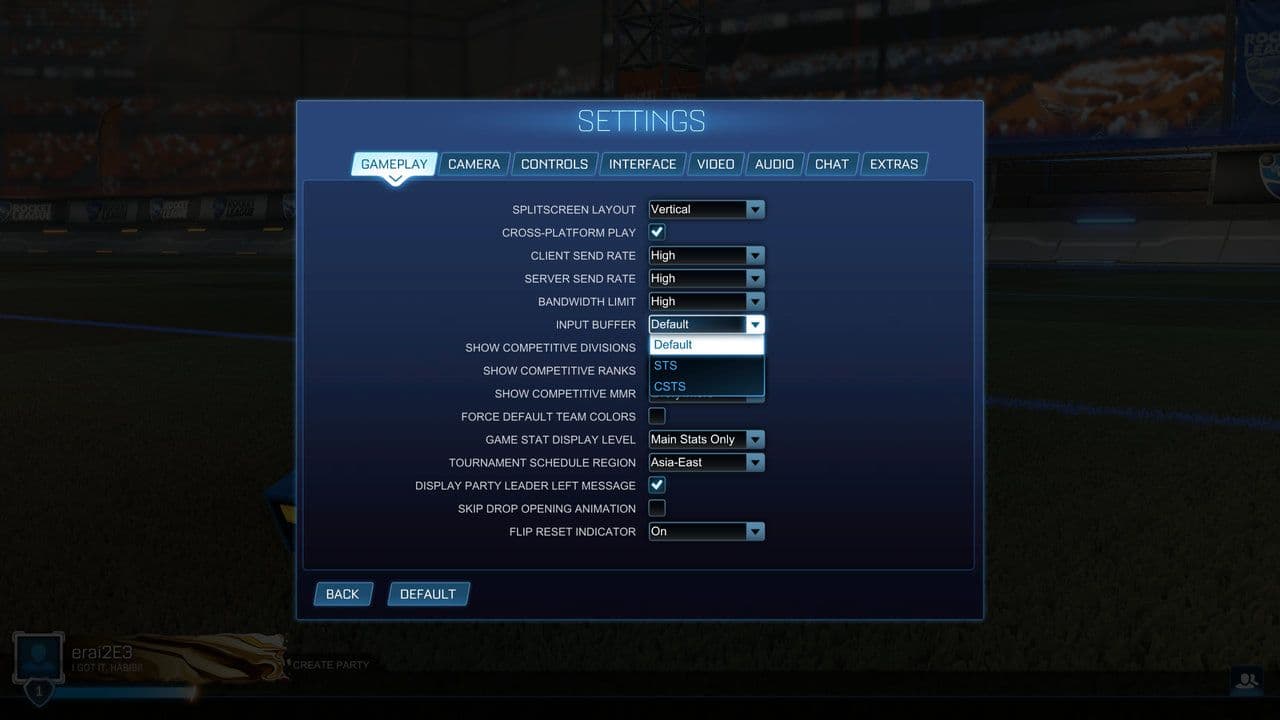
Many players experiencing latency variation see improvements after switching from Default to CSTS.
5. Close background applications
Background programs can interfere with Rocket League's network traffic.
Before launching the game, close:
- Steam downloads
- Epic Games downloads
- Windows updates
- OneDrive syncing
- Cloud backup software
- Streaming applications
- Torrent clients
- Browser downloads
Several players have reported OneDrive syncing causing severe Rocket League latency issues.
6. Disable V-Sync
While V-Sync doesn't directly cause latency variation, it can increase input delay and make network problems feel worse.
To disable it: Settings → Video → V-Sync → Off
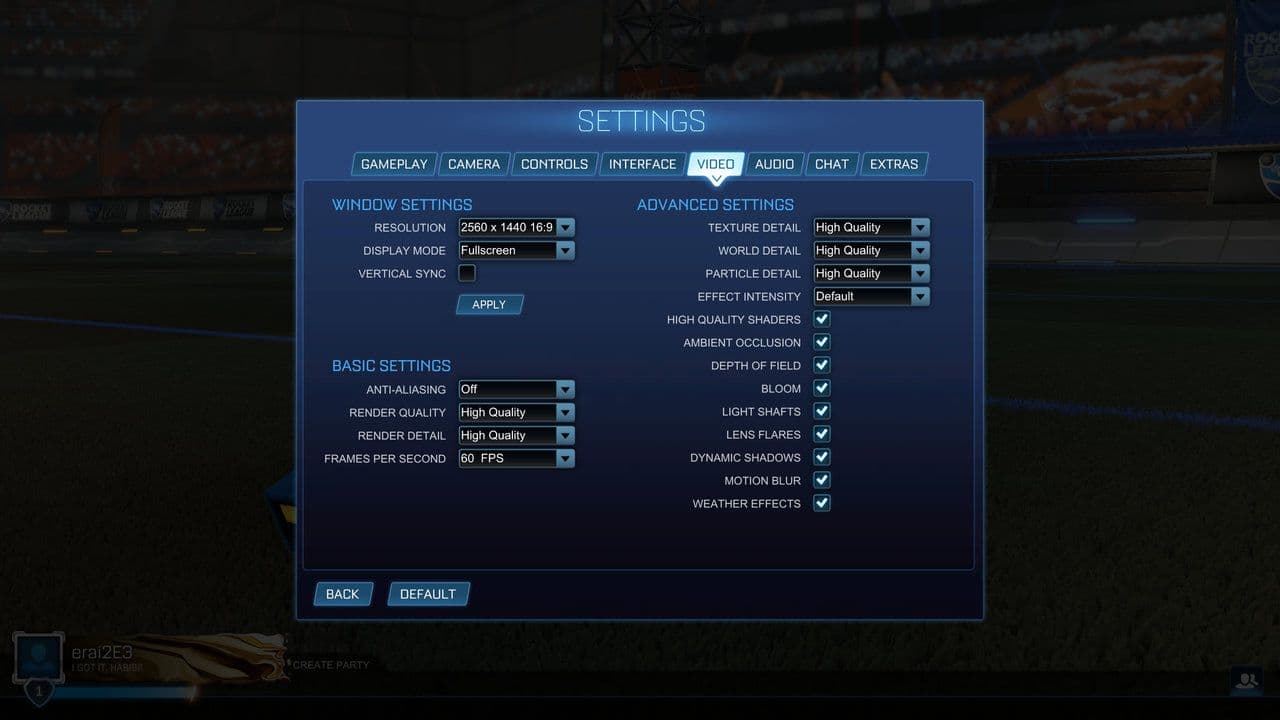
Many players notice smoother gameplay after turning V-Sync off.
7. Check Rocket League server status
Sometimes the issue isn't on your end.
If latency variation suddenly affects many matches, check:
Server-side problems can temporarily cause lag, packet loss, and unstable gameplay.
8. Optimize network settings
If you're playing on PC, network resets can help resolve connection issues.
Open Command Prompt as Administrator and run:
- ipconfig /flushdns
- ipconfig /release
- ipconfig /renew
- netsh winsock reset
Restart your PC afterward.
9. Reduce network congestion
Rocket League uses relatively little bandwidth, but network congestion can still cause latency variation.
Try to avoid:
- Multiple 4K streams
- Large downloads
- Cloud backups
- Software updates during gameplay
Even if your internet speed is high, congestion can create unstable ping.
10. Check controllers and accessories
Surprisingly, some players have reported latency variation issues caused by hardware rather than internet problems.
Potential causes include:
- Faulty controller cables
- Unsupported Bluetooth connections
- Wireless controller interference
- Certain connected accessories
Testing Rocket League with a different controller or wired connection can help rule out these issues.
11. Disable voice chat and clipping apps
Third-party applications sometimes interfere with Rocket League.
Potential problem apps include:
- Postparty
- Game clipping software
- Recording tools
- Overlay software
Some players have specifically reported Postparty causing latency variation and ping spikes.
Why does Rocket League show latency variation with good ping?
This is one of the most common questions.
Ping measures how long data takes to travel between you and the server.
Latency variation measures how consistent that travel time is.
For example:
- Stable 30 ms ping = good
- Ping constantly changing between 20–80 ms = latency variation
Even if your average ping looks low, large fluctuations can still cause gameplay issues.
Best Rocket League Settings for connection stability
For the most stable online experience, use:
These Rocket League settings help minimize connection-related problems.
If you are still trying to fix latency variation in Rocket League, the most effective solutions are using an Ethernet connection, selecting the correct matchmaking region, restarting your router, adjusting the Input Buffer setting, and eliminating background applications that consume network resources.
In most cases, RL latency variation is caused by connection instability rather than slow internet speeds. Even players with fast broadband can experience it if their connection fluctuates or packets are being lost.
Start with the Ethernet and region fixes first, then work through the other troubleshooting steps. For many players, those two changes alone are enough to eliminate latency variation and restore smooth gameplay.
That’s all for today! Looking for more Rocket League guides? Check out these:
Guide Categories
All Related Guides
 How to change MPH to KPH in Rocket LeagueLearn how to change MPH to KPH in Rocket League through the Metric setting, switch back to MPH, and learn what...
 How to rank up in Rocket League and what is a good rank?Trying to climb in Rocket League? Learn how ranking works, which skills matter most, and how to make steady pr...
 How to get the JUNKO title in Rocket LeagueTrying to get the Junko title in Rocket League? Here is how the title works, who can earn it, and where BALRIG...
 How to get Rocket League on mobileFind out how to play Rocket League on mobile, where to download Rocket League Sideswipe, and whether it suppor...
 Did Rocket League get stuck on “Press any button to start”? Here is how to fix it on PCRocket League stuck on press any button to start? Try these PC fixes for cache, files, login issues, controlle...
 Rocket League codes (July 2026): All active redeem codes & free rewardsLooking for Rocket League codes? Redeem all active Rocket League redeem codes to unlock free Player Titles, th...
 How to get Jynxzi Rocket League skin & moreLearn how to get the Jynxzi Rocket League decal, title, and exclusive rewards through the Season 23 community ...
 Rocket League TikTok Drops guide: How to get free rewardsRocket League TikTok Drops guide: earn free cosmetics, reward codes, RLCS drops, and learn how to redeem TikTo...
- 1
- 2
- 3
- 4
- 5
- 6
- 7
- 8
- 9