Rocket League Version Mismatch on Steam & more: Causes and step-by-step solutions for error fixes
This pesky error can be a real game killer.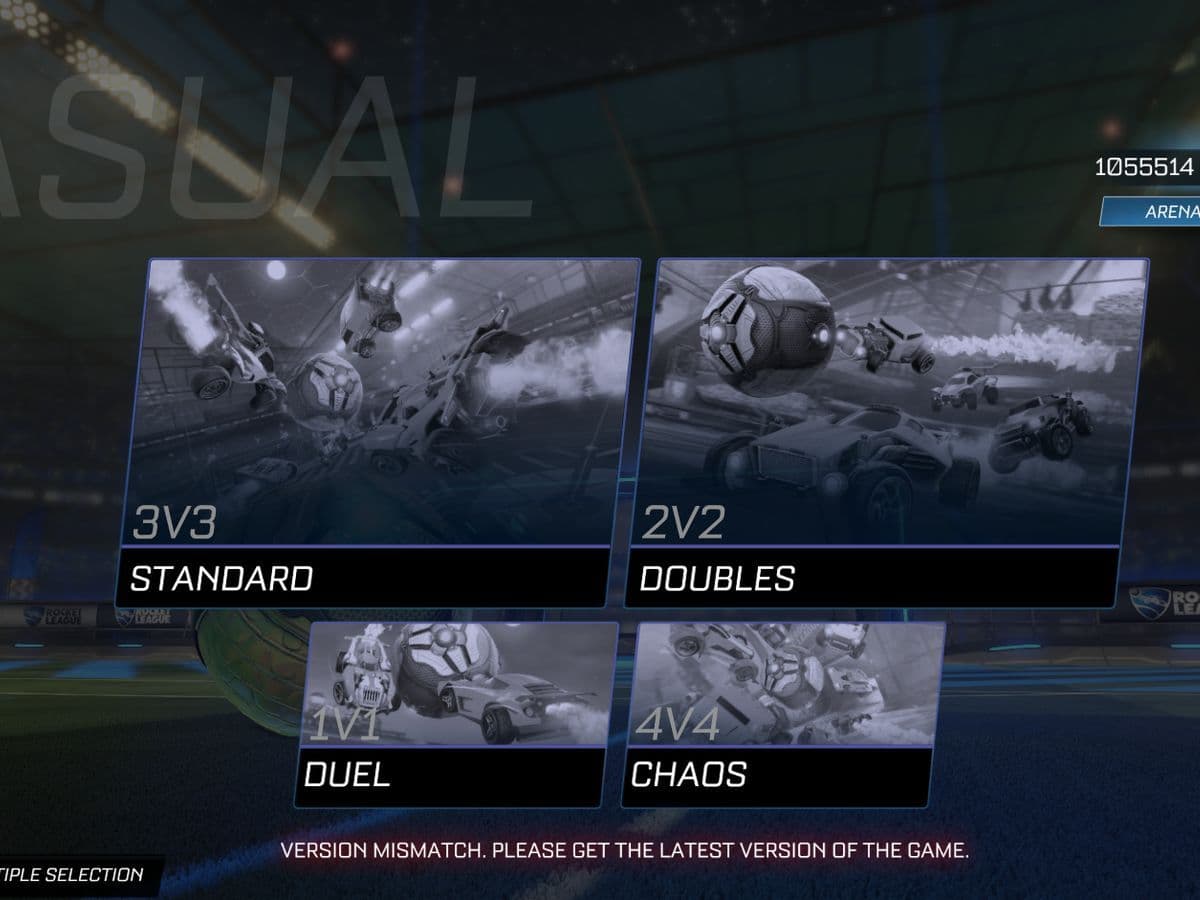
Rocket League Version Mismatch on Steam giving you trouble? Don’t worry—I’ve got you covered. This error usually shows up when your game version doesn’t match the servers, even if it looks like everything’s up to date. In this Rocket League guide, we’ll break down exactly why it happens, what it really means, and walk you through the fastest ways to fix it—whether you’re on Steam, Epic, PlayStation, or Xbox.
Rocket League Version Mismatch meaning explained
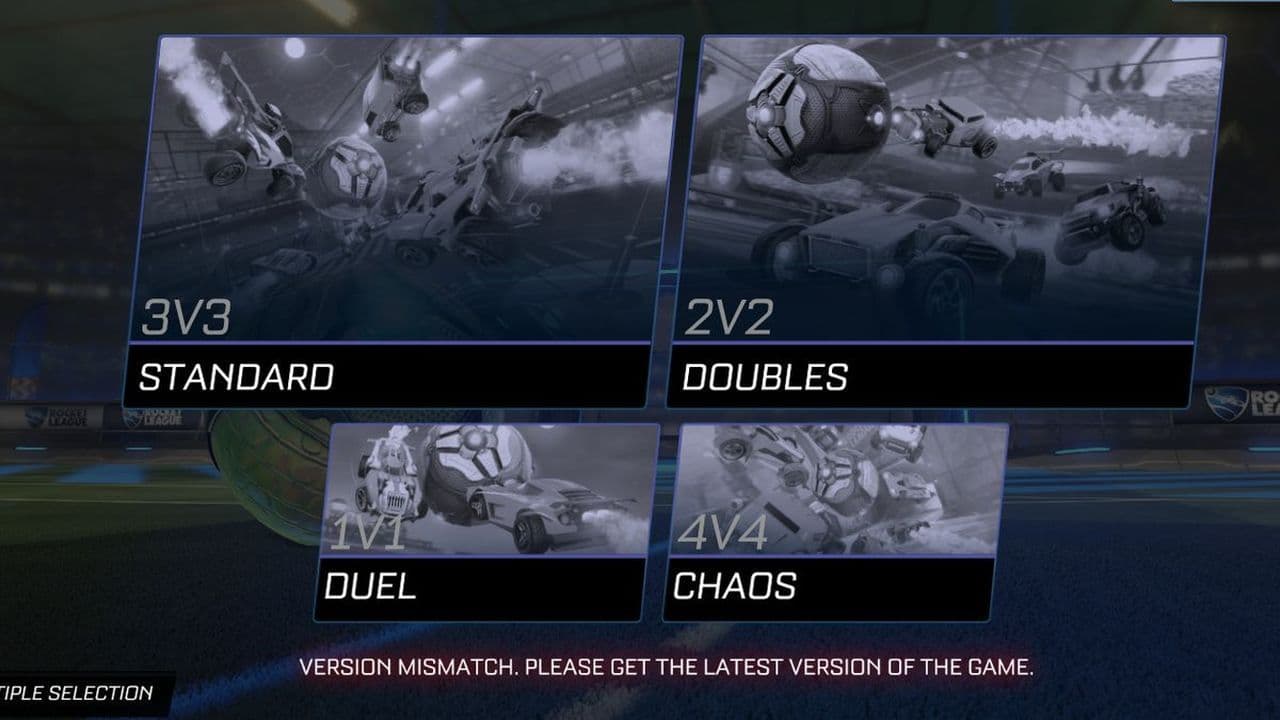
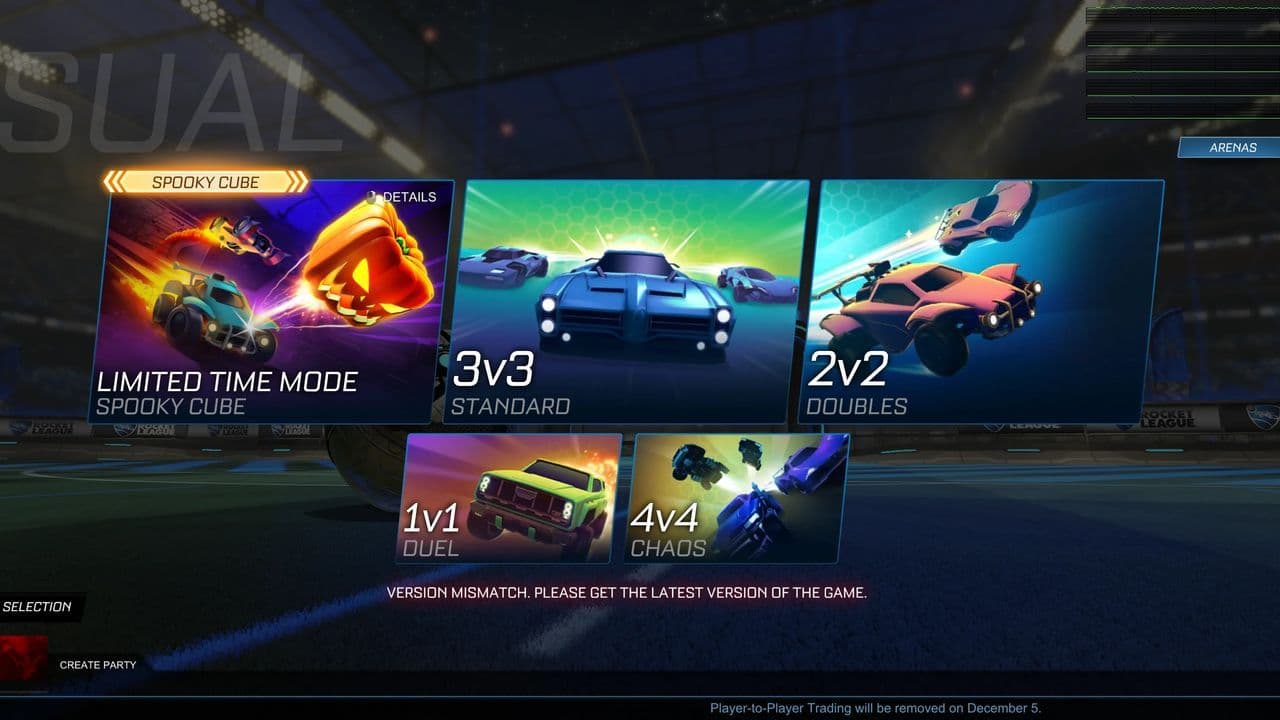
The Rocket League Version Mismatch message shows up when you try to join a match, but your game version is different from the current one. All players need the same game version to play together online.
When Psyonix releases a new update, you have to download and install it to keep playing with others. If your game is old, the servers will stop you from joining games, and you’ll see the version mismatch warning.
Why does the message appear when no update is available?
Sometimes, your game or platform doesn’t start the update automatically. This can happen because:
- The update didn’t download properly.
- The game launcher (like Steam or Epic Games Launcher) didn’t check for updates.
- Your game files might be broken or stuck.
Because of this, your game thinks it’s an old version, even if your system says no updates are waiting.
How to fix the Rocket League Version Mismatch on Steam & more
The easiest way to fix this problem is to restart your platform or game launcher. This forces it to look for updates again and download any missing files.
If you’re using Steam, try this:
- Click the Show Hidden Icons arrow near your computer’s clock (bottom right).
- Right-click the Steam icon.
- Choose Exit to close Steam completely.
- Wait a few seconds, then open Steam again.
- Steam should now find and download the latest Rocket League update.
If you play on other platforms like Epic Games Launcher, PlayStation, or Xbox, fully close the game and launcher, then restart your console or PC.
Is Rocket League still not working?
If you still see the version mismatch message:
- Check your internet connection to make sure downloads can complete.
- Verify your game files (on Steam, right-click Rocket League, go to Properties > Local Files > Verify Integrity of Game Files).
- Make sure your platform isn’t blocking updates (check settings or storage space).
How can I fix Rocket League update errors?
If you're encountering an update error in Rocket League, it typically means your game hasn't successfully downloaded or installed the latest patch. This can prevent you from joining online matches.
To resolve this:
For Steam users:
- Restart Steam: Click the up arrow near your computer's clock (bottom right), right-click the Steam icon, and select 'Exit'. Wait a few seconds, then reopen Steam.
- Verify game files:
- Right-click on Rocket League in your Steam Library.
- Select 'Properties' > 'Local Files' > 'Verify Integrity of Game Files'.
- Enable auto-updates:
- Right-click Rocket League in your Steam Library.
- Go to 'Properties' > 'Updates' and ensure 'Always keep this game updated' is selected.
For Epic Games Launcher users:
- Enable Auto-updates:
- Click on the three dots below Rocket League in your Library.
- Ensure 'Auto-Update' is toggled on.Hard Drive
- Restart Epic Games Launcher: Close the launcher completely and reopen it to prompt any pending updates.
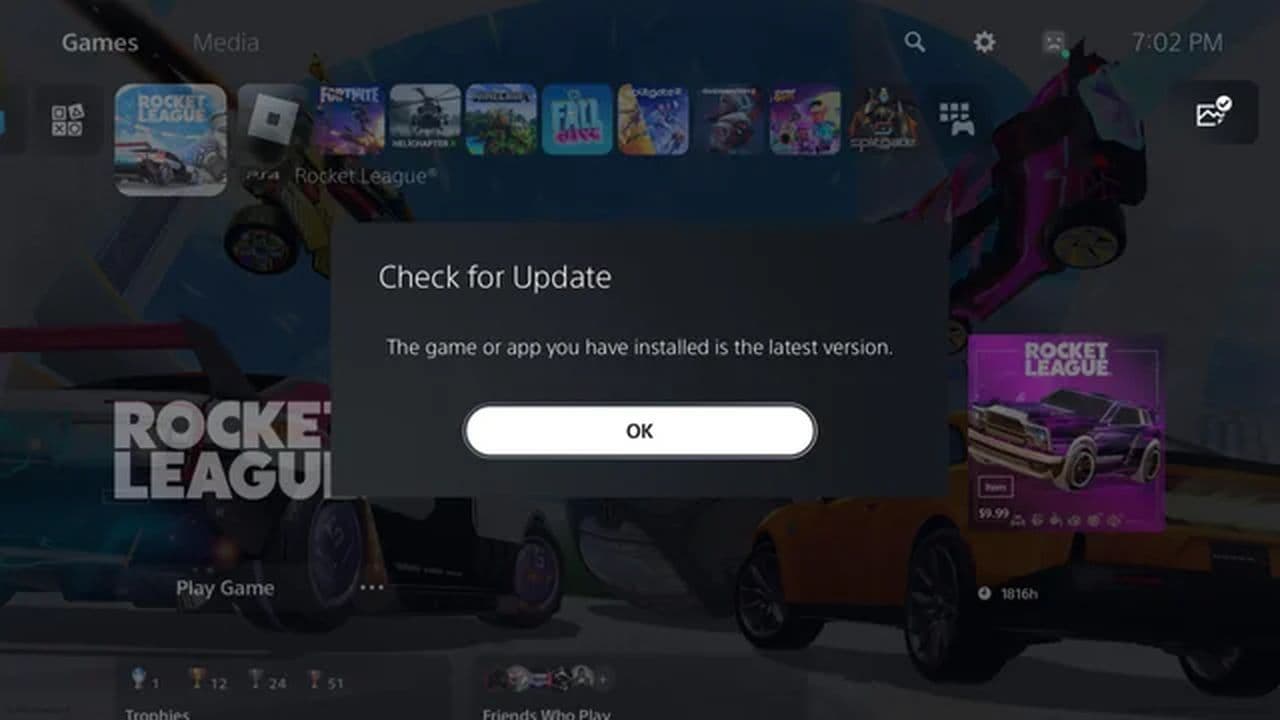
For console users (PlayStation/Xbox):
- Check for updates:
- Navigate to Rocket League on your console's home screen.
- Press the 'Options' button and select 'Check for Updates'.
- Restart console: If no update is found, try restarting your console to prompt the update.
If the issue persists after these steps, consider uninstalling and reinstalling the game to ensure a clean installation.
How do I check Rocket League server status?
To determine if Rocket League servers are experiencing issues:
- Official Epic Games Status Page: Visit status.epicgames.com for real-time updates on server status. If everything is good, it should look like this:
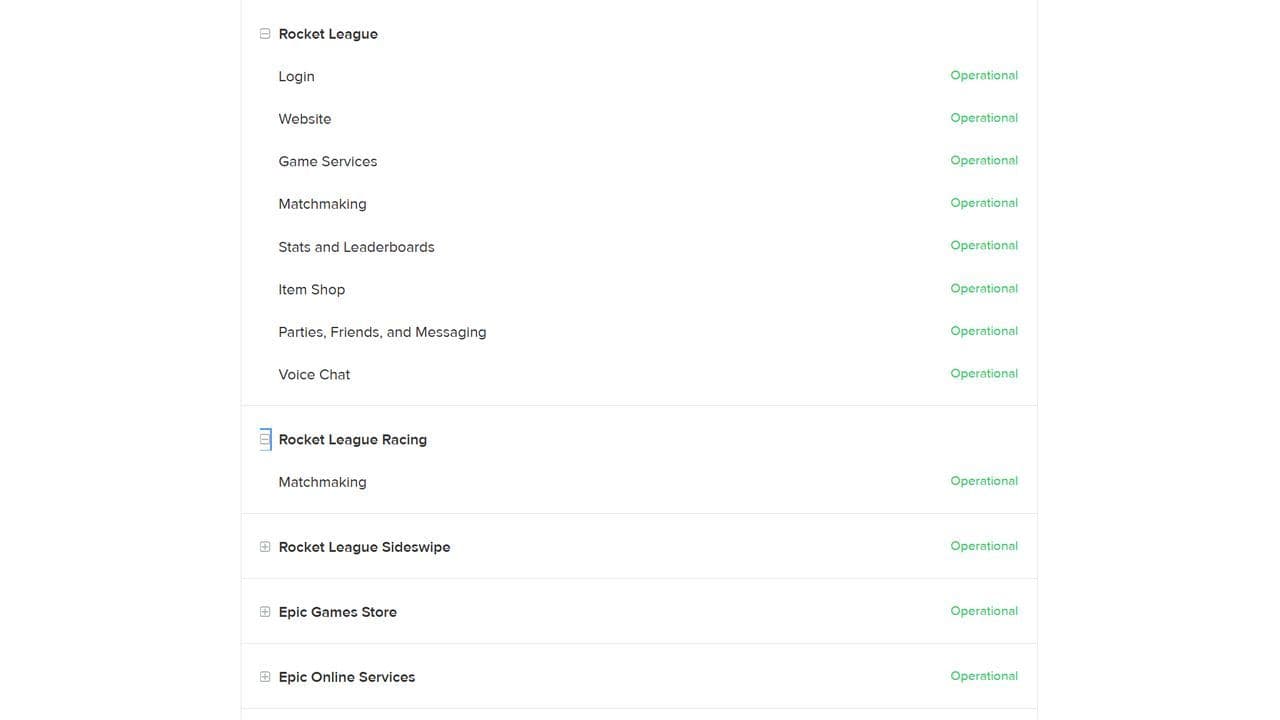
- Rocket League Status Twitter: Follow @RL_Status for the latest service updates and maintenance announcements.
- Community Reports: Check DownDetector for user-reported outages and issues.
- In-Game Notifications: The Rocket League home screen may display banners notifying players of scheduled maintenance or known server problems.
If servers are operational and you're still experiencing issues, ensure your internet connection is stable and consider restarting your router or modem.
The Rocket League Version Mismatch message can be annoying, but it usually means your game just needs a quick update. Restarting your platform or launcher almost always fixes the problem.
That’s all for today! Looking for more Rocket League guides? Check out these:
- Rocket League Lightning McQueen: Price, hitbox & how to get it
- A guide to Rocket League Nissan Fairlady Z: Price, hitbox & availability
- How to get the Cybertruck in Rocket League? Is it still possible?
- How to get Fennec in Rocket League for free on PS5, PS4 and more
- 10 best Rocket League workshop maps and how to get one
Guide Categories
All Related Guides
 How to change MPH to KPH in Rocket LeagueLearn how to change MPH to KPH in Rocket League through the Metric setting, switch back to MPH, and learn what...
 How to rank up in Rocket League and what is a good rank?Trying to climb in Rocket League? Learn how ranking works, which skills matter most, and how to make steady pr...
 How to get the JUNKO title in Rocket LeagueTrying to get the Junko title in Rocket League? Here is how the title works, who can earn it, and where BALRIG...
 How to get Rocket League on mobileFind out how to play Rocket League on mobile, where to download Rocket League Sideswipe, and whether it suppor...
 Did Rocket League get stuck on “Press any button to start”? Here is how to fix it on PCRocket League stuck on press any button to start? Try these PC fixes for cache, files, login issues, controlle...
 Rocket League codes (July 2026): All active redeem codes & free rewardsLooking for Rocket League codes? Redeem all active Rocket League redeem codes to unlock free Player Titles, th...
 How to get Jynxzi Rocket League skin & moreLearn how to get the Jynxzi Rocket League decal, title, and exclusive rewards through the Season 23 community ...
 How to fix latency variation in Rocket LeagueLearn how to fix Rocket League latency variation with Ethernet, CSTS input buffer, correct server region, and ...
- 1
- 2
- 3
- 4
- 5
- 6
- 7
- 8
- 9