Best Warzone 2 settings PC
If you're looking for the best Warzone settings on PC then you've come to the right place. Here are the best settings for Warzone.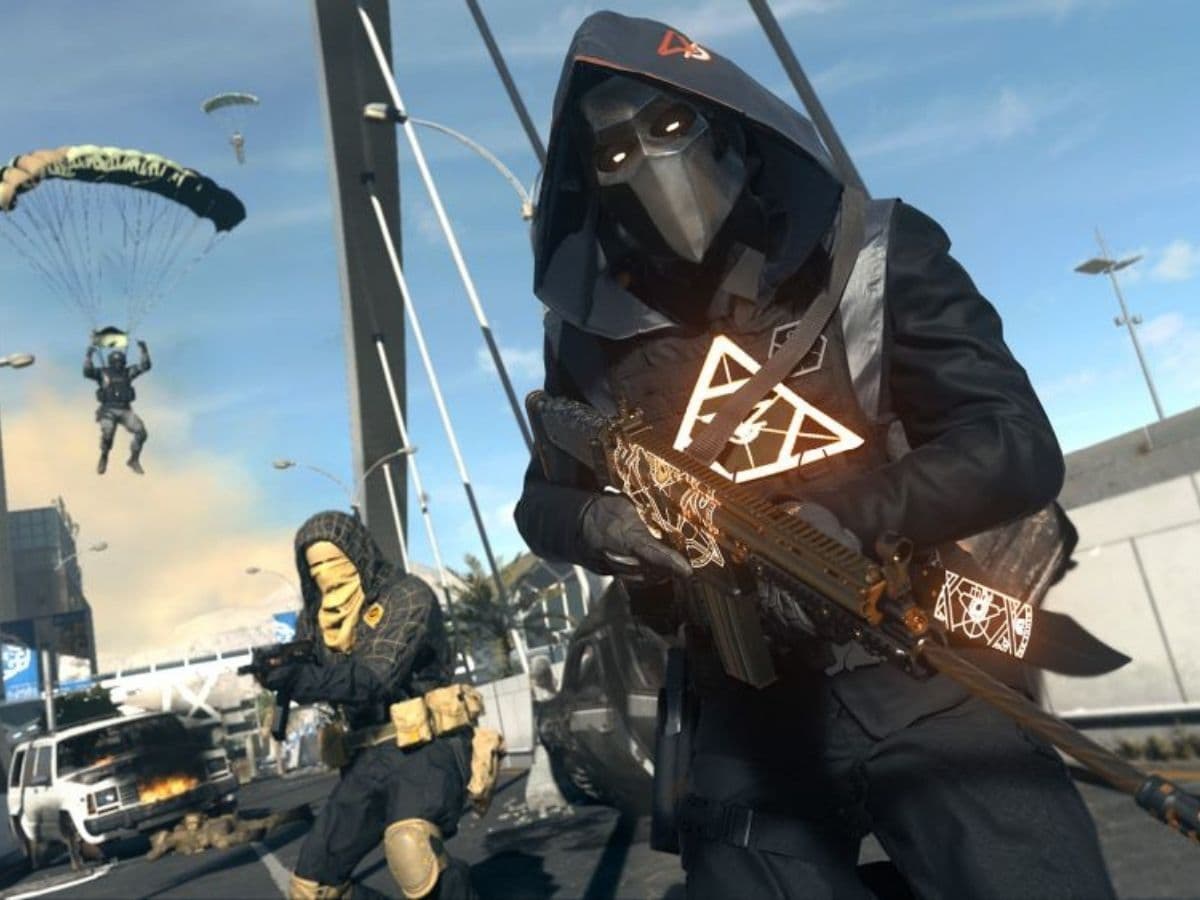
It's time to gear up your PC for the ultimate battle royale experience. Whether you're a seasoned veteran or a newcomer to the world of Call of Duty: Warzone, having the right settings can make all the difference. This guide will walk you through the best PC settings to optimize your gameplay for maximum performance and visual quality. We've got you covered from display and quality settings to controller and sound adjustments.
Best Warzone 2 settings PC
To kick things off, let's dive into the best settings to maximize your PC's performance in Warzone 2. These settings are geared towards players who want to experience the game at its smoothest while maintaining competitive visuals.
Display Settings
- Display Mode: Fullscreen Exclusive
- Display Monitor: Select the monitor with the fastest refresh rate
- Display Adapter: Your graphics card
- Screen Refresh Rate: Set to the maximum for your monitor (e.g., 144Hz / 240Hz)
- Display Resolution: Stick to 1080p to avoid significant FPS drops
- Dynamic Resolution: Keep it off
- Aspect Ratio: Automatic (16:9)
- V-Sync Gameplay: Turn it off to reduce input deal
- V-Sync Menu: Keep it off
- Custom Frame Rate Limit: Set it to your preference
- Gameplay Custom Frame Rate Limit: 300
- Menu Custom Frame Rate Limit: 90
- Out of focus Custom Frame Rate Limit: 30
- Display Gamma: 2.2 (sRGB)
- Brightness: Adjust to your preference
- Focus Mode: Keep it off
Quality Settings
- Quality Presets: Custom
- Render Resolution: Set it to 100
- Upscaling / Sharpening: FidelityFX CAS
- FidelityFX CAS Strength: 75 (sharpens gameplay without sacrificing FPS)
- Anti-Aliasing: SMAA T2X (optimal balance between performance and quality)
- Anti-Aliasing Quality: Normal (worth it for improved visuals)
- Video Memory Scale: 90 (to prioritize Warzone 2)
- Texture Resolution: Normal
- Texture Filter Anisotropic: High (minimal impact on FPS)
- Nearby Level of Detail: Low
- Distant Level of Detail: High (best for gameplay with minimal FPS loss)
- Clutter Draw Distance: Short
- Particle Quality: Low
- Particle Quality Level: Low
- Bullet Impacts & Sprays: Keep it on
- Shader Quality: Medium
- Tessellation: Off
- Terrain Memory: Max
- On-Demand Texture Streaming: Off
- Streaming Quality: Low
- Volumetric Quality: Low
- Deferred Physics Quality: Low (only affects water)
- Water Caustics: Off (only affects water)
- Shadow Map Resolution: Low
- Spot Shadow Quality: Low
- Cache Spot Shadows: Keep it on for improved performance
- Spot Cache: Low
- Cache Sun Shadows: Keep it on for improved performance
- Particle Lighting: Low
- Ambient Occlusion: Off
- Screen Space Reflections: Off
- Static Reflection Quality: Low
- Weather Grid Volumes: Off
- Nvidia Reflex Low Latency: On
- Depth of Field: Off
- World Motion Blur: Off
- Weapon Motion Blur: Off
- Film Grain: 0.00
View Settings
- Field of View: 100-110 (personal preference; around 100 is recommended)
- ADS Field of View: Affected
- Weapon Field of View: Default
- 3rd Person Field of View: 80-100
- Vehicle Field of View: Default
- 1st Person Camera Movement: Least (50%)
- 3rd Person Camera Movement: Least (50%)
- 3rd Person ADS Transition: Personal preference
- Default Spectator Camera: Personal preference
Best setting for Warzone 2 low-end PC
Warzone 2 offers an immersive experience, but you don't need a top-of-the-line PC to enjoy it. If you're running on a low-end system, here are the best settings to help you stay competitive while maintaining a smooth gaming experience.
Display
- Display Mode: Fullscreen Exclusive
- Display Monitor: Your primary gaming monitor
- Display Adapter: Your graphics card
- Screen Refresh Rate: Match your monitor's refresh rate (e.g., 144Hz)
- Display Resolution: Set to your monitor's native resolution (e.g., 1920x1080)
- Dynamic Resolution: Off
- Aspect Ratio: Automatic
- V-Sync (Gameplay): Turn it off
- V-Sync (Menus): Keep it off
- Custom Framerate Limit: Set to your monitor's refresh rate (e.g., 144)
- Menu Custom Framerate Limit: 60
- Minimized Game Custom Framerate Limit: 15
- Display Gamma: 2.2 (sRGB)
- Brightness: Adjust to 55
- Focused Mode: Keep it off
- High Dynamic Range (HDR): Turn it off
Global Quality
- Quality Presets: Custom
- Render Resolution: 100
- Upscaling / Sharpening: Fidelity CAS
- AMD Fidelity CAS Strength: 75
- Anti-Aliasing: Filmic SMAA T2X
- Anti-Aliasing Quality: Low
- Video Memory Scale: 90
Details & Textures
- Texture Resolution: Low
- Texture Filter Anisotropic: High
- Nearby Level of Detail: Low
- Distant Level of Detail: Low
- Particle Quality: High
- Bullet Impacts & Sprays: Keep it on
- Shader Quality: Medium
- Tessellation: Off
- On-Demand Texture Streaming: On (you can turn it off if you're experiencing packet burst)
- Streaming Quality: Normal
- Volumetric Quality: Low
- Deferred Physics Quality: Off
- Water Caustics: Off
Shadow & Lighting
- Shadow Map Resolution: Low
- Screen Space Shadows: Off
- Spot Shadow Quality: Medium
- Spot Cache: High
- Particle Lighting: Normal
- Ambient Occlusion: Off
Post Processing Effects
- NVIDIA Reflex Low Latency: On + Boost
- Depth of Field: Off
- World Motion Blur: Off
- Weapon Motion Blur: Off
- Film Grain: 0.00
Best Warzone 2 Controller Settings
Let's go over to your controller settings. While personal preferences can vary, here are some tried and true recommendations to get you on the right track:
- Button Layout Preset: Stick with "Default" for familiarity.
- Flip L1/L2 with L2/R2: Keep this "Off" to maintain standard controls.
- Stick Layout Preset: Stick with "Default" here too.
- Controller Vibration: Turn it "Off" for minimal distractions.
- Trigger Effect (PS5): Keep it "Off" for a smoother experience.
Fine-Tuning Your Aiming
Precision is key in Warzone 2. To find the sweet spot for your aiming, consider these settings:
- Horizontal Stick Sensitivity: Set this at 6 for a balanced feel.
- Vertical Stick Sensitivity: Align with the horizontal setting at 6.
- ADS Sensitivity Multiplier: Lower it to around 0.80-0.90 for better accuracy in mid to long-range battles.
- These settings allow you to turn swiftly without sacrificing control. Experiment with small adjustments to match your personal playstyle.
Gameplay Enhancements
The gameplay settings can significantly impact your experience. Here's what we recommend:
- Aim Down Sight Behavior: Opt for "Hold" for more control.
- Automatic Sprint: Select "Automatic Tactical Sprint" to save time.
- Equipment Behavior: Choose "Hold" for ease of use.
- Weapon Mount Activation: Use "ADS + Melee" for versatility.
- Interact/Reload Behavior: "Prioritize Reload" keeps you locked and loaded.
- Armor Plate Behavior: Set it to "Apply One" for efficient armor management.
Advanced Tweaks
For advanced players, these settings offer more control:
- Target Aim Assist: Keep it "On" for assistance in aiming.
- Aim Assist Type: Stick with "Default."
- Aim Response Curve Type: Opt for "Dynamic" for precise control.
- ADS Sensitivity Multiplier: Customize it to 0.90 for better aiming.
- ADS Sensitivity Transition Timing: Choose "Instant" for quicker transitions.
- Custom Sensitivity Per Zoom: Keep it "Default" for simplicity.
Input Deadzones
Eliminate unresponsiveness with the right deadzone settings:
- Left Stick Min: 0.05
- Right Stick Min: 0.05
- L2 Button Deadzone: 0.00
- R2 Button Deadzone: 0.00
Perfecting Movement Behaviors
Get the most out of your movement with these settings:
- Sprint/Tactical Sprint Behavior: Select "Toggle" for convenience.
- Auto Move Forward: Keep it "Off."
- Tactical Sprint Behavior: Use "Single Tap Sprint."
- Grounded Mantle: Set it to "Off" for control.
- Automatic Airborne Mantle: Go for "Partial."
- Automatic Ground Mantle: "Off" offers more control.
- Invert Slide and Dive Behavior: Choose "Standard."
- Plunging Underwater: Opt for "Movement."
- Parachute Auto-Deploy: Turn it "Off" for control.
- Sprinting Door Bash: Keep it "On" for tactical versatility.
Best Warzone 2 Sound Settings for PC
The right sound settings can mean the difference between victory and defeat. Warzone 2 offers six audio mix presets:
- PC: For PC speakers, with a tight dynamic range and EQ.
- Headphones: Enhanced for headphone use with a tighter dynamic range and EQ.
- Headphone Bass Boost: Tailored for headphones with an emphasis on low-end frequencies.
- Sound Bar: Designed for soundbars with a tight dynamic range and EQ.
- Home Theater: Optimized for home theater systems with a high dynamic range.
- Cinema: Best for cinema theater systems with the highest dynamic range.
While "Headphone Bass Boost" may seem like the obvious choice for heightened footsteps, be cautious. It can amplify other low-frequency sounds, potentially muddling your audio mix.
Adjusting Volumes
Fine-tuning your volumes can enhance your gaming experience:
- Audio Mix: "Headphones Bass Boost" for improved low-frequency sounds.
- Master Volume: Set it at 65.
- Music Volume: Keep it at 0.
- Dialogue Volume: Adjust to 50.
- Effects Volume: Max it out at 100.
- Hit Marker Volume: Keep it at 50.
- Speakers/Headphones Game Sound Device: Use the "Default System Device."
- Mono Audio: Turn it "Off" for stereo sound.
In conclusion, finding the best Warzone 2 settings for your PC can elevate your gaming experience. We want to thank Charlie Intel, Dexerto, and One Esports for some of their recommendations! Experiment, adapt, and prepare to dominate Warzone 2 like a pro.
FAQs
What is the best sensitivity for Warzone 2 on PC?
There’s no one “perfect” sensitivity—what works depends on your mouse, DPI, your screen size, and your reflexes. As a baseline: try a mid-range sensitivity, for example DPI around 400–800 with your in-game sensitivity somewhere between 4.5 and 6.0. Use the ADS (Aim Down Sight) multiplier to fine tune further (for example 0.9 or 1.0). Turn off mouse acceleration, smoothing, and filtering to keep your aim consistent. Test values in a firing range and adjust little by little until it feels comfortable.
How to get 240 FPS in Warzone 2?
To push toward 240 FPS, you need both strong hardware and aggressive optimization:
- Run in Fullscreen Exclusive mode.
- Turn V-Sync off, limit framerate to unlimited or match monitor refresh.
- Lower demanding graphical settings: shadows, volumetric effects, ambient occlusion, reflections, etc.
- Use upscaling (e.g. FidelityFX CAS or similar) to reduce the resolution load while preserving clarity.
- Close background programs and processes.
- Make sure your GPU drivers are latest and Windows is in high performance mode.
Even with that, getting stable 240 FPS depends on your CPU/GPU’s capability.
How to optimize Warzone 2 for a low-end PC?
If your PC is weaker, you want to free up as many resources as possible:
- Set render resolution to 100% or even drop it if needed.
- Turn off or set to “Low” all heavy effects: shadow quality, ambient occlusion, volumetric effects, reflections, etc.
- Use efficient upscaling (e.g. FidelityFX, or resolution scaling).
- Disable motion blur, film grain, depth of field.
- Turn off features like local texture streaming quality.
- Use lower texture/mesh detail.
- Make sure game is on SSD (not HDD) to reduce stuttering.
- Use GPU/CPU performance mode in your driver or OS settings.
- Close unnecessary apps (browser, overlays, antivirus) when playing.
How to reduce lag on Warzone 2 PC?
Lag can come from network or hardware bottlenecks. To reduce it:
- Use a wired Ethernet connection instead of WiFi.
- Close background internet-using apps (downloads, streaming).
- Enable network optimizations such as “Low Latency” or “Reflex” options if your GPU/driver support them.
- Make sure your system isn’t thermal throttling (keep GPU/CPU cool).
- Update drivers, Windows patches.
- Lower graphics settings so the system isn’t overworked and lagging frame output.
How to get max FPS in Warzone 2?
Combining many of the above:
- Use strongest hardware you can (fast CPU, GPU, SSD, ample RAM).
- Fullscreen Exclusive, turn V-Sync off.
- Lower or disable intense graphical effects.
- Use efficient upscaling or resolution scaling.
- Optimize OS and close background apps.
- Update drivers, use performance modes.
- Tweak sensitivity settings only after you’ve smoothed FPS—aim doesn’t help if FPS is unstable.
Guide Categories
All Related Guides
 Warzone 2 controller settingsBest Warzone 2 controller settings here! For Controller players looking to make the best out of Warzone 2, her...
 Best audio settings for Warzone 2Without the best audio settings for Warzone 2, you’ll miss crucial sounds like footsteps or gunfire—and that’s...
 Best settings for Warzone 2.0 XboxKit yourself out with the best Xbox settings for Warzone 2.0. Whether you want to master your movement or take...
 Best graphics settings for Warzone 2Don’t waste another second trying to figure out Warzone 2's best graphics settings from scratch, we’ve done th...
 Best settings for Warzone on PlaystationThere are a lot of minor tweaks you can introduce in Warzone's settings to adjust your gameplay experience. TH...
 Is Warzone 2 split screen?Do you wonder if you can play Warzone 2 split screen? Here is your answer!...
 How to Slide Cancel in Warzone Slide cancelling is back in Call of Duty so read our guide on how to effectively slide cancel in Warzone to ou...
 How to turn on proximity chat in Warzone 2In this guide, we will show you How to turn on proximity chat in Warzone 2 and use the feature in your games!...