How to update Hytale servers (2 ways you can choose)
Avoid Hytale server update issues
Keeping your server updated is essential for stability, security, and compatibility with the latest Hytale client versions. If you are searching for how to update Hytale servers, this guide explains the entire process, whether you run a private server or manage a public community.
Why update your Hytale server?
Updating your Hytale server ensures:
- Compatibility with the latest Hytale client
- Access to new gameplay features and content
- Bug fixes and performance improvements
- Security patches and stability updates
If your Hytale server is outdated, players may be unable to join due to version mismatches.
Requirements before you update
Before starting the update process, make sure the following requirements are met:
- Java Version: Hytale servers require Java 25 or newer. Check your Java version with: java --version. If your version is lower, update Java before proceeding.
- Server access: You need command-line access (Terminal on Linux/macOS or Command Prompt/PowerShell on Windows).
- Server shutdown: Always stop your server completely before updating. Updating while the server is running can corrupt files or world data.
How to update Hytale servers using Downloader CLI
The Hytale Downloader CLI is the official and safest way to update your server. It automatically downloads the latest server files and ensures version accuracy.
- Download and authenticate the downloader: Download the latest Hytale Downloader from the official website and extract it to your server. On Linux or macOS, make it executable (chmod +x hytale-downloader-linux-amd64).
- Run the downloader: On first use, you will be prompted to authenticate via OAuth. Follow the link, enter the code, and approve access. This step is only required once.
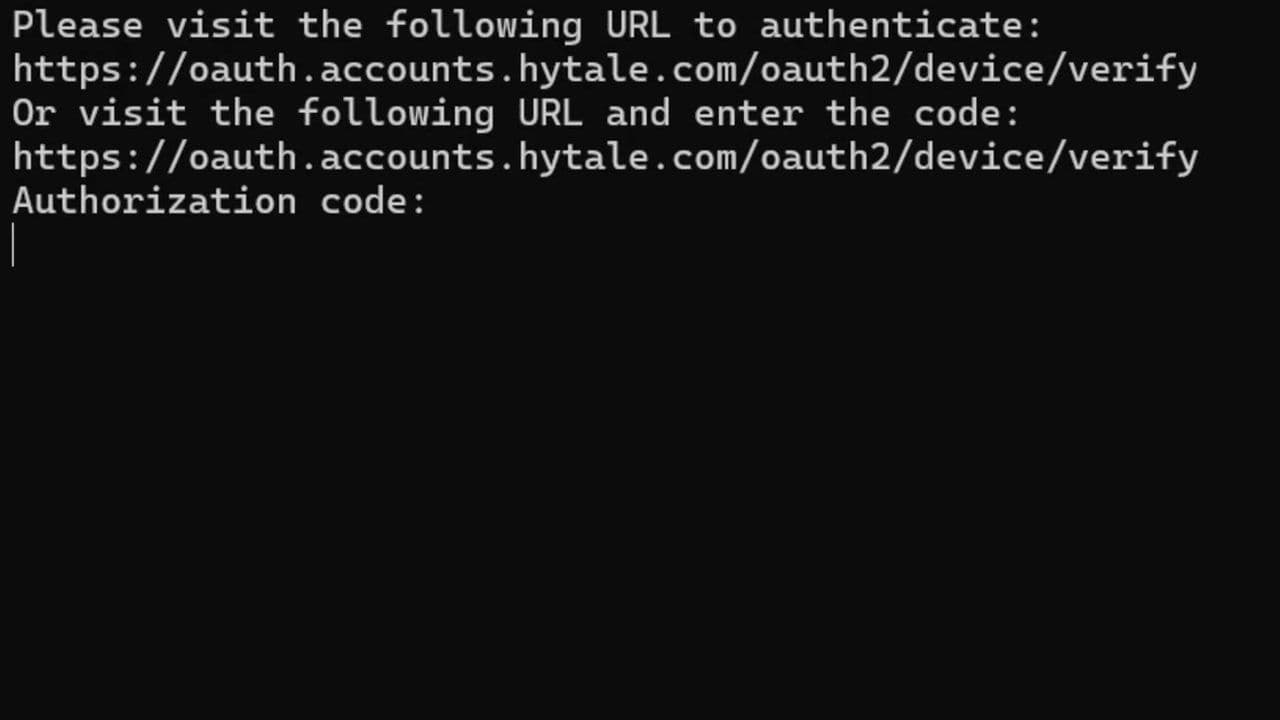
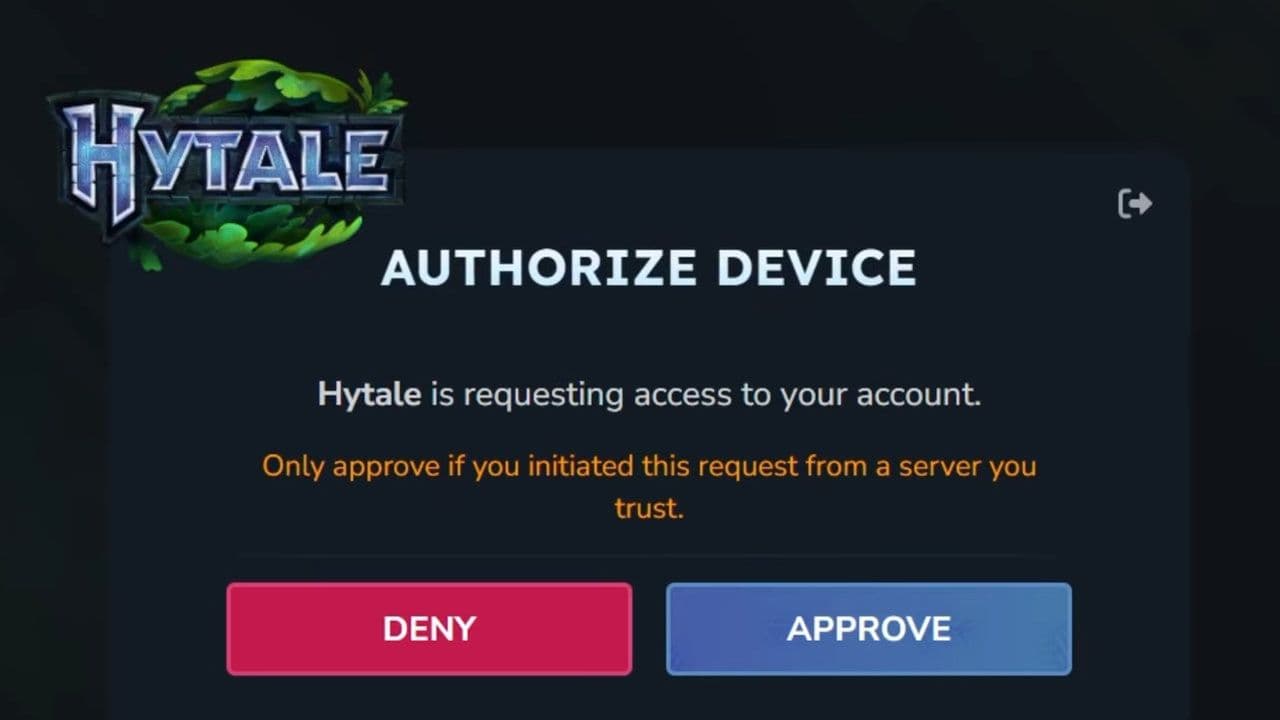
- Stop the Hytale server: Shut down the Hytale server completely before updating.
- Backup Server Files: Back up the following before applying updates & store backups in a separate location.:
- universe/ (world data)
- config.json
- permissions.json
- Any custom scripts or settings
- Download the latest version: Run the downloader again (./hytale-downloader) To check the available version before downloading:
- ./hytale-downloader -print-version
- Replace server files: After downloading:
- Extract the ZIP file
- Replace the Server/ directory and Assets.zip
- Do not overwrite world or configuration files unless stated in patch notes.
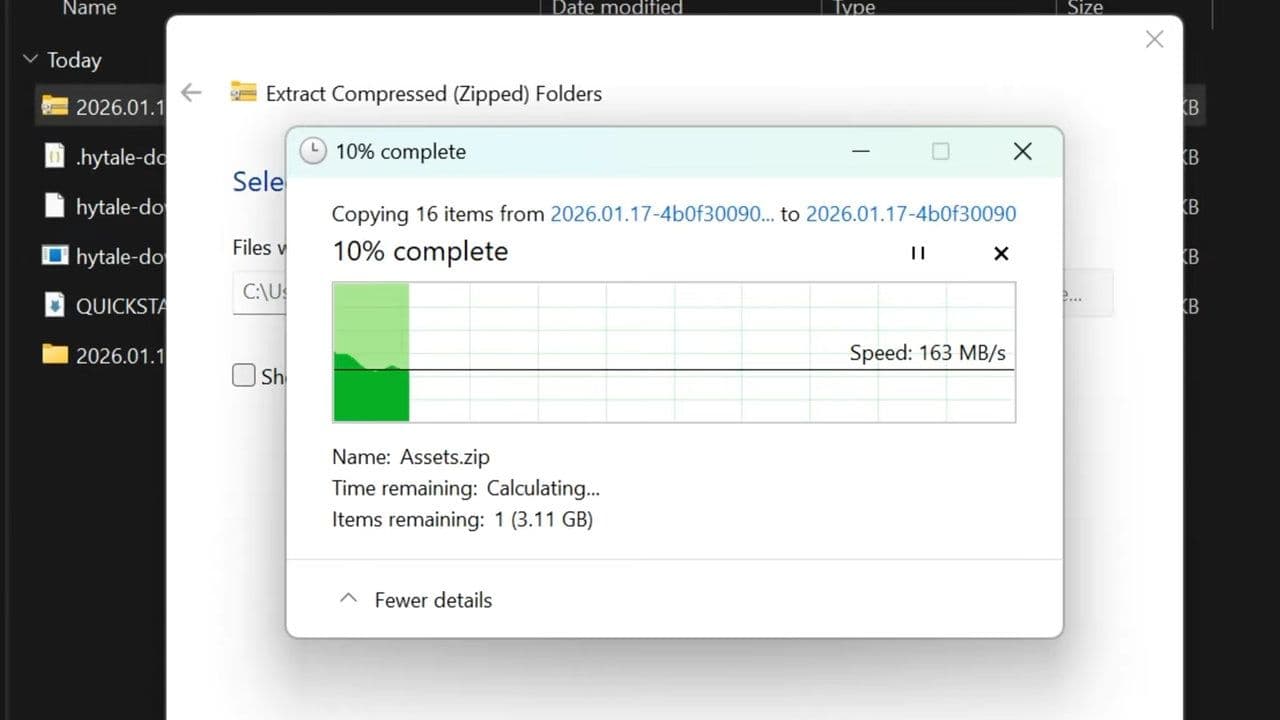
- Restart: Start the server as usual:
- java -jar HytaleServer.jar --assets Assets.zip
If your Hytale server update is successful, the server will run the latest version while keeping your existing world and settings.
How to update Hytale servers manually
If you cannot use the downloader, you can update manually:
- Open your Hytale client installation directory.
- Locate the latest server files:
- Server/
- Assets.zip
- Stop your server.
- Replace the old server files with the new ones.
- Restart the server.
This method works but is more error-prone and requires repeating the process for every update.
Common issues after updating your Hytale server
If your server fails to start or players cannot connect:
- Confirm that the server and client versions match
- Verify Assets.zip matches the server version
- Check server logs for missing files or version errors
- Restore your backup if problems persist
Most update issues are caused by incomplete file replacement or skipped backups.
Knowing how to update a Hytale server correctly is essential for long-term stability and player satisfaction. By using the official downloader, backing up your data, and following a consistent update process, you can keep your server secure, compatible, and ready for new content with minimal risk.
That’s all for today! Looking for more? Check out these:
All Related Guides
 Best Hytale plugins and how to create yoursExplore the best Hytale plugins for servers, from permissions and shops to NPCs, kits, performance tools, and ...
 Meet the Hytale Pokemon mod Pokefind: Release date, gameplay and moreGet the latest details on the Hytale Pokemon mod Pokefind, including gameplay plans, server support, release s...
 Can you create an infinite water source in Hytale?Learn if a Hytale infinite water source is possible, why the 2x2 trick fails, and which mods can help you get ...
 Who is The Hedera in Hytale Endgame & QoL mod and how to defeat itFind out how to reach and defeat The Hedera in Hytale Endgame & QoL mod, including boss phases, best prep, and...
 How to heal in Hytale (Food, potions, totem & more)How to heal in Hytale: food, potions, totem, regen buffs, best methods, and full survival guide explained....
 Hytale Update 4 (Part 5): What’s new?Hytale Update 4 Part 5 adds 500+ new blocks, system upgrades, bug fixes, and major improvements before full re...
 All Hytale signs & how to craft themDiscover all 29 Hytale signs, their crafting recipes, and how to use them. Learn sign mechanics, placement tip...
 When will Hytale fully release? (2026 update)When will Hytale fully release? Learn the expected 2026–2027 timeline, Early Access plans, and what must happe...
- 1
- 2
- 3
- 4
- 5
- 6
- 7
- 8