Hytale controller support: How to play Hytale with a controller
Full controller setup walkthrough
Interest in Hytale controller support continues to grow as players search for a more relaxed, console-style experience while exploring Orbis. Whether you're planning to play from your couch or simply prefer a gamepad in your hands, this Hytale guide breaks down everything you need to know about using a controller in Hytale and what options are currently available.
Does Hytale support controllers?
At the moment, Hytale does not have native controller support.
The game is currently designed around keyboard and mouse controls. If you plug in an Xbox controller, PlayStation controller, or another gamepad, Hytale will not automatically recognize it. There are no built-in controller button prompts, no default controller layouts, and no in-game gamepad settings.
However, controller support has been planned by the developers. It is expected to arrive in a future update, but there is no confirmed release date. Until then, players need to rely on workarounds.
Can you play Hytale with a controller?
Technically, yes — but not natively.
Even though official Hytale controller support is not available yet, you can still play the game using a controller through third-party tools that map controller inputs to keyboard and mouse commands.
The experience can be good with proper setup, but there are limitations:
- Menus and inventory screens are designed for mouse navigation.
- You will still see keyboard keys displayed in-game.
- There are no controller-specific camera or aim adjustments.
- Everything must be mapped through external software or Steam Input.
- There are no controller-specific camera or aim adjustments.
How to play Hytale with a controller
Below are the most reliable methods to use a controller in Hytale right now.
Method 1: Use Steam Input (Recommended)
This is the easiest and most stable way to simulate Hytale controller support on PC.
- Install Hytale normally.
- Open Steam.
- Go to Library.
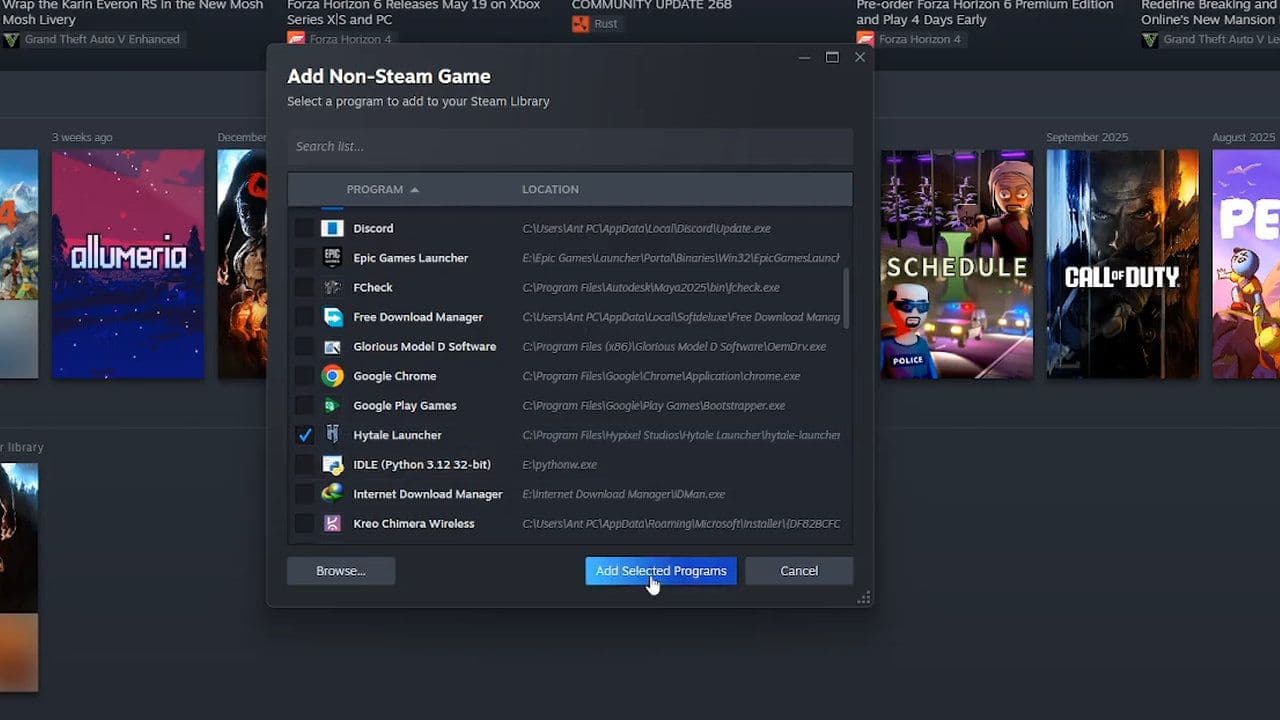
- Click “Add a Game” (bottom-left corner).
- Select “Add a Non-Steam Game.”
- Find and select the Hytale launcher executable.
- Add it to your Steam Library.
- Connect your controller (Xbox, PlayStation, or other supported controller).
- Right-click Hytale in Steam.
- Select Properties → Controller.
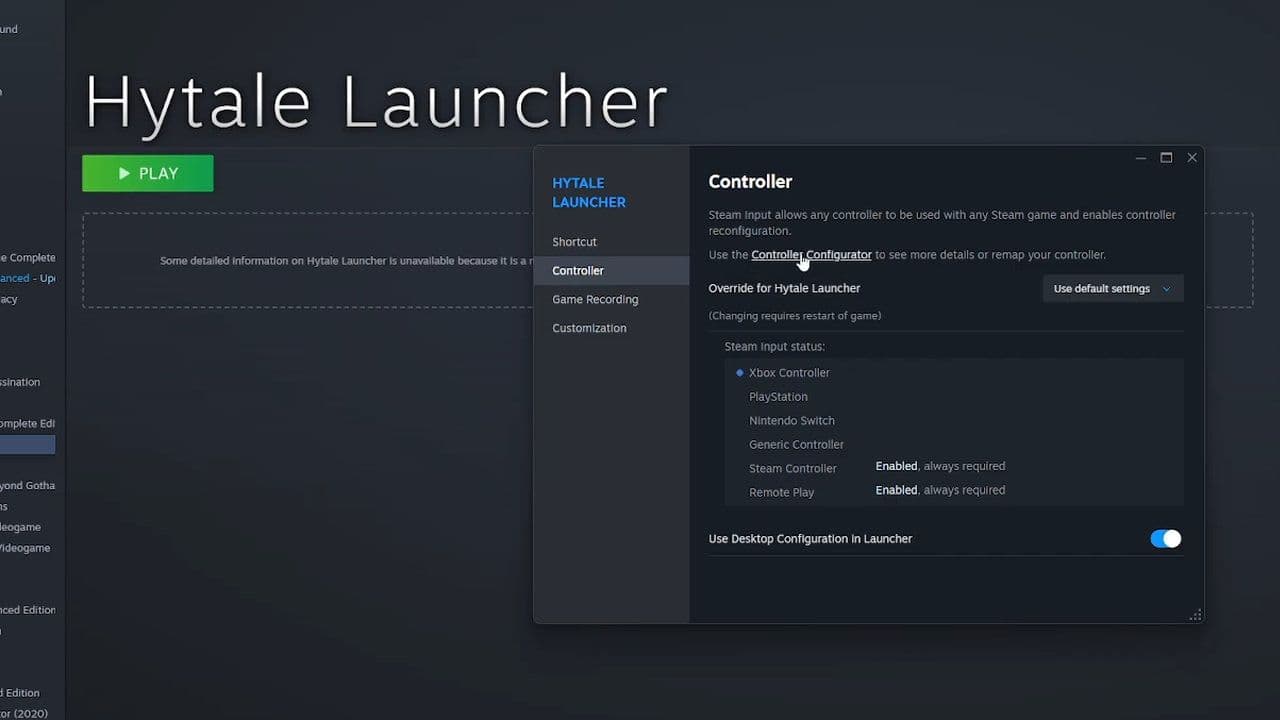
- Enable Steam Input.
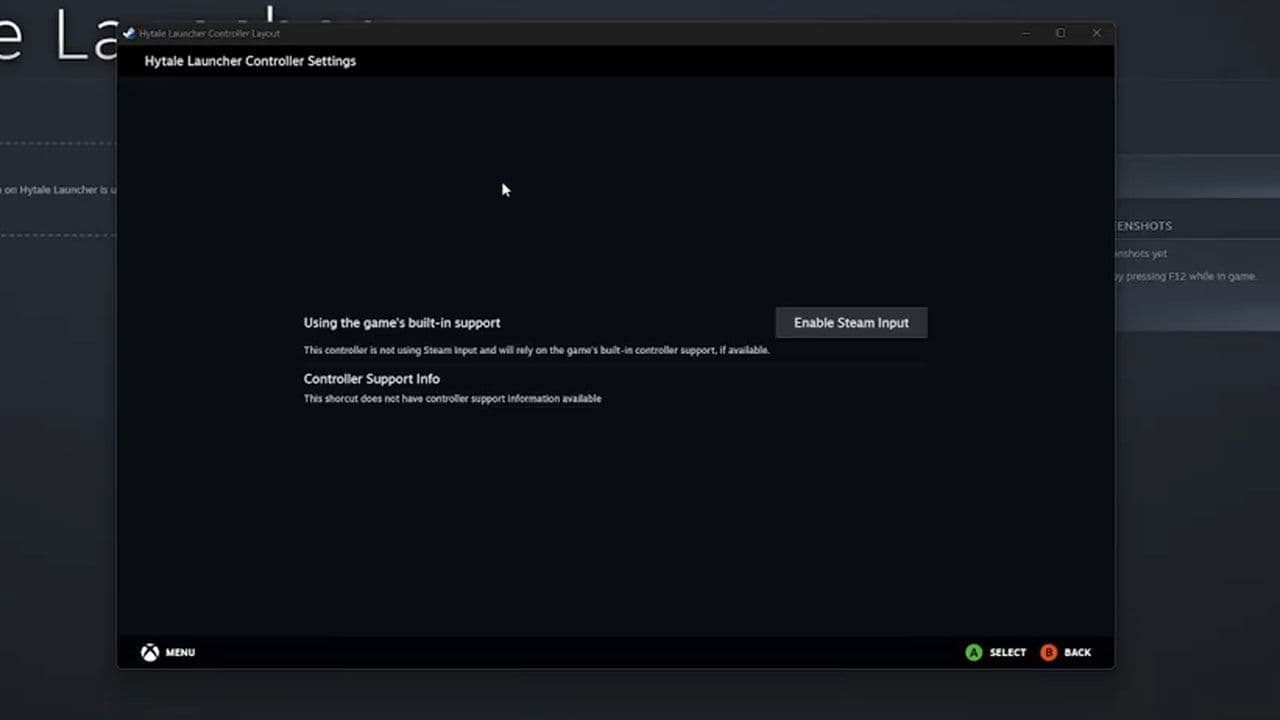
- Launch Hytale through Steam (not directly from the desktop).
Once Steam Input is active, it converts controller inputs into keyboard and mouse commands.
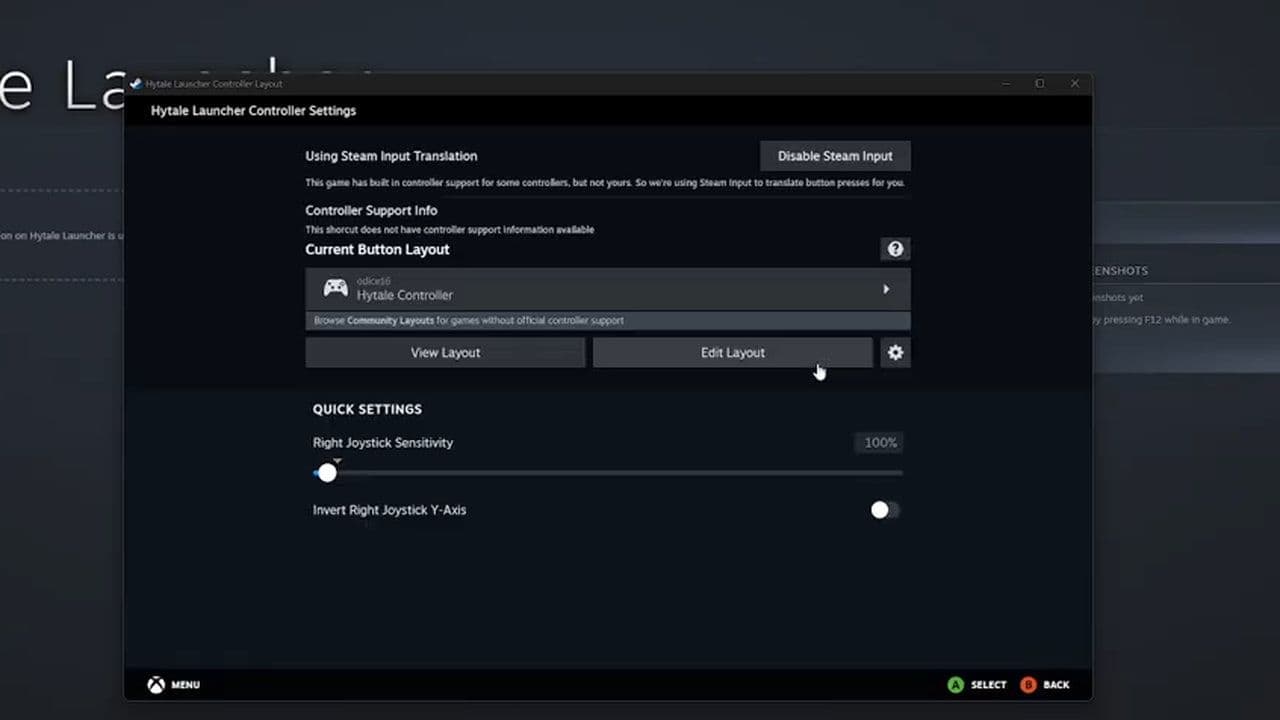
You can also:
- Use community-made controller layouts
- Customize button mapping
- Adjust joystick sensitivity
- Map camera control to the right stick
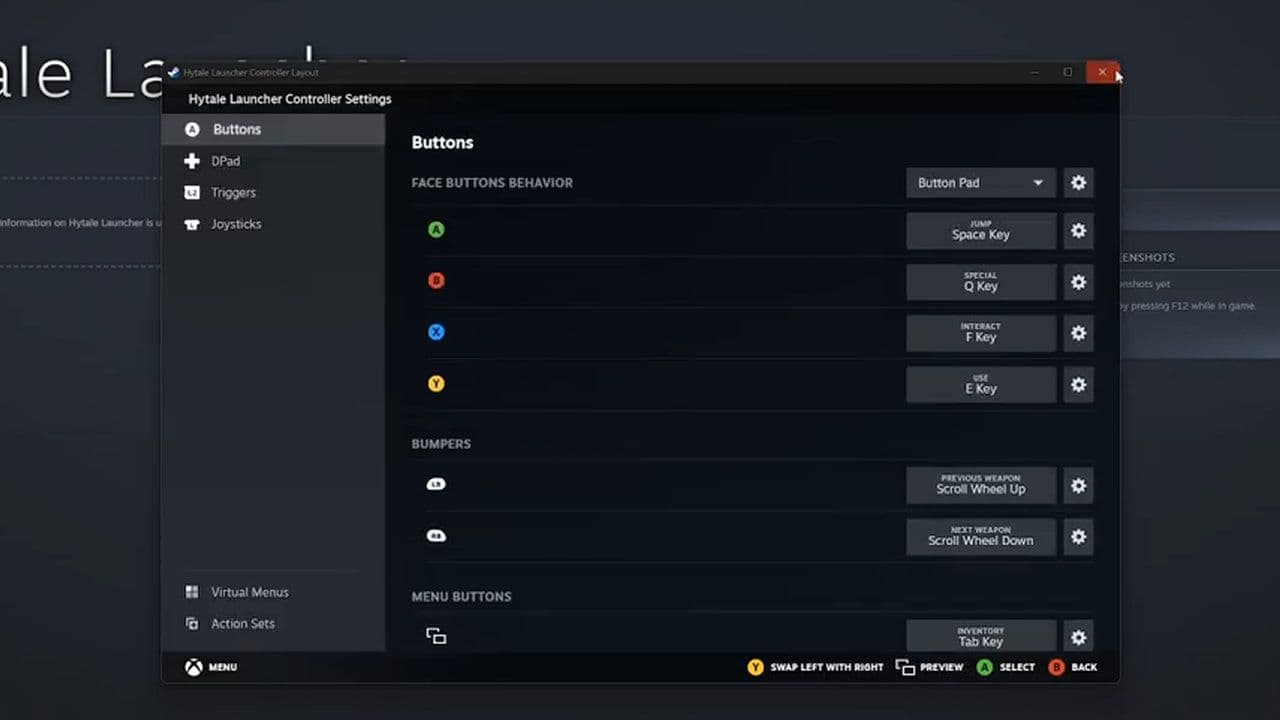
Steam Input supports:
- Xbox Series X|S controllers
- Xbox One controllers
- PlayStation DualSense
- PlayStation DualShock 4
- Nintendo Switch Pro Controller
- Many third-party controllers
This method also works well on devices like the Steam Deck.
Method 2: Steam via Community Layouts (Fastest)
If you don’t want to manually assign every button, Steam offers downloadable layouts created by other players.
Follow these steps:
- Go to your Games Library in Steam and find the Hytale Launcher.
- On the Hytale Launcher screen, click the controller icon on the right side of the screen.
- Click the “Gamepad” box in the middle of the screen.
- Select the “Community Layouts” tab at the top.
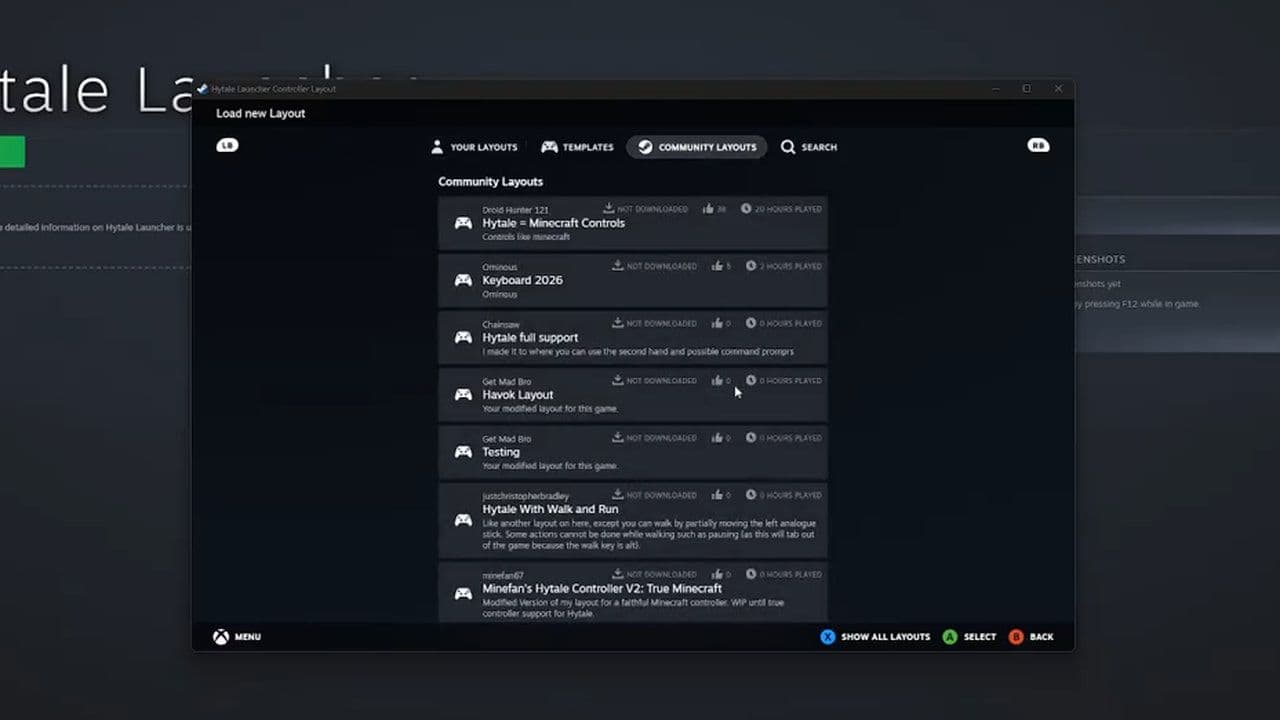
- Browse different controller layouts and choose one you like.
- Click to download the layout.
- Select “Apply Layout” in the bottom-right corner after clicking on the layout’s box.
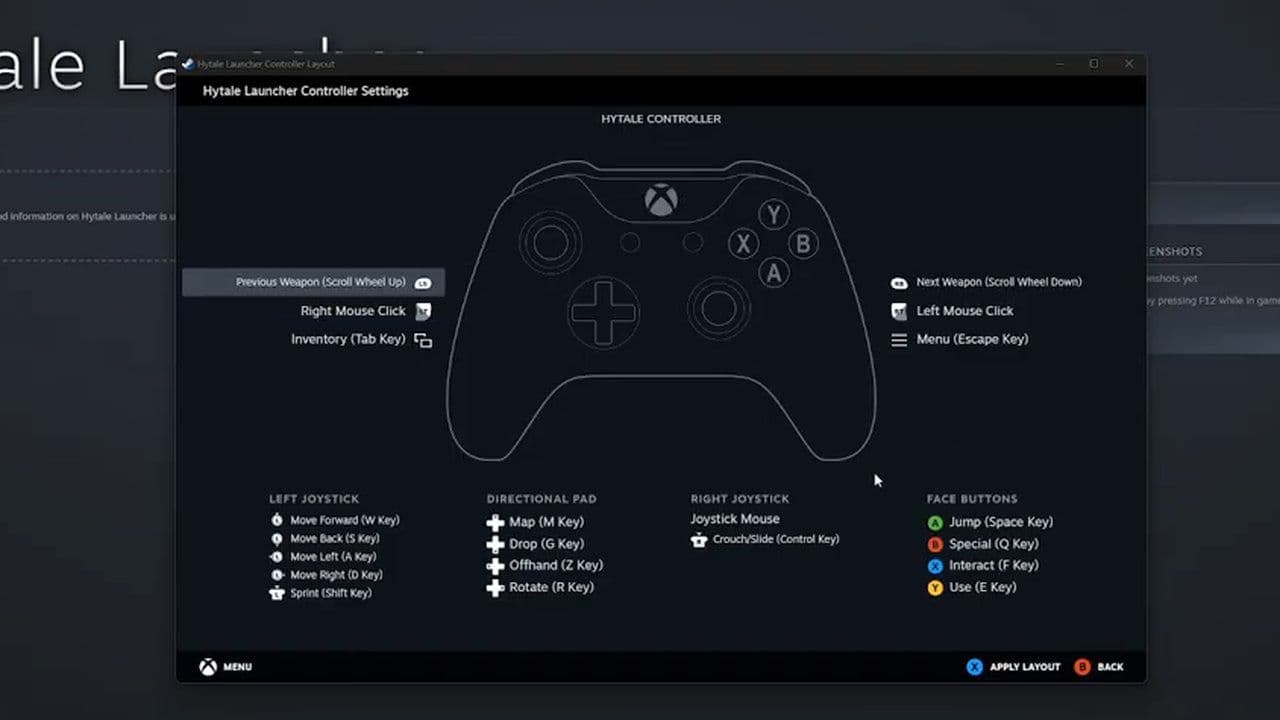
The selected controller layout will now be the default when you launch Hytale through Steam.
This is the fastest way to enable Hytale controller support without manual configuration. Many community layouts are optimized for smooth camera movement and combat controls.
Method 3: Use third-party key mapping software
If you prefer not to use Steam, you can use other third-party key mapping software to use your controller for playing Hytale. These tools allow you to map controller inputs to keyboard and mouse controls manually.
Will official Hytale controller support be added?
Controller support is expected in the future. Given Hytale’s long-term goals and wide player appeal, native gamepad integration is likely part of the development roadmap.
While keyboard and mouse remain the default control method, players who prefer a gamepad can absolutely make it work today.
With the right setup, Hytale controller support — even unofficial — can deliver a comfortable and fully playable experience.
That’s all for today! Looking for more? Check out these:
All Related Guides
 Best Hytale plugins and how to create yoursExplore the best Hytale plugins for servers, from permissions and shops to NPCs, kits, performance tools, and ...
 Meet the Hytale Pokemon mod Pokefind: Release date, gameplay and moreGet the latest details on the Hytale Pokemon mod Pokefind, including gameplay plans, server support, release s...
 Can you create an infinite water source in Hytale?Learn if a Hytale infinite water source is possible, why the 2x2 trick fails, and which mods can help you get ...
 Who is The Hedera in Hytale Endgame & QoL mod and how to defeat itFind out how to reach and defeat The Hedera in Hytale Endgame & QoL mod, including boss phases, best prep, and...
 How to heal in Hytale (Food, potions, totem & more)How to heal in Hytale: food, potions, totem, regen buffs, best methods, and full survival guide explained....
 Hytale Update 4 (Part 5): What’s new?Hytale Update 4 Part 5 adds 500+ new blocks, system upgrades, bug fixes, and major improvements before full re...
 All Hytale signs & how to craft themDiscover all 29 Hytale signs, their crafting recipes, and how to use them. Learn sign mechanics, placement tip...
 When will Hytale fully release? (2026 update)When will Hytale fully release? Learn the expected 2026–2027 timeline, Early Access plans, and what must happe...
- 1
- 2
- 3
- 4
- 5
- 6
- 7
- 8