How to fix the Hytale failed to apply CustomUI HUD commands error
Fix Hytale HUD errors fast
The Hytale failed to apply CustomUI HUD commands error is one of the most common problems encountered when working with custom HUDs, UI files, or plugins in the game. This error prevents custom UI elements from loading correctly and usually appears when the game cannot interpret or apply HUD instructions sent by a plugin.
This Hytale guide explains exactly what causes the error, how to identify the problem, and how to fix it step by step.
What does the Hytale failed to apply CustomUI HUD commands error mean?
When Hytale loads a custom HUD, it relies on two things:
- A valid .ui file
- Correct HUD commands sent by a plugin
If either of these fails—because of syntax issues, missing files, incorrect paths, or mod conflicts—the game throws the Hytale failed to apply CustomUI HUD commands error.
In simple terms, Hytale tried to apply your custom HUD and couldn’t understand it.
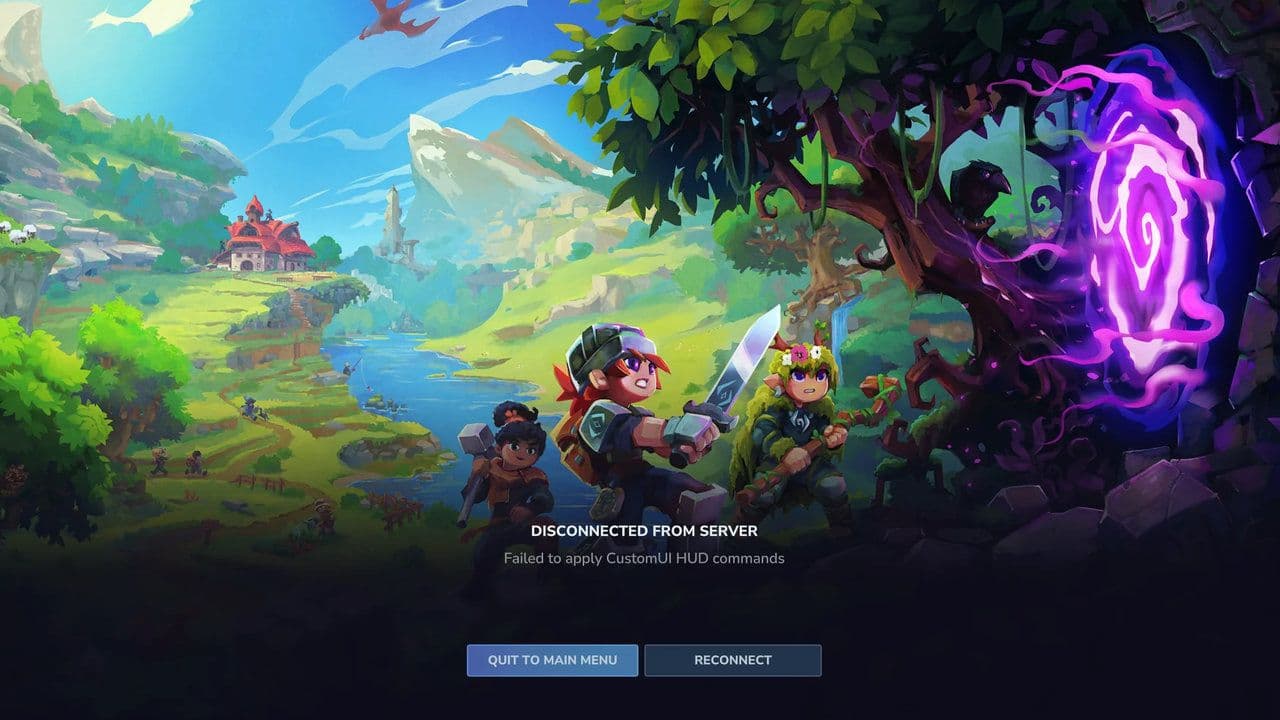
How to fix the Hytale failed to apply CustomUI HUD commands error
Here are the possible workarounds you can use to fix Hytale failed to apply CustomUI HUD commands error:
Step 1: Check the .ui file for errors (Most common cause)
The majority of cases are caused by mistakes inside the UI file itself. Here is what to check carefully:
- Missing or extra brackets
- Incorrect element names
- Invalid properties
- Referencing UI elements that do not exist
- Every UI element used by a HUD command must exist in the .ui file and must have a valid ID.
If even one property is malformed, Hytale may fail silently and trigger the error.
Step 2: Verify UI file location (Critical)
Even a perfect UI file will fail if it is in the wrong folder. Your custom UI files must be placed in:
- resources/Common/UI/Custom/
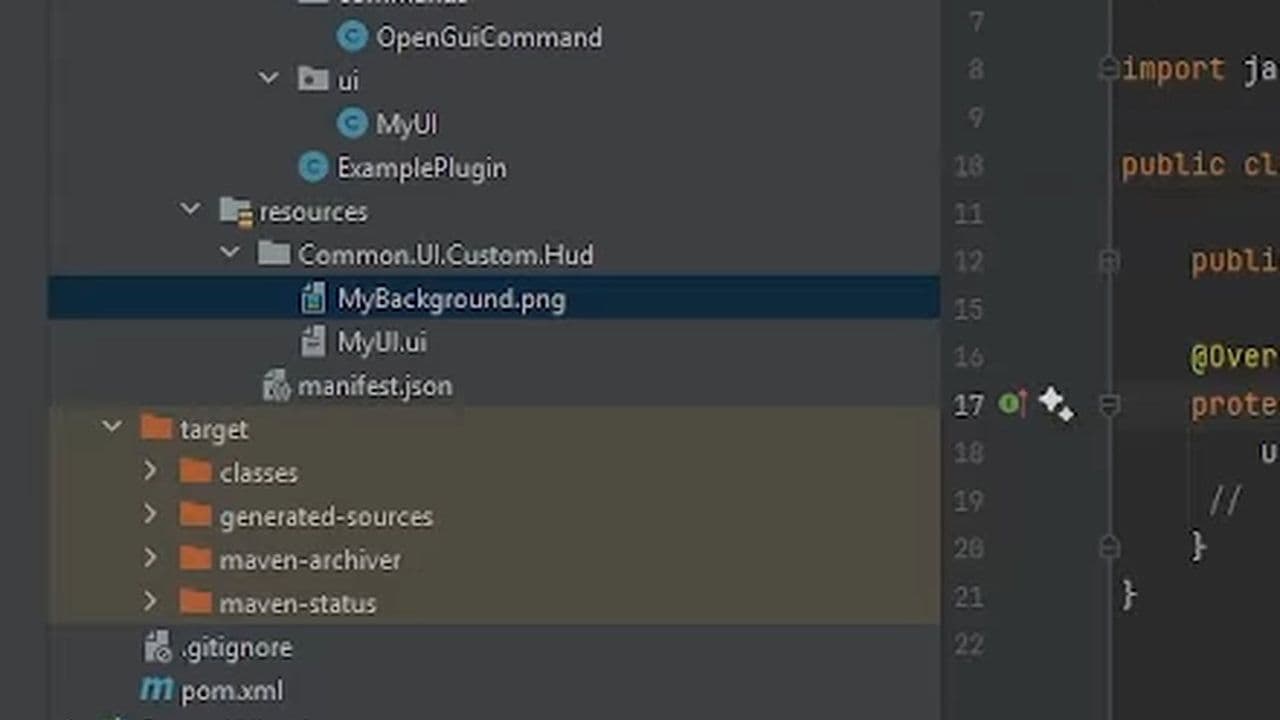
Common mistakes:
- Putting the file in UI/ instead of UI/Custom/
- Misspelling folder names
- Incorrect capitalization (important on Linux servers)
If Hytale cannot find the UI file, HUD commands will fail immediately.
Step 3: Check manifest.json configuration
Your plugin’s manifest.json controls whether resource files load at all. Make sure this line exists and is set correctly:
- "IncludesAssetPack": true
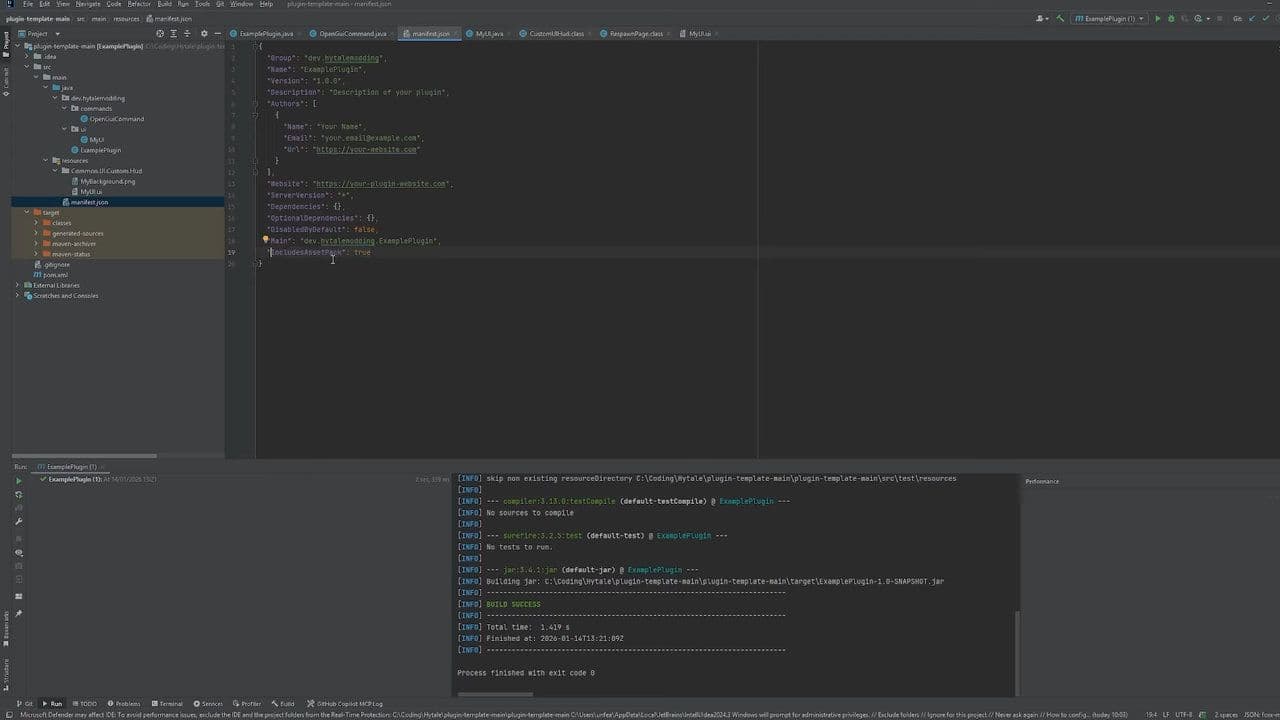
If this is missing or set to false, Hytale will not load your UI resources, even if everything else is correct.
Step 4: Enable Diagnostic Mode for better error details
Hytale includes a Diagnostic Mode that provides clearer error messages. Here is how to enable Diagnostic Mode in Hytale
- Open Settings
- Go to General
- Enable Diagnostic Mode
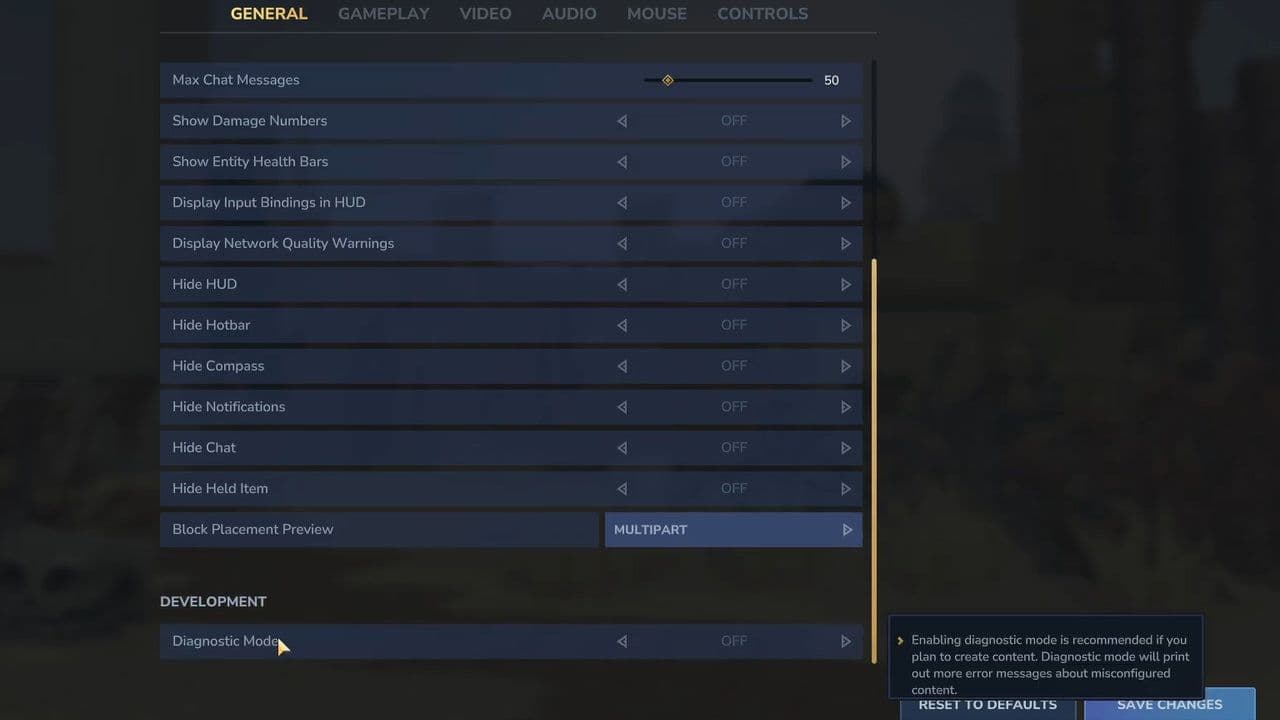
Once enabled, the game may show:
- The exact UI file causing the issue
- Line numbers where parsing failed
- Missing UI element IDs
This is extremely useful when fixing the Hytale failed to apply CustomUI HUD commands error.
Step 5: Check for HUD mod conflicts
Hytale does not support multiple HUDs by default. If more than one plugin or mod tries to control the HUD, conflicts can occur.
Symptoms of HUD conflicts
- HUD works when one mod is disabled
- Error appears only when multiple mods are active
- UI loads inconsistently
What to do
- Temporarily disable other HUD or UI-related mods
- Test your HUD alone
- If needed, use a HUD compatibility solution that allows multiple HUD layers
Step 6: Test with a minimal UI (Isolation method)
If the Hytale failed to apply CustomUI HUD commands error still occurs; isolate the problem.
- Replace your UI file with a very simple test UI
- Load the game and apply HUD commands
- If it works, your setup is correct
- Gradually re-add UI elements until the error returns
This approach quickly identifies:
- Broken elements
- Invalid styles
- Unsupported properties
Step 7: Check Case Sensitivity and Naming
Hytale treats UI paths and IDs as case-sensitive on many systems. Double-check:
- File names
- Folder names
- UI element IDs
- References in plugin code
StatusText and statustext are not the same.
Step 8: Rebuild resource packs if needed
Sometimes cached or corrupted asset packs cause the Hytale failed to apply CustomUI HUD commands error.
- Delete generated resource packs
- Rebuild the plugin
- Restart the server or client
This ensures Hytale loads a fresh version of your UI assets.
Teach your HUD to behave again
By carefully checking your UI file, confirming folder paths, enabling Diagnostic Mode, and testing with a minimal HUD, you can resolve the issue efficiently and permanently.
If the Hytale failed to apply CustomUI HUD commands error continues, contact Hytale support.
That’s all for today! Looking for more? Check out these:
All Related Guides
 Best Hytale plugins and how to create yoursExplore the best Hytale plugins for servers, from permissions and shops to NPCs, kits, performance tools, and ...
 Meet the Hytale Pokemon mod Pokefind: Release date, gameplay and moreGet the latest details on the Hytale Pokemon mod Pokefind, including gameplay plans, server support, release s...
 Can you create an infinite water source in Hytale?Learn if a Hytale infinite water source is possible, why the 2x2 trick fails, and which mods can help you get ...
 Who is The Hedera in Hytale Endgame & QoL mod and how to defeat itFind out how to reach and defeat The Hedera in Hytale Endgame & QoL mod, including boss phases, best prep, and...
 How to heal in Hytale (Food, potions, totem & more)How to heal in Hytale: food, potions, totem, regen buffs, best methods, and full survival guide explained....
 Hytale Update 4 (Part 5): What’s new?Hytale Update 4 Part 5 adds 500+ new blocks, system upgrades, bug fixes, and major improvements before full re...
 All Hytale signs & how to craft themDiscover all 29 Hytale signs, their crafting recipes, and how to use them. Learn sign mechanics, placement tip...
 When will Hytale fully release? (2026 update)When will Hytale fully release? Learn the expected 2026–2027 timeline, Early Access plans, and what must happe...
- 1
- 2
- 3
- 4
- 5
- 6
- 7
- 8