How to fix the Hytale failed to connect to server error
Fix Hytale server connection issues fast.
The Hytale failed to connect to server error is one of the most common network-related problems players face when trying to join multiplayer servers. This error prevents the game client from establishing a stable connection with the server, making it impossible to play online. While the message itself is vague, the underlying causes are usually identifiable and fixable.
This Hytale guide explains why the failed to connect to server error happens and provides clear, step-by-step solutions that work for both beginners and advanced users.
What does the Hytale failed to connect to server error mean?
When Hytale shows this error, it means the game client cannot communicate with the server. This communication failure may occur at different stages of the connection process, such as authentication, data transfer, or handshake validation.
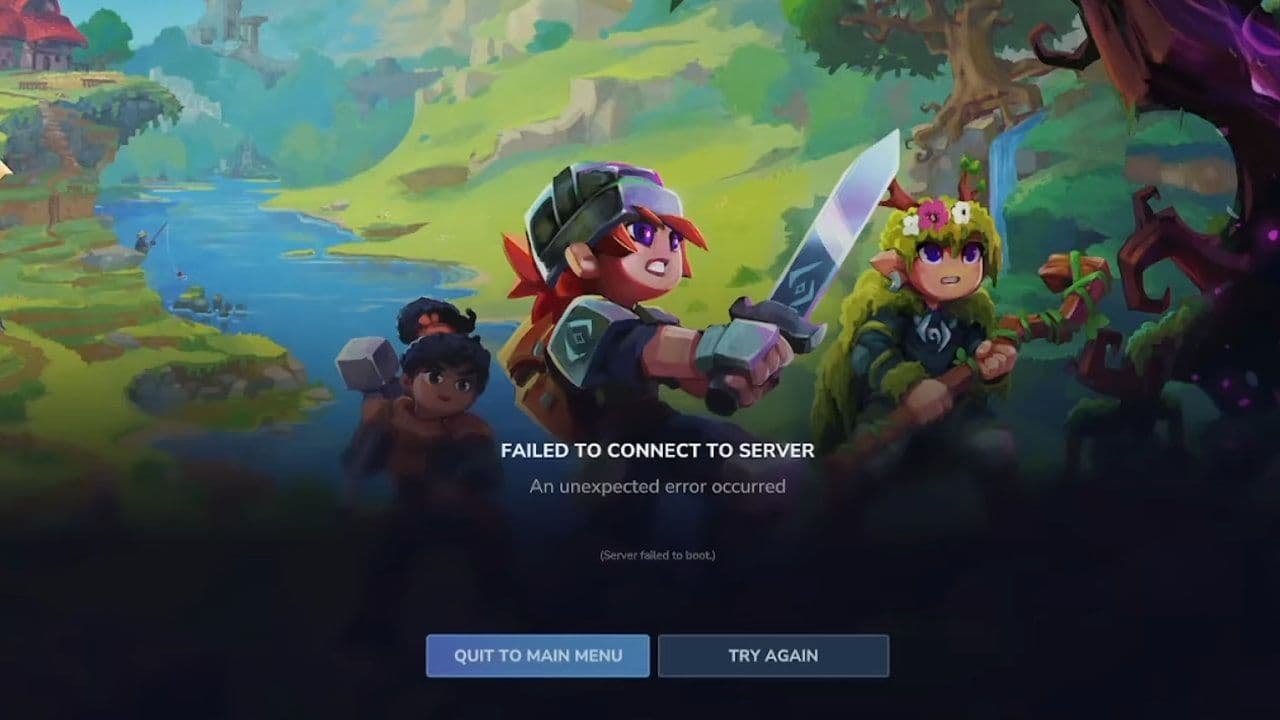
The issue can originate from:
- Your local network
- Your computer or game files
- Your router or firewall
- The game server itself
Understanding this distinction is crucial because not every fix applies to every situation.
How to fix the Hytale failed to connect to server error
Before applying fixes, it helps to understand the most frequent reasons this error occurs:
- Server downtime or maintenance
- Incorrect server address or port
- Firewall or antivirus blocking the connection
- Router misconfiguration
- Unstable or slow internet connection
- VPN or proxy interference
- Outdated network drivers
- Corrupted game files
- DNS or network cache issues
Now, let’s take a closer look at workarounds.
Check if the Hytale server is online
Always start here. If the server you are trying to join is offline, no client-side fix will work.
What to do:
- Check the server’s official Discord, website, or social media
- Ask other players if they can connect
- Try joining a different server
If multiple servers fail to load, the issue is likely on your end.
Restart the game, PC, and router
This simple step resolves many temporary network issues.
- Close Hytale completely
- Restart your computer
- Power off your router for 30 seconds
- Turn the router back on and reconnect
Temporary routing errors or memory conflicts often cause the Hytale failed to connect to server error, and restarts clear them.
Check your Internet connection stability
Even if your internet “works,” packet loss or unstable latency can block game connections.
- Run a speed test
- Avoid downloads or streaming while playing
- Use a wired Ethernet connection instead of Wi-Fi
Online games like Hytale require stable connections more than high speeds.
Allow Hytale through the firewall and antivirus
Firewalls frequently block unfamiliar game traffic.
Windows Firewall fix:
- Open Windows Security
- Go to Firewall & Network Protection
- Click Allow an app through firewall
- Locate Hytale
- Enable both Private and Public access
If Hytale is missing:
- Click Allow another app
- Add the Hytale executable manually
Antivirus software:
- Temporarily disable it and test the connection
- If the error disappears, add Hytale as an exception

Disable VPNs and proxies
VPNs often cause the Hytale failed to connect to server error because:
- Servers block VPN IPs
- VPNs increase latency
- Routing conflicts occur
Fix:
- Disable your VPN completely
- Restart the game
- Reconnect without the VPN
If you must use a VPN, try a different region or provider.
Enable UPnP on your router
UPnP (Universal Plug and Play) allows games to open required ports automatically.
How to enable UPnP:
- Open your router’s admin panel (usually 192.168.1.1)
- Log in using your router credentials
- Find UPnP under Advanced or Network settings
- Enable it
- Save and restart the router
This step alone fixes many multiplayer connection errors.
Manually forward ports (Advanced fix)
If UPnP does not work, manual Hytale port forwarding may be required.
Typical Hytale ports:
- UDP: 25565 (or server-specific ports)
Steps:
- Open your router admin panel
- Go to Port Forwarding
- Add a new rule:
- Name: Hytale
- Protocol: UDP
- Internal IP: Your PC’s local IP
- External/Internal Port: 25565
- Save changes and restart router
This ensures game traffic reaches your computer correctly.

Flush DNS and reset network settings
Corrupted DNS cache can cause routing failures.
Windows commands:
Open Command Prompt (Admin) and run:
- ipconfig /flushdns
- ipconfig /release
- ipconfig /renew
- netsh winsock reset
Restart your PC afterward.
Update network drivers
Outdated drivers can break game connections. Here is how to update:
- Press Windows + X
- Open Device Manager
- Expand Network adapters
- Right-click your adapter → Update driver
- Select Search automatically
Restart after updating.
Update Hytale
If the game files are corrupted or outdated, connection errors may occur. Here is how to update:
- Open the launcher
- Install all available updates
Reinstall (last resort)
- Uninstall Hytale
- Delete leftover folders (e.g., %AppData%\Hytale)
- Reinstall using the official launcher
When the problem is not on your side
Sometimes the Hytale failed to connect to server error is caused by:
- Server misconfiguration
- Host ISP outages
- Temporary backend issues
In these cases:
- Contact the server owner
- Wait for official updates
- Try again later
The Hytale failed to connect to server error may look frustrating, but it is rarely permanent. In most cases, the issue is caused by firewall settings, router configuration, or unstable networks — all of which can be fixed using the steps above.
Start with simple solutions first, then move to advanced fixes only if needed. This structured approach saves time and prevents unnecessary changes.
That’s all for today! Looking for more? Check out these:
All Related Guides
 Best Hytale plugins and how to create yoursExplore the best Hytale plugins for servers, from permissions and shops to NPCs, kits, performance tools, and ...
 Meet the Hytale Pokemon mod Pokefind: Release date, gameplay and moreGet the latest details on the Hytale Pokemon mod Pokefind, including gameplay plans, server support, release s...
 Can you create an infinite water source in Hytale?Learn if a Hytale infinite water source is possible, why the 2x2 trick fails, and which mods can help you get ...
 Who is The Hedera in Hytale Endgame & QoL mod and how to defeat itFind out how to reach and defeat The Hedera in Hytale Endgame & QoL mod, including boss phases, best prep, and...
 How to heal in Hytale (Food, potions, totem & more)How to heal in Hytale: food, potions, totem, regen buffs, best methods, and full survival guide explained....
 Hytale Update 4 (Part 5): What’s new?Hytale Update 4 Part 5 adds 500+ new blocks, system upgrades, bug fixes, and major improvements before full re...
 All Hytale signs & how to craft themDiscover all 29 Hytale signs, their crafting recipes, and how to use them. Learn sign mechanics, placement tip...
 When will Hytale fully release? (2026 update)When will Hytale fully release? Learn the expected 2026–2027 timeline, Early Access plans, and what must happe...
- 1
- 2
- 3
- 4
- 5
- 6
- 7
- 8