Hytale port forwarding: How to guide
ON THIS PAGE:

Port forwarding looks intimidating, but Hytale keeps the network side simple. You open one UDP port on your router, you allow the same port in your firewall, and you confirm the server listens on the correct address. After that, friends can join from outside your home network.
This guide focuses on the default Hytale server setup, which uses QUIC over UDP on port 5520. That detail matters because many home guides still push TCP rules first, and that approach can waste time with Hytale.
Port forwarding for Hytale in plain terms (UDP and QUIC in one place)
Port forwarding tells your router where to send inbound game traffic from the internet. Without it, your router drops that traffic because it has no rule that maps the connection to your server PC.
Hytale also runs game traffic over QUIC on UDP, so you must forward UDP, not TCP. If you only open TCP, players can still time out.
Check the server port and bind address before you touch the router
Hytale servers listen on UDP 5520 by default. Hytale also lets you change the port with the --bind argument.
Use these quick checks:
- Keep the default port when you run a first server. It reduces mistakes.
- If you change ports, forward and allow the new UDP port everywhere.
Example launch pattern you can adapt:
- Default style: --bind 0.0.0.0:5520
- Custom style: --bind 0.0.0.0:25565
Give your server PC a stable local IP address
Port forwarding only works when the router points to the correct device. Many routers assign new local IPs after reboots, so a working port forward can break overnight.
Pick one method:
- DHCP reservation in your router (recommended): Your router keeps the same local IP for your server PC.
- Static IP on the PC: You set the IP on Windows or Linux and you match your router network range.
Write down these values before you proceed:
- Server PC local IP (example: 192.168.1.50)
- Router gateway (example: 192.168.1.1)
Create the port forward rule on your router (UDP 5520)
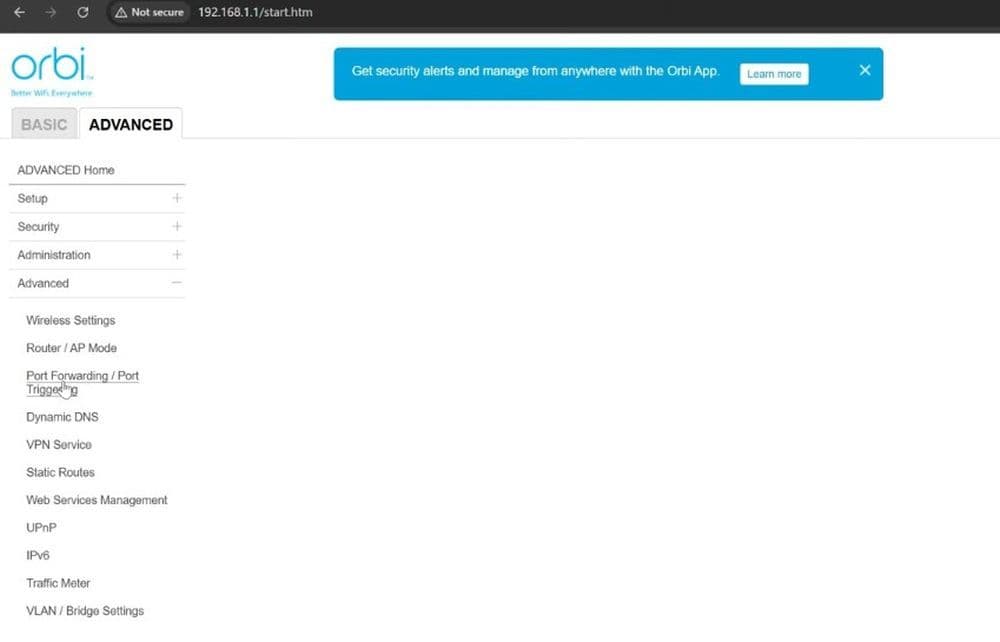
Every router UI looks different, but the rule fields stay similar. Look for menus like Port Forwarding, NAT, Virtual Server, or Gaming.
Create one rule with these settings:
- Protocol: UDP (or UDP only)
- External port: 5520
- Internal port: 5520
- Destination IP: your server PC local IP
- Name: Hytale (any label works)
Avoid these common mistakes:
- You pick TCP instead of UDP.
- You forward to the wrong local IP.
- You save the rule but the router requires an extra “Apply” step.
Hytale only needs UDP forwarding for game traffic.
Allow UDP 5520 in your firewall (Windows and Linux)
Your router can forward traffic and your firewall can still block it. You need an inbound allow rule for the same UDP port.
Windows Firewall (PowerShell)
Run PowerShell as Administrator and add an inbound rule:
- New-NetFirewallRule -DisplayName "Hytale Server" -Direction Inbound -Protocol UDP -LocalPort 5520 -Action Allow

Linux (UFW)
If you use UFW:
- sudo ufw allow 5520/udp
These examples match the server networking requirements for UDP 5520.
Test the connection from outside your home network
A local test does not prove port forwarding. Your router handles local traffic differently, so you need a true external test.
Use one of these methods:
- Turn off Wi-Fi on your phone and use mobile data.
- Ask a friend to connect from their home network.
Connect with:
- Your public IP and port: your.public.ip:5520
- If you changed the port, use your custom port instead.
Tip: Many “port checker” websites focus on TCP tests. UDP game ports often fail those checks even when everything works. Use a real Hytale connection test when possible.
Fix the most common Hytale port forward failures
Wrong protocol or wrong port
Use UDP. Keep port 5520 for your first run. Then match your router rule, firewall rule, and server bind port.
Double NAT in modem + router setups
Some homes use an ISP modem-router plus a separate Wi-Fi router. Port forwards can fail when the forward sits on the wrong device. Fix options:
- Enable bridge mode on the ISP device, then let your router hold the public IP.
- Create the same UDP forward on the ISP device and on your router.
Don’t forget to check out our guide on how to fix Hytale’s NAT type restricted error!
The server binds to the wrong interface
Set --bind 0.0.0.0:5520 so the server listens on all network interfaces. Then the router can reach it.
Know when port forwarding cannot work (CGNAT)
Some ISPs use carrier-grade NAT (CGNAT). CGNAT can block inbound connections even when you set perfect port forwards, because the ISP does not assign you a unique public IPv4 address.
Practical paths that solve it:
- Ask your ISP for a public IPv4 address or a static IP.
- Run the server on a VPS or a dedicated host.
- Use a tunnel service that provides an external endpoint.
More Hytale guides for you to check out:
- Is Hytale multiplayer? Learn how to play with friends
- Hytale portal guide: Learn how to craft Hytale teleporters & fast travel
- Fixing the Hytale NAT type restricted error: How to change NAT type
- How to feed, tame & breed Hytale animals: Ride horses and learn what’s possible
Featured Image Credit: Hytale
All Related Guides
 Best Hytale plugins and how to create yoursExplore the best Hytale plugins for servers, from permissions and shops to NPCs, kits, performance tools, and ...
 Meet the Hytale Pokemon mod Pokefind: Release date, gameplay and moreGet the latest details on the Hytale Pokemon mod Pokefind, including gameplay plans, server support, release s...
 Can you create an infinite water source in Hytale?Learn if a Hytale infinite water source is possible, why the 2x2 trick fails, and which mods can help you get ...
 Who is The Hedera in Hytale Endgame & QoL mod and how to defeat itFind out how to reach and defeat The Hedera in Hytale Endgame & QoL mod, including boss phases, best prep, and...
 How to heal in Hytale (Food, potions, totem & more)How to heal in Hytale: food, potions, totem, regen buffs, best methods, and full survival guide explained....
 Hytale Update 4 (Part 5): What’s new?Hytale Update 4 Part 5 adds 500+ new blocks, system upgrades, bug fixes, and major improvements before full re...
 All Hytale signs & how to craft themDiscover all 29 Hytale signs, their crafting recipes, and how to use them. Learn sign mechanics, placement tip...
 When will Hytale fully release? (2026 update)When will Hytale fully release? Learn the expected 2026–2027 timeline, Early Access plans, and what must happe...
- 1
- 2
- 3
- 4
- 5
- 6
- 7
- 8