Minecraft Controlify Mod: How to install and use
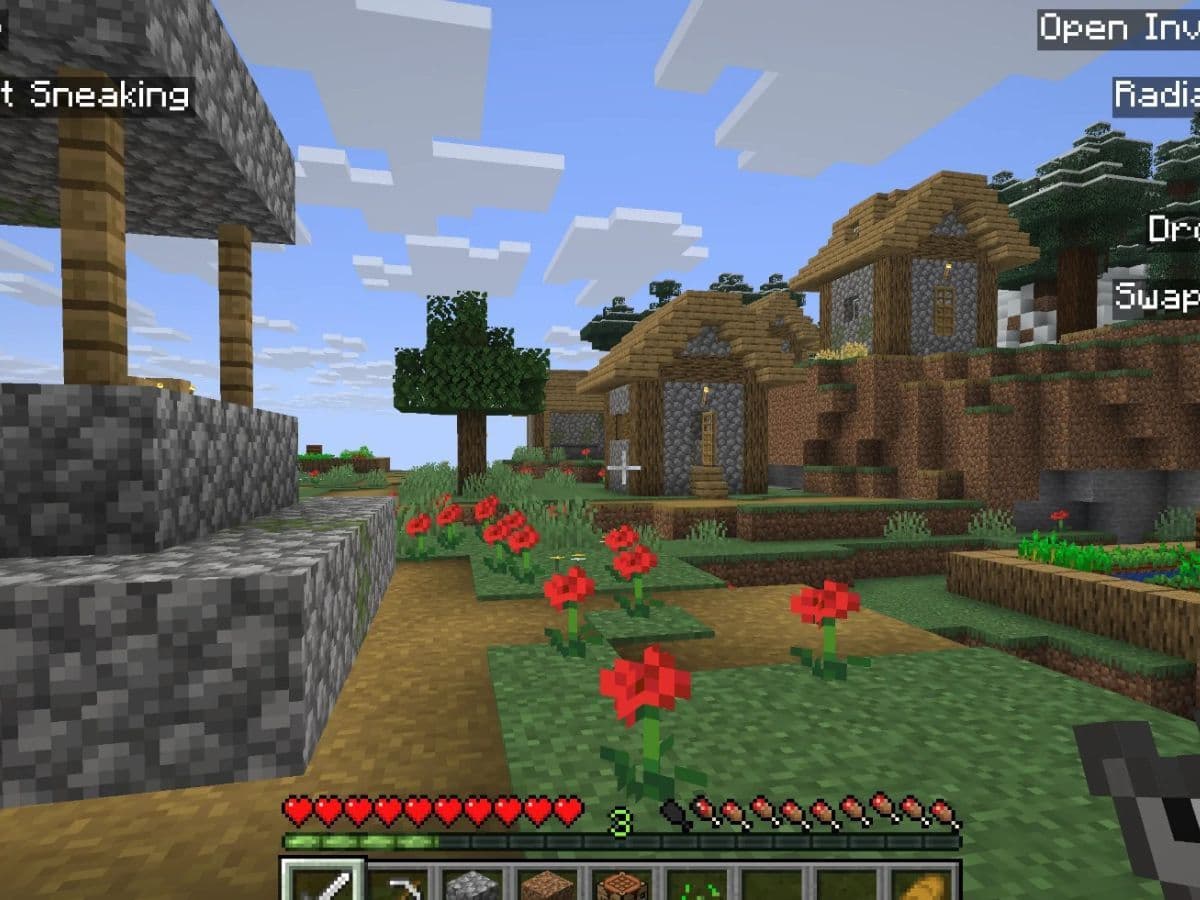
Minecraft Java Edition has always been designed for keyboard and mouse. Players who wanted to use a controller often had to rely on mods that were either unstable or incomplete. Controlify changes that. It gives Java Edition players a smooth, console-like controller experience. How? Here is a closer look at what it is, how to download, install and use it in Minecraft!
What is the Controlify Mod?
Controlify is a Minecraft Java Edition mod that brings complete controller support. It allows players to use different gamepads, including Xbox, PlayStation, Switch, and Steam Deck. The goal is to create a controller experience that is as comfortable as Bedrock Edition.
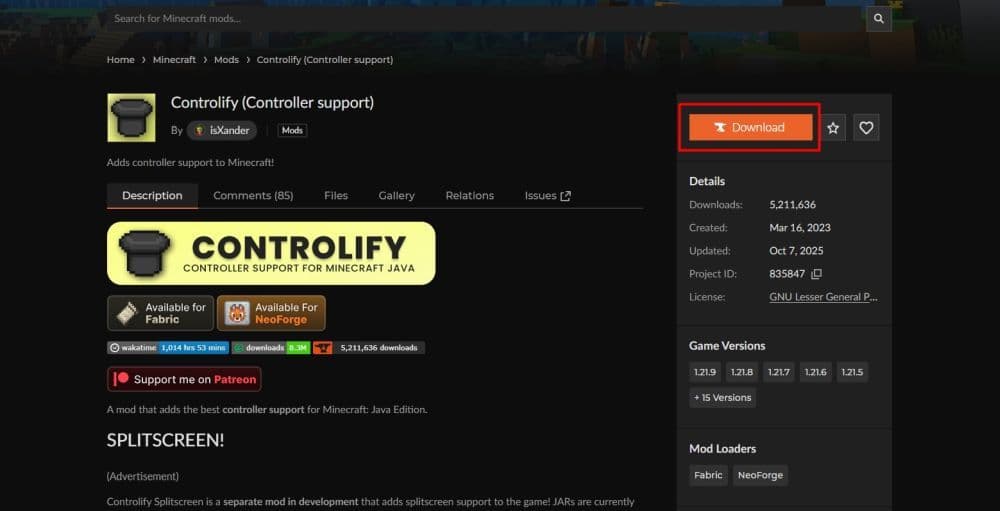
The mod supports both Fabric and NeoForge loaders. It works on Minecraft versions 1.19.4 and newer, and you can download it safely from Modrinth or CurseForge. It has become one of the most popular controller mods due to its stability, ease of use, and rich feature set.
Just like other Minecraft modes like ProjectE, Waifucraft, or Werewolves, Controlify adds various features on top of the main focus of controller support. Here are some of those features:
- Full Controller Support: Works with Xbox, PlayStation, and Switch controllers.
- Vibration Feedback: Controllers vibrate when you mine blocks, take damage, or interact with the world.
- Gyroscope Aiming: Adds motion-based camera control for supported controllers.
- Menu Navigation: You can move through menus, inventories, and settings without using a mouse.
- On-Screen Keyboard: Lets you chat or rename items with your controller.
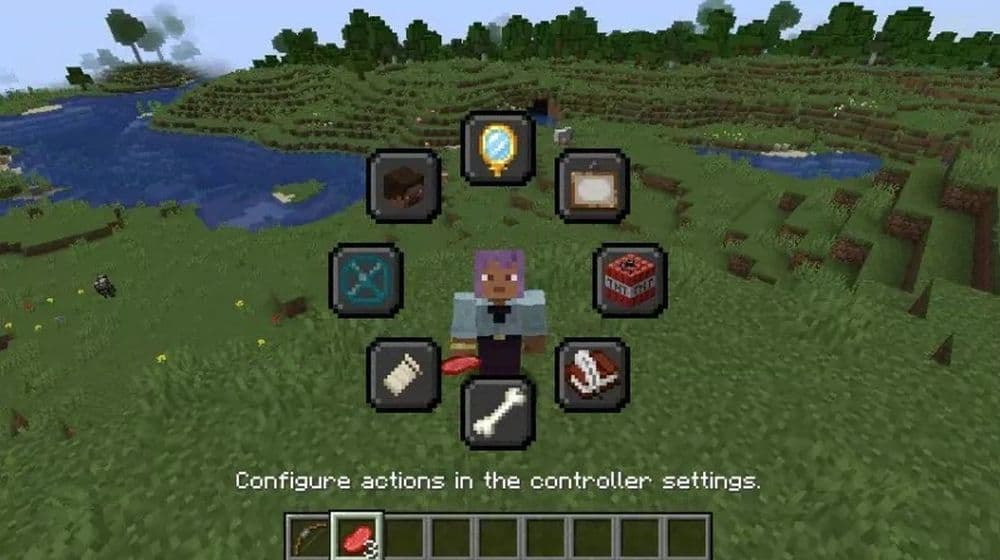
- Radial Menu: Quickly access tools, commands, or emotes.
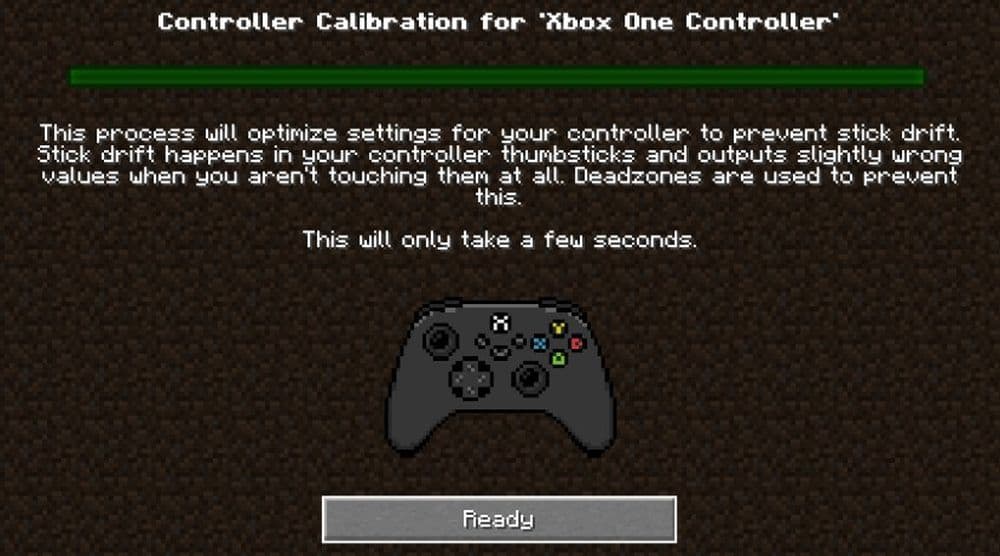
- Deadzone Calibration: Adjusts stick sensitivity for accurate movement.
- Controller Detection: Shows correct button icons based on your controller type.
These features make Controlify feel like an official controller mode rather than an add-on. It helps players switch from console to PC easily and improves accessibility for everyone.
How to download and install the Minecraft Controlify mod
Installing Controlify is simple, but you must follow the correct steps.
- Check your Minecraft version: It must be version 1.19.4 or newer.
- Install a mod loader: Use Fabric or NeoForge.
- Download the mod: Visit Modrinth or CurseForge.
- Add dependencies: Some versions require Fabric API and YetAnotherConfigLib (YACL).
- Place the files: Copy the mod .jar files into your Minecraft mods folder.
- Launch Minecraft: Use the Fabric or NeoForge profile in your launcher.
- Check installation: Open the Mods menu and confirm that Controlify appears.
If the mod does not load, check that your Minecraft version and mod loader match.
How to set up and use the Minecraft Controlify mod
Once you install Controlify, connect your controller and configure your settings.
- Connect your controller through USB or Bluetooth before opening Minecraft.
- Open Options → Controls → Controlify Settings in the game.
- Adjust stick sensitivity and deadzones to prevent drift.
- Customize button layouts for actions like jump, sprint, and crouch.
- Turn on vibration and gyroscope control if your device supports them.
- Use the on-screen keyboard for chat or item naming.
- Try the radial menu to access quick tools or commands.
After saving changes, test your setup in a new world to see how the controls feel. You can always return to the settings menu to make further adjustments.
How to fix Controlify errors
Since this is not an official mod, you may encounter some issues while playing or installing. Here are some of the common problems and how to fix them:
Controller not detected
If Controlify does not detect your controller, check the connection first. Plug it in before launching Minecraft, or re-pair it if using Bluetooth. Updating drivers can also help. Restarting Minecraft after reconnecting often solves the problem.
Input delay or lag
Lag usually occurs when other programs or background mods consume system resources. Close unnecessary applications and limit active mods. If the issue continues, reduce the game’s render distance or frame rate settings.
Unresponsive GUI
When menus or buttons do not react, disable other mods temporarily. Some mods modify interfaces, which can interfere with Controlify’s navigation system. Re-enable them one by one to identify the conflict.
Steam Deck control issues
If you play on Steam Deck and inputs feel duplicated or ignored, disable Steam Input from the settings menu. Steam Input can override Controlify’s built-in mapping, but turning it off restores full functionality.
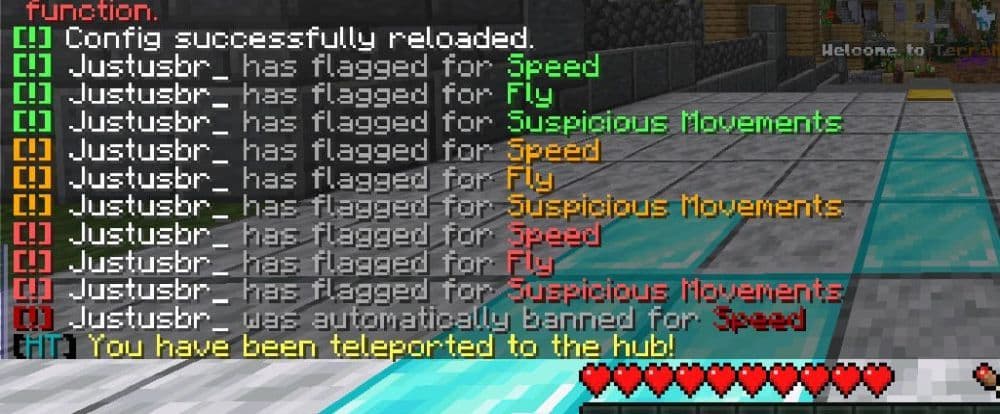
Anti-cheat warnings on servers
Certain anti-cheat systems misread analog stick motion as automated movement. If this happens, ask the server owner for a whitelist or explain that you use Controlify. Most servers will approve it once they understand the cause.
Version mismatch errors
When Minecraft crashes or Controlify fails to load, make sure your game version matches the mod version. Using a different Fabric or NeoForge build can create conflicts. Reinstalling both the mod and its dependencies often fixes the issue.
If the problem remains after these steps, reinstall Controlify completely and restart your device. This usually resolves undetected errors or corrupted configuration files.
Controlify gives Java Edition a controller experience that feels natural and complete. It makes Minecraft easier to play on the couch, on handheld devices, or for players who prefer controllers. It also helps players with accessibility needs by offering customizable layouts and easier controls.
You can download it for free from trusted mod sites and enjoy a new way to play Minecraft Java Edition. For more Minecraft guides:
- Minecraft Serene Seasons Mod: A deep dive into seasonal dynamics and gameplay
- Here is a closer look at the free Japanese government Minecraft map
- Minecraft Movie's Post-Credits Scene: Implications for the Minecraft Universe
- Minecraft blast furnace recipe: How to make a blast furnace in Minecraft
- How to make a stone cutter in Minecraft: Complete recipe
Featured Image Credit: Controlify
All Related Guides
 How to breed frogs in MinecraftBreed frogs in Minecraft with this simple guide to slimeballs, frogspawn, tadpoles, frog variants, and common ...
 Best Minecraft PS5 seeds in 2026 - Version 26.2Discover the best Minecraft PS5 seeds in 2026, with strong Bedrock worlds for survival and creative projects....
 Best Minecraft PS5 seeds in 2026 - Version 26.2Find the best Minecraft PC seeds in 2026, with great worlds for survival, villages, building, exploration, and...
 Top 5 Minecraft 26.1 seeds you must try todayFind the best Minecraft 26.1 seeds for villages, rare biomes, island survival, and creative builds, with seed ...
 How to turn on keep inventory in MinecraftUse the correct Keep Inventory command in Minecraft and learn how it works across Java, Bedrock, servers, and ...
 How to breed tropical fish in MinecraftCan you breed tropical fish in Minecraft? Here is the clear answer, plus how to catch, move, and use tropical ...
 Minecraft Chaos Cubed guide: Everything new in the 2026 updateExplore everything new in Minecraft Chaos Cubed, including Sulfur Caves, Sulfur Cubes, geysers, new blocks, co...
 How to change render distance in MinecraftChange render distance in Minecraft with simple steps for Java and Bedrock, plus tips to balance better visibi...
- 1
- 2
- 3
- 4
- 5
- 6
- 7
- 8
- 9